Refer to the following sections for information about using VisionPro with Visual Studio
This topic contains the following sections.
Visual Studio allows you to select the target .NET Framework when creating a project.
- Refer to the topic About this Release for supported .NET frameworks and Visual Studio compilers for this release.
- Refer to the documentation for your version of Visual Studio for information on targeting the desired .NET Framework.
If you target an unsupported .NET framework, VisionPro generates the following compilation error:
The type or namespace name 'Cognex' could not be found (are you missing a using directive or an assembly reference?)
Refer to the documentation for your version of Visual Studio for information on retargeting an existing application to a supported .NET Framework.
Cognex recommends the following to simplify the process of redistributing VisionPro dependencies when you deploy your finished vision application:
Add the following to your Visual Studio application App.config file:
<configuration> <runtime> <assemblyBinding xmlns="urn:schemas-microsoft-com:asm.v1"> <probing privatePath="VisionProDependencies"/> </assemblyBinding> </runtime> </configuration>Add the following post build steps to your Visual Studio project file:
cd $(TargetDir)
if exist VisionProDependencies\ (rmdir VisionProDependencies)
mklink /D VisionProDependencies "$(VPRO_ROOT)\bin"
VisionPro supports creating vision applications using Microsoft Visual Studio and Microsoft Windows Forms (WinForms) libraries. VisionPro also allows you to use the full set of VisionPro tool edit controls in your WinForms application.
When you install VisionPro, the installer allows you to run a separate utility to populate the Designer tool palette in Visual Studio with the latest set of VisionPro edit controls. The installer enables the option by default:
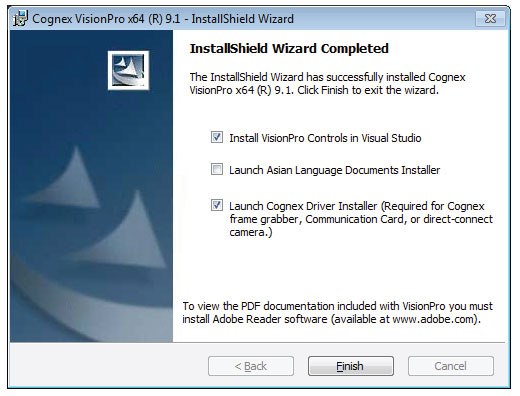
If you did not allow the VisionPro Edit Control extension to run during the installation, you can launch it anytime later by running the extension package [VPRO32_ROOT]\bin\VisionProEditControl.vsix. The wizard detects which versions of Visual Studio are installed and supported in this release:
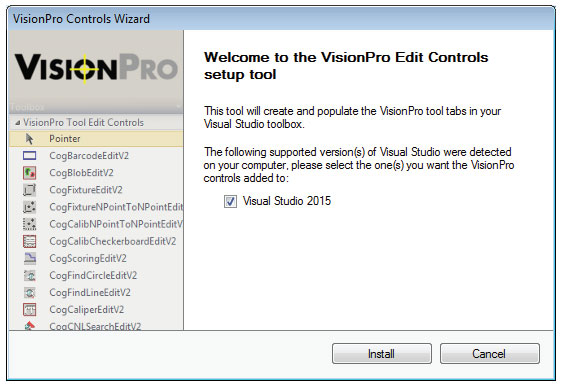
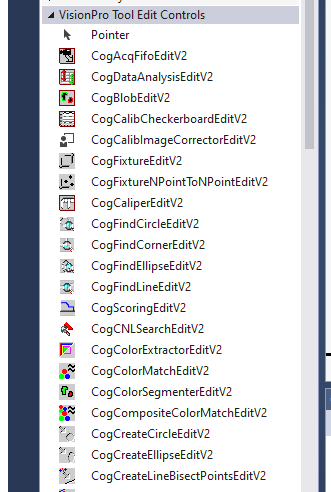
See the topic Adding a Control for more information on this VisionPro edit control wizard. After it executes the VisionPro tool edit controls can be used in Visual Studio Designer:
If you plan to create a Visual Studio application that uses tool edit controls, Cognex recommends you create a WinForms application and not a Windows Presentation Foundation (WPF) application. VisionPro tool edit controls do not appear in the WPF Designer environment, and they cannot be added manually.
Although you cannot create a VisionPro tool edit control programmatically and add it to a WPF window directly, you can host a VisionPro tool edit control inside a WindowsFormHost control. The instantiation and placing of hosted VisionPro tool edit controls must be done programmatically inside of your application.
You may find the following MSDN articles particularly useful when developing Windows Presentation Foundation (WPF) applications that use VisionPro Tool Edit Controls:
- Migration and Interoperability
- Migration and Interoperability How-to Topics
- Walkthrough: Hosting a Windows Forms Control in Windows Presentation Foundation.
By default the VisionPro software documentation is not integrated with Visual Studio. Gaining access to the VisionPro software documentation varies depending on the version of Visual Studio you use. Perform the following steps to gain access to the VisionPro Software Documentation through the Visual Studio development environment:
- Copy the contents of the Doc folder on the installation media to a location on your PC outside of \Program Files, such as the Windows desktop.
- Launch Visual Studio.
- Choose Help->Add and Remove Content.
- From the Installation Source option, choose Disk.
Select the file VisionPro_Documentation.msha from its location on the PC.
Visual Studio makes the VisionPro Software Documentation available for installation.
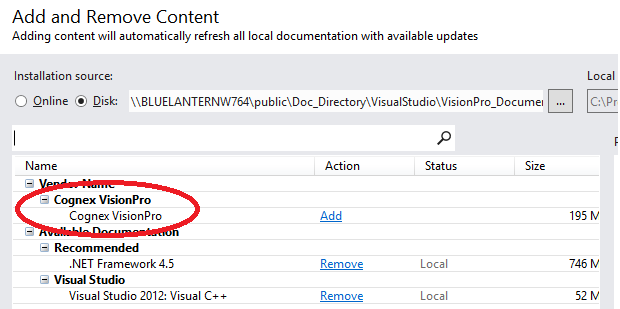
Click Add and Update.
A Security Alert might appear. Click Yes to proceed with the update.
Updating Visual Studio with the documentation can take several minutes.
The sample programs, by default installed at C:\Program Files\Cognex\VisionPro\Samples\Programming, contain C# and VP.NET project and solution files which can be opened with any supported version of Visual Studio. All sample programs have read-only access and must be copied to another directory before use. Cognex recommends you copy any sample programs you wish to use to a directory outside of C:\Program Files.
Cognex recommends you set the Embed Interop Types property to False for all referenced assemblies in your application to prevent compilation warnings such as:
warning CS1762: A reference was created to embedded interop assembly 'c:\Program Files\Cognex\VisionPro\ReferencedAssemblies\Cognex.VisionPro.Interop.Core.dll' because of an indirect reference to that assembly created by assembly 'c:\Program Files\Cognex\VisionPro\ReferencedAssemblies\Cognex.VisionPro.CorePlus.dll'. Consider changing the 'Embed Interop Types' property on either assembly.
The following figure shows the Properties dialog box with the Embed Interop Types property set to False:
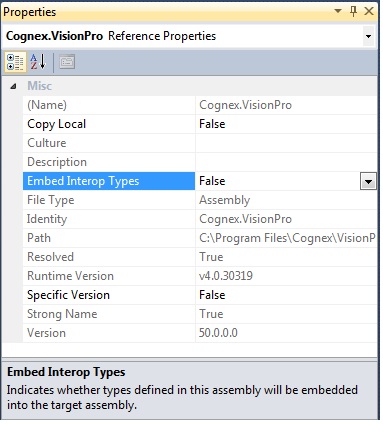
Setting the property to False avoids compilation warnings regarding embedded type information.