Labeling Defects
When the Red Analyze tool is in Supervised Mode, you have to first identify the defects in the Views, and then carefully label the defects.
-
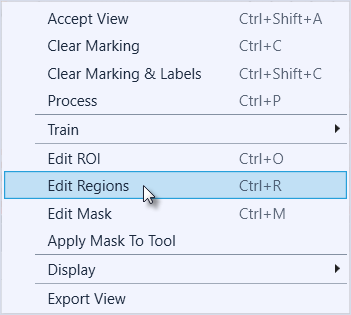
To label defects, right-click within the View and select Edit Region from the menu.
-
This will launch the Edit Regions toolbar at the top of the image.

-
There are three primary ways to draw Regions:
-
The Line tool
This tool allows you to draw free-hand lines over the defects.
-
The Circle tool
With this tool, start at the center of the circular feature and move outward till you have the diameter you desire.
-
The Magic Wand tool
With this tool, if you hold down the Shift key while dragging over the defect area, you can have the tool automatically fill in the area.
When drawing Regions around the defects, try and draw the Region as precisely and consistently as possible. While drawing small amounts of the Region outside of the defect is acceptable, larger areas should be avoided. This can result in the tool thinking that the background has been labeled a defect. Likewise, under filling a defect should also be avoided.
The graphics below illustrate the best methods for drawing Regions around a defect, where the dark grey lines represent the defect, and the red is the Region defining the defect.
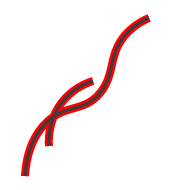

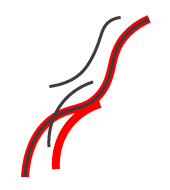
This is the ideal way to draw the Region, with it closely aligned to the defect.
This method encompasses too much of the background, and will result in the tool considering the background as a defect, as well.
This method missed parts of the defect, so the tool will consider the parts not outlined in red as not being a defect.
-
- Once you have carefully and accurately drawn your defect Region, press the Apply button. You must do this on an image by image basis.
- Once you have drawn all the necessary Regions, press the Close button prior to training the tool.