Gallery View
By default, the Result Browser page is in Table View. Switch the Result Browser from Table View to Gallery View using the view controls at the top of the page. Toggle between the two views by clicking on the representative icon.

In Gallery View, the table is replaced by a grid of thumbnail images. All other components remain the same. Similar to the Table View, the Gallery View shows all the triggers within the filtered time range.
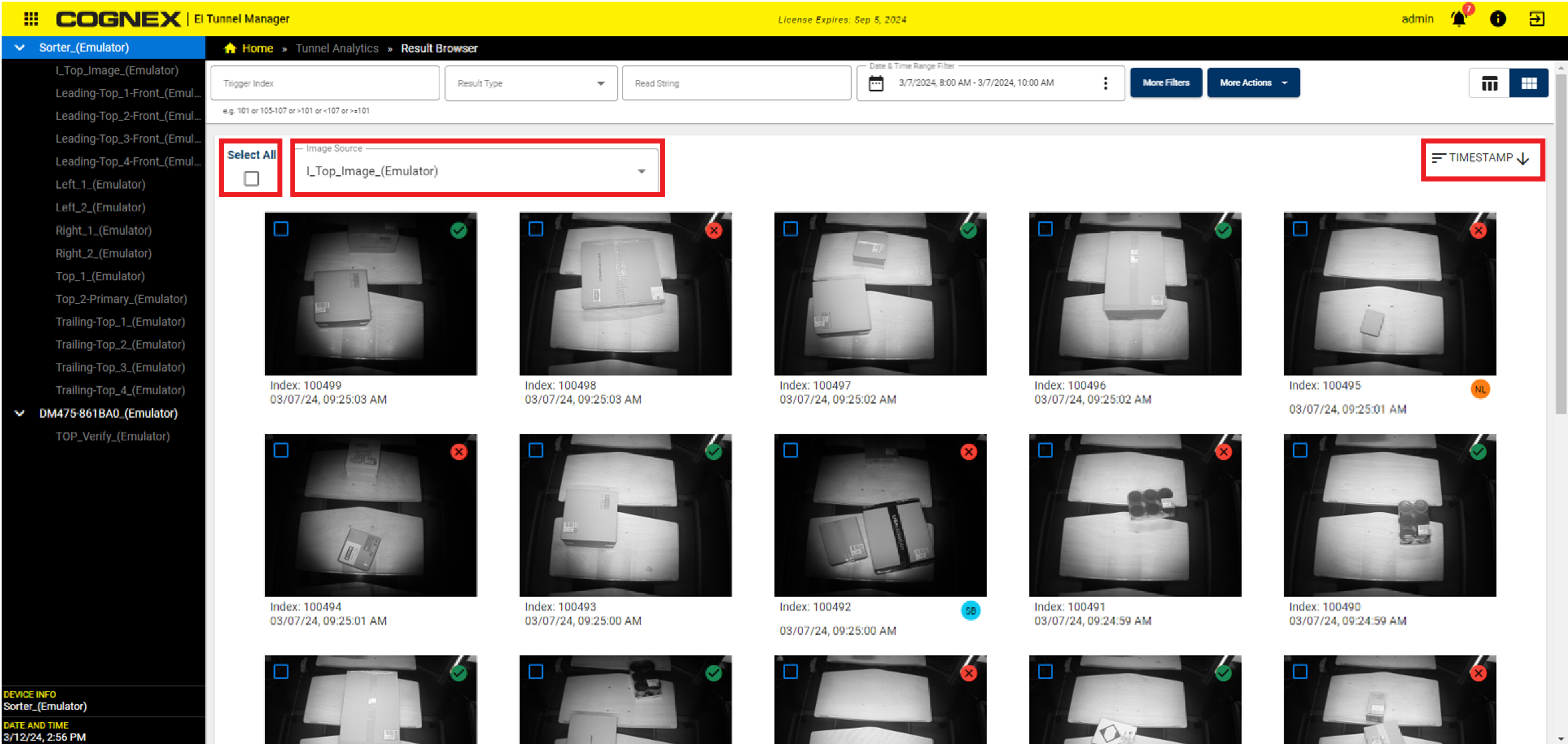
Click the Select All checkbox to select all the items displayed on the current page.
The Image Source dropdown lists all the devices. You can change the device source of the images displayed by selecting a different device name from the list.
The Timestamp sort option allows you to sort the triggers by timestamp in ascending or descending order.
Instead of trigger data shown in the columns of the table, the Gallery View shows a cell for each trigger.
Each cell contains:
-
A single image from the selected device source.
-
A Good Read or No-Read icon (top-right corner).
-
The trigger index.
-
The date and timestamp of the trigger (bottom-left).
-
The data tags assigned to the trigger (bottom-right).
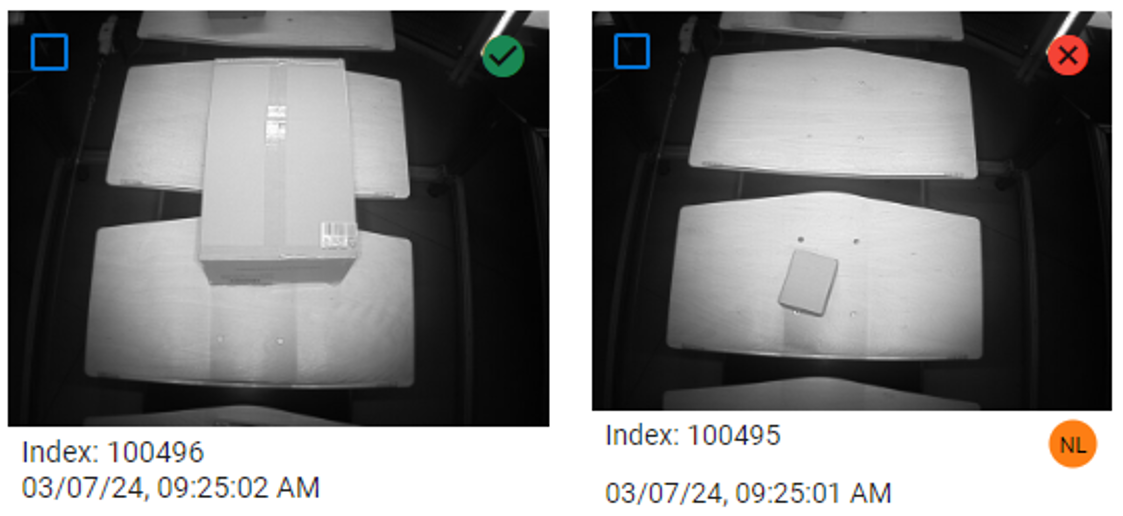
Click on a trigger cell to navigate to the Trigger Review page, which displays the rest of the images and the specific data for that trigger.