Trigger Review
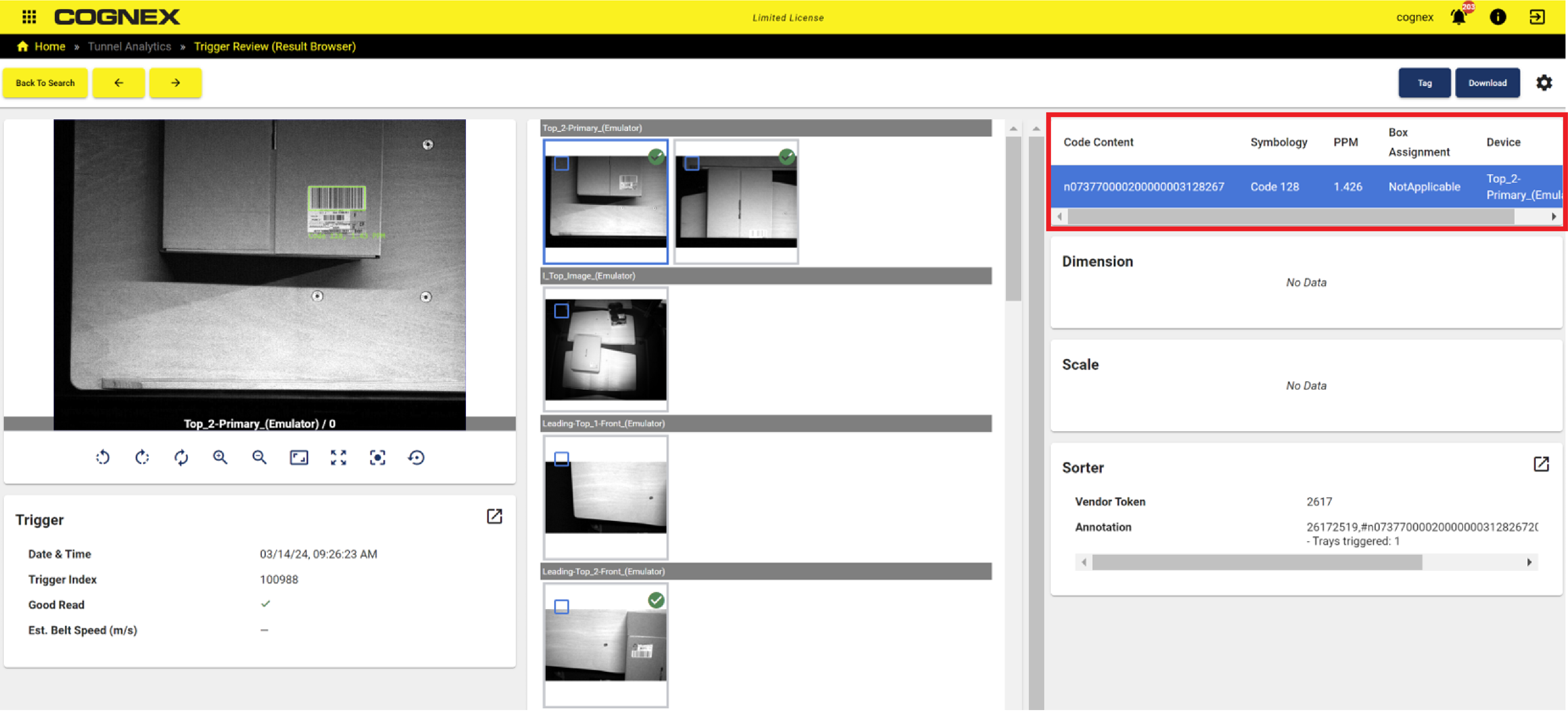
The Trigger Review page shows all the images and data associated with a selected trigger. Navigate to the Trigger Review page by clicking on a table row in Table View or by clicking on a cell in the Gallery View. The Trigger Review page is either in Data View or Image View. To switch between the views, click on the Settings icon in the upper right-hand corner. In the General section of the View Settings menu, select the Data View or Image View icon.
Data View provides expanded data cards which display more of the result data and condense the main image viewer. From Table View, the Trigger Review page is in Data View by default.
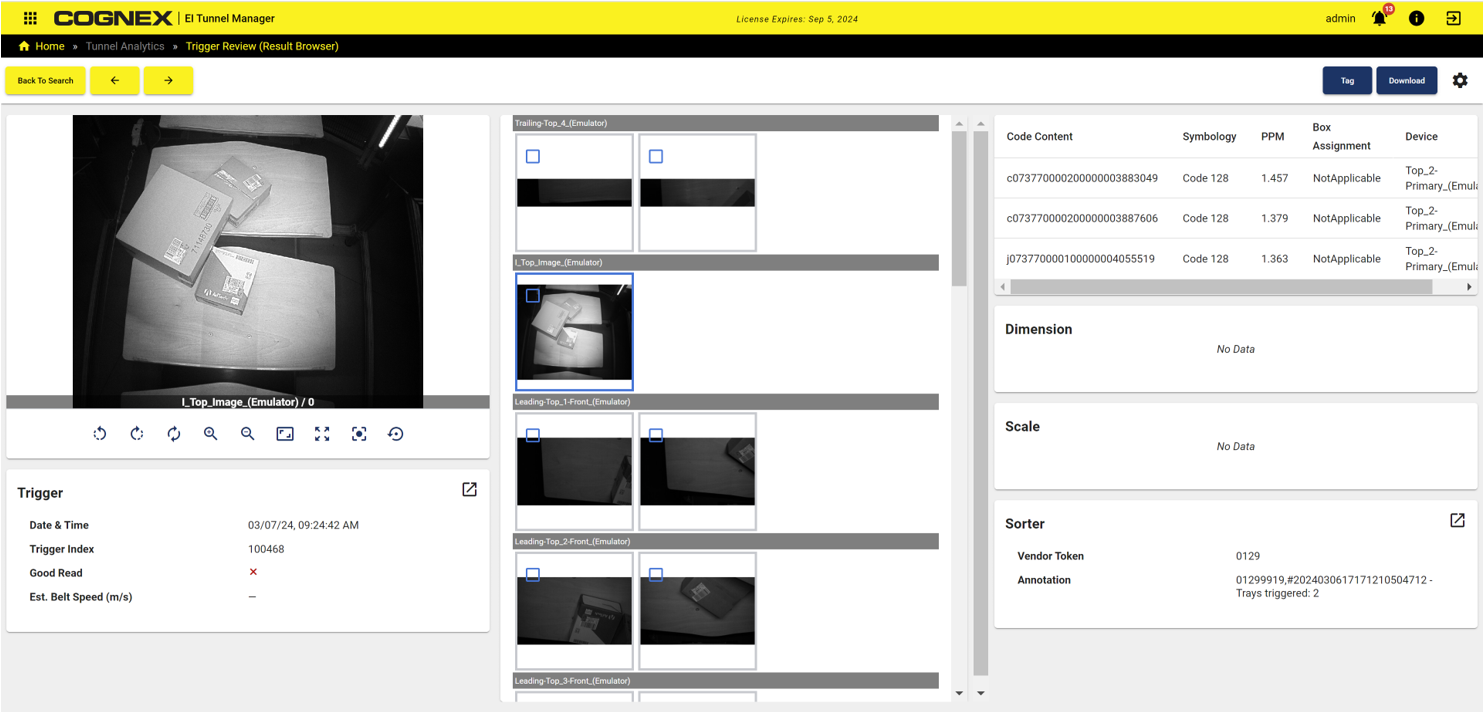
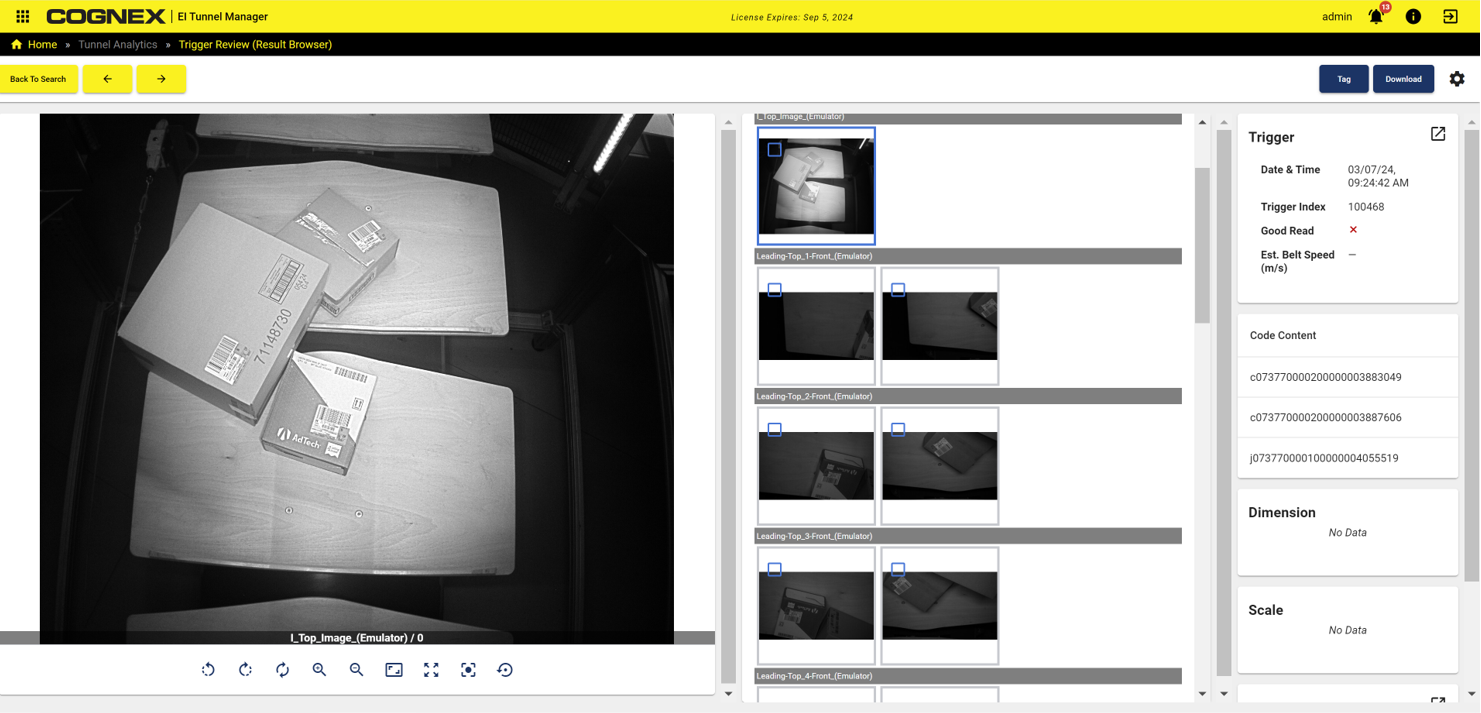
Image View collapses the data cards to the right side of the page and expands the main image viewer, so you can focus on the images rather than the result data. From Gallery View, the Trigger Review page is in Image View by default.
 –
–
Click on the pop-out icon to open a dialog with all the details of the trigger. The icon is available in both the Image and Data Views.
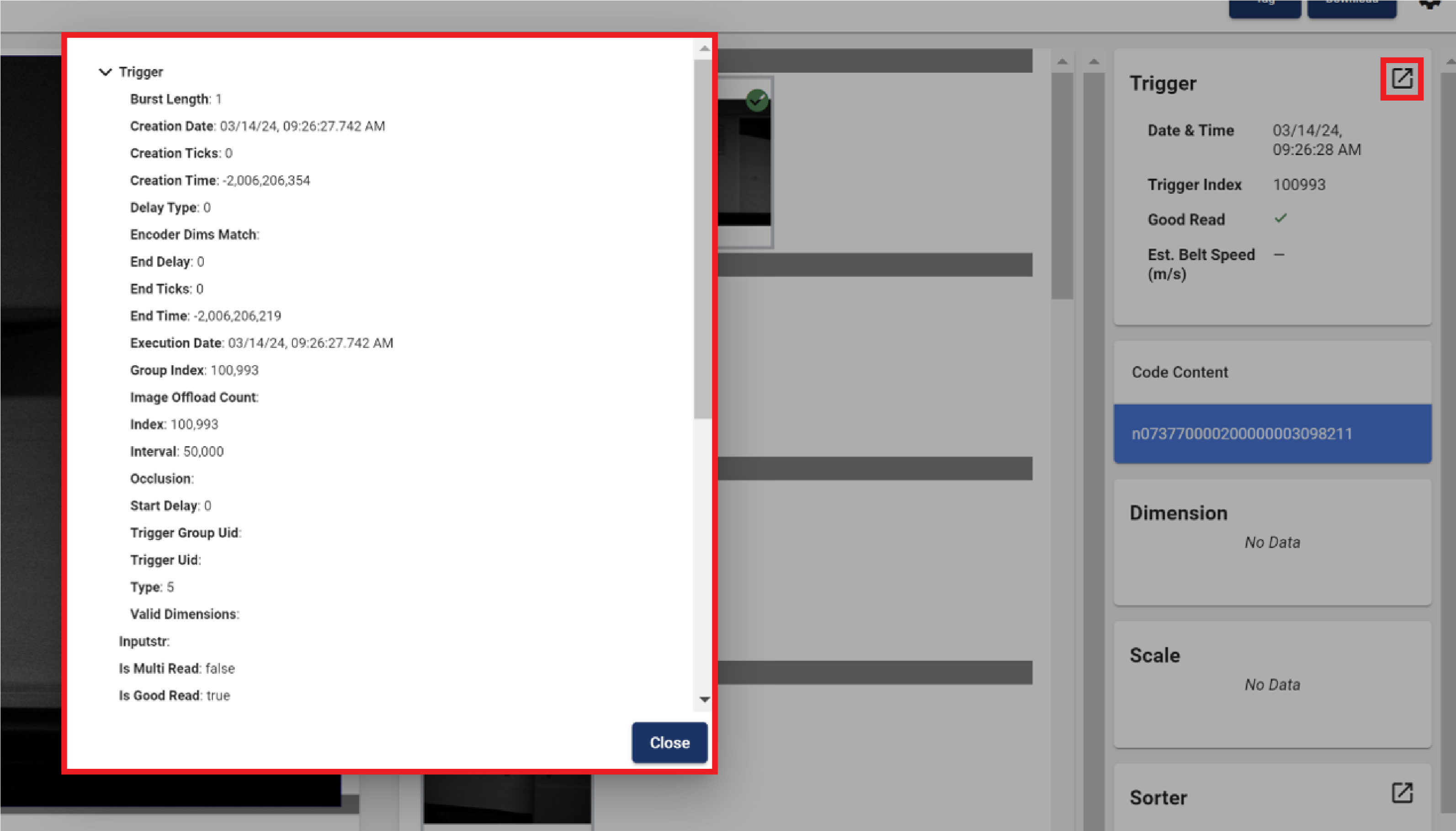
In both views, the Code Content table is populated with read codes. Click on a row to populate the main image viewer with an image of the read code.
Click on the Settings icon in the upper right-hand corner. In the All Images section, select to display the SVG overlays or hide them. By default, the SVGs are shown.
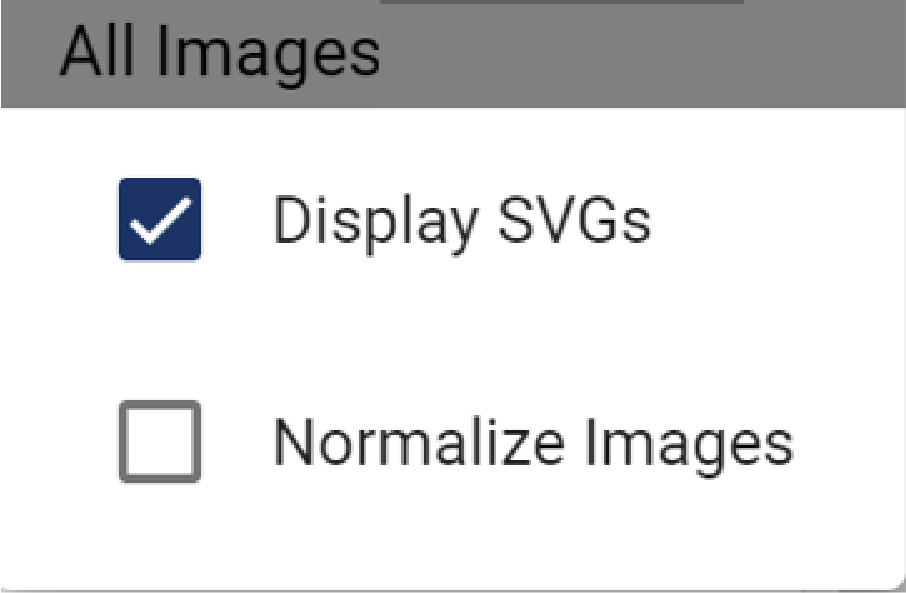
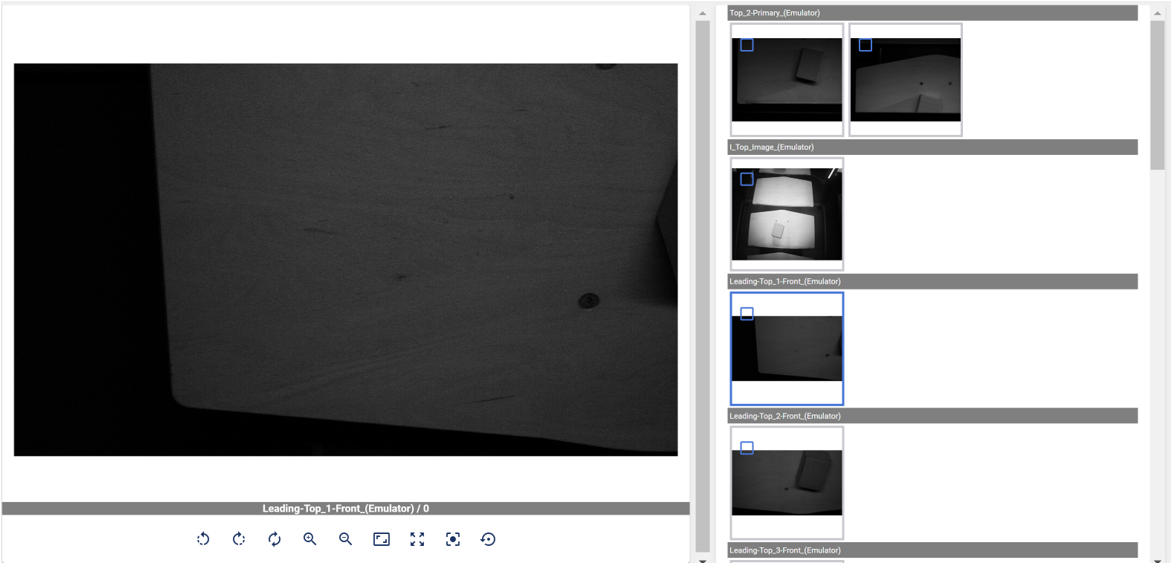
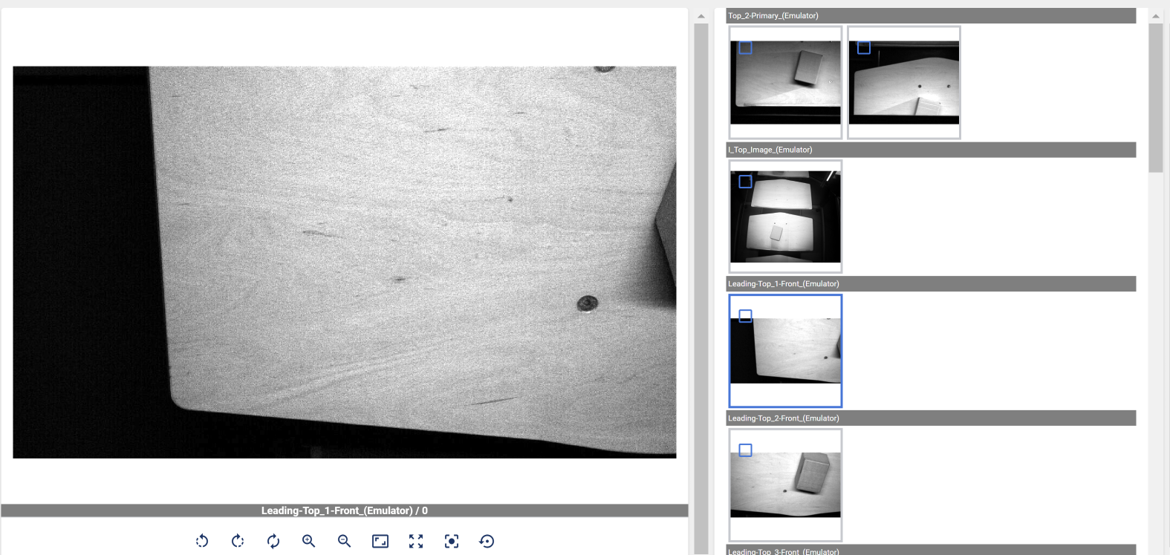
Check the Normalize Images checkbox to enable image normalization. Normalization brightens the contrast on dark images so the details are easier to see. By default, the normalization is turned off.
|
|
| Normalization Disabled | Normalization Enabled |