Getting Started
The SnAPP is a smart vision sensor that offers the following apps:
-
Anomaly Detector
This app recognizes defects, debris, or otherwise faulty objects. Choose the anomaly detector when you have unknown or unanticipated defects.
-
2-Class Classifier
This app sorts your parts into the OK or the Not Good (NG) class.
-
4-Class Classifier
This app sorts your parts into two, three, or four classes. You can customize these classes any time during the training. Also, you can set a class to fail. With this option, you can create a class for Not Good (NG) parts.
-
Counter
This app counts the number of similar-size objects in an image.
To get started, choose an app which best suits your needs. Within an app you can choose to open an existing program or create a new one. For more information, see App Management and Program Management.
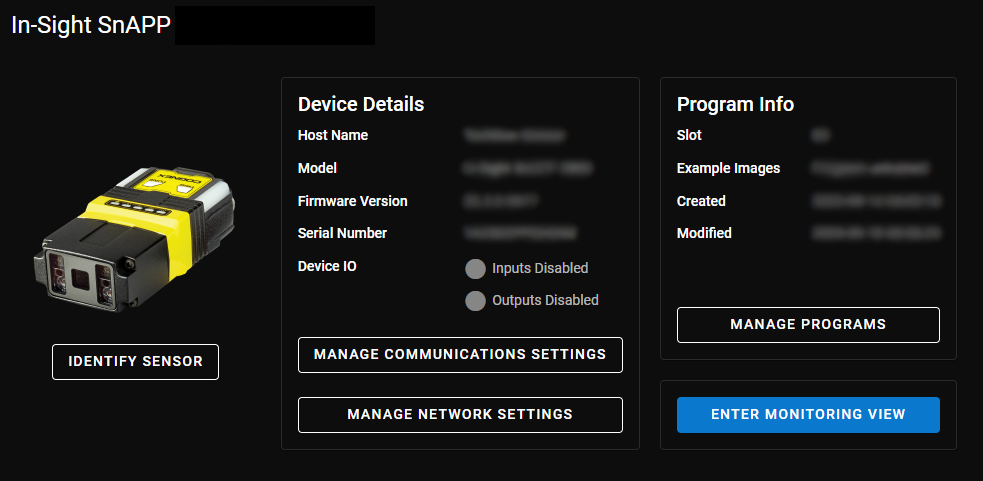
On the Home page, you can manage your communication settings, network settings, and programs. Click Proceed to begin setting up your application and to move to subsequent steps.
 Help and Identify Sensor
-
Click the Help icon to get more information about the step you are currently on.

-
Click the Identify Sensor button to identify your vision sensor.
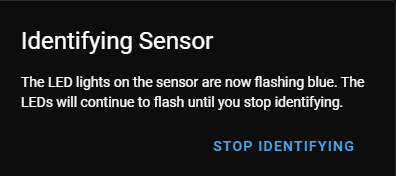
After clicking Identify Sensor, the LED lights on the vision sensor start flashing blue. The LEDs continue flashing until you click Stop Identifying.