Program Management
In the Program Management tab of Settings, you can see information about and actions relating to your programs. A blue checkmark appears next to the current active program. The following actions are available by clicking on the three dots next to each program: set as active, rename, clone, swap slots, export, or delete the program. When cloning a program, the program name is kept by default and you can change this in the cloning window. Multiple programs can have the same name.
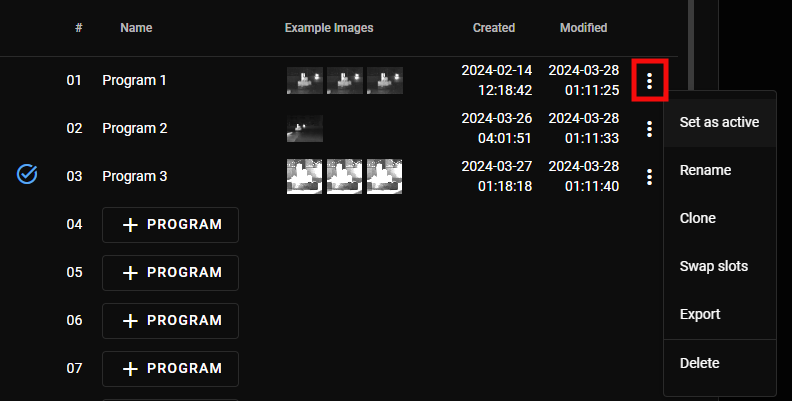
You can see the slot number, example images, and creation and modification dates of your previously created programs. The programs are sorted by slot number in ascending order by default but you can change this by clicking on the given column that you want to sort by. The arrow next to # (slot number), Name, Created, or Modified signifies what metric the programs are sorted by and whether it is in ascending or descending order.
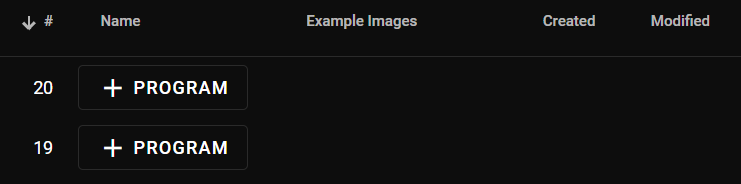
You can create a new program by clicking + Program and choosing an Add New Program option:
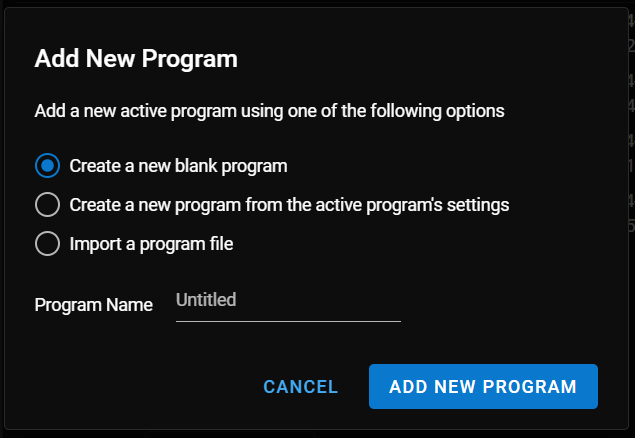
The following options are available when adding a new program:
-
Create a new blank program: the new program has all the default settings and no program name. You can change the default "Untitled" name by typing in the Program Name field.
-
Create a new program from the active program's settings: the new program copies the acquisition settings, region of interest, fixturing, and trigger settings of the active program. Program name is not copied.
-
Importing a program file: choose and import a previously exported program file. The new program copies all settings, including program name and the creation date of the exported program.
Click Add New Program to create the program.