Building a VGR Job
This section describes how to build a Vision-Guided Robotics (VGR Vision-Guided Robotics is an In-Sight Spreadsheet feature that uses machine vision to guide robot motion through Robotics String Functions and VGR commands.) job A job is a user-configured program in In-Sight Spreadsheet consisting of functions and designed for specific applications. You can create and edit jobs using the In-Sight Spreadsheet interface, and load them on a vision system for deployment in a live environment. in In-Sight Vision Suite using Robotics String Functions. It provides a high-level, step-by-step approach to configuring the vision tools, and VGR functions in Spreadsheet so that the robot controller can execute calibration, training, and run-time alignment tasks.
The following section walks through the VGRSample_Basic sample job, which contains the Spreadsheet logic for a guided pick or guided place VGR job using one feature finding tool.
-
You can find all VGR sample jobs in the following directory:
C:\ProgramData\Cognex\In-Sight\In-Sight\26.1.0\SampleJobs\VGR\ -
VGR is not supported in the In-Sight Easy Builder view.
-
If you are migrating an existing In-Sight Explorer job to In-Sight Spreadsheet, you can use the In-Sight Job Converter to convert your job. For more information, see Convert an In-Sight Explorer VGR Job.
Job Structure Overview
|
|
|
|---|---|
| Number | Description |
| 1 | Image Acquisition Acquisition is the process or result of the vision system acquiring a new image. |
| 2 | Image Calibration (Non-Linear) |
| 3 | Command Interface |
| 4 | Feature Finder |
| 5 | Part Definition |
| 6 | Hand-Eye Calibration |
| 7 | Command String Logger |
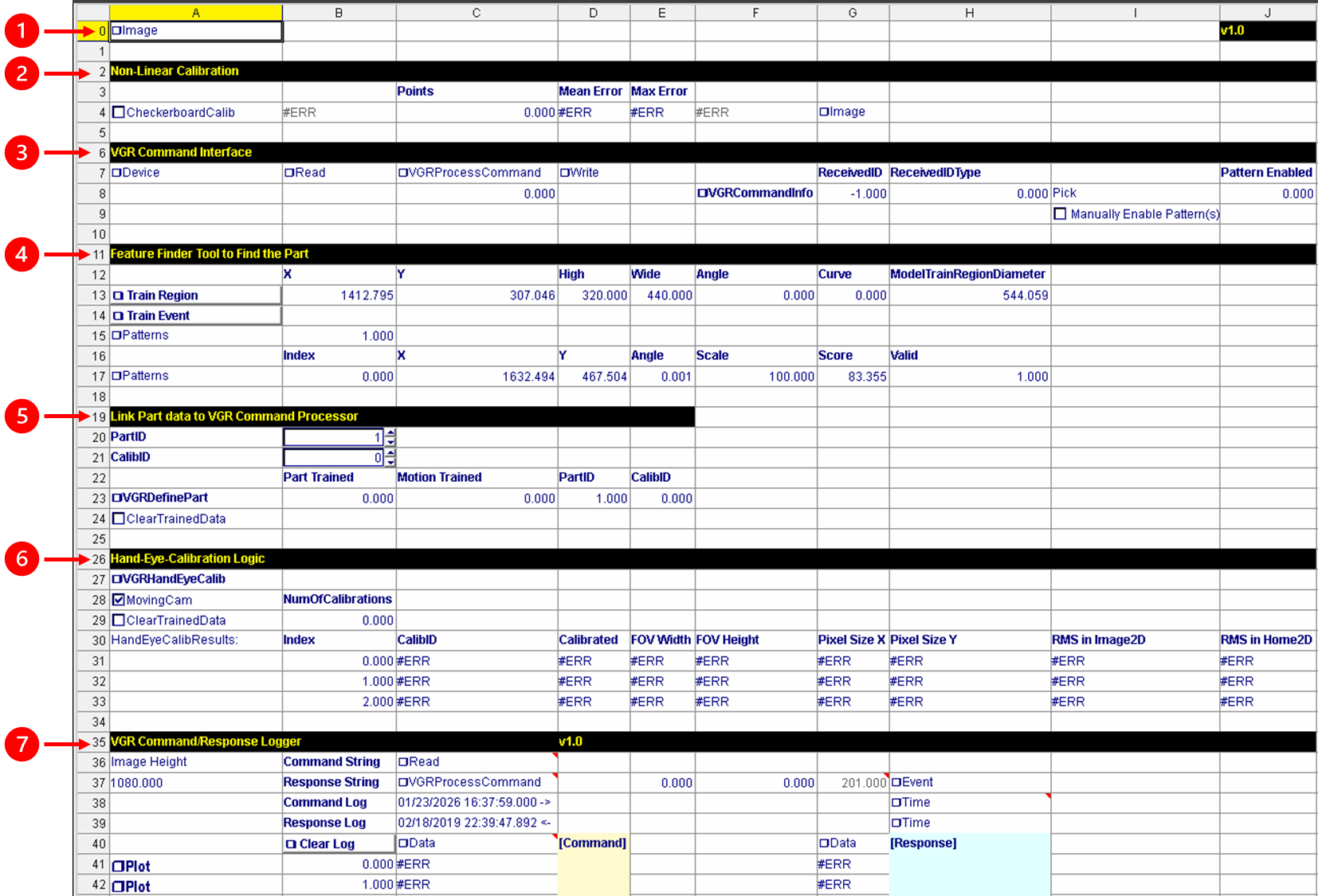
Image Acquisition

The image acquisition cell (A0) is always present in In-Sight Spreadsheet jobs, and does not require additional configuration for VGR if image acquisition has already been set up.
Image Calibration
The CalibrateGrid function Functions are tools that are available in Spreadsheet for processing and analyzing acquisitions or other results. You can add functions to your Spreadsheet job to create tool chains and produce results for specific applications. (B4) is included for applications that require image calibration, but is disabled by default. Enable and configure this function only if image calibration is required for your application.
For more information on image calibration, see CalibrateGrid.
|
|
||
|---|---|---|
| Number | Definition | Description |
| 1 | CheckerboardCalib Checkbox | Enables or disables image calibration. |
| 2 | CalibrateGrid | The CalibrateGrid function (B4) refers to the Acquired Image (A0) and performs calibration. |
| 3 | TransformImage | Converts the Acquired Image (A0) to a Calibrated Image (F4) based on the calibration data generated by the CalibrateGrid function (B4). |
| 4 | if(A4,F4,A0) |
If the CheckerboardCalib Checkbox (A4) is unchecked, the Acquired Image (A0) is selected. If the CheckerboardCalib Checkbox (A4) is checked, the Calibrated Image (F4) is selected. Make sure that all downstream tools requiring an input image use the Calibrated Image (F4) as input. |

Command Interface
Feed the input string from the robot into the VGRProcessCommand function by replacing the input reference shown in this example as ReadDevice (B3).
Then, feed the output string from the VGRProcessCommand function to the function that sends responses back to the robot by replacing, in this example, the WriteDevice function (D3) with the appropriate communication function.
|
|
||
|---|---|---|
| Number | Definition | Description |
| 1 | TCPServer | Use the TCPServer function (A7) to set the appropriate port number. |
| 2 | ReadDevice | Add a reference to the TCPServer function (A7) in the ReadDevice function. |
| 3 | VGRProcessCommand | Add a reference to the ReadDevice function (B7) in the VGRProcessCommand function. |
| 4 | Event Trigger |
Use the "!Exact" function (C8) to detect when the VGRProcessCommand (C7) function response value changes and generate an event transition for WriteDevice. Event-driven functions such as WriteDevice require a change in the event input to trigger execution. A constant value does not generate a valid event. Add a reference to the VGRProcessCommand function (C7) in the "!Exact" function (C8). |
| 5 | Write Device | Add a reference to the Event Trigger function (C8), TCPServer function (A7), and VGRProcessCommand (C7) in the WriteDevice function. |
| 6 | VGRCommandInfo |
This structure provides access to parameters sent by the robot, allowing the job to scale to multi-part or other dynamic configurations. For this basic spreadsheet VGR job with a single feature finding tool, no additional configuration is required. |

Feature Finder
In this example, the job uses the PatMaxRedLine function. Choose which feature finder to use based on your target part.
|
|
||
|---|---|---|
| Number | Definition | Description |
| 1 | EditRegion | Use the EditRegion function (A13) to define the pattern training region. |
| 2 | TrainEvent Button |
TrainEvent parameter (A14) is exposed from TrainPatMaxRedLine. This button allows you to save the trained pattern if the training region in EditRegion (A13) cell is adjusted. |
| 3 | TrainPatMaxRedLine | In the TrainPatMaxRedLine function (A15), add a reference to the EditRegion function (A13) for the ExternalRegion parameter. |
| 4 | FindPatMaxRedLine | In the FindPatMaxRedLine function (A17), add a reference to the TrainPatMaxRedLine (A15) for the Pattern parameter. Set the Find Region area appropriately. |
| 5 | Sqrt(D13*D13+E13*E13) | Calculate the diagonal of the pattern for controlling auto-calibration by using the Sqrt function (H13). |
| 6 | If(CountError(C17),0,1) |
Use the If function to identify if the feature is found (H17). FindPatMaxRedLine does not return #ERR when a pattern is not found. In the If function, refer to the X (C17) or Y (D17) position output from the FindPatMaxRedLine function to detect this condition. |

Part Definition
Add a VGRDefinePart function to define an alignment configuration for a part. Each VGRDefinePart function is identified by a unique PartID and represents one alignment scenario that can be addressed by the robot controller.
|
|
||
|---|---|---|
| Number | Definition | Description |
| 1 | VGRDefinePart |
In the DefinePart function (A23), refer to the output of the feature finder function in the following properties:
|
| 2 | PartID and CalibID |
PartID is a unique number used when multiple feature finder tools are defined. It allows the robot to select which feature and alignment scenario to use during training or runtime. CalibID is a unique identifier used when multiple calibration configurations are defined. It allows the robot to select which calibration to use. |
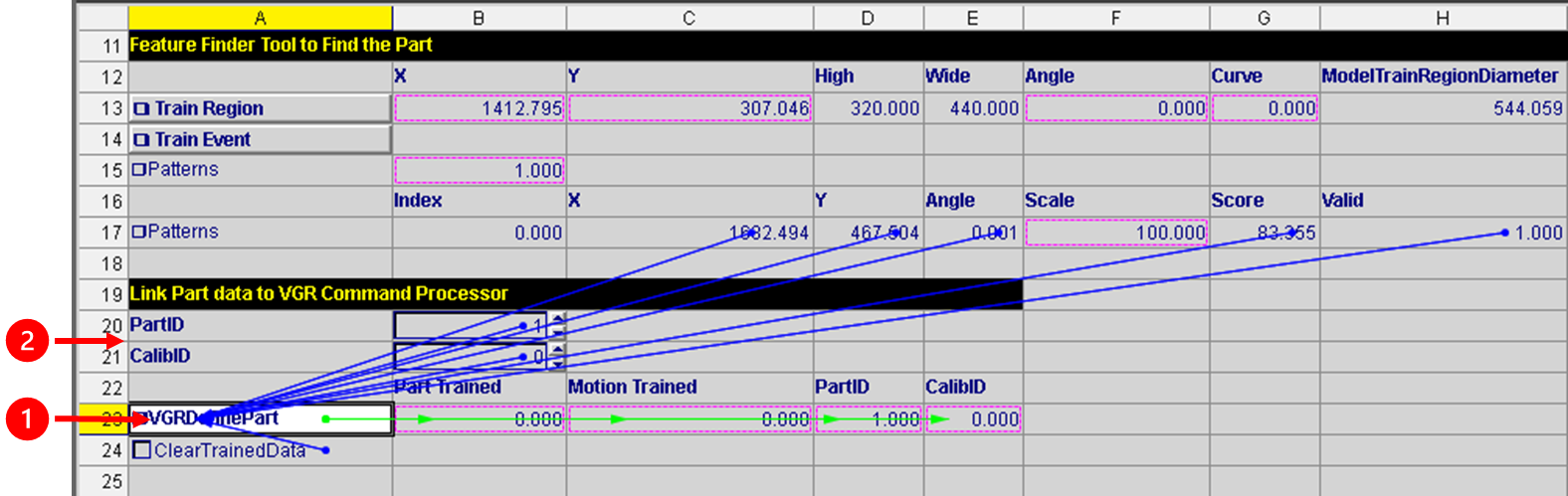
Hand-Eye Calibration
|
|
||
|---|---|---|
| Number | Definition | Description |
| 1 | VGRHandEyeCalibration | If you use a stationary vision system, uncheck the MovingCam (A28) property. Refer to the train region diameter (H13) for the RegionDiameter property. |
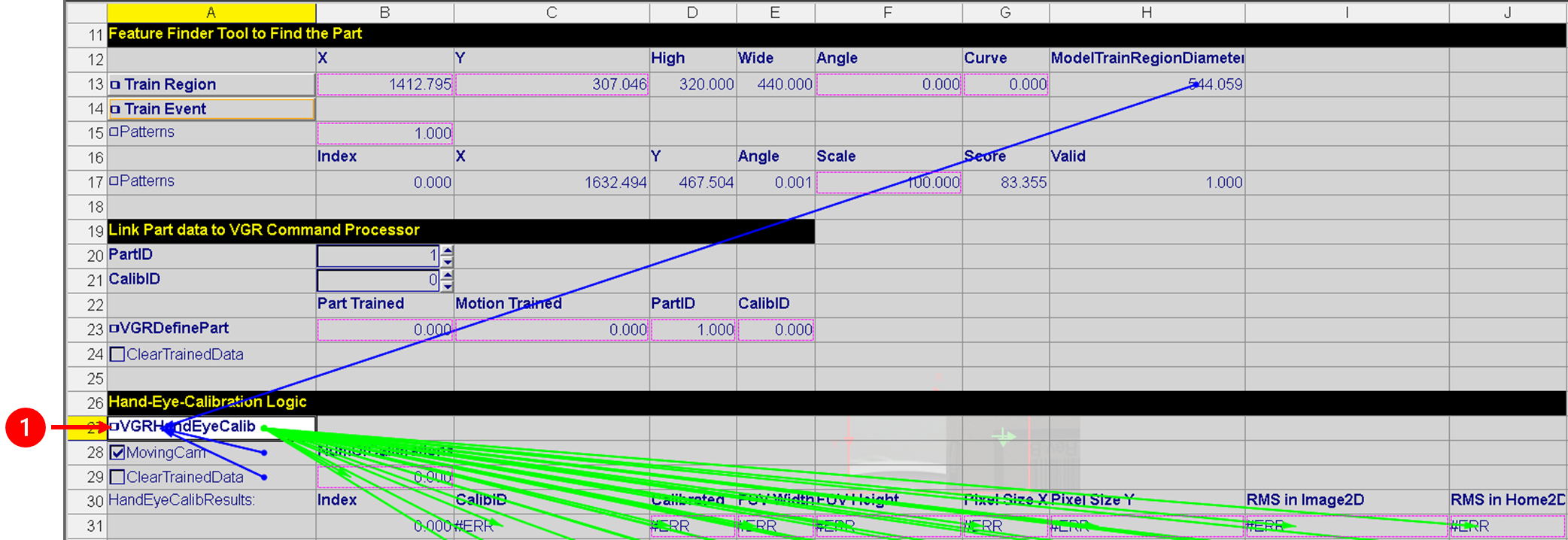
Command String Logger
|
|
||
|---|---|---|
| Number | Definition | Description |
| 1 | Logger Snippet A snippet is one or more pre-configured cell that allows you to automate frequently performed spreadsheet tasks. You can create your own snippets, or use snippets provided by Cognex. |
C36 cell: add a reference to the ReadDevice function (B7) to get the Command String. C37 cell: add a reference to the VGRProcessCommand function (C7) to get the Response String. Add a reference to the TCPServer function (A7) for the Event property of the StoreData function (C40). Add a reference to the TCPServer function (A7) for the Event property of the Now function (H38) to get the timestamp for the Command Log. |
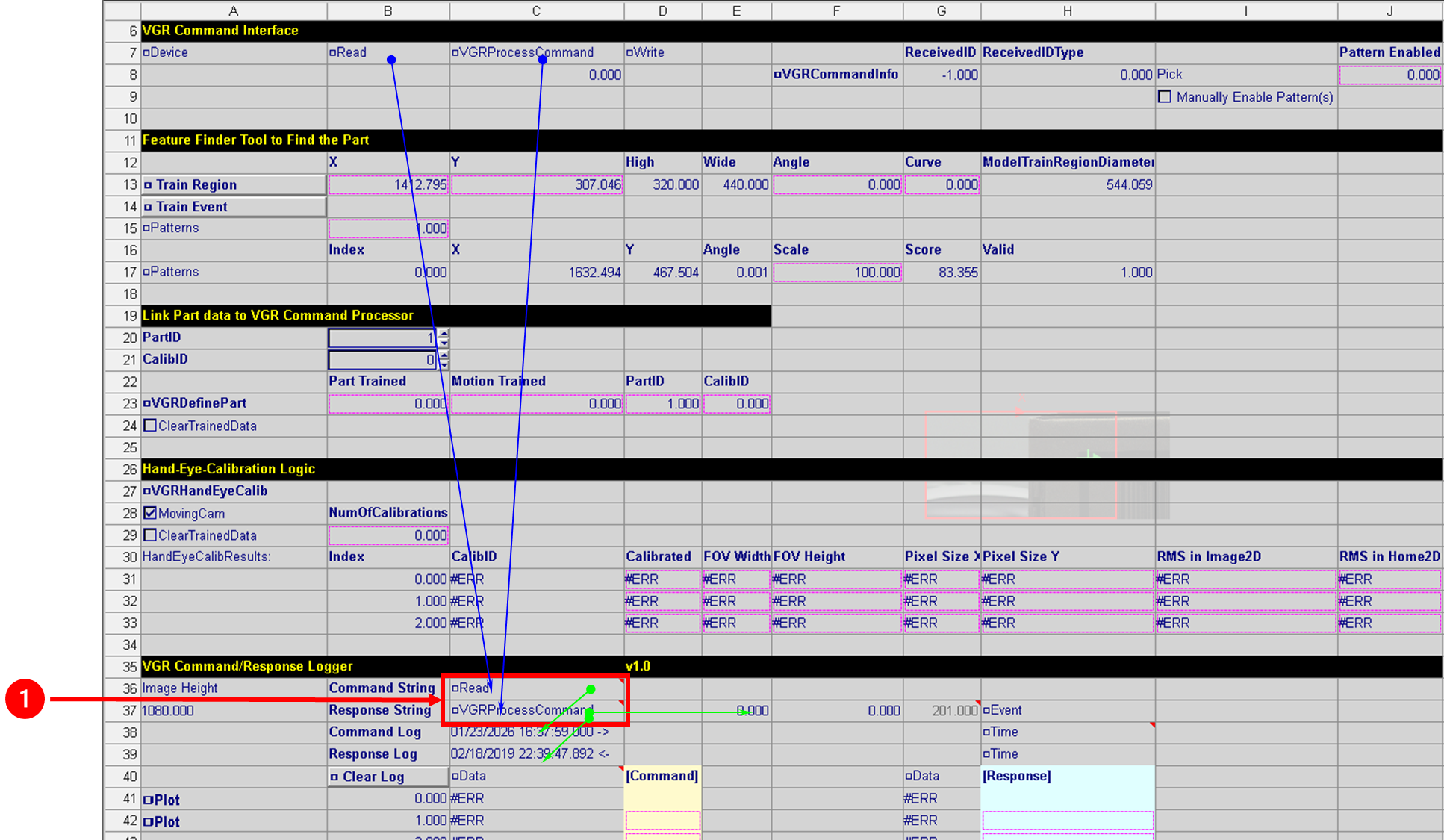
Execution and Monitoring
After the VGR job is configured and verified on the vision system, execution is driven from the robot controller.
At this point, the robot controller must send the appropriate VGR commands to:
-
Perform hand-eye calibration
-
Train robot and part poses
-
Request run-time alignment results during operation
These commands initiate the corresponding actions on the vision system and return status or alignment data that the robot uses to control motion.
For detailed information about available commands, command formats, and response behavior, see Executing VGR Commands.