View Files Stored on the In-Sight Vision System
View files stored on the vision system either using The File Management utility in In-Sight Vision Suite or a third-party FTP client, such as FileZilla Client. The FTP client must support TLS 1.3.
Viewing files this way is useful if you use the
View Files in In-Sight Vision Suite
To view files on the vision system:
-
Launch In-Sight Vision Suite if it is not already running.
-
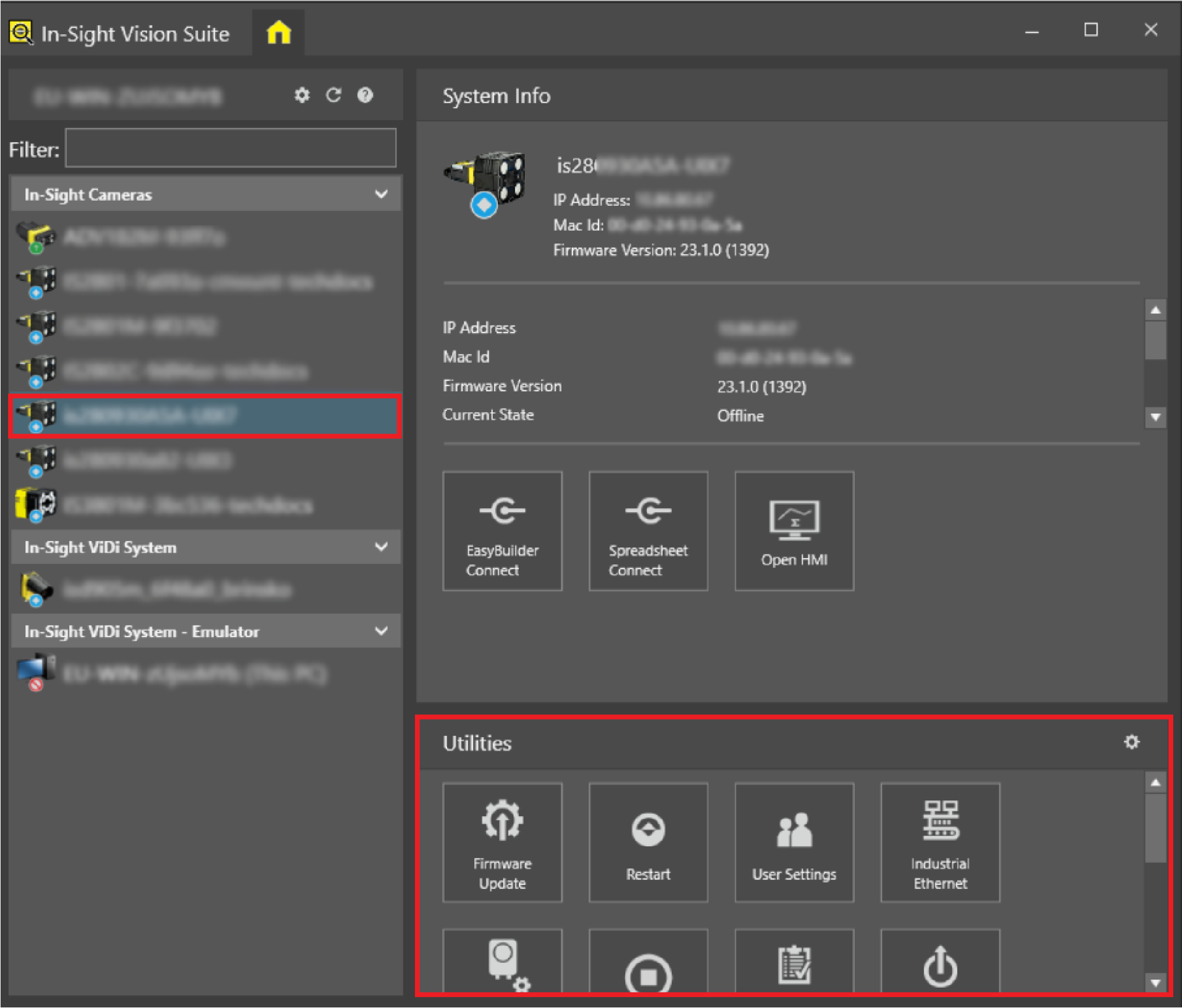
Left-click the vision system you want to configure on the In-Sight® Device Pane on the left. The list of Utilities applicable to the selected vision system then appears at the bottom of the window.
-
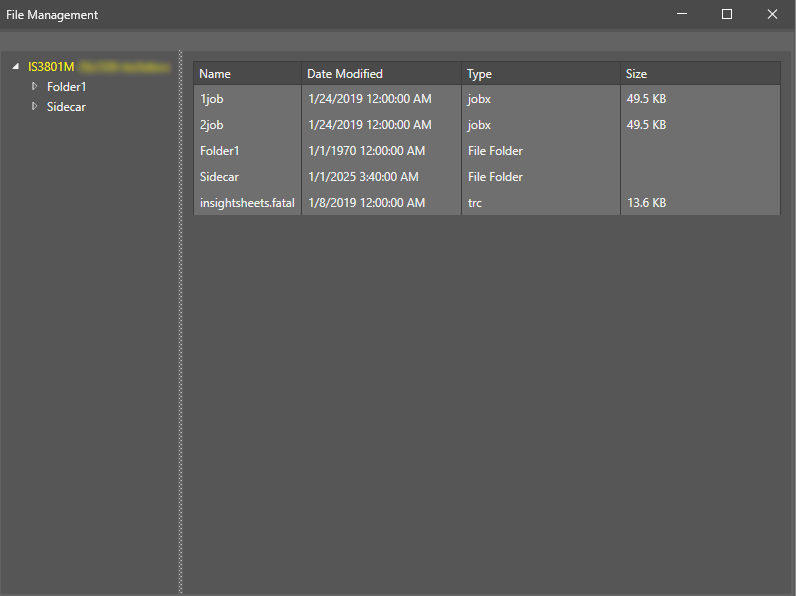
Click the File Management button. The utility dialog then opens.
-
Browse the directory tree. Copy, move, or delete files as needed.
For more information, see the In-Sight Vision Suite Help documentation.
View Files Using FileZilla Client
To view files using FileZilla Client:
-
Download FileZilla Client from filezilla-project.org and install it.
-
Open FileZilla Client.
-
Configure the following fields:
Field Description Host The host name or IP address of the vision system. You can find these details in In-Sight Vision Suite after you select a vision system. Username The user credentials of the vision system.
-
The default username is admin.
-
The default password is blank.
Note: You can change the credentials using the User Settings utility.Password 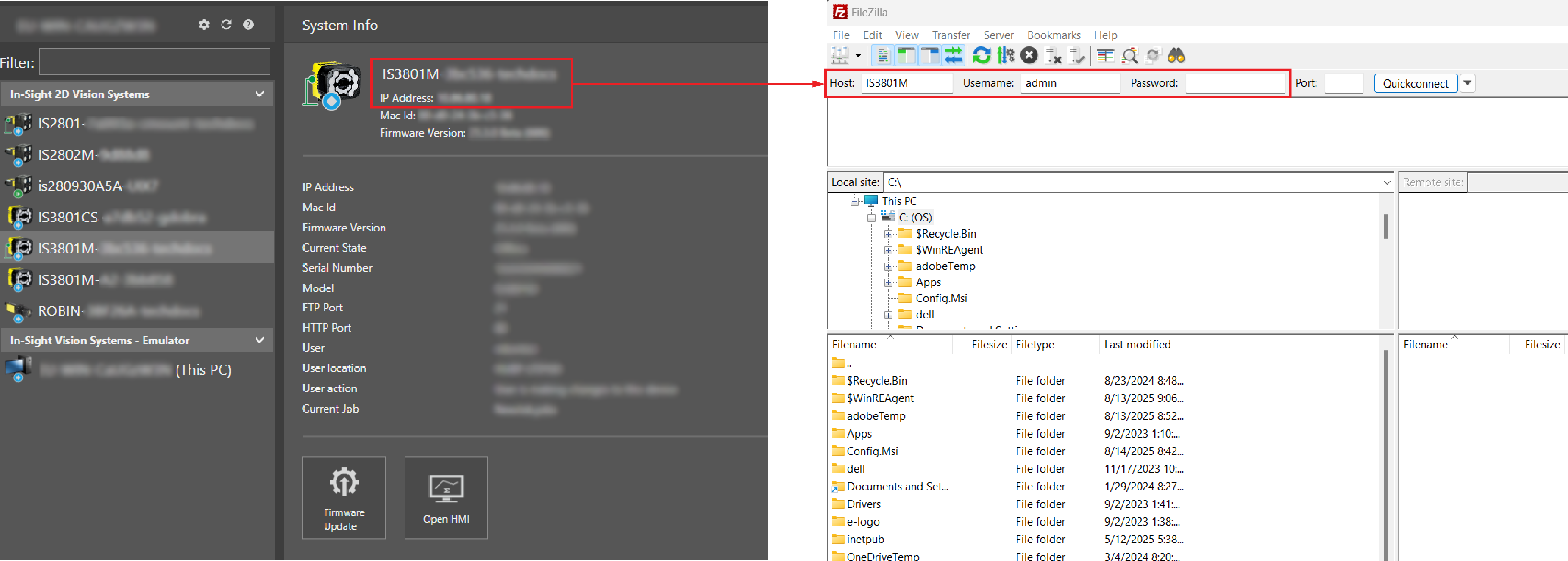
-
- Click Quickconnect.
-
You can now view the stored files.
The Field Path field in In-Sight 3D Spreadsheet determines where the vision system saves the files. If you leave the File Path field blank, the files are saved to the root directory.
Create a Subfolder Using FileZilla Client
If you want to separate images from text files, create a folder structure on the vision system using FileZilla Client.
The following example walks you through creating a subfolder Job1 under the Images directory:
-
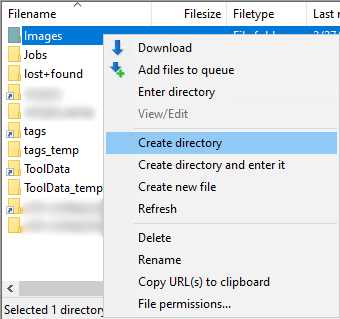
In FileZilla Client, right-click on the Images directory and select Create directory. The Create directory dialog appears.
-
In the dialog, enter /Job1, then click OK.
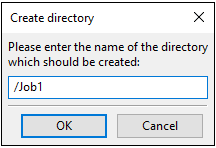
The Job1 subfolder is now available under the Images directory.

- In In-Sight 3D Spreadsheet, connect to the vision system.
-
Enter Images/Job1 to the File Path field in the
- Click OK to close the property sheet.
Now the images are sent to the Job1 subfolder under the Images directory.