TrainBead
The TrainBead function Functions are tools that are available in Spreadsheet for processing and analyzing acquisitions or other results. You can add functions to your Spreadsheet job to create tool chains and produce results for specific applications. allows you to locate a bead path and create measurements of the thickness and position of the bead path. These measurements provide a baseline by the InspectBead function to determine whether another, similar bead contains defects or gaps in position, width, or coverage.
- The TrainBead and InspectBead functions do not support color images. If you load a color image, the functions automatically convert it to a greyscale image.
- For more information about how to use the TrainBead and InspectBead functions, see How to use TrainBead and InspectBead Tools.
TrainBead Inputs
Syntax: TrainBead(Image,Fixture A fixture is a coordinate location on the image that keeps the tool in the place determined by the fixture.,Background Image,Bead Sample Location,Max Width Deviation (%),Bead Finding Tolerance,Bead Find Optimizations,Max Bead Paths to Find,Find Bead Paths,Selected Bead Path,Edit Bead Path,Bead Train Optimizations,Train Bead Path,Show Graphics)
| Parameter | Description | ||||||||||
|---|---|---|---|---|---|---|---|---|---|---|---|
|
Image |
This argument must reference a spreadsheet
cell that contains a valid Image data structure. By default, the cell references |
||||||||||
|
Fixture |
Specifies the image coordinate system in which the bead path is defined. You need to connect a fixture to a PatMax tool. The default setting is (0,0,0), the top leftmost corner of the image.
|
||||||||||
| Background Image |
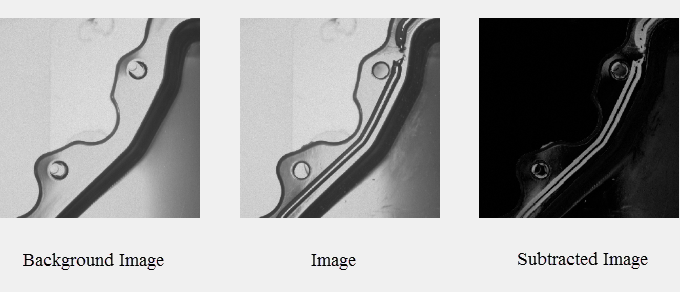
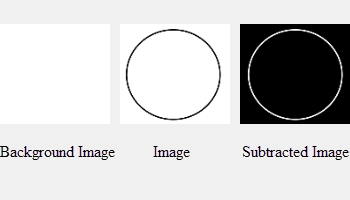
(Optional) Specifies a reference to a spreadsheet cell that contains an Image data structure of an image to be used for image subtraction. A background image needs to be an image without any bead material. It is used to create a high contrast image between an image with and without bead material to enhance the bead material visibility on a part during the bead find analysis. Note:
|
||||||||||
| Bead Sample Location |
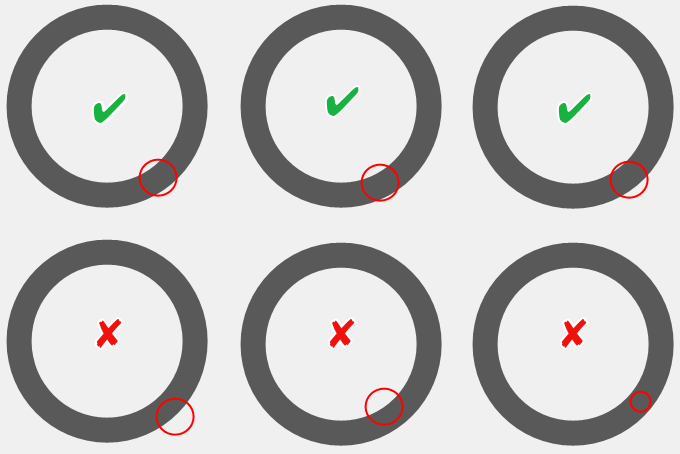
Specifies where the FindBead function begins to search for bead path(s). You do not need to place the circle in the center of a bead path, as long as the radius of the circle encloses both edges of the bead. Note: Cognex recommends that you make the radius of the circle around three times bigger than the thickest part of the bead. If the radius is too big or small, the tool fails to find a bead path, or finds an incomplete contour.
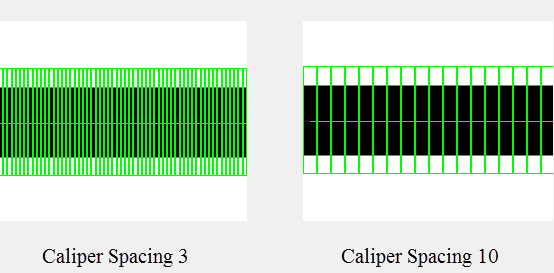
Note: The value of the Radius parameter determines the width of the search calipers. If a section of the bead is wider than the search calipers, the bead search fails.
|
||||||||||
| Max Width Deviation (%) |
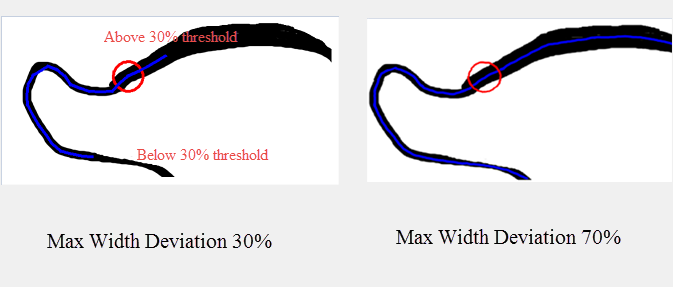
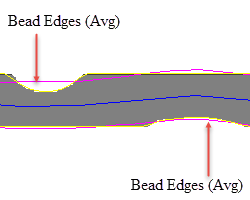
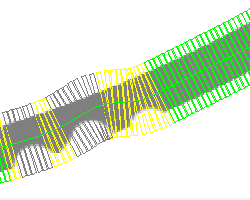
Specifies the maximum allowable bead width change in percentage (1-100; default = 50). The bead search stops if the bead width deviation is above or below the threshold.  Example: Example:
In this example, the Max Width Deviation is set to 30. The bead search stops when the bead width deviation is above the threshold at the top and below the threshold at the bottom. If you adjust the Max Width Deviation value to 70, the entire bead path is traced.
|
||||||||||
| Bead Finding Tolerance |
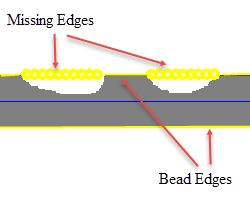
Specifies how aggressively to search for edges that comprise a bead (0-10; default = 3). A higher value allows bead finding to operate in areas of the image where the bead path is ambiguous. 0 = Least aggressive ... 10 = Most aggressive |
||||||||||
| Bead Find Optimizations |
Specifies bead finding parameters that can be set manually or allowed to be automatically calculated by the tool.
|
||||||||||
| Max Bead Paths to Find | Specifies the maximum number of possible bead path candidates to find (1 - 5; default = 5). The function stops processing once the specified number of bead candidates are found. | ||||||||||
| Find Bead Path |
Click this button to start finding bead path candidates. Note: Pressing the Find Bead Paths button clears all previous bead path information including modifications to the existing paths or trained bead path data. To exit the property sheet without saving any changes, press Cancel.
|
||||||||||
| Selected Bead Path |
Specifies which of the possible bead path candidates is going to be used to display and to train the bead (0 to 4; default = 0). Note: To see the updated number of candidates, after you changed the number, press Tab or select another field on the property sheet.
|
||||||||||
| Bead Train Optimizations |
Specifies training parameters for optimizing bead training.
|
||||||||||
| Train Bead Path |
Click this button to train the bead path. During training, detailed analysis of the bead characteristics is calculated. These calculations are used to set initial values for an InspectBead function that references this TrainBead tool. Note: If you retrain the TrainBead tool, any InspectBead tool that references the TrainBead tool is modified with updated bead characteristics. Any customized masks or defect parameters get reset.
|
||||||||||
| Show Graphics |
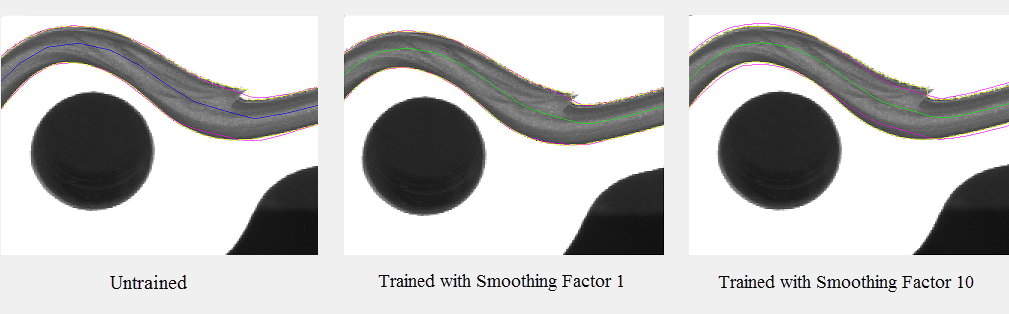
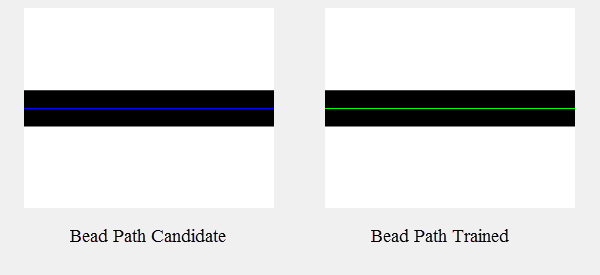
Specifies which TrainBead graphical overlays to display on top of the image.
|
TrainBead Outputs
|
Returns |
A Bead data structure containing the information about detected beads in the image, or #ERR if any of the input parameters are invalid. |
|
Results |
When TrainBead is initially inserted into a cell, a results table is created in the spreadsheet. For example, this is the default TrainBead results table:
|
