How to use TrainBead and InspectBead Tools
To use TrainBead:
-
Select the TrainBead tool from Vision Tools in the Toolbox, on the right side of the screen.
-
Drag and drop the function Functions are tools that are available in Spreadsheet for processing and analyzing acquisitions or other results. You can add functions to your Spreadsheet job to create tool chains and produce results for specific applications. to the selected cell of the Spreadsheet. The Property Sheet opens up.
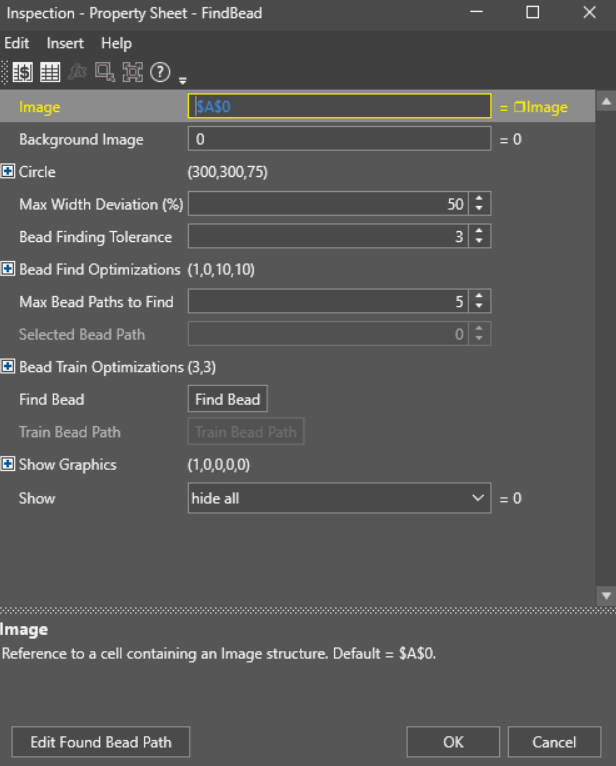
-
Double-click the Circle parameter and place the circle over the bead.
Note: Cognex recommends that you make the radius of the circle around three times bigger than the thickest part of the bead. If the radius is too big or small, the tool fails to find a bead path, or finds an incomplete contour.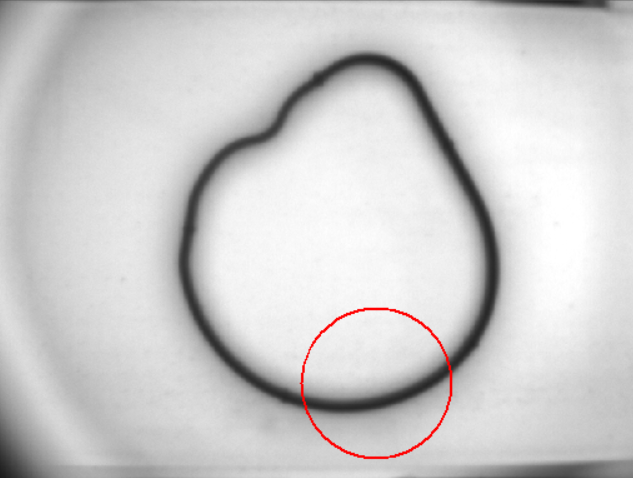
-
Click Find Bead to make the tool automatically look for a bead.
When the bead is found, the bead turns blue.
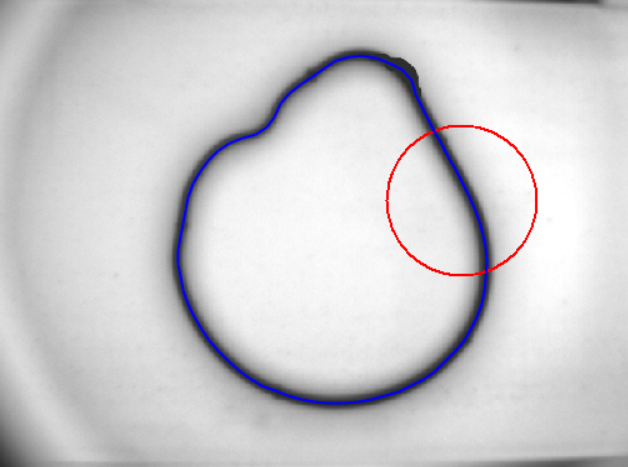
The tool can find multiple beads and you can evaluate other candidates by changing the Selected Bead Path.
-
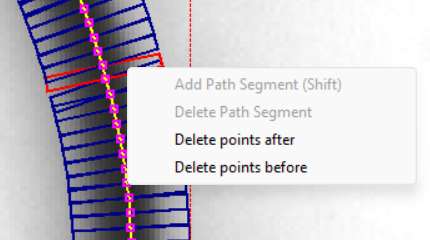
If the automatic bead finder does not produce accurate enough results, like parts of the bead are missing, or the bead contains undesired extra sections, you can adjust the bead by clicking the Edit Found Bead Path. You can manually move the segments around by clicking and dragging. You can add or delete segments with the right-click menu.
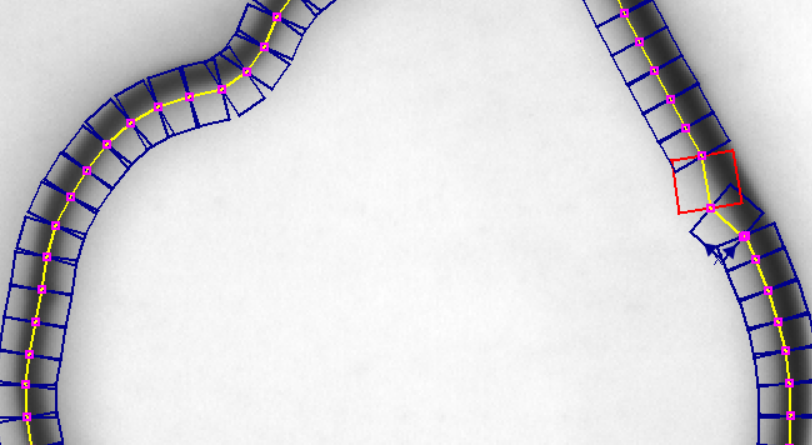
You can add or remove vertices by in a bead path by right-clicking on them.
-
Click Train Bead Path.
-
Click OK.
To use InspectBead:
-
Select the InspectBead tool from Vision Tools in the Toolbox, on the right side of the screen.
-
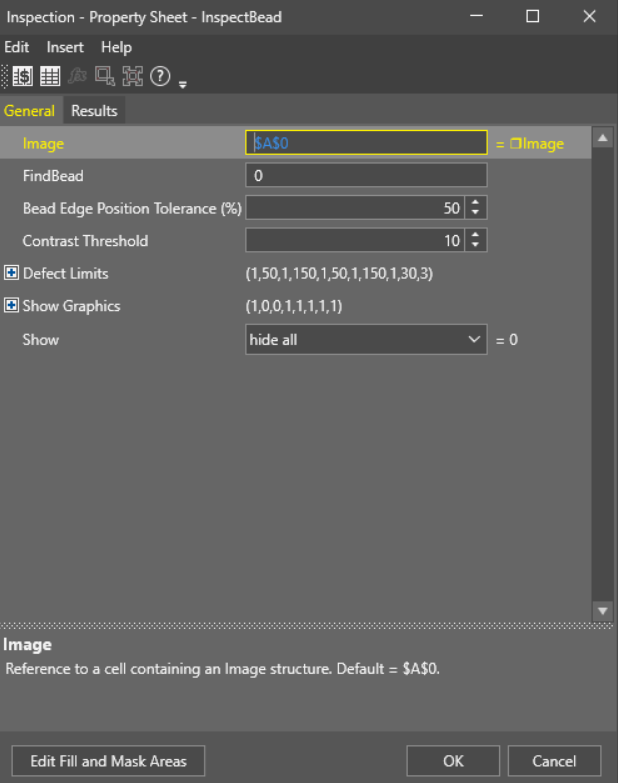
Drag and drop the function to the selected cell of the Spreadsheet. The Property Sheet opens up.
-
Double-click the FindBead parameter and reference the previously created TrainBead tool.
-
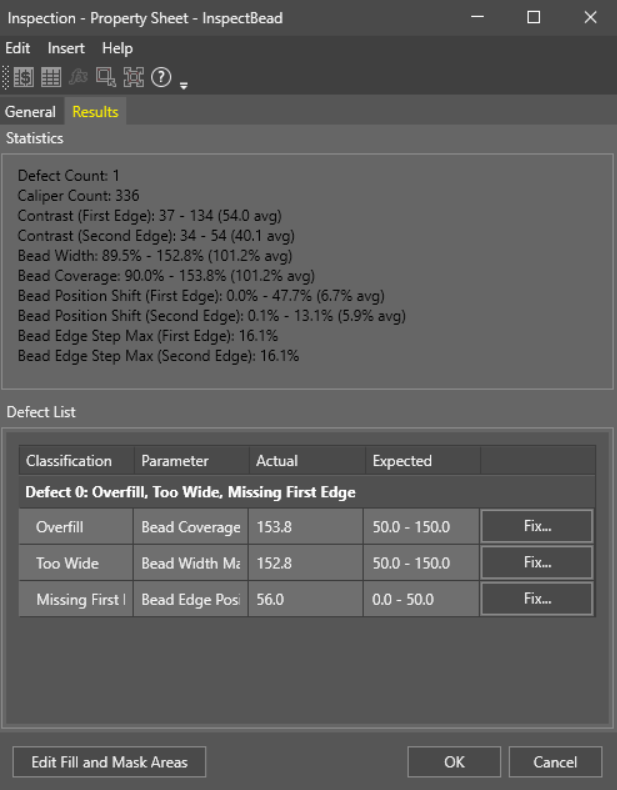
Click the Results tab and check the results for errors.
-
If you see any errors in the Results tab, you can fix them using one of the following methods:
You have the following options:
-
Click the Fix… in the table and select an automatically suggested remedy.
-
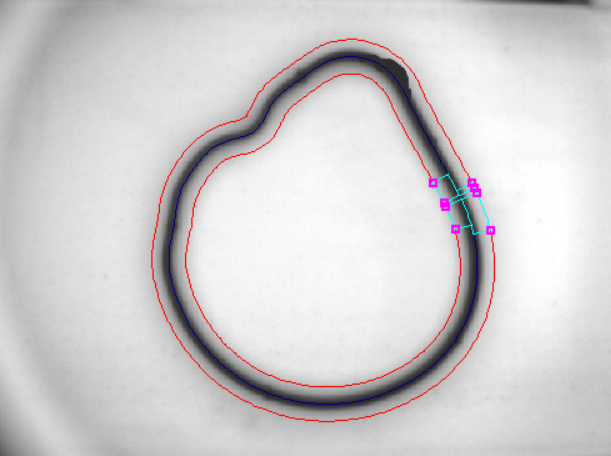
Click the Edit Fill and Mask Areas and adjust the masks to filter out detection in the problem area.
-
Click back to the General tab and adjust the relevant defect limit setting manually.
-
-
Click OK.