Backup
The Backup utility creates and stores a digital archive of your In-Sight vision system to protect against loss from hardware failure, accidental deletion, and other unplanned events. Cognex recommends you create a backup file before firmware updates, job changes, or any network reconfigurations. In addition, consider creating a baseline backup file to preserve the state of an In-Sight vision system once a job is finalized and deployed.
Use the Restore utility to restore your vision system with a backup file.
Perform the following steps to create a backup file for an In-Sight vision system:
-
Launch In-Sight Vision Suite if it is not already running.
-
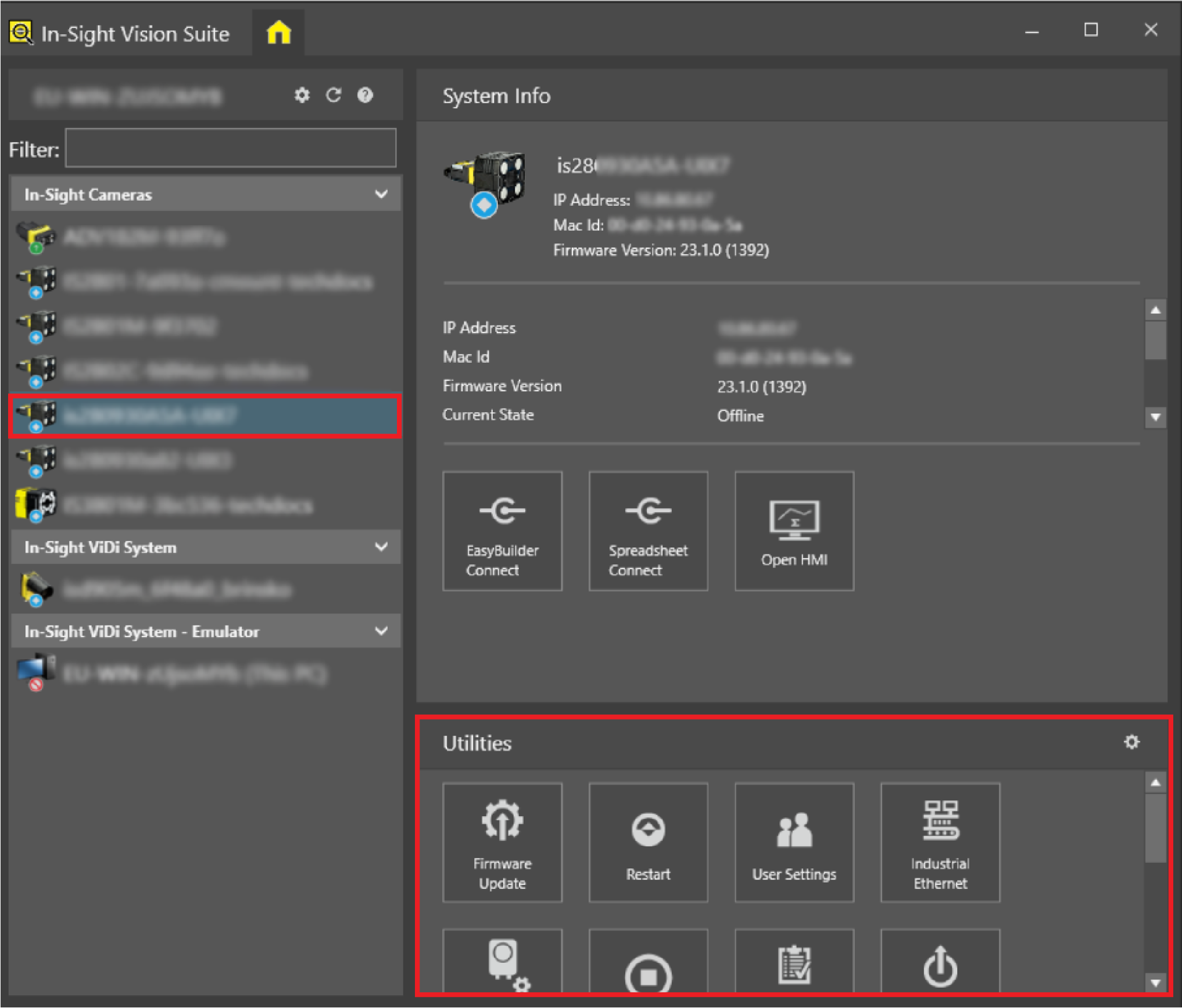
Left-click the device you want to configure on the In-Sight® Device Pane on the left. The list of Utilities applicable to the selected vision system then appears at the bottom of the window.
-
Select the Backup utility.
In-Sight Vision Suite displays the host name and firmware version of the vision system you selected:
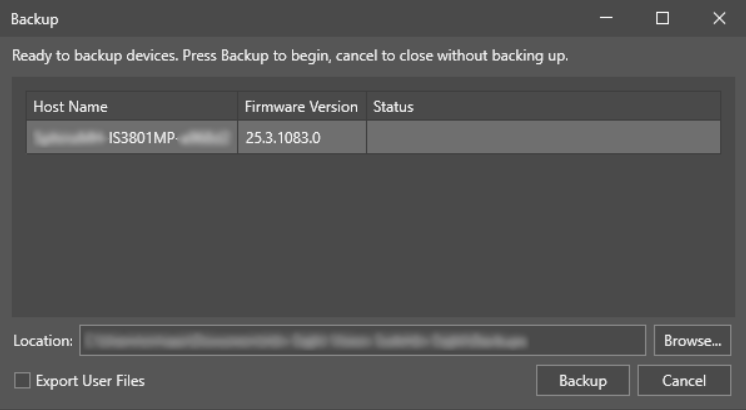
Provide a location for your backup files by clicking Browse.... The backup location allows you to store your backup files in a specific location and retrieve the backup files during a restore.
Check the option Export User Files to have the Backup utility compress all the files in the default user directory on the vision system to a .zip file and save it in the same location as the backup file.
-
Click Backup to start the utility.
The utility creates a .bak file with the format <vision system_Name>.<Backup_Sequence_Number>.bak to the following location:
<X>:\Users\[username]\Documents\In-Sight Vision Suite\Backups
-
Click Close when the utility completes.
The Backup utility performs a backup only on selected vision systems for which you have Full or Elevated, and indicates Invalid user credentials for the remaining vision systems where the backup procedure cannot be performed.