Restore
The Restore utility restores the selected In-Sight vision system. When the operation is performed, In-Sight Vision Suite restores the selected device by duplicating the In-Sight® Utilities settings and the files stored in the selected backup file.
You can use the Restore utility on a single device, or select multiple devices to perform a batch operation.
- The In-Sight device or devices must be Offline to perform a restore operation, with no user logged into the device. In-Sight Vision Suite shows a warning pop-up message if the selected device is Online, a user is connected to the device, or both.
- Any job files on the device that have the same name as those in the backup file are overwritten by the job in the backup file.
- Restore is only available if you are logged into the device with Full permission.
Restore an In-Sight device as follows:
-
Launch In-Sight Vision Suite if it is not already running.
-
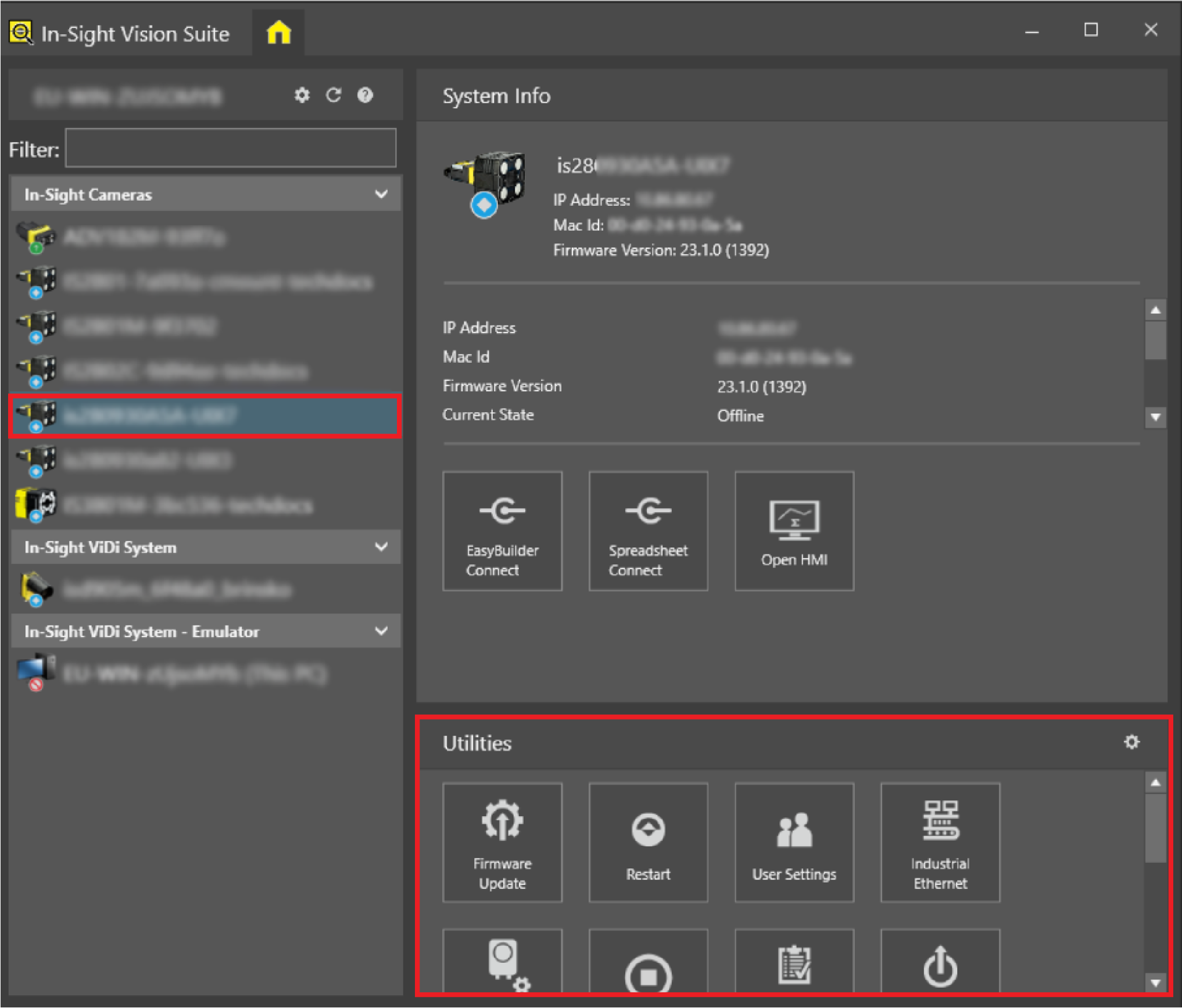
Left-click the device you want to configure on the In-Sight® Device Pane on the left, or hold Ctrl and left-click to select multiple devices. The list of Utilities applicable to the selected vision system then appears at the bottom of the window.
-
Press the Restore button to launch the Restore utility.
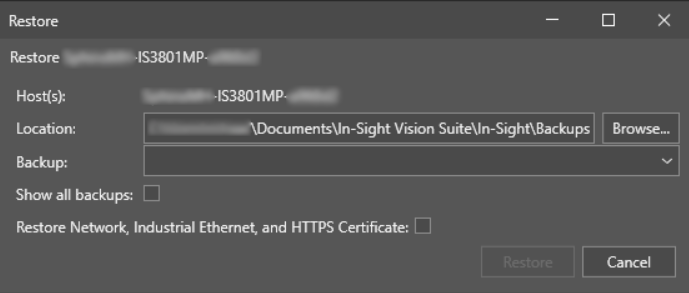 Note: If you use the Restore utility with multiple selected devices, the Backup dropdown shows all backup files of the devices, and the Show all backups and Restore Network, Industrial Ethernet, and HTTPS Certificate checkboxes are unavailable.
 -
The dialog displays the Host Name of the device to restore, and the Backup file to use for the restore operation. If multiple backup files are available, the Backup option has a drop-down menu that you can use to select the desired backup file. By default, the latest backup file is selected. The backups of the device are listed in the drop-down menu in the following format: <Backup Date> <Backup Time>
-
The Location setting allows you to store your backup files in a specific location and retrieve the backup files during a restore. Provide a location for your backup files by clicking Browse....
- By default, the Backup setting of the Restore utility shows only the backup(s) that were created on the currently selected vision system. If you want the drop-down menu to list all backups stored in the <X>:\Users\[username]\Documents\In-Sight Vision Suite\Backups folder (including the compatible backups of other vision systems), check the Show all backups setting. This is useful if you want to use the backup of another vision system to quickly configure the currently selected device. When this option is enabled, the drop-down list shows the available backups in the following format: <Device Network Name> <Backup Date> <Backup Time>.
-
Check the Restore Network, Industrial Ethernet, and HTTPS Certificate option if you want to restore the network settings and the Industrial Ethernet settings and the HTTPS certificate of the backup file as well.
- Once you are satisfied with all settings, click the Restore button.
- Enter the appropriate user credentials, if requested.
- The dialog then displays details about the progress of the restore process, and provide information about any errors that may occur.
- Once the restore is complete, press the Close button to close the utility.