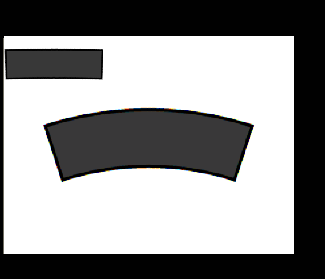
ScaleImage
Re-samples the pixels in an input image or region of interest (ROI) to produce a reduced, enlarged, unrotated, or unbent version of the image. The function Functions are tools that are available in Spreadsheet for processing and analyzing acquisitions or other results. You can add functions to your Spreadsheet job to create tool chains and produce results for specific applications. displays the re-sampled image in the upper-left corner of the In-Sight Spreadsheet spreadsheet.
 Inputs
| Parameter | Description | ||||||||||||
|
Image |
This parameter must use Cell References in
a spreadsheet cell that contains an Image data structure. By
default, this parameter references |
||||||||||||
|
Defines the Region of Interest (ROI) relative to a Fixture input or the output of the image coordinate system for the Vision Tools function. Setting the ROI relative to a Fixture ensures that if the Fixture is rotated or translated, the ROI is rotated or translated in relation to the Fixture. Note: 2D projections use real world units but fixturing with 2D tools requires input in pixel values. When using a 2D projection from a 3D point cloud A point cloud is a 3D structure that consists of the data points collected by a 3D vision system during acquisition. as a Fixture, convert the real world units to pixel values using the TransWorldToPixel function.
Note: Angles must be multiplied by -1, due to image space differences.
The default setting is (0,0,0), the top leftmost corner of the image.
|
|||||||||||||
|
Region |
Also known as the Region of Interest (ROI), specifies the region of the image that undergoes analysis. Double-click on the Region parameter to create an Interactive Graphics Mode that you can transform and rotate. Select this parameter and press the Maximize Region button under Edit in the property sheet toolbar to automatically stretch the region to cover the entire image.
|
||||||||||||
| X Scale |
Specifies the percentage in the X direction of the region (10–1000; default = 50.) Note: Values between 100 and 1000 specify upsampling. For example, if both the ratios are specified as 200, the resampled image will be four times as large as the specified Region. The output image is (ScaleX/100)*(ScaleY/100) larger.
|
||||||||||||
| Y Scale |
Specifies the percentage in the Y direction of the region(10–1000; default = 50.) Note: Values between 100 and 1000 specify upsampling. For example, if both the ratios are specified as 200, the resampled image will be four times as large as the specified Region. The output image is (ScaleX/100)*(ScaleY/100) larger.
|
||||||||||||
|
Display X |
Specifies the x-coordinate (default = 0) where the rescaled image will be displayed, relative to the upper left-hand corner. Note:
Specifying a value of -1 will ensure that the function places the scaled image at the same x-coordinate as the input image:
|
||||||||||||
|
Display Y |
Specifies the y-coordinate (default = 0) where the rescaled image will be displayed, relative to the upper left-hand corner. |
||||||||||||
|
Show |
Specifies which graphical overlays are displayed on top of the image.
|
Outputs
|
Returns |
An Image data structure containing the processed image, or #ERR if any of the input parameters are invalid. |
ScaleImage Example
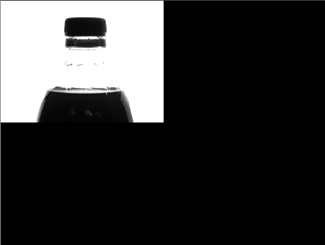
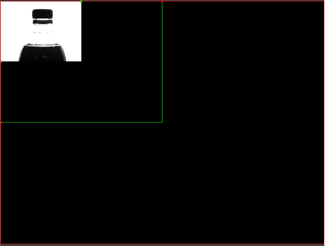
In this example, the object in the input image is a bottle. The purpose of this example is to scale the size of the bottle to 50%.
-
Insert the function into the In-Sight Spreadsheet spreadsheet.
-
Define the ROI by double-clicking on Region in the property sheet, which disappears to reveal the red ROI box overlaid on the image.
-
Move or resize the box using the cursor.
-
Click OK on the Job A job is a user-configured program in In-Sight Spreadsheet consisting of functions and designed for specific applications. You can create and edit jobs using the In-Sight Spreadsheet interface, and load them on a vision system for deployment in a live environment. Edit toolbar to confirm the selection and return to the property sheet. (The selection can also be confirmed by pressing the Enter key or by double-clicking within the ROI.)
-
Type 7.071 in both the X Scale and Y Scale fields.
Note: The scale value is calculated by finding the desired percentage, 0.5 in this example, multiplying it by 100, and taking the square root of this value. The scale value is 7.071. -
Accept the default settings of the other parameters and click OK in the property sheet to complete the configuration for this example and apply the function to the input image. The example shows a 50% scaled image of the bottle.
-
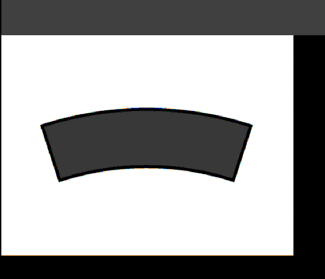
Use ScaleImage to "unbend" or "unrotate" objects, which can make it easier to reference other tools to the processed output image. In this example, the object is a slightly curved segment, which is shown with the Overlay removed (achieved by clicking Overlay on the View menu). The segment is also scaled to 50% in size, so that both the input image and output image can easily fit in the same view.
-
After inserting the function, define the ROI and specify 7.071 in both the X Scale and Y Scale fields in the property sheet (described earlier in the bottle example).
-
Incrementally change the values in the Angle and Curve fields under the Region parameter until the object is straight.
-
Accept the default settings of the other parameters and click OK in the property sheet to complete the configuration for this example and apply the function to the input image. The example shows an image of the bent object in the middle and the smaller and "unbent" version in the upper-left corner. In this example, an angle of 17.390 and a curve of -36.389 were needed to straighten the curved segment.