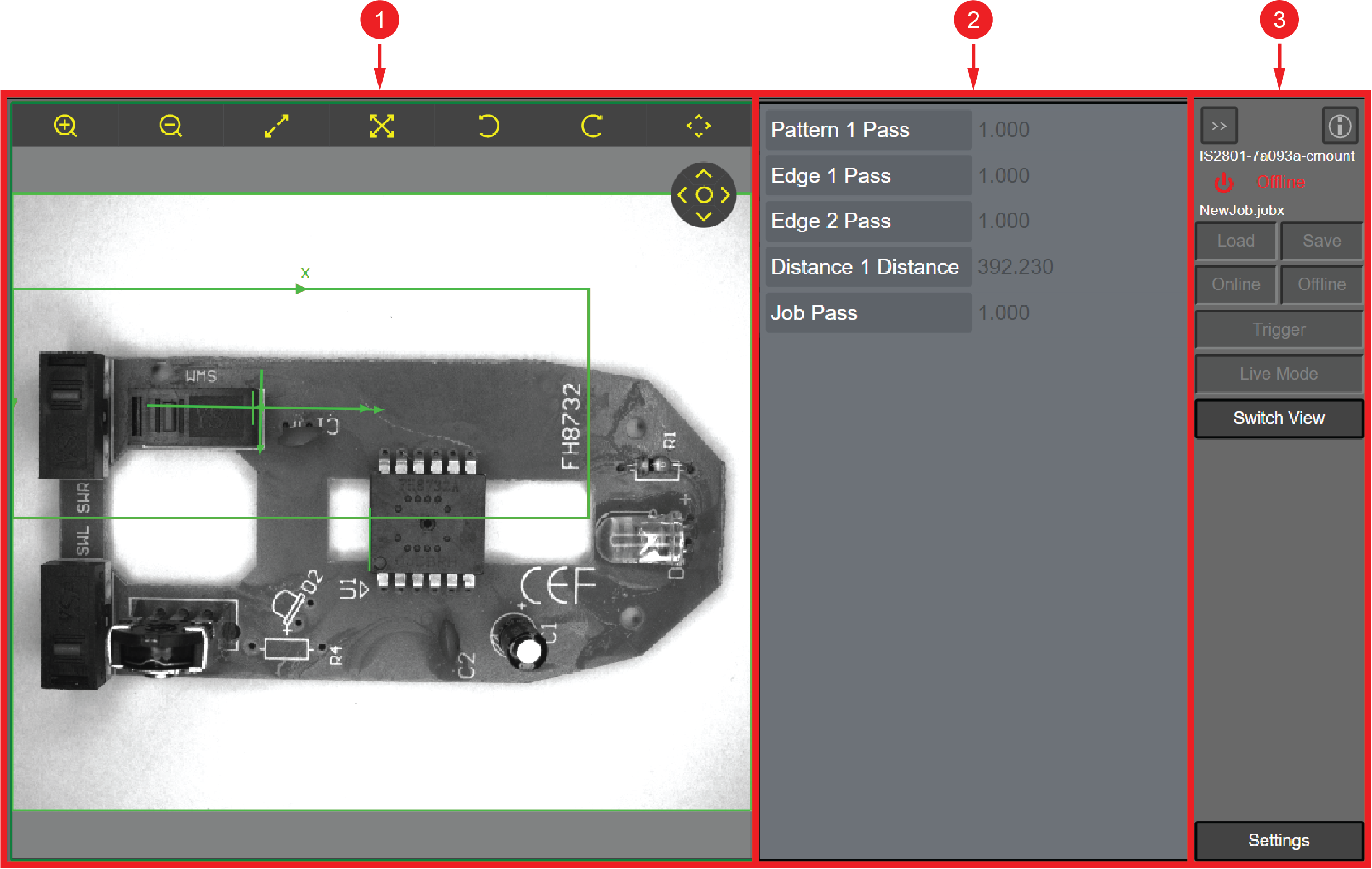
HMI Controls
To Open HMI view, see Open HMI.
The data displayed and editable here depends on the settings of the EasyView in EasyBuilder.
For more information, see HMI in the In-Sight EasyBuilder Help document.
|
|
|
|---|---|
| Item | Description |
| 1 | Main Pane |
| 2 | EasyView |
| 3 | Side Bar |
Main Pane
Buttons
|
|
|
|---|---|
| Icon | Action |
|
|
Zoom In |
|
|
Zoom Out |
|
|
Adjust to Image Size |
|
|
Adjust Image to Pane Size |
|
|
Undo |
|
|
Redo |
|
|
Hide/Show Navigator |








Image
This section displays the image source, depending on the Image settings in EasyBuilder. For more information, see Image in the In-Sight EasyBuilder Help document.
EasyView
The EasyView pane lists all the tool results in the job set up in the Easybuilder Set Up EasyView. For more information, see HMI in the In-Sight EasyBuilder Help document. To configure the display settings for the Main Pane and EasyView, click Settings on the Side Bar.
Side Bar
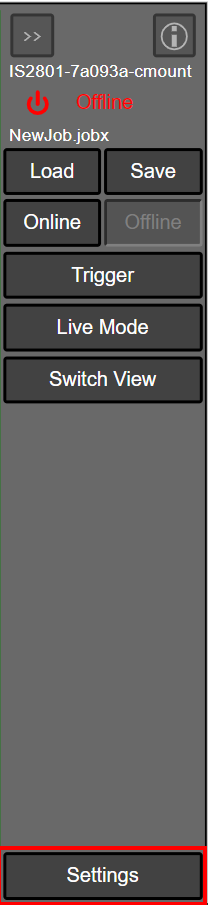
The side bar allows you to configure settings in the HMI.
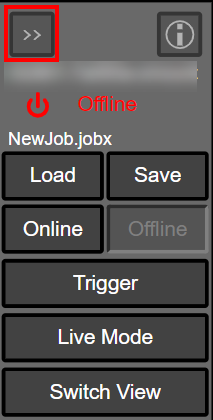
Open / Close Side Bar
You can minimize the side bar, in which case only icons are visible for the side bar functions.
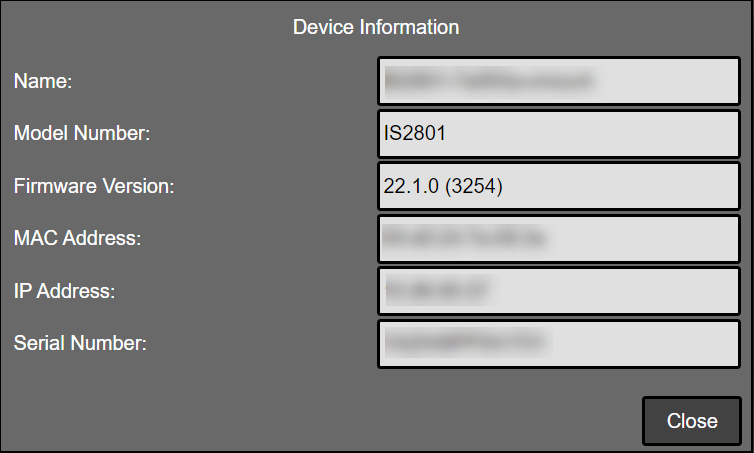
Device Information
To see detailed Device Information, click on the info icon in the top right corner of the Side Bar.
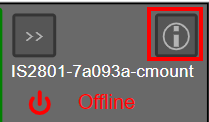
A pop-up window appears displaying the Name, Model Number, Firmware Version, MAC Address, IP Address and Serial Number of the device.
Action Buttons
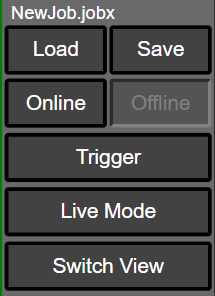
Under the displayed job name you can perform the following actions:
|
|
|
|---|---|
| Button | Action |
| Load | Loads current Job. |
| Save | Saves current Job. |
| Online | Sets the vision system Online. For more information, see Online and Offline in the EasyBuilder Help Documentation. |
| Offline | Sets the vision system Offline. For more information, see Online and Offline in the EasyBuilder Help Documentation. |
| Trigger | Triggers the vision system. |
| Live Mode | Switches the vision system to Live Mode. |
| Switch View |
Click Switch View to switch between the following views:
|
Settings
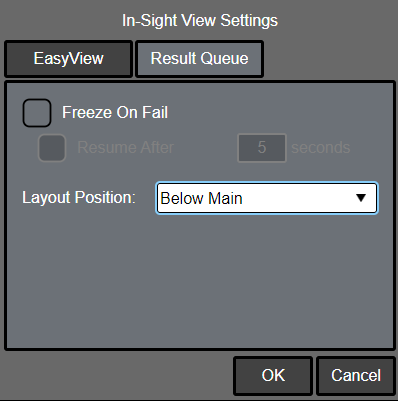
Click Settings on the bottom of the Side Bar to customize the display of the EasyView and the Results Queue.
EasyView Tab
|
|
|
|---|---|
| Function | Description |
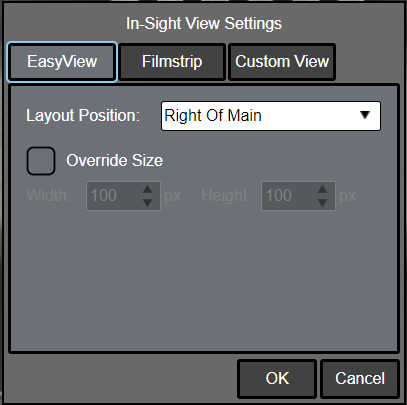
| Layout Position |
The Layout Position defines the position of the EasyView pane comparing to the Main Pane. Select the position for the EasyView pane from the dropdown list:
|
| Override Size |
To customize the size of the EasyView, check the Override Size checkbox. You can adjust the size of the EasyView pane with setting the Width and the Height values with the up and down controls or with entering the value. When you uncheck the Override Size checkbox, the EasyView pane the values are automatically set back to the default size. The default size is 100 px for both Width and Height. |
Results Queue Tab
|
|
|
|---|---|
| Function | Description |
| Freeze on Fail |
If you check the Freeze on Fail checkbox, the currently playing Filmstrip stops at the first fail result and displays the fail image in the main image area. If you check the Resume After checkbox, you can define in seconds how long the filmstrip stops before continuing to play. |
| Layout Position |
The Layout Position defines the position of the EasyView pane comparing to the Main Pane. Select the position for the EasyView pane from the dropdown list:
|