Delete Files with the File Management Utility
The File Management utility lets you delete files and entire folders on the vision system storage.
-
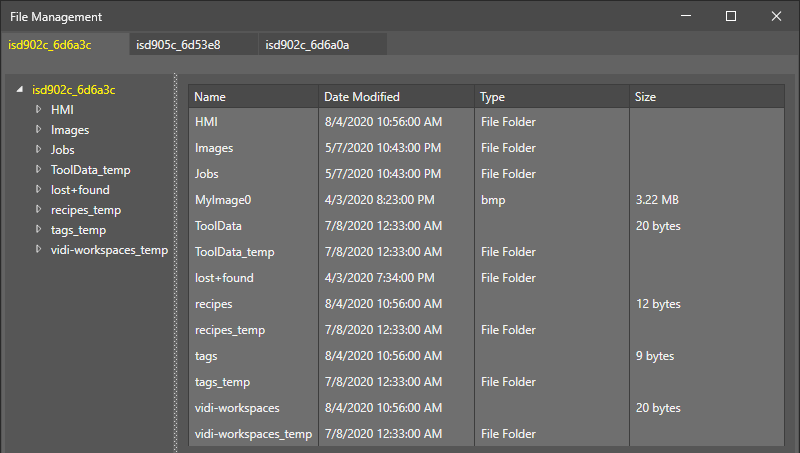
Select the device you wish to use in the In-Sight® Device Pane, and then open the File Management utility. The utility window then appears.
-
If the file(s) or folder(s) you want to delete are not located in the root of the device storage, then use the navigation pane to open their location. Once the file(s) or folder(s) you want to delete are visible in the storage explorer, select and right-click them to open the context menu. Then, click Delete.
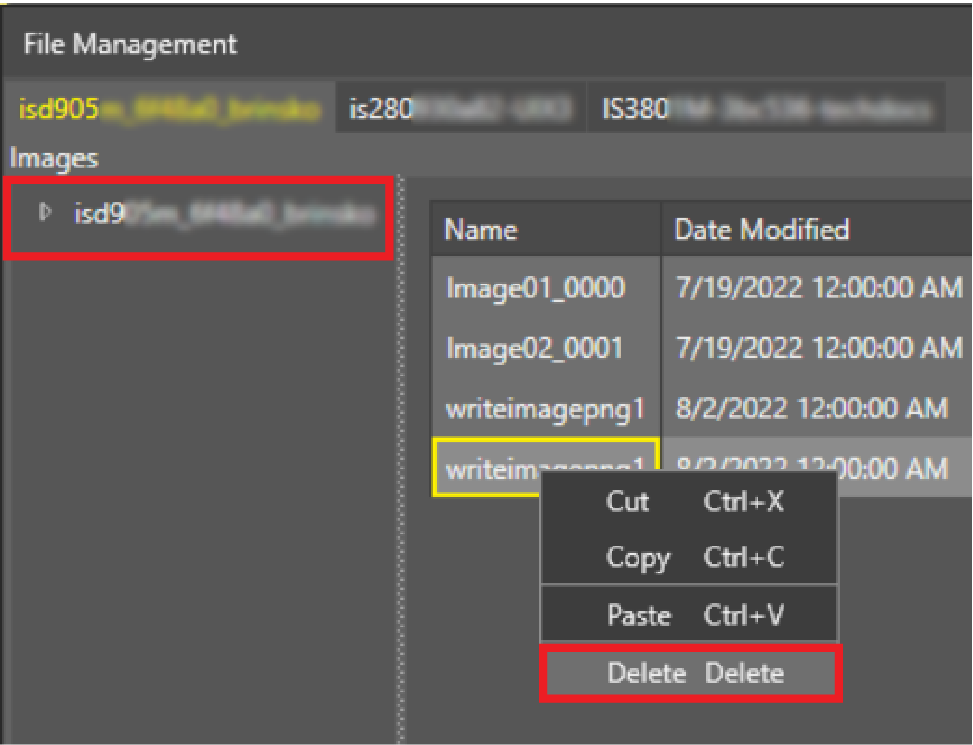 Tip: You can select multiple files or folders in the storage explorer to copy, move, or delete. Similarly to the In-Sight® Device Pane, press Shift + Left Click on the first and last items in the list you want to select, or press Ctrl + Left Click to select multiple items one after the other.
 -
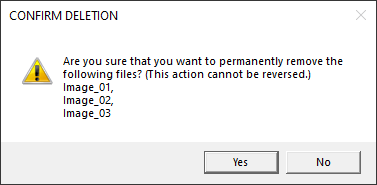
A confirmation dialog then appears, listing all files and folders selected for removal. Click Yes to confirm the deletion, or click No to cancel it.