Set Up the Vision System Pose
You set up vision system pose options so that the robot program contains the proper location of the vision system.
-
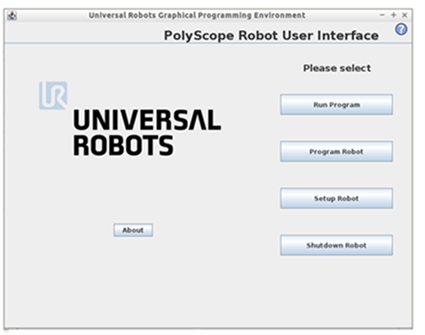
Launch the PolyScope program that you created. The main menu displays:
-
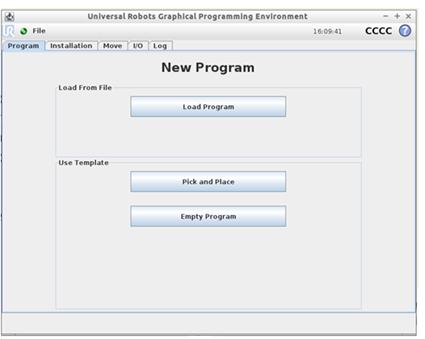
In the PolyScope main menu, select Program Robot. A list of tabs display.
-
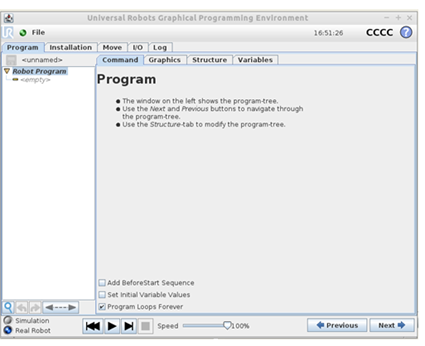
Select Empty Program.
-
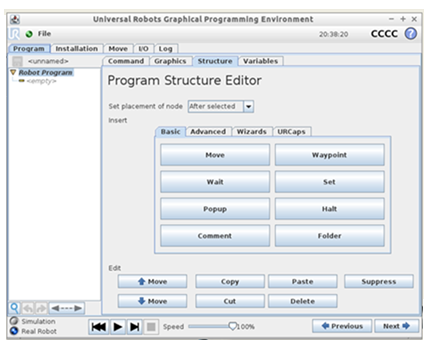
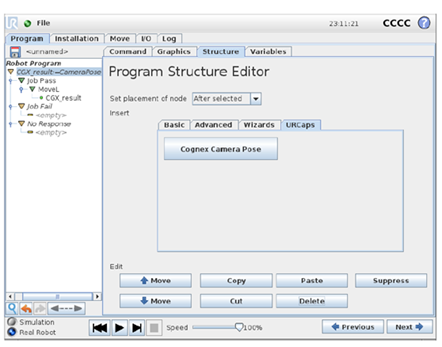
Select the Structure tab. The Program Structure Editor page displays.
-
Select the URCaps. The Cognex Camera Pose button displays, which represents the Cognex In-Sight 2D Robot Guidance plugin.
-
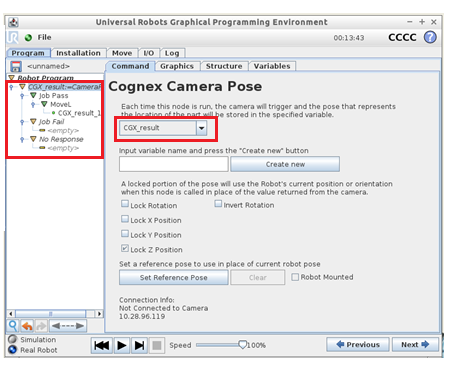
Select the Cognex Camera Pose button, then select the Command tab. The Robot Program tree on the left now contains the CGX_result;=CameraPose node and three additional nodes: Job Pass, Job Fail, and No Response.
-
A file named CGX_result is created that will be used to store the vision system pose. The pose corresponds to the location of the part found by the vision system.
- Lock any positions that you do not want to be obtained by the vision system. If you leave all rotations unlocked, the robot rotation will be relative to the current rotation at the robot gripper, which is the rotation set when the program reaches the CGX_result;=CameraPose node. To lock a position, mark the appropriate check box.
- Save the program.