FindPatMaxRedLine
Finds objects in an image based on a trained pattern. FindPatMaxRedLine finds patterns within an image based on a trained pattern from a Patterns structure.
- From In-Sight firmware 5.5.0 and later, the function's algorithm has been changed to return more accurate results and decrease the execution time in some circumstances.
- Due to this change, when attempting to load a job containing this function configured on the In-Sight firmware 5.5.0 or later to an In-Sight vision system running firmware version 5.4.x or earlier, an error message is displayed and any cells that contains this function will result in #ERR.
- This function is only available on In-Sight vision systems running In-Sight firmware 5.1.0 and later. For a complete list of models and supported firmware versions, see Firmware Versions.
FindPatMaxRedLine Inputs
Syntax: FindPatMaxRedLine(Image,Fixture.Row,Fixture.Column,Fixture.Theta,Find Region.X,Find Region.Y,Find Region.High,Find Region.Wide,Find Region.Angle,Find Region.Curve,External Region,Pattern,Number to Find,Accept Threshold,Ignore Polarity,Accuracy Mode,Clutter in Score,Contrast Threshold,Find Tolerances.Angle Start,Find Tolerances.Angle End,Find Tolerances.Scale Start,Find Tolerances.Scale End,XY Overlap,Advanced Settings.Use Coarse Percentage,Advanced Settings.Coarse Accept Percentage,Timeout,Show)
| Parameter | Description | ||||||||||||
|---|---|---|---|---|---|---|---|---|---|---|---|---|---|
|
Specifies a reference to a spreadsheet cell that contains an Image data structure; by default, this parameter references A0, the cell containing the AcquireImage Image data structure. This parameter can also reference other Image data structures, such as those returned by the Vision Tool Image functions or Coordinate Transforms Functions. |
|||||||||||||
|
Defines the Find Region relative to a Fixture input or the output of a Vision Tool function's image coordinate system. Setting the ROI relative to a Fixture ensures that if the Fixture is rotated or translated, the ROI is rotated or translated in relation to the Fixture. For more information, see Fixture or Vision Tools. The default setting is (0,0,0), the top leftmost corner of the image.
|
|||||||||||||
|
Also known as the Region of Interest (ROI), specifies the region of the image that undergoes analysis and creates a rectangular image region that can be transformed and rotated. For more information, see Interactive Graphics Mode. Tip: With this parameter
selected, you can press the Maximize
Region button on the property sheet's toolbar to maximize the region and cover the entire image.
|
|||||||||||||
|
This parameter can reference a spreadsheet cell that contains the following functions:
When this parameter is used, the function ignores the Region and Fixture settings and inspects the image area specified by referenced region. If an EditCompositeRegion control is referenced, the inspection area can be a mix of shapes. Each shape in the composite region can be assigned as added to or subtracted from (masking) the inspection area. For more information, see Cell References - Relative/Absolute. Note: If this parameter has been set as a reference to an external region, to use the function's internal Region, this parameter must be manually set to zero by entering the value 0 in place of the cell reference. Otherwise, the function will continue to reference the external region.
|
|||||||||||||
|
This argument must reference a spreadsheet cell that contains a valid Patterns data structure returned by the TrainPatMaxRedLine function. For more information, see TrainPatMaxRedLine. |
|||||||||||||
|
Specifies the maximum number of pattern matches to return (1 to 1000; default = 1). |
|||||||||||||
|
Specifies the acceptance threshold, which is the lowest score of a valid instance. The score for a potential match must be greater than the value of the acceptance threshold or that match is not returned (0 to 100; default = 50). |
|||||||||||||
|
Ignore Polarity |
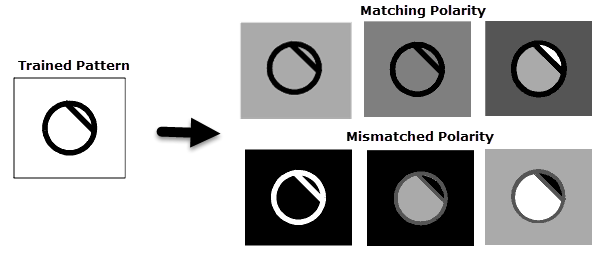
Specifies whether matches can be found that contain color-inverted match features with respect to the trained pattern.
Ignoring Polarity increases the variety of patterns that PatMax finds. Figure below shows some examples of matched and mismatched polarities. If you configure PatMaxRedLine to ignore polarity, it finds all of the patterns shown in the figure. If you configure PatMaxRedLine to consider polarity, it might not find the pattern in the bottom row, or it might find them but assign them lower scores than the patterns in the upper row.
|
||||||||||||
|
Specifies the tradeoff between accuracy/reliability and execution speed.
|
|||||||||||||
|
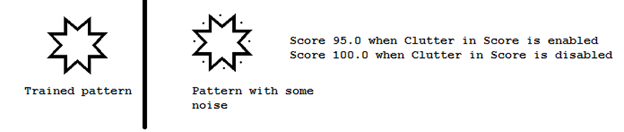
Specifies whether missing or occluded pattern features will reduce the response score(s).
|
|||||||||||||
|
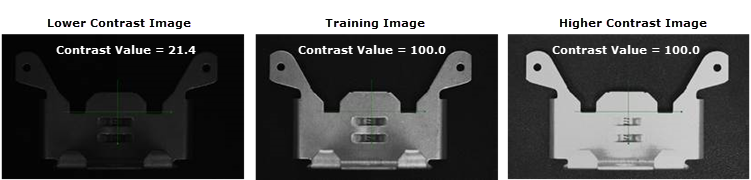
Specifies the lowest contrast of a valid instance. The contrast for a potential match must be greater than the value of the Contrast Threshold or that instance will not be considered (0 to 100; default = 0). The contrast value for FindPatMaxRedLineColor and FindPatMaxRedLine are the relative measure of contrast change between features in the trained pattern versus match features in search image, in percentage. Therefore, if feature contrast is similar or high to pattern contrast, reported Contrast will be ~100. If the pattern contrast exceeds the feature contrast, the reported Contrast will be <100. Note: The Contrast for FindPatMaxRedLineColor and FindPatMaxRedLine are different from the contrast for FindPatMaxPatterns, which is the "absolute" image contrast of the search ROI, in grey scale level.
|
|||||||||||||
|
Specifies the settings for finding patterns that are rotated or scaled with respect to the trained pattern. Note: The Find Tolerances are hard limits, i.e. any results that are found outside of the specified Find Tolerances are not returned in the spreadsheet.
|
|||||||||||||
|
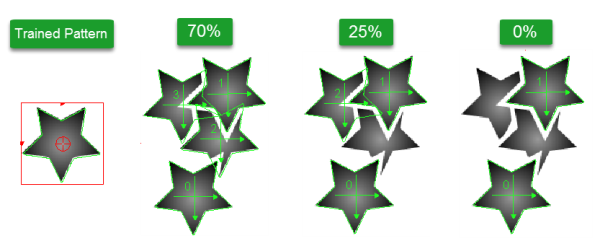
This parameter controls the ability of the tool to find pattern candidates that overlap each other. Specifies the expected position difference between multiple overlapping patterns in roughly the same X,Y location, as a percentage of the trained pattern size (0 to 100; default = 70). Note: Increasing this
value allows finding multiple overlapping matches of the same pattern.
|
|||||||||||||
|
|
|
||||||||||||
|
Specifies the amount of time, in milliseconds (0 to 30000; default = 5000, disabling the timeout), that the function will search for patterns before execution is halted and an #ERR is returned. |
|||||||||||||
|
Specifies the display mode for graphical overlays on top of the image.
|
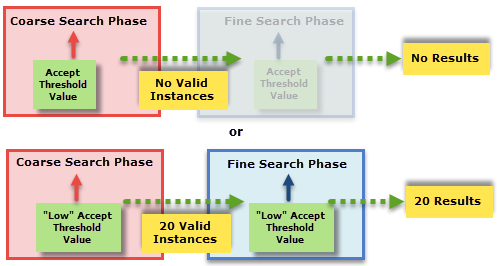
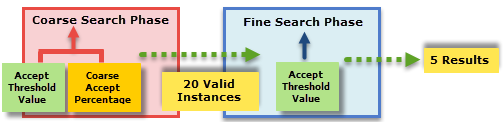
 How Coarse Accept Percentage Works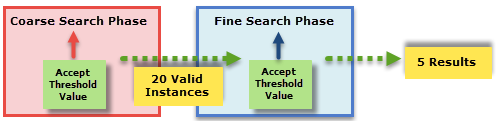
FindPatMaxRedLine Output
|
Returns |
A Patterns data structure containing a model and a list of pattern responses sorted by score, or #ERR if any of the input parameters are invalid or no matching patterns could be found. |
|
When FindPatMaxRedLine is initially inserted into a cell, a result table is created in the spreadsheet. |
FindPatMaxRedLine Vision Data Access Functions
The following Vision Data Access functions are automatically inserted into the spreadsheet to create the result table. For more information, see Patterns.
| Name | VDA Function | Description |
|---|---|---|
|
Row |
GetRow(Patterns, Index) |
The row coordinate of the pattern position. |
|
Col |
GetCol(Patterns, Index) |
The column coordinate of the pattern position. |
|
Angle |
GetAngle(Patterns, Index) |
The orientation of the pattern position. |
|
Scale |
GetScale(Patterns, Index) |
The size of the pattern found compared to the trained model, as a percentage of the model size. |
|
Score |
GetScore(Patterns, Index) |
The pattern response score. |