Using the TrainPatMax3D Tool
This section describes how to train a PatMax3D tool in In-Sight Spreadsheet. PatMax3D is a true object-based point cloud location tool for finding the part based on the 3D geometry of the part, instead or relying on the greyscale value contrast.
This is an example process. For all applicable options, see TrainPatMax3D.
- Open the Point Cloud on which you wish to train the TrainPatMax3D tool.
-
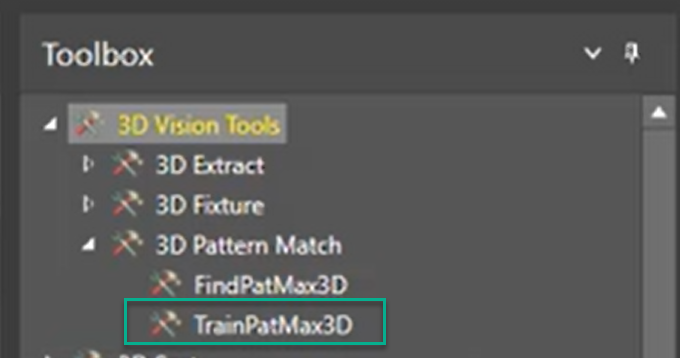
Select TrainPatMax3D tool from 3D Vision Tools in the Toolbox, on the right side.
-
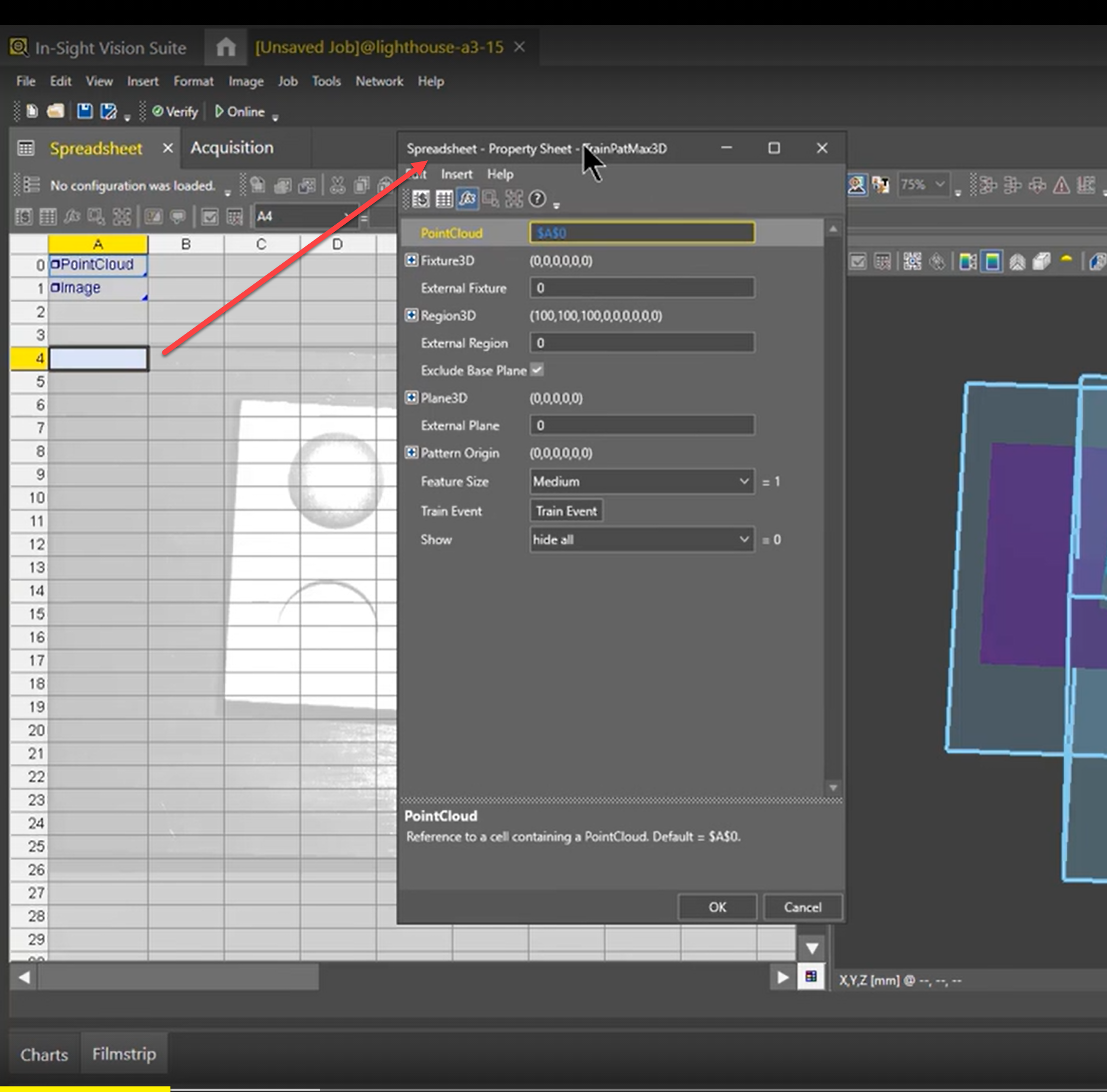
Drag TrainPatMax3D tool to the selected cell of the Spreadsheet. The Property Sheet opens up.
-
To edit the region, double click on Region3D.
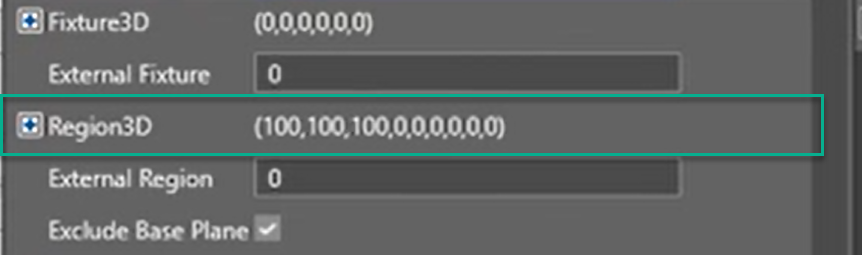
- Now you can edit the region on your part. To do so:
- Select the desired plane which shows your part from an angle in which you can easily set the region. The example image shows that the Z-plane is selected.
Use the Quick Drop Box tool to select your region. Move the part so you can adjust the selection as desired.
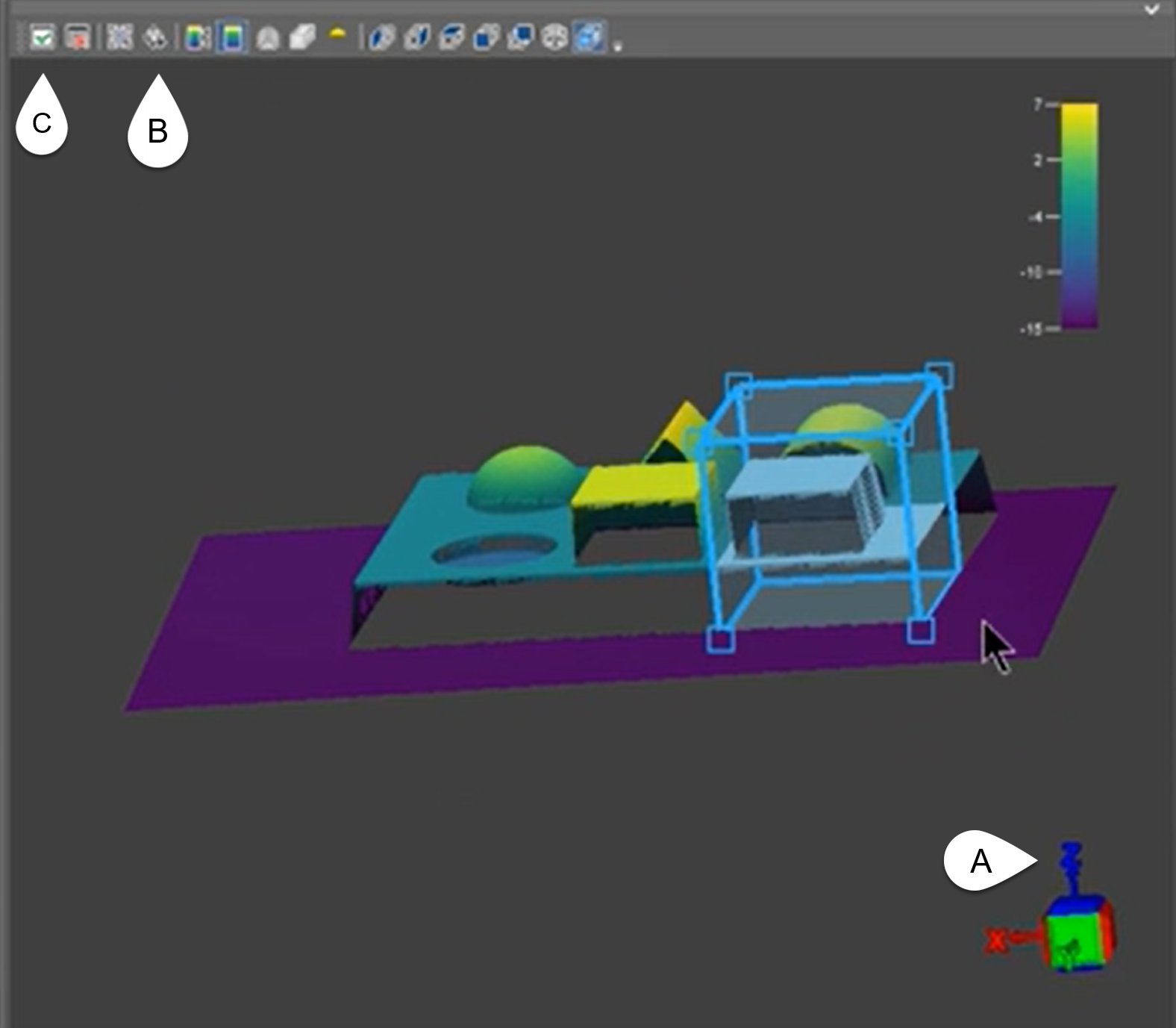
Click Accept Changes. The pop-up Property Sheet now shows she coordinates of the selected region.
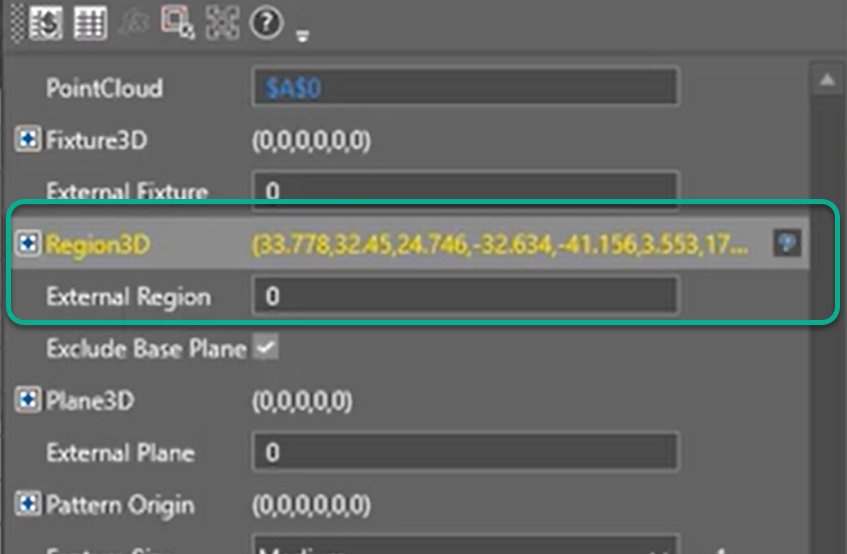 Note: Uncheck Exclude base panel if your selection includes the part's base panel, but you do not want the base panel to be in the final trained pattern.
- Set External plane if your part includes an External plane.
-
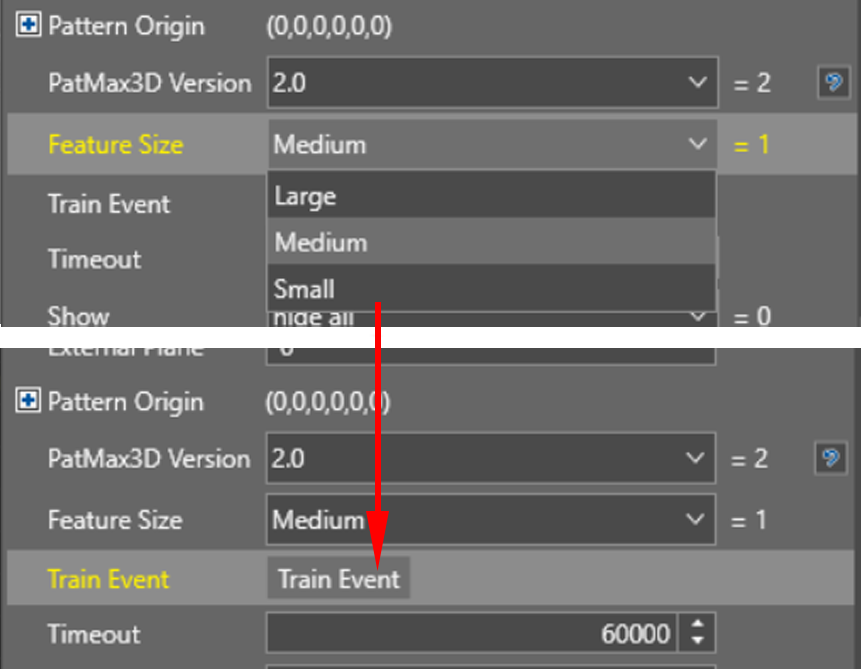
In Pattern Origin, set Feature size.
Note: If your part is small and very detailed, choose Small. However, Medium and Large options give much faster results. -
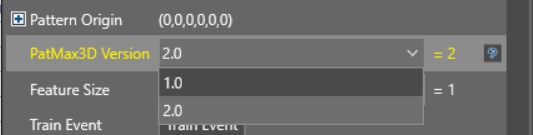
Select the PatMax3D Version to use:
-
Version 1.0 produces results that are consistent with PatMax3D tools in existing jobs that you created with In-Sight 3D versions before 1.3.0.
-
Version 2.0 produces results twice as fast with the same accuracy, but can produce different results in certain cases.
If you are creating new jobs with In-Sight 3D 1.3.0 or later, use PatMax3D Version 2.0. If PatMax3D Version 2.0 does not produce results, use PatMax3D Version 1.0 instead.
-
-
After the Feature size is selected, click Train event to trigger the model training event.
-
Once the Train event has completed, you can see a pink box formed around your selected region, indicating that the software has trained the pattern.
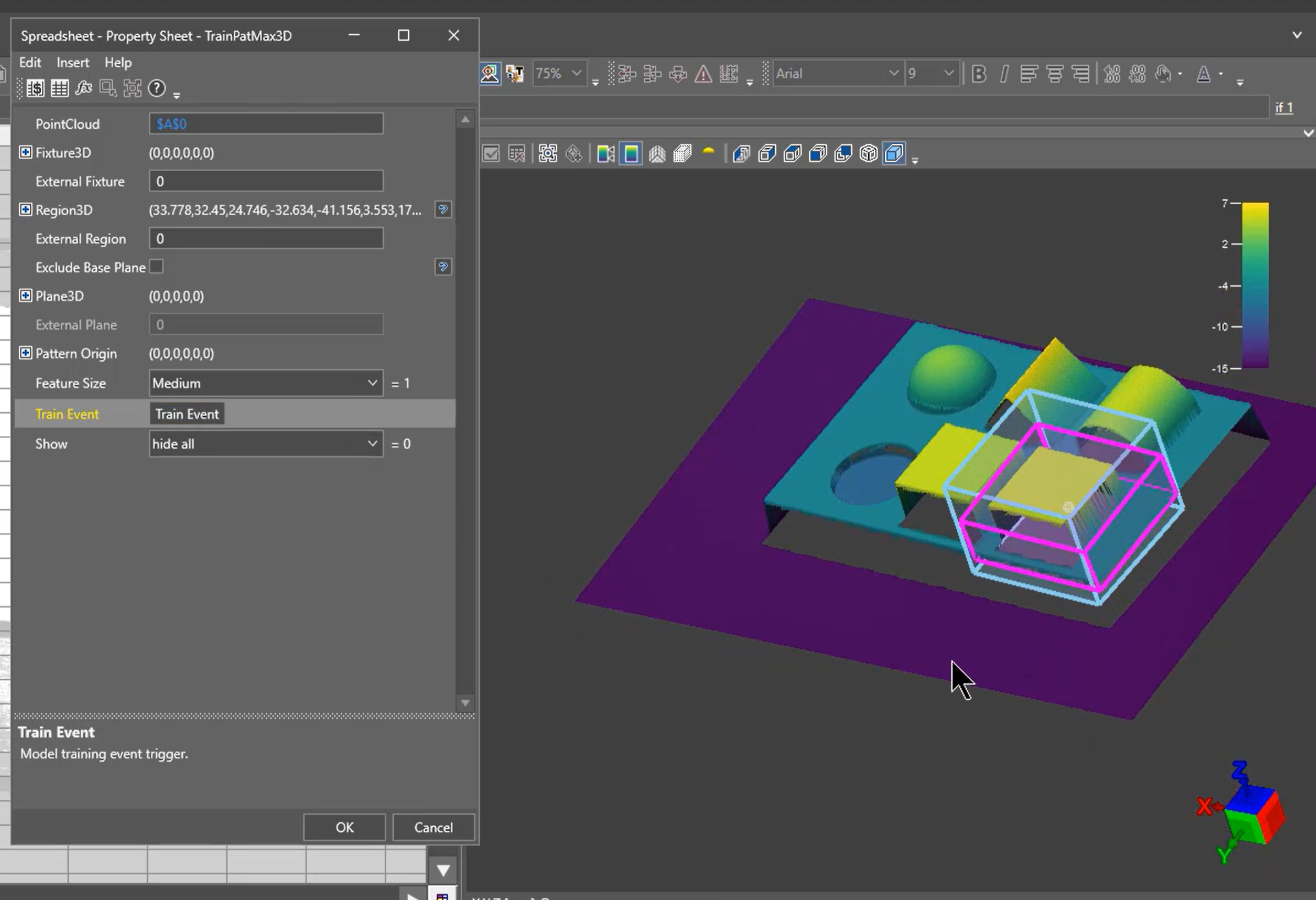 Note: If the pink box does not appear, repeat the training process and check your settings.
 - Click OK to accept the trained pattern.
- To re-train the TrainPatMax3D tool, set the system to Offline state and repeat Steps 4-10.