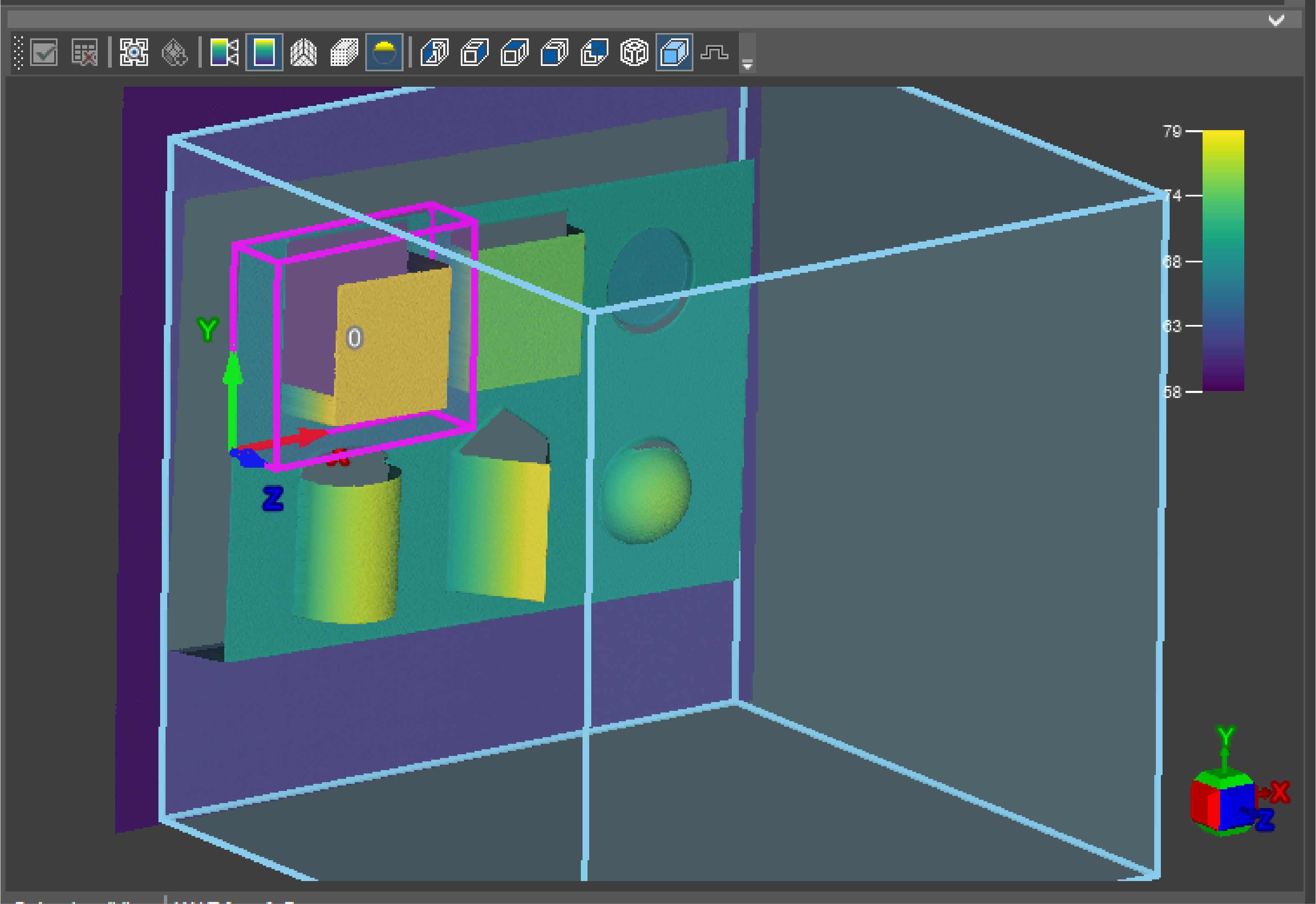
Using the FindPatMax3D Tool
You can use the FindPatMax3D function to find objects in the point cloud based on a trained PatMax3D pattern configured with the TrainPatMax3D function.
This is an example process. For all applicable options, see FindPatMax3D.
-
Acquire a point cloud or double click on a point cloud from a filmstrip.
-
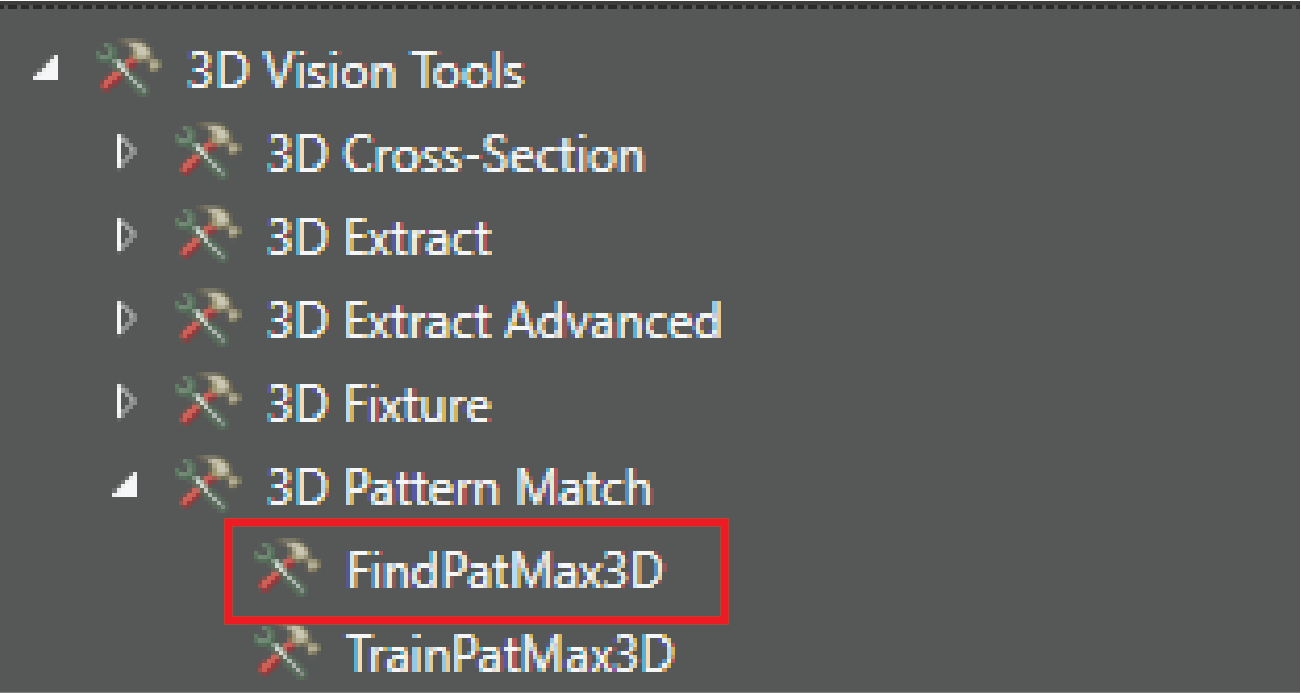
Select FindPatMax3D from 3D Vision Tools in the Toolbox.
-
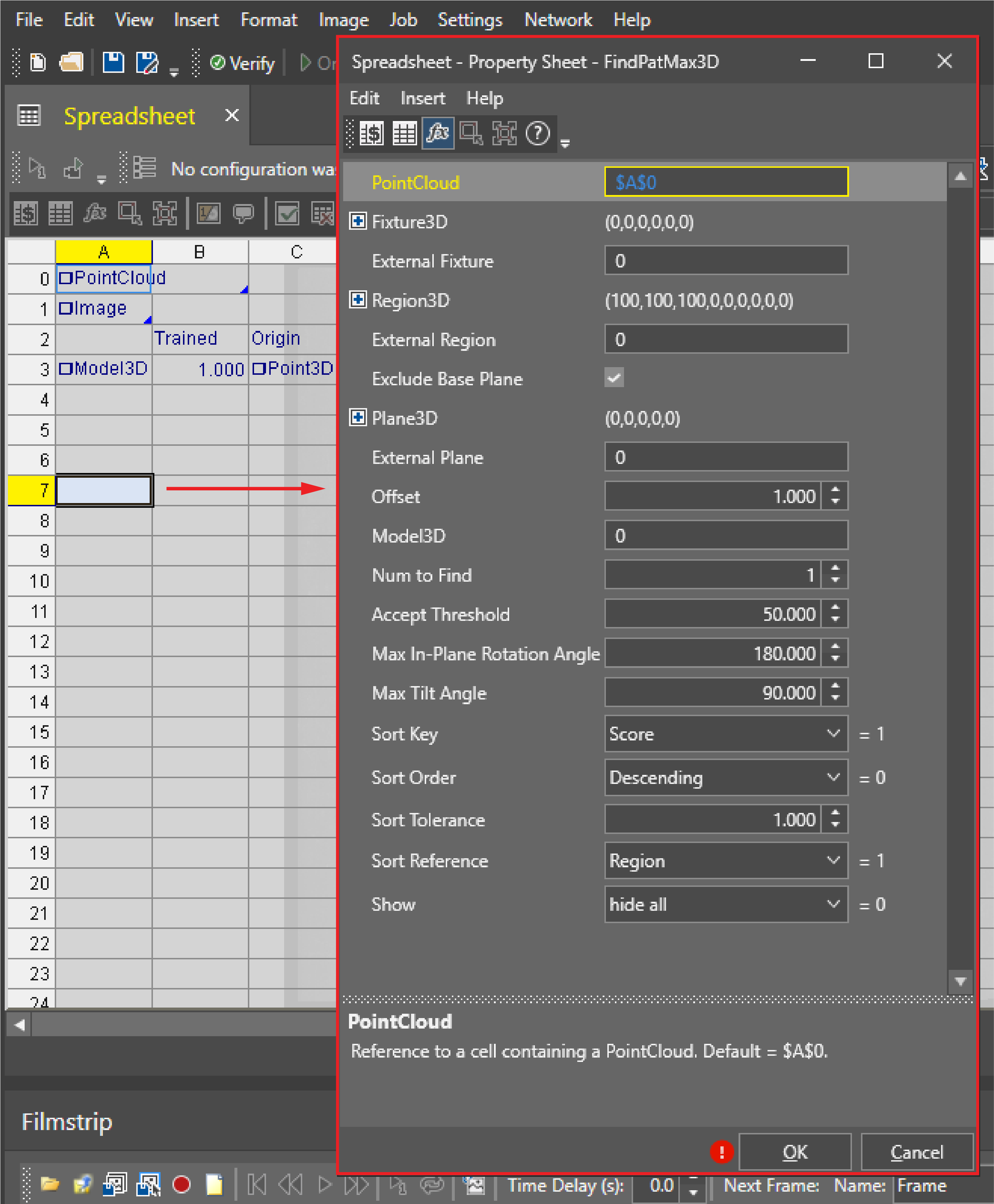
Drag the FindPatMax3D tool to the selected cell on the Spreadsheet, and the Property Sheet will open automatically.
-
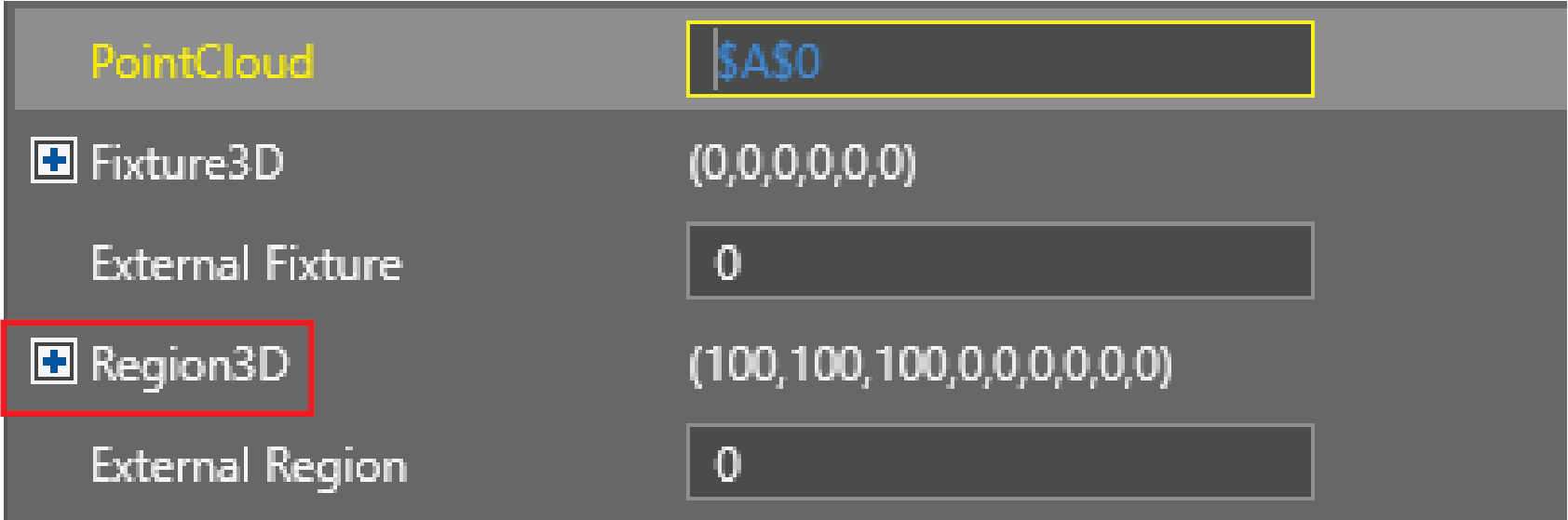
To edit the search region, double click on Region3D.
-
Adjust the point cloud view so you can define the region accurately. For best accuracy, start from a top-down view, and adjust in front and side view.
-
Use the Quick Drop Box tool to select the region. Click and drag the corner boxes to resize, click and drag the edges to rotate on the perpendicular axis.
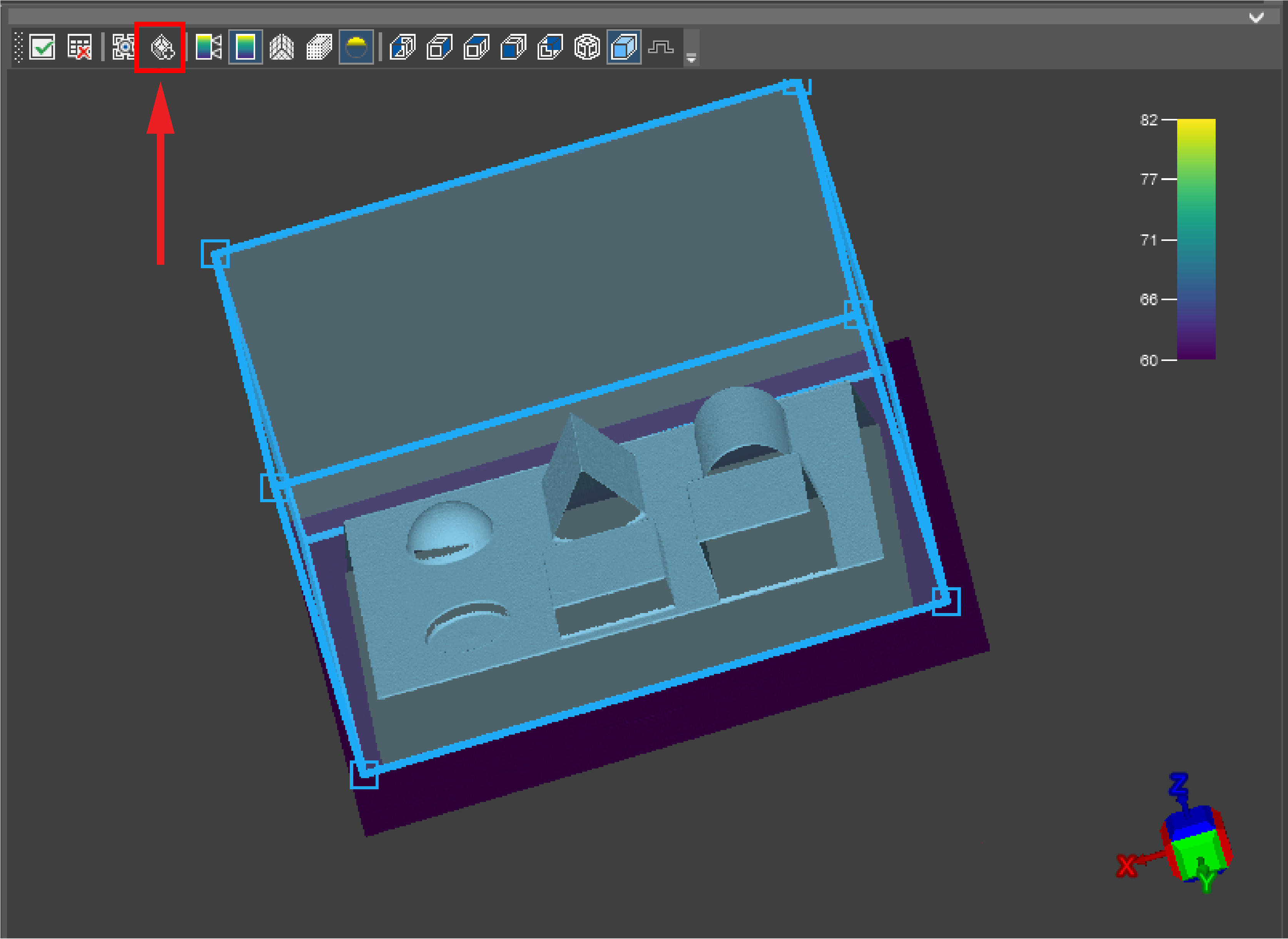
-
Click on the Accept Changes icon. The Property Sheet now shows the coordinates of the selected region.
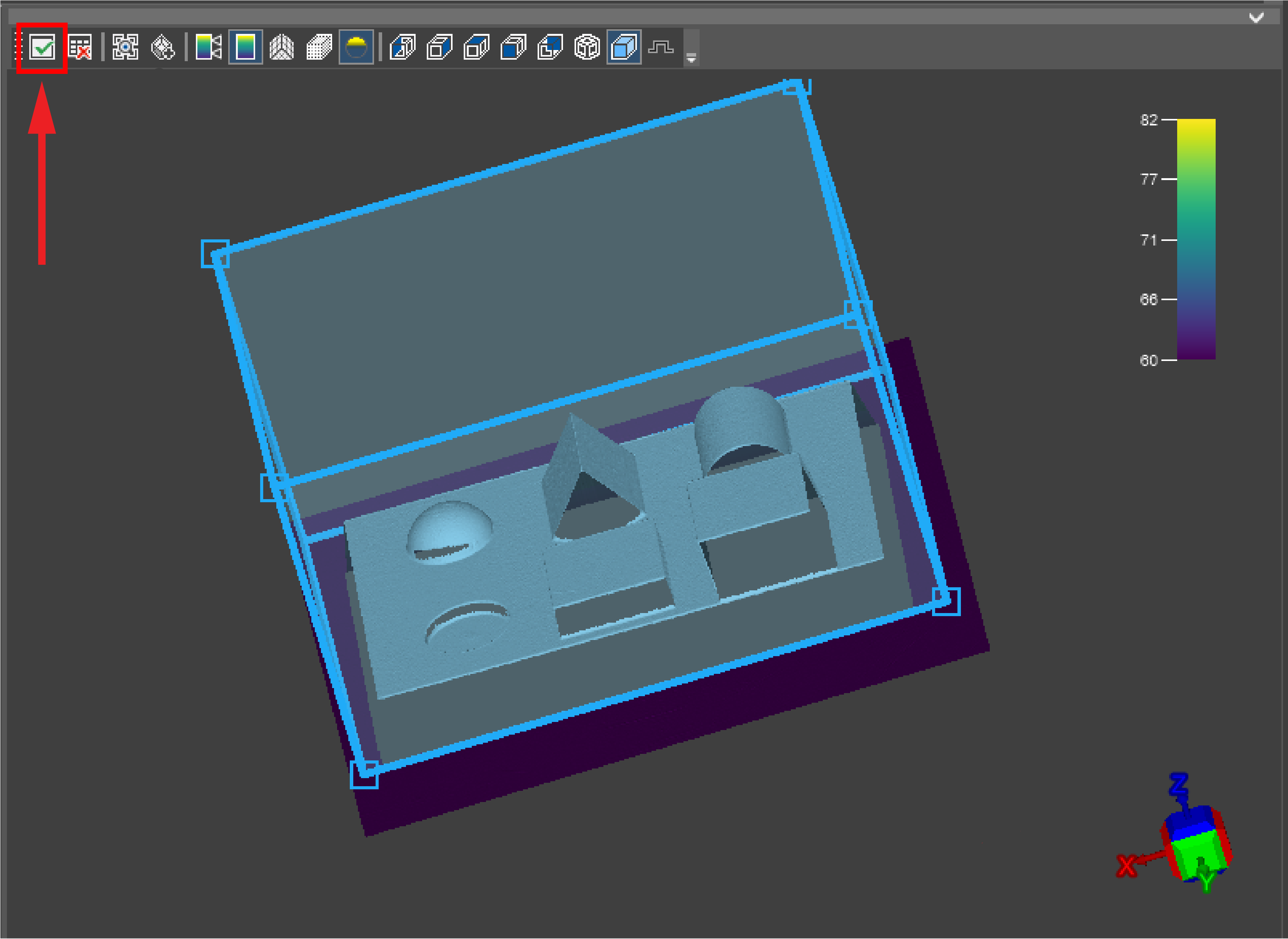

-
If you want the tool to ignore points located under a reference plane, define the plane in the Plane3D settings, or provide a reference to an existing plane in the External Plane parameter. Exclude plane option is recommended when there are some flat areas inside the region that you want to ignore during the search. Uncheck this option if you want to use all points inside the region.
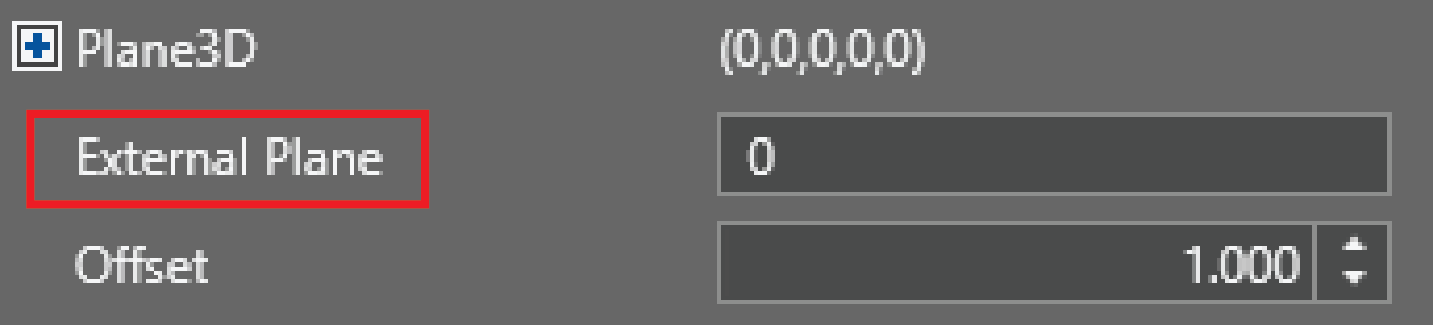

-
Double-click Model3D and select the cell with the same name on the spreadsheet. See Using the TrainPatMax3D Tool for information on how to train the model.

-
If needed, change the optional settings. For a detailed description on these settings, see FindPatMax3D.
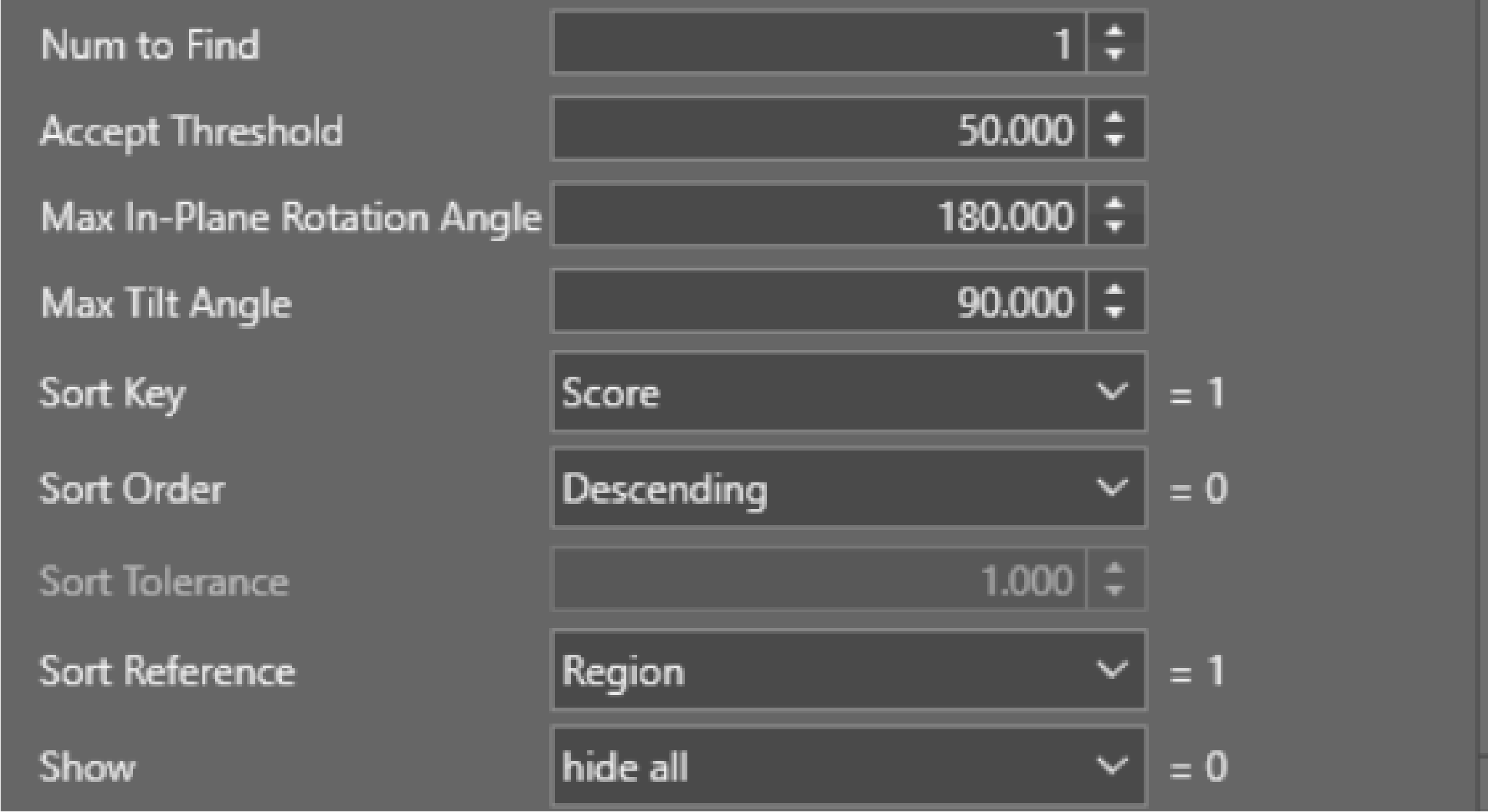
-
Click OK. A highlighted region that best matches the trained part appears.