Configure Discrete I/O Lines
Use the Discrete I/O Settings dialog to configure the available I/O lines of the vision system.
-
From the Settings menu of the Menu Bar, click Discrete I/O Settings.
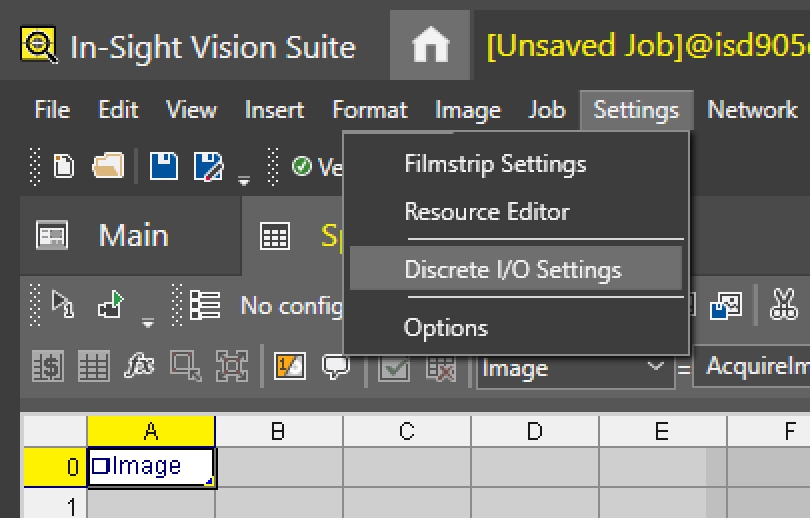
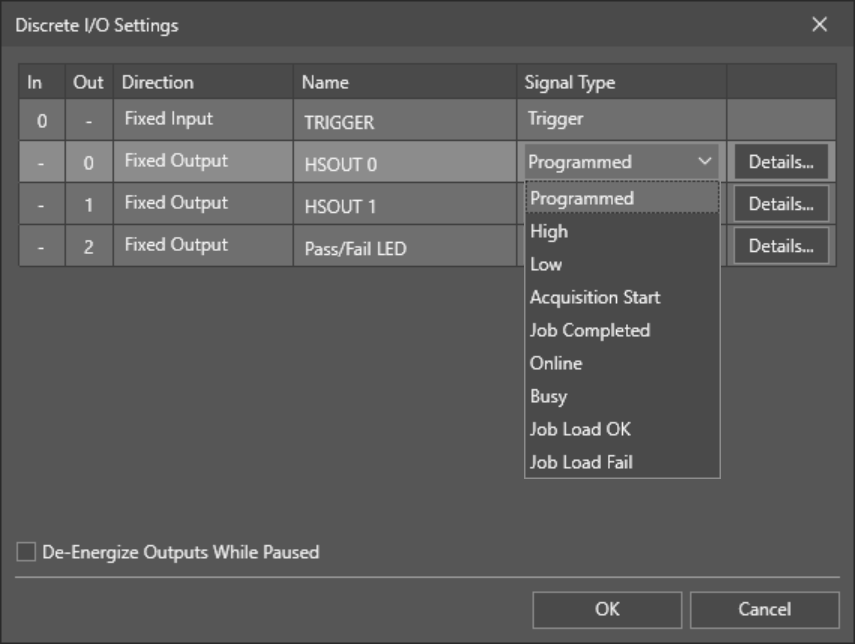
The Discrete I/O settings dialog then appears.
-
Select a line to configure. For more information, see the In-Sight 3D-L4000 Series I/O Lines topic.
Note: TRIGGER is reserved for acquisition trigger input and cannot be configured. -
Customize the default line name if you wish by entering a new one in the Name cell.
Note:- Renaming a line does not change its functionality.
- The line name cannot be referenced.
-
Choose a Signal Type for the selected output line. You can configure each input line for one of the following functions:
Output Signal Type Description Programmed
(default)
Enables a WriteDiscrete function in the spreadsheet to control the state of the output line. High Forces the output to HIGH (1). Low Forces the output to LOW (0). Acquisition Start Signals the vision system has initiated an acquisition.
By default, the Acquisition Start signal type provides a 10 ms pulse on the output line every time a new acquisition starts. For best results, configure the Acquisition Start signal type on HSOUT 0 or HSOUT 1, so you can output the signal to any receiving device for processing.
The Acquisition Start signal type is the most useful when the Trigger Source of the vision system is set to Continuous, and you need a signal for every new acquisition.
Job Completed Signals each time the spreadsheet has completed an update. Online Signals when the vision system goes Online or Offline. The signal is HIGH (1) when the vision system is Online, and LOW (0) when it is Offline. Busy Signals when the vision system is working or idle. The signal is HIGH (1) when the vision system is running a job or responding to user input, and LOW (0) when it is idle. Job Load OK Signals that the job loaded successfully. Job Load Fail Signals the failure of a job load. - Click the Details button for the selected output line to configure additional settings. For more information, see the Configure Discrete Output Details topic.
-
Optionally, check the De-Energize Outputs While Paused option to de-energize the output lines when the vision system is placed Offline.
Note:-
When the vision system is Online, output lines are activated by their configured signal types, regardless of whether the De-Energize Outputs While Paused setting is enabled or disabled.
-
When the vision system is Online, but in the Paused state, the De-Energize Outputs While Paused setting behaves as follows:
- When the setting is disabled, the Outputs are activated by their configured signal type.
- When the setting is enabled, the Outputs are always inactive.
- If the De-Energize Outputs While Paused option is enabled, and you place the vision system Online, then:
- Output lines configured with the Discrete I/O Settings dialog will be restored.
- Output lines configured with the WriteDiscrete function will not be restored, as these lines require the function's specified Event to occur for restoration.
-
- Click OK to accept the changes, or click Cancel to discard them.