Read ID Tool
Use the Read ID tool to find and decode 1D and 2D symbols. The function supports a variety of symbologies and can handle a high degree of rotation and perspective distortion. The Read ID tool fails if it does not decode any symbols.
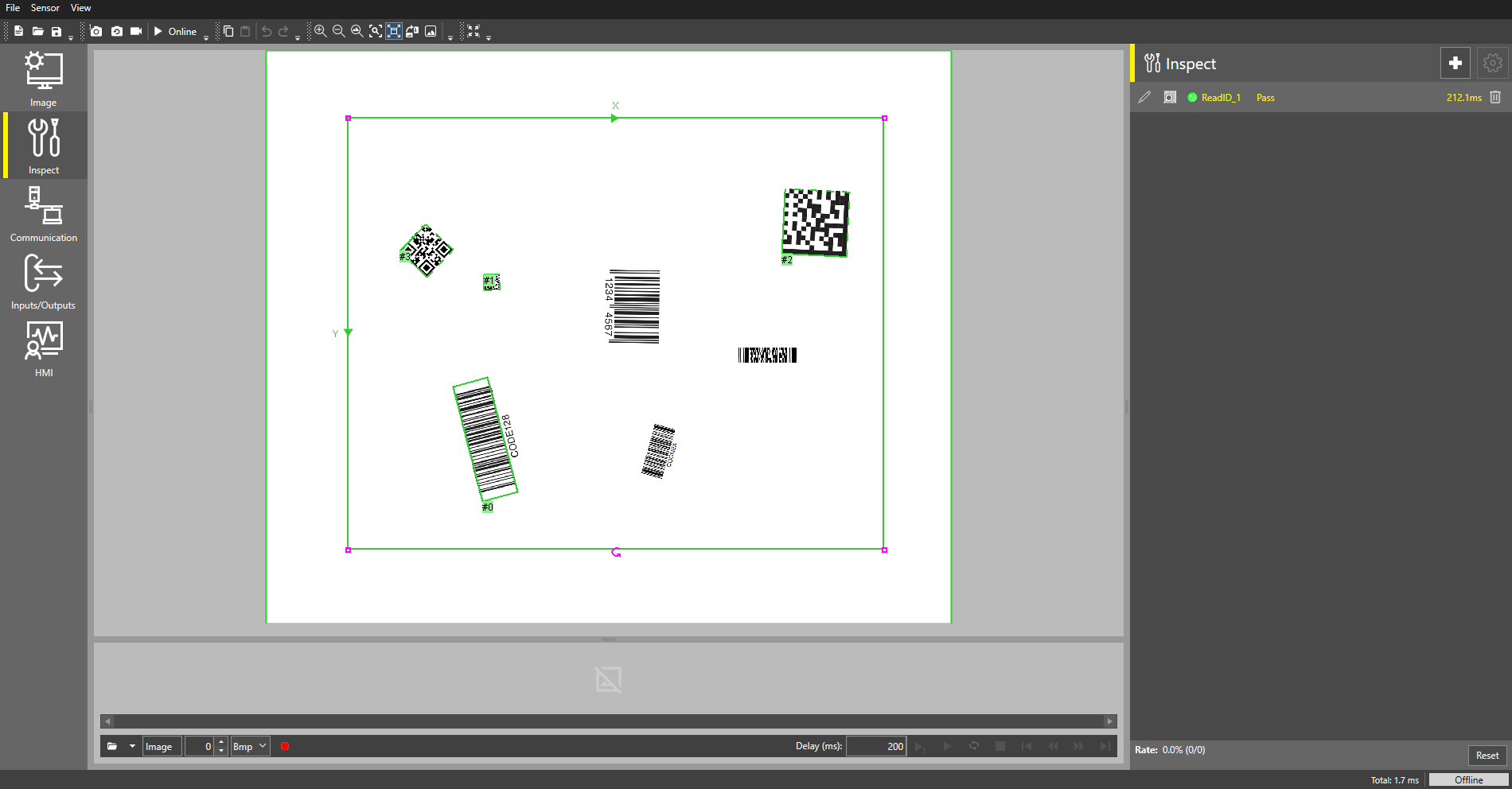
 To add the Read ID Tool to your job:
-
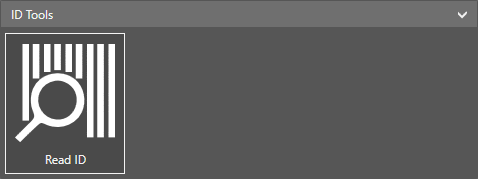
Select Read ID under ID Tools.
-
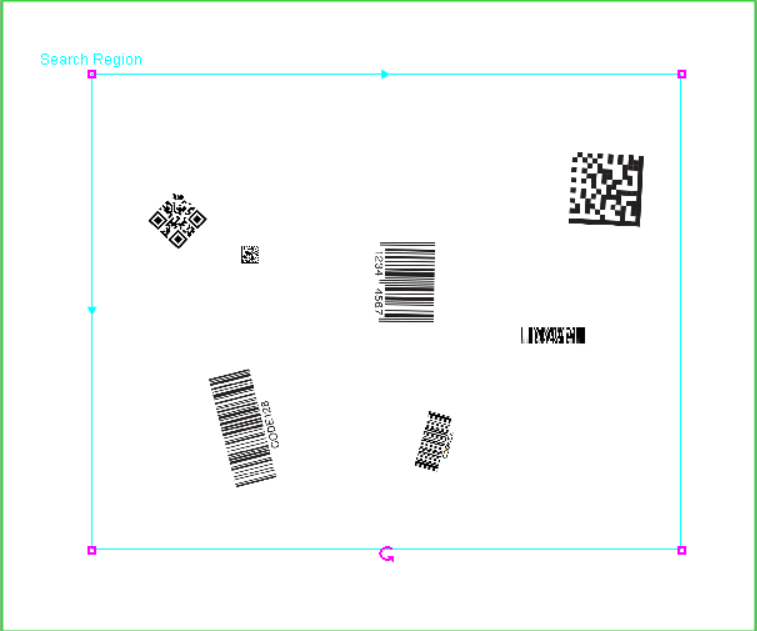
Set the Search Region. Once ready, select OK.
-
Enable the symbologies you want to search for.
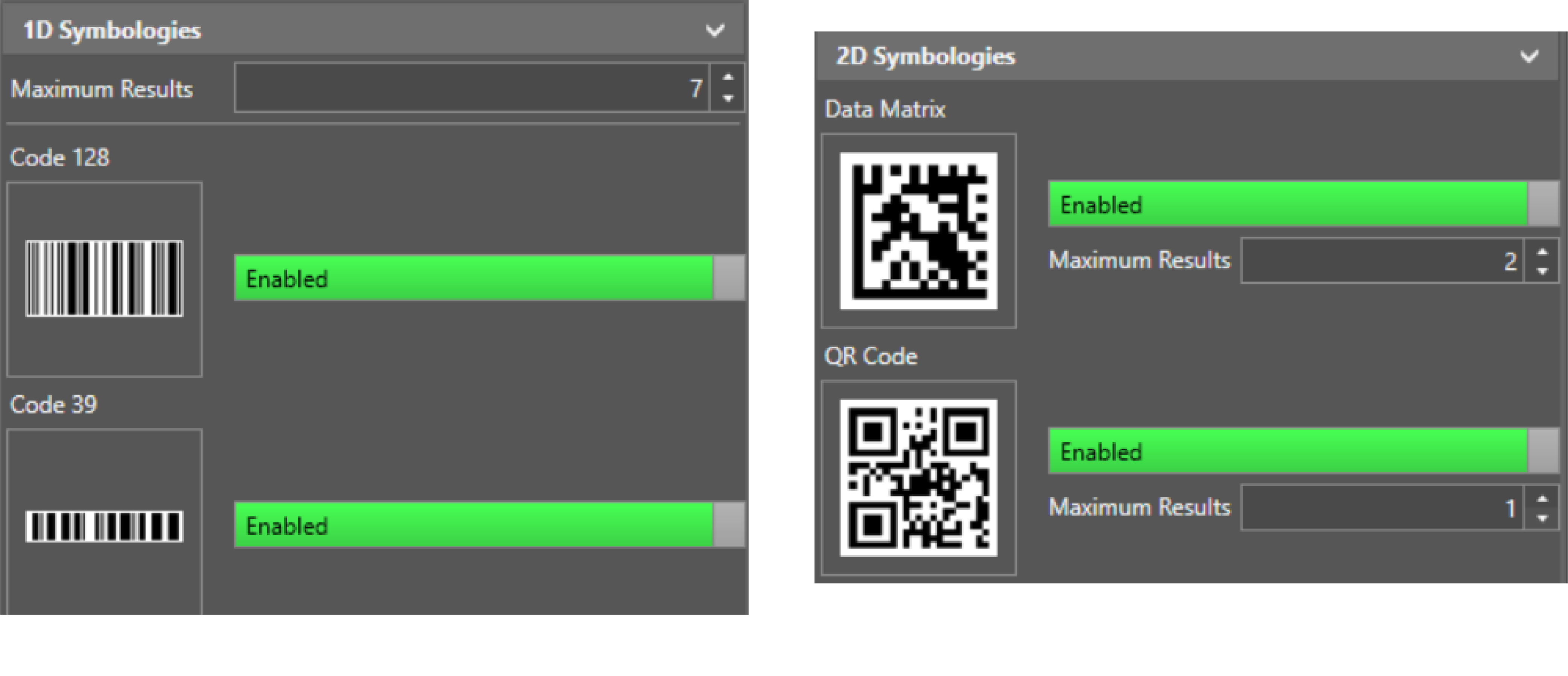
You can select both 1D and 2D symbologies in a single search. If you want to search for multiple symbologies of the same type on one image, increase the number of Maximum Results.
Note: The Maximum Results value applies to all 1D codes, regardless of type. For 2D codes, you can set the Maximum Results for each type individually. In both cases, the default number is 1 and the maximum is 20.The read results show up both on the image and under Results.
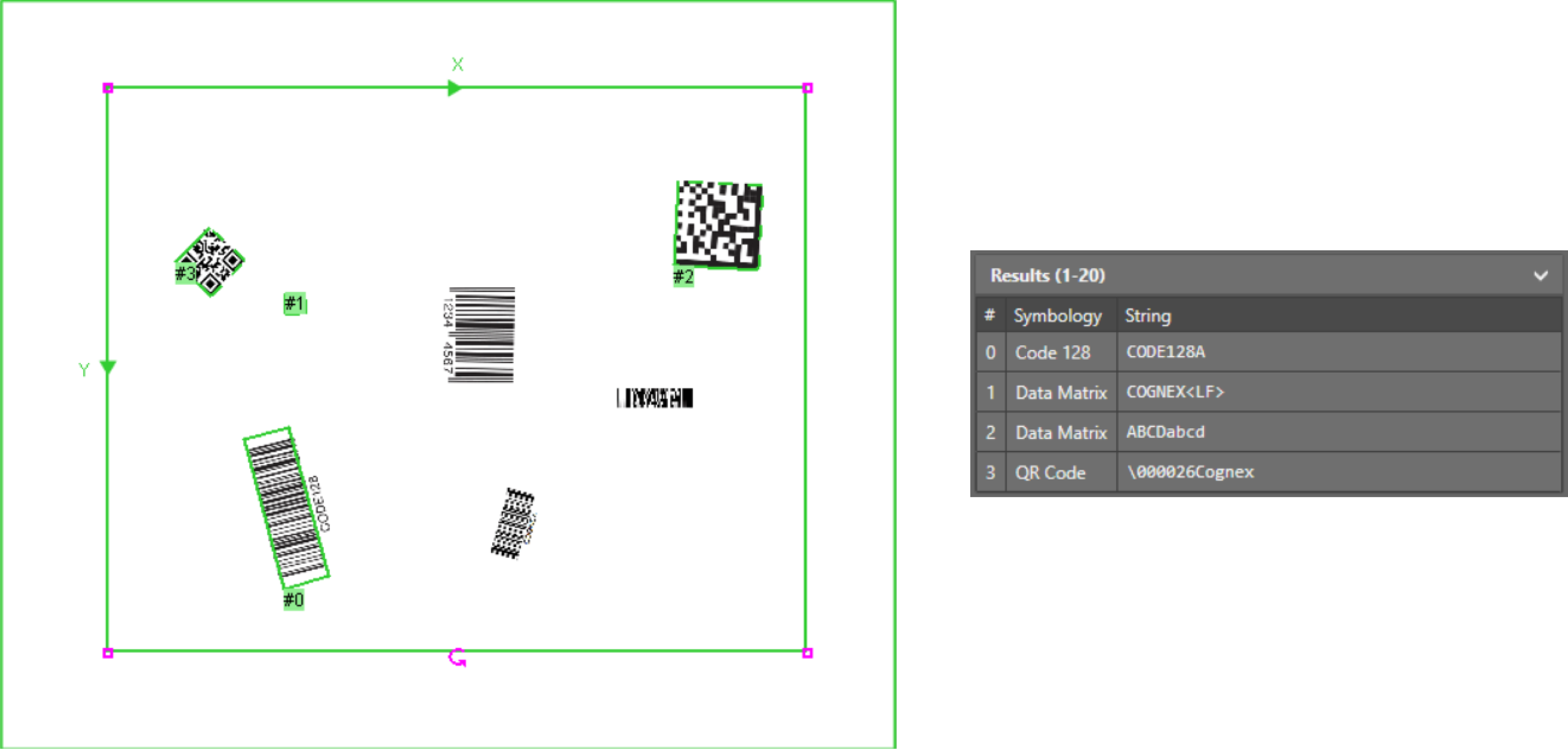 Note: The Results table can show a maximum of 20 reads.
Supported 1D Symbologies:
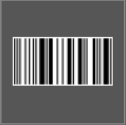
|
Code 128 |

|
Code 39 |

|
Interleaved 2 of 5 |
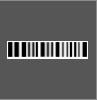
|
Pharmacode |
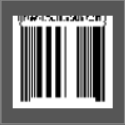
|
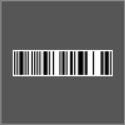
UPC/EAN |
|
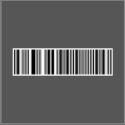
Code 93 |
|
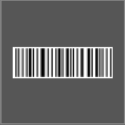
Codabar |
|
MSI |

|
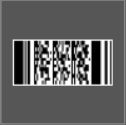
Code 25 |
|
PDF417 |

|
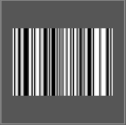
Databar |
|
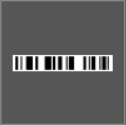
Databar Limited |
|
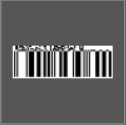
Databar Expanded |
|
EAN/UCC Composite |
Code 128
Databar
Databar Limited
Databar Expanded
Supported 2D Symbologies:
|
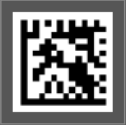
Data Matrix |
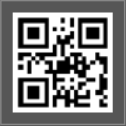
|
QR Code |
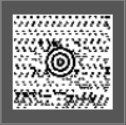
|
MaxiCode |
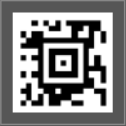
|
Aztec Code |
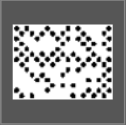
|
DotCode |
Advanced Setting:
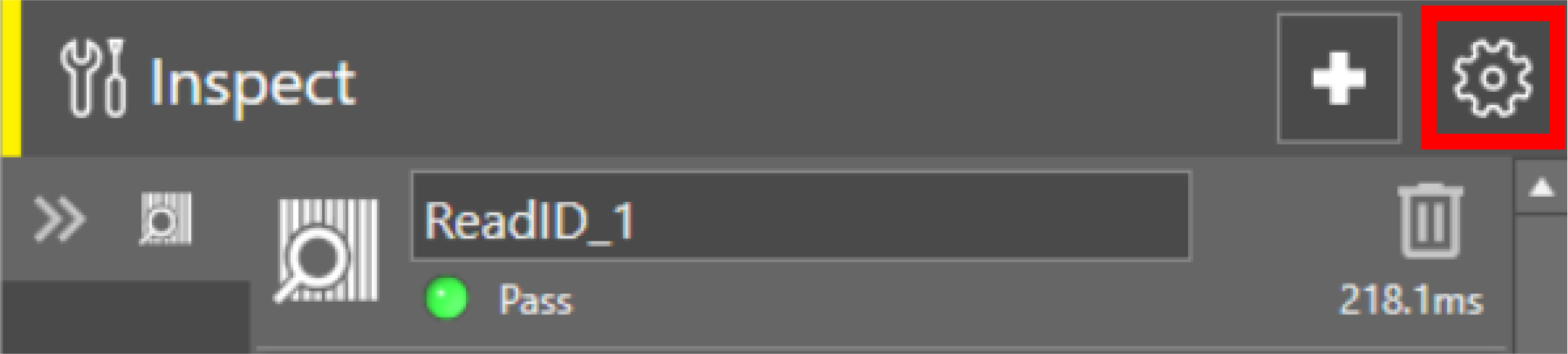
To open the advanced settings, click on the Cog icon.
General Settings
See General Advanced Settings.
Training Status
| Trained Symbology | Shows the trained symbology type. | ||||
| Enable Training |
When enabled, trains a model of the first symbol read. Training the function can improve performance, especially if all symbols to be decoded have similar characteristics.
Considerations when using the training option:
To train a new symbology:
|
||||
| Allow Flexible Grid Size |
Specifies whether to read 1D, Data Matrix, and QR Code symbols of a different grid size, with respect to the trained symbol. Note: This parameter is only valid if the Enable Training toggle is enabled.
|
||||
| Ignore Polarity |
Specifies whether or not to read 1D, Data Matrix, and QR Code symbols where the polarity is inverted, with respect to the trained symbol. Note: This parameter is only valid if the Enable Training toggle is enabled.
|
Decode Settings
| Advanced Decode Mode |
Specifies the setting to be used to decode symbologies.
|
||||||||||||||
| Perspective Distortion |
Specifies the decoding of symbologies with perspective distortion and optionally trains symbols for a known perspective distortion.
|
||||||||||||||
| QR Mode |
Specifies the type of QR Code to read.
|
||||||||||||||
| Symbol Damage |
Allows reading of damaged and low-quality codes.
|
||||||||||||||
| Checksum |
Determines if the symbol is valid to ensure reliability using an error-detection algorithm. Checksum only applies to symbols with optional checksum algorithms included in the symbol; each symbol has its own unique checksum algorithm. The type of checksum, if any, that is used depends on the code type selected.
Note: Code 128, Code
93, and UPC/EAN barcodes are validated with a checksum regardless
of the parameter selection. If Checksum
is enabled for any other barcode, and no checksum is encoded, the read
fails.
|
||||||||||||||
| Polarity |
Specifies the color of the symbols.
|
||||||||||||||
| Sort Mode |
Specifies the order in which the results appear. Note: For accurate sorting of symbols, the Maximum Results parameter must be set to a value that is equal to or greater than the number of symbols contained in the image.
|
||||||||||||||
| Allow Identical 1D Symbols |
Specifies whether the function has to decode all symbols within the region, even if they are identical. Two symbols are considered identical if they have the same length, symbology type and decoded string.
|
||||||||||||||
| Expand UPC-E |
Specifies whether the decoded symbol returns the 6-digit UPC-E string or the expanded 11-digit UPC-A equivalent string.
|
||||||||||||||
| Expand Rectangular Extension |
Enables decoding of Data Matrix Rectangular Extension (DMRE) symbols.
|
||||||||||||||
| Minimum Decodes Before Output |
Specifies the number of matching decodes for a successful reading of a 1D symbol (1 to 5; default value = 2). In most cases, you do not need to change the default value. Increasing this value reduces read errors but raises execution time and decreases tolerance for damaged or noisy codes. Decreasing this value improves the ability to read damaged or noisy codes, but increases the likelihood of a read error. |
||||||||||||||
| Show Decoded Result | Show decoded string results on top of decoded code. | ||||||||||||||
|
Timeout |
Specifies the time, in milliseconds (0 to 30000) the function searches for a valid ID symbol before execution is halted and an #ERR is returned. Setting the value to 0 disables this setting. Note: At times, the Read ID may exceed the specified Timeout parameter value. If this happens, set the Timeout parameter value lower to compensate for the overage.
|
Refer to the below table to see which advanced setting works with which code type
| Setting | Any 1D | Data Matrix | QR Code | MaxiCode | Aztec Code | DotCode |
|---|---|---|---|---|---|---|
| Advanced Decode Mode | X | X | X | |||
| Perspective Distortion | X | X | ||||
| QR Mode | X | |||||
| Symbol Damage | X | X | ||||
| Checksum | X | |||||
| Polarity | X | X | X | |||
| Sort Mode | X | X | X | X | X | X |
| Allow Identical 1D Symbols | X | |||||
| Expand UPC-E | X | |||||
| Expand Rectangular Extension | X | |||||
| Minimum Decodes Before Output | X | |||||
| Show Decoded Result | X | X | X | X | X | X |