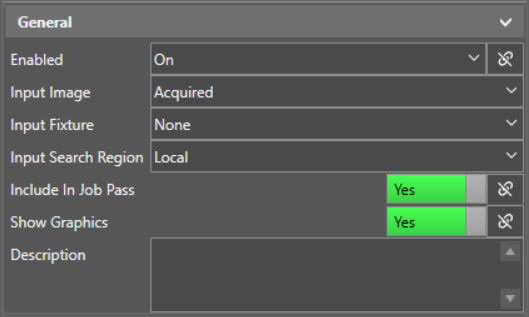
General Advanced Settings
Most Inspect tools share a set of general advanced settings.
|
|
|
|---|---|
| Setting | Description |
| Enabled |
Enable or disable the tool. If you disable a tool, that tool does not execute with the rest of the job. You can also link a different tool property to make the Enabled setting conditional on the linked property. For more information, see Tool Property Linking. |
| Input Image |
Select the image input source for the tool. The default value is Acquired, which uses the acquired images as input. If you add a tool that produces an image output, that output also becomes available as an input image for other tools. |
| Input Fixture |
Select the fixture relative to which the tool sets the Region of Interest (RoI) from a list of configured fixture outputs. |
| Input Region |
Select the Region of Interest on which the tool performs analysis from a list of configured regions. By default, the input region for most tools is the search region you defined on the preview screen when adding the tool. Using this setting, you can configure tools to use the search regions defined by other compatible tools. |
| Include In Job Pass |
Enable or disable including the tool results in a Job Pass result. You can also link a different tool property to make the Include In Job Pass setting conditional on the linked property. For more information, see Tool Property Linking. |
| Show Graphics |
Enable or disable showing a graphics overlay of the tool results on the image. You can also link a different tool property to make the Show Graphics setting conditional on the linked property. For more information, see Tool Property Linking. |
| Description | Add a description for the tool. |