Tool Property Linking
The Advanced Tool Settings view allows you to replace certain properties with a link to a different tool property. Using this function, you can set complex conditions for tool properties that you cannot set otherwise.
When you link a tool property, the tool property link updates when the tool containing the source property executes. This also means that linking a tool property establishes a tool dependency order that determines the order of tool execution.
If you link a property where the values of the source property are not compatible with the destination property, the setting becomes invalid and the tool uses the default value for that property. For example, when linking to boolean properties, make sure that the linked property produces either True/False or 0/1 values.
Combine tool property linking with the Math tool to produce compatible values from incompatible tool properties.
For example, to create a condition where the Enabled property is turned on for the Measure Distance tool only if the Classify tool produces a certain class prediction, perform the following configuration procedure:
-
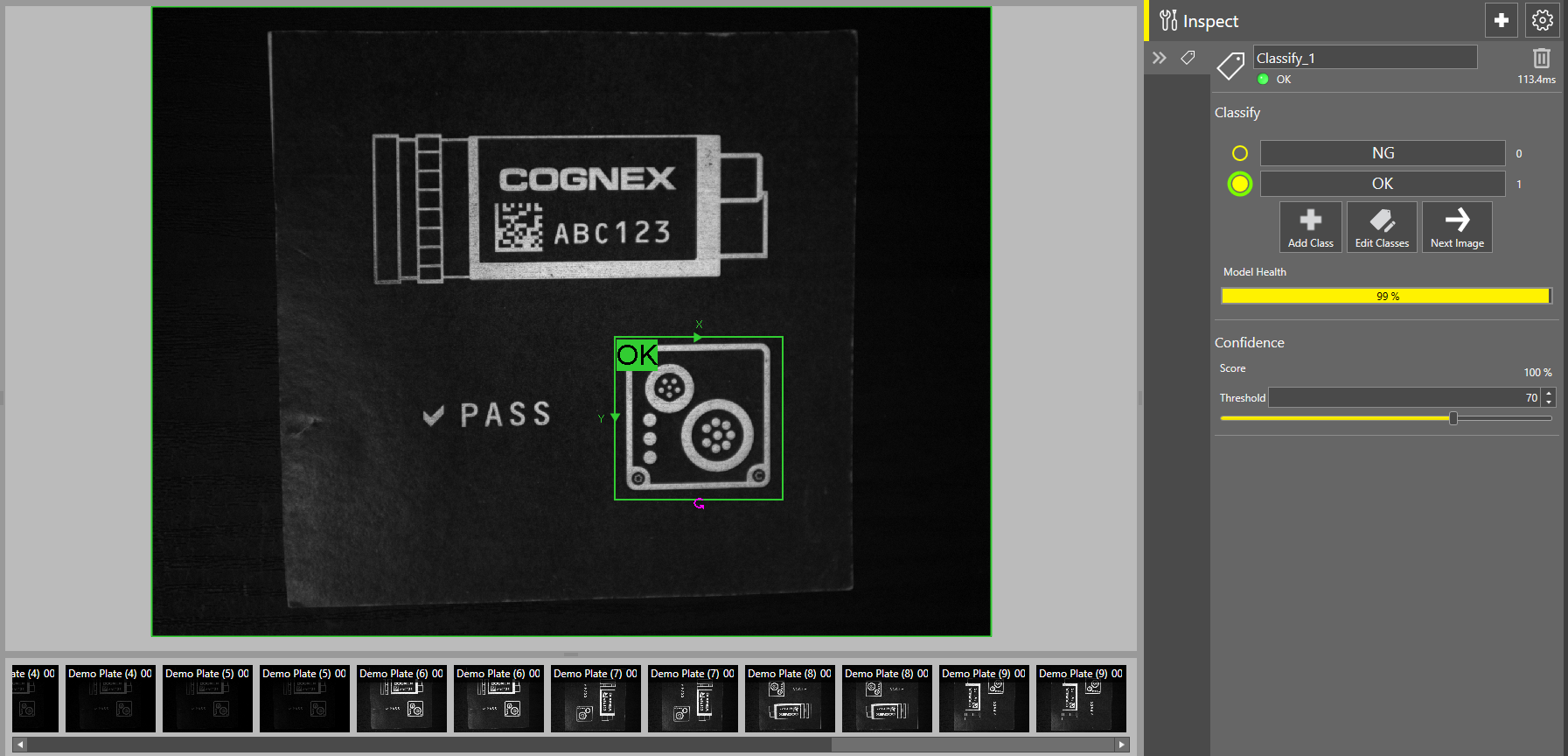
Add and train the Classify tool to produce accurate class predictions. For more information regarding the Classify tool, see Classify Tool.
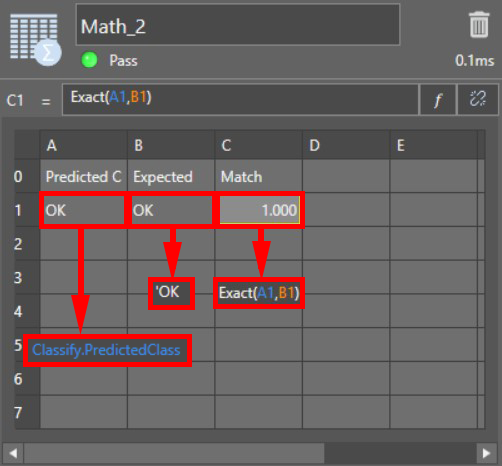
- Add a Math tool with the following cells. For more information on how to use the Math tool, see Math.
- Create literal string header cells for Predicted Class, Expected Class, and Match.
- In the cell under Predicted Class, link the Classify.PredictedClass property that you want to use.
- In the cell under Expected Class, input the expected class name as a literal string.
- In the cell under Match, add an Exact function to compare the Predicted Class and Expected Class cells. For example, if you link the Classify.PredictedClass property in cell A1, and input the expected class name in cell B1, enter the function as Exact(A1,B1).
-
Add the Measure Distance tool, and open the Advanced Tool Settings view.
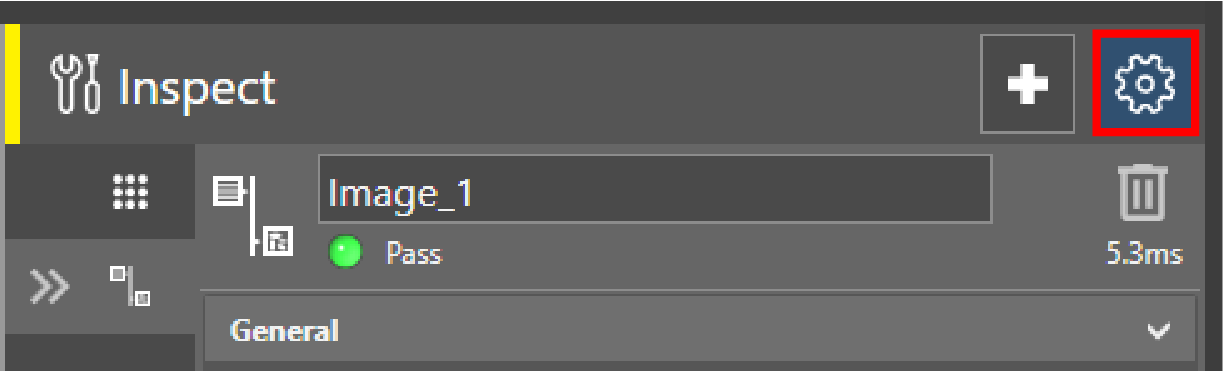
-
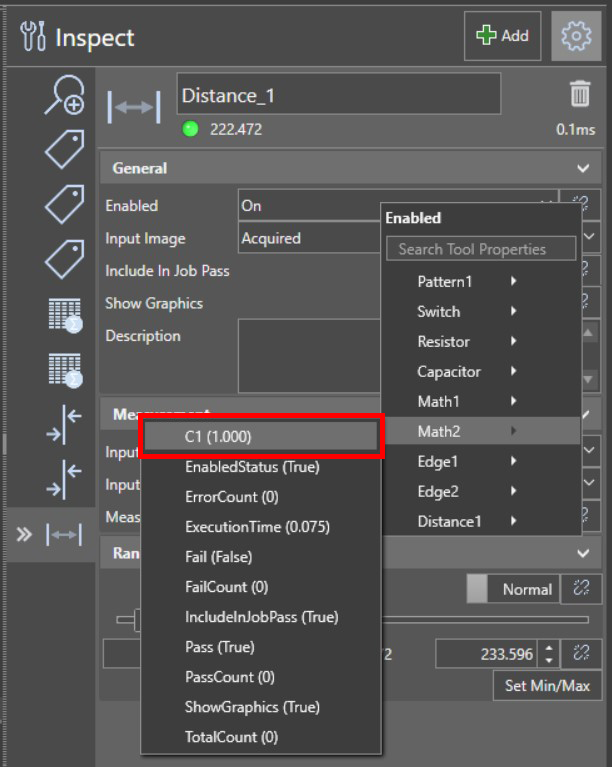
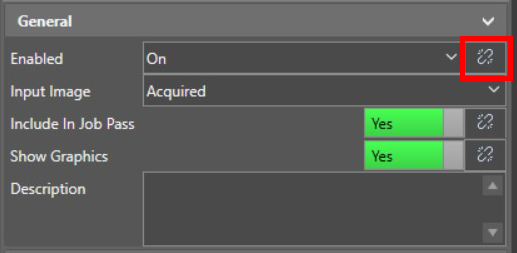
Click the Tool Property Link button next to the Enabled property to open the dropdown property selector, and open the submenu for the Math tool.
-
Select the ID of the cell that contains the Exact function in the Math tool property dropdown. As a result, the Measure Distance tool is only enabled when the PredictedClass property of the Classify tool matches the expected class defined in the Math tool.