Math
The Math tool is an 8×8 spreadsheet grid that allows you to link the properties of other configured tools in the Inspect application step, and perform mathematical operations on the linked properties.
|
|
|
|---|---|
| Item | Name |
| 1 | Math tool name |
| 2 | Cell expression editor |
| 3 | Insert Function |
| 4 | Delete Math tool |
| 5 | Link Tool Property |
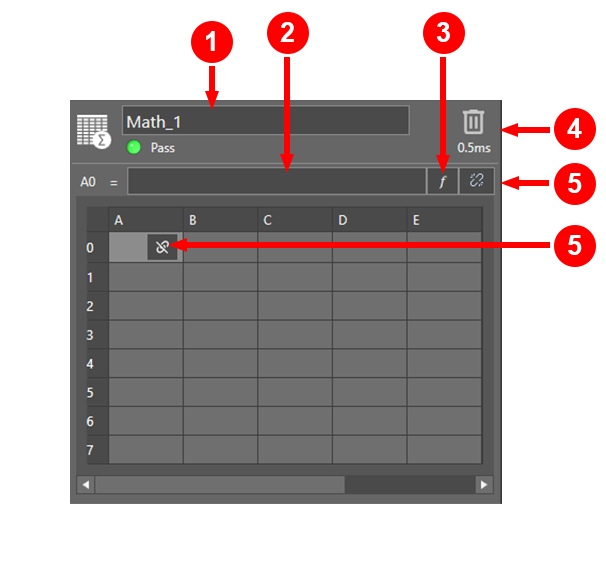
Select a cell to display the full expression of the cell in the cell expression editor.
To edit the expression in a cell, click into the cell expression editor, or enter the formula of the function.
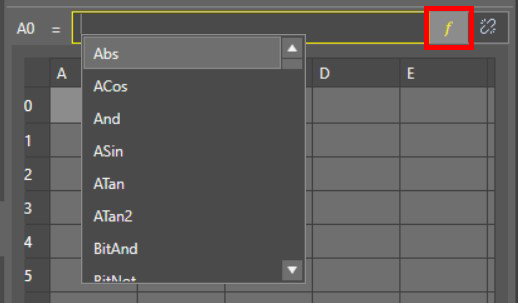
Click on the Insert Function button to select from a comprehensive dictionary of mathematical operations from the alphabetical list.
To see the list of all Math tool functions see Math Tool Functions.
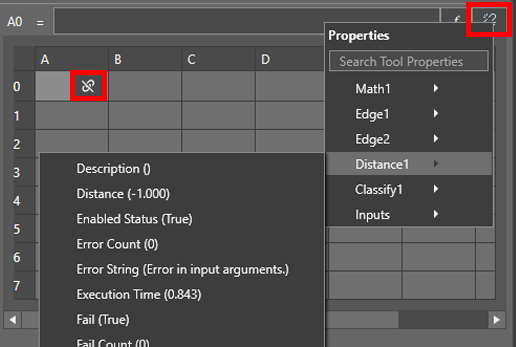
Click on the Link Tool Property button to browse the properties of other configured tools, such as configuration settings and result values.
 To link a tool property:
- Click on either the Link Tool Property button in the cell, or the Link Tool Property button to the right of the cell expression editor.
- In the property link dropdown, expand the submenu for the tool in question.
- Select the property you want to link.
Alternatively, you can manually type the tool and property name into the cell using the ToolName.PropertyName format.
To insert a function:
- Click on the Insert Function button next to the cell expression editor.
- Select the function you want to use from the dropdown.
- Hover over the function name in the cell expression editor to show a tooltip with the required arguments for the function.
- Populate the function arguments using the cell numbers of linked tool properties or with values as appropriate, depending on the formula.
Alternatively, to manually enter a function into a cell, begin by typing the function name and arguments using the FunctionName([Argument], ... [Argument]) format described in the corresponding function tooltips.
To enter a literal string into a cell:
Begin by typing the ' character. For example, if you want a cell to say Width, enter 'Width.
To write a string within a formula, make sure to set the text in quotes, for example “if(A1>B6,”Good”,”Bad”)”.
You can also enable advanced tool settings if your job requires more complex configuration. For more information on the advanced tool settings that are available, see Advanced Tool Settings.