ViDiELRead
You can use the ViDiELRead tool to identify letters, numbers, and symbols on a live camera feed.
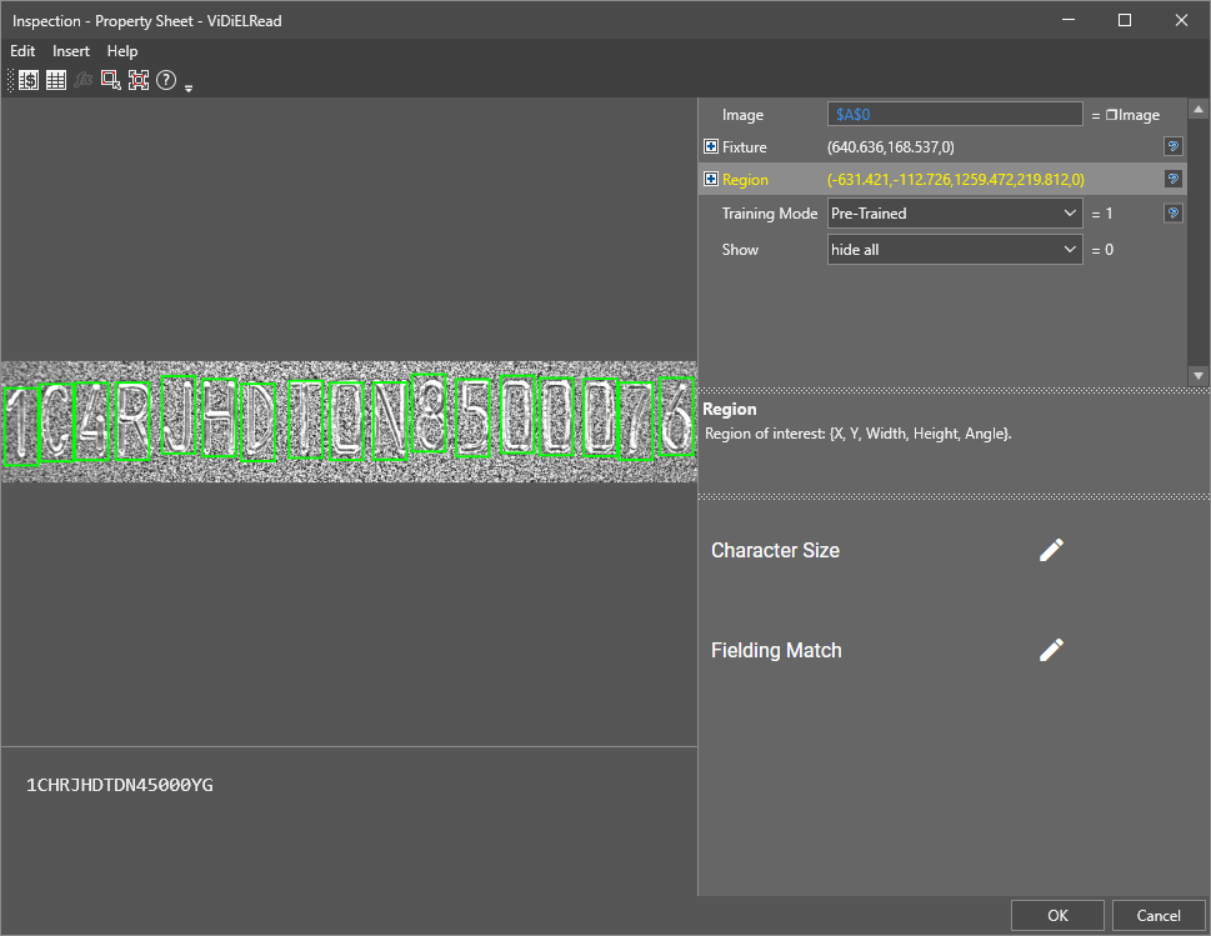
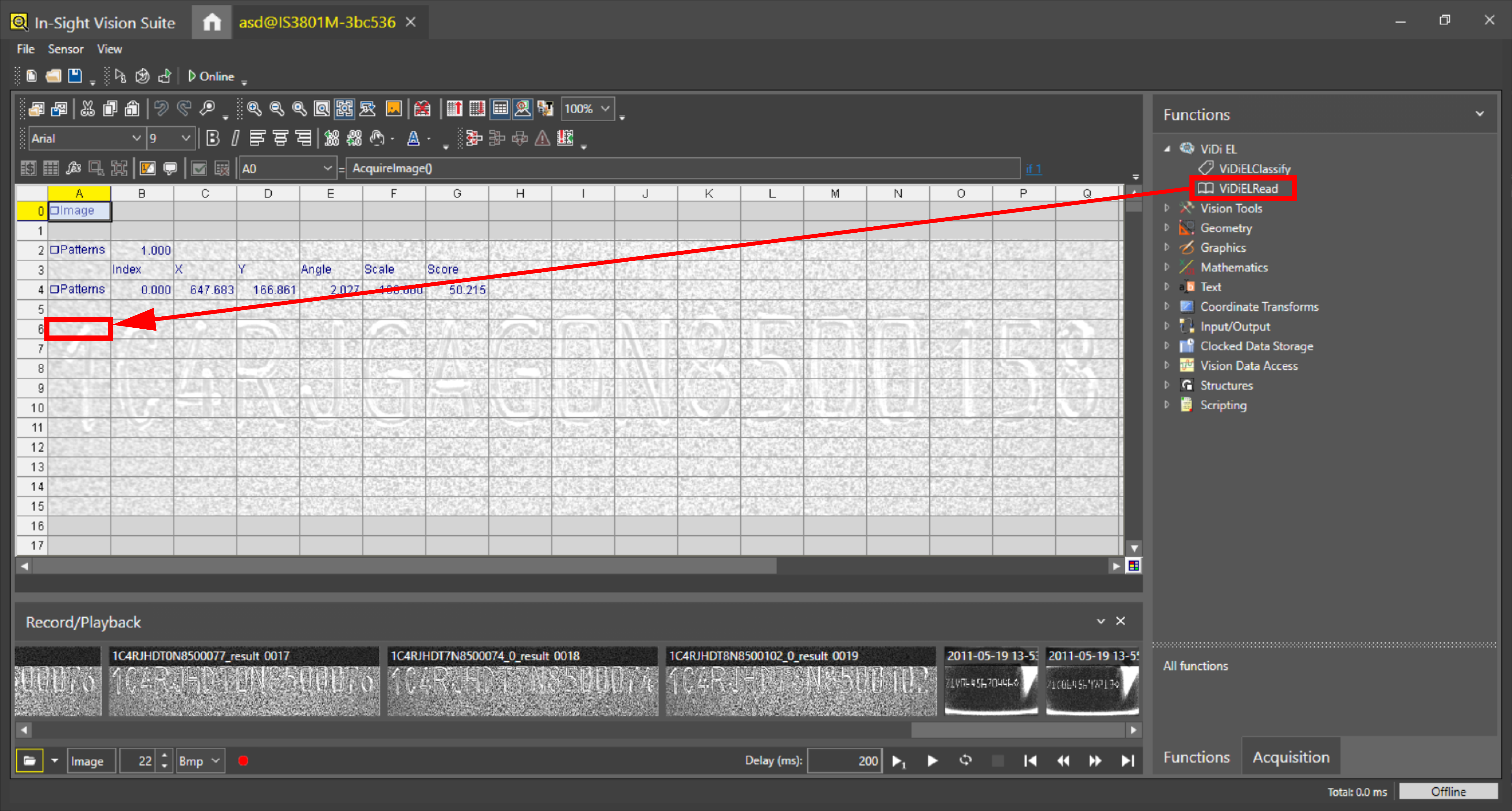
To add the ViDiELRead tool:
-
Drag and drop ViDiELRead to your Spreadsheet.
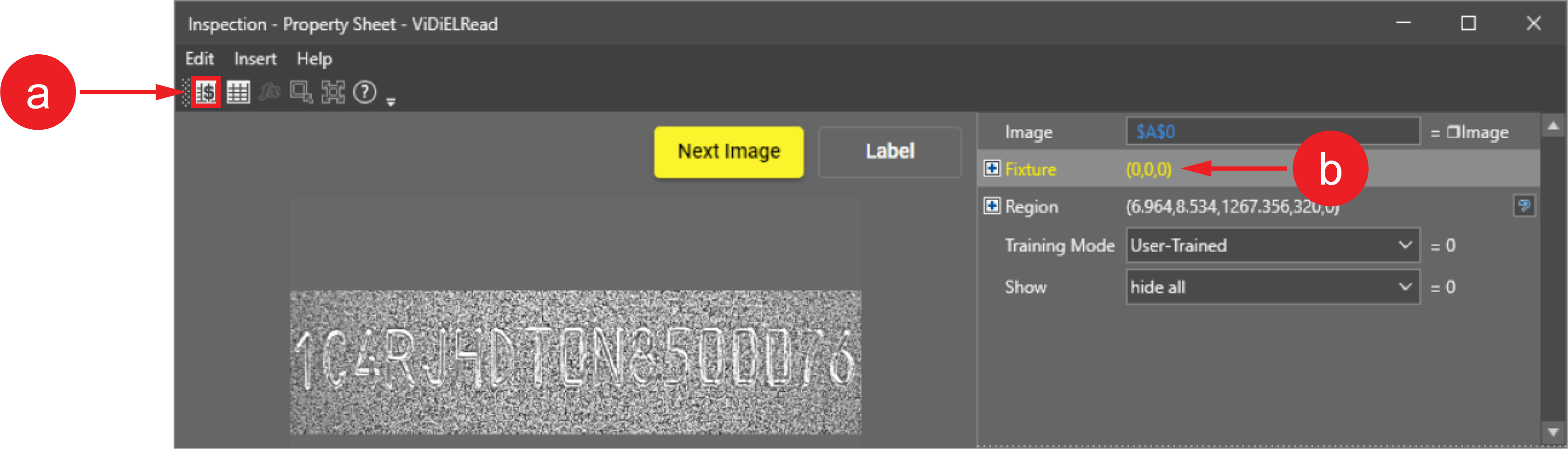
- Specify the fixture region by either:
- Clicking on Insert Absolute Reference in the upper left corner of the pane.
Double clicking on Fixture.
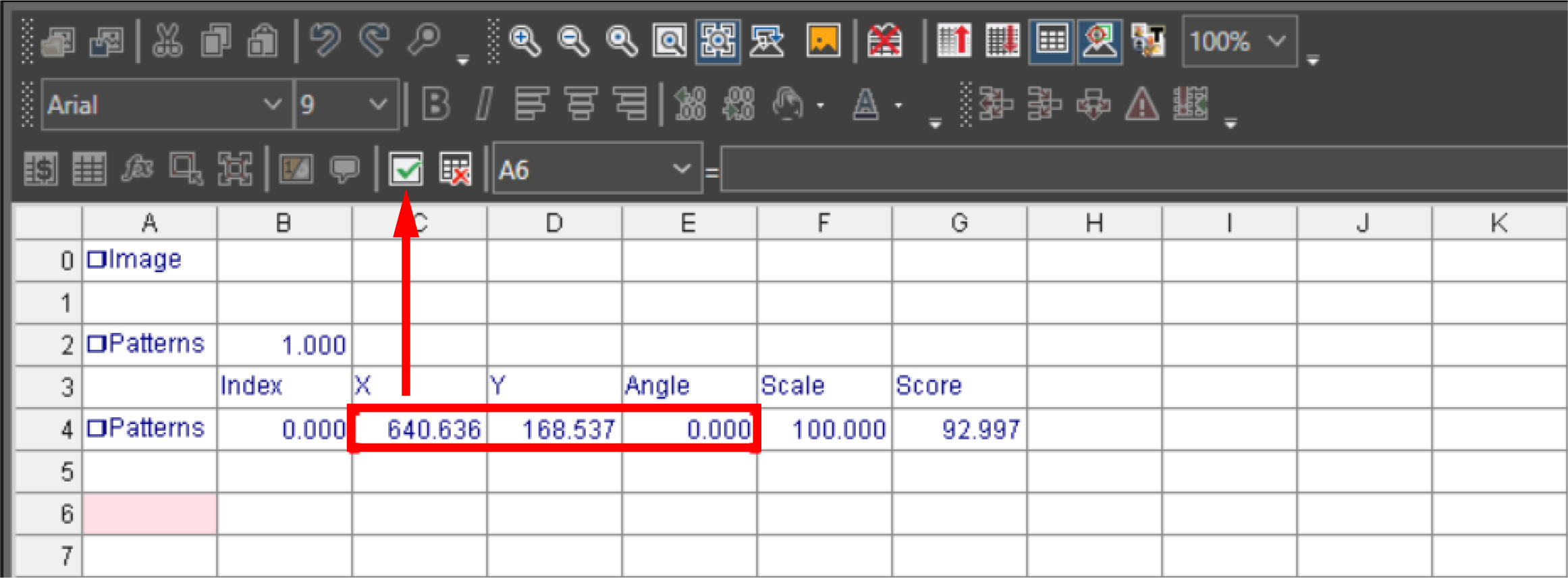
-
Select the fixture coordinates from the Spreadsheet and click Accept changes.
-
Double click on Region and position the Search Region. To resize the search box, click and drag the corners. To rotate the search box, click and drag the rotate button.
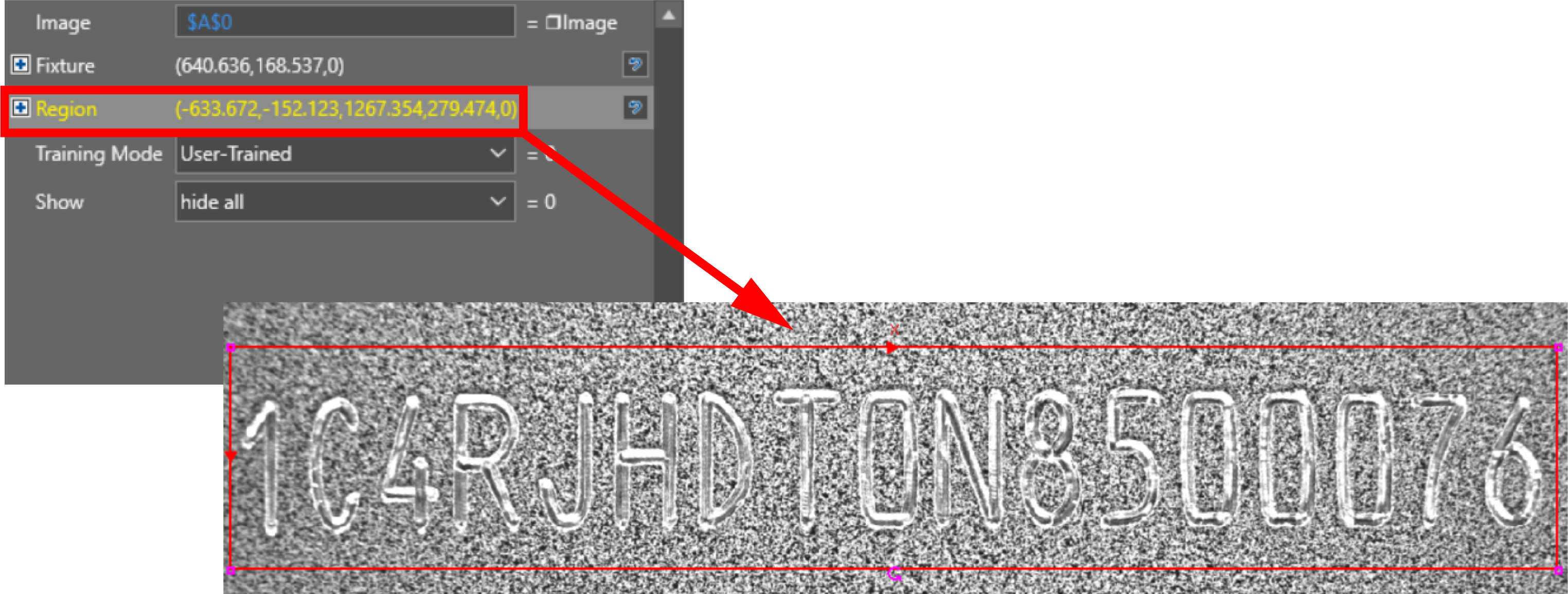 Note: The search region can not exceed the image boundary. Otherwise, the tool returns #ERR.
 -
Click on the edit button next to Character Size and move the search region so it is around one of the characters you want to find. To resize the search box, click and drag the corners. Place the bounding box tightly around the character. To accept the changes, click on the check mark icon.
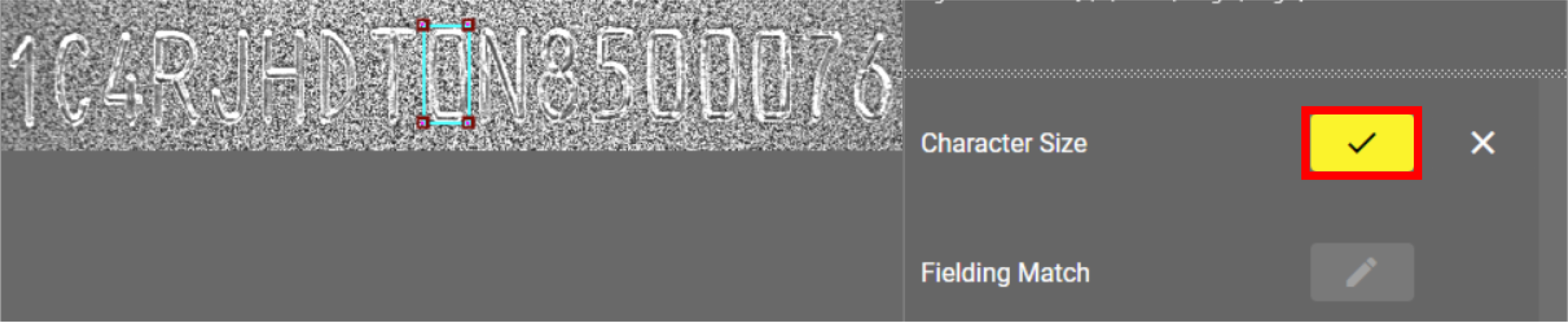
Now you can train the ViDiELRead tool. By default, Training Mode is set to User-Trained.
-
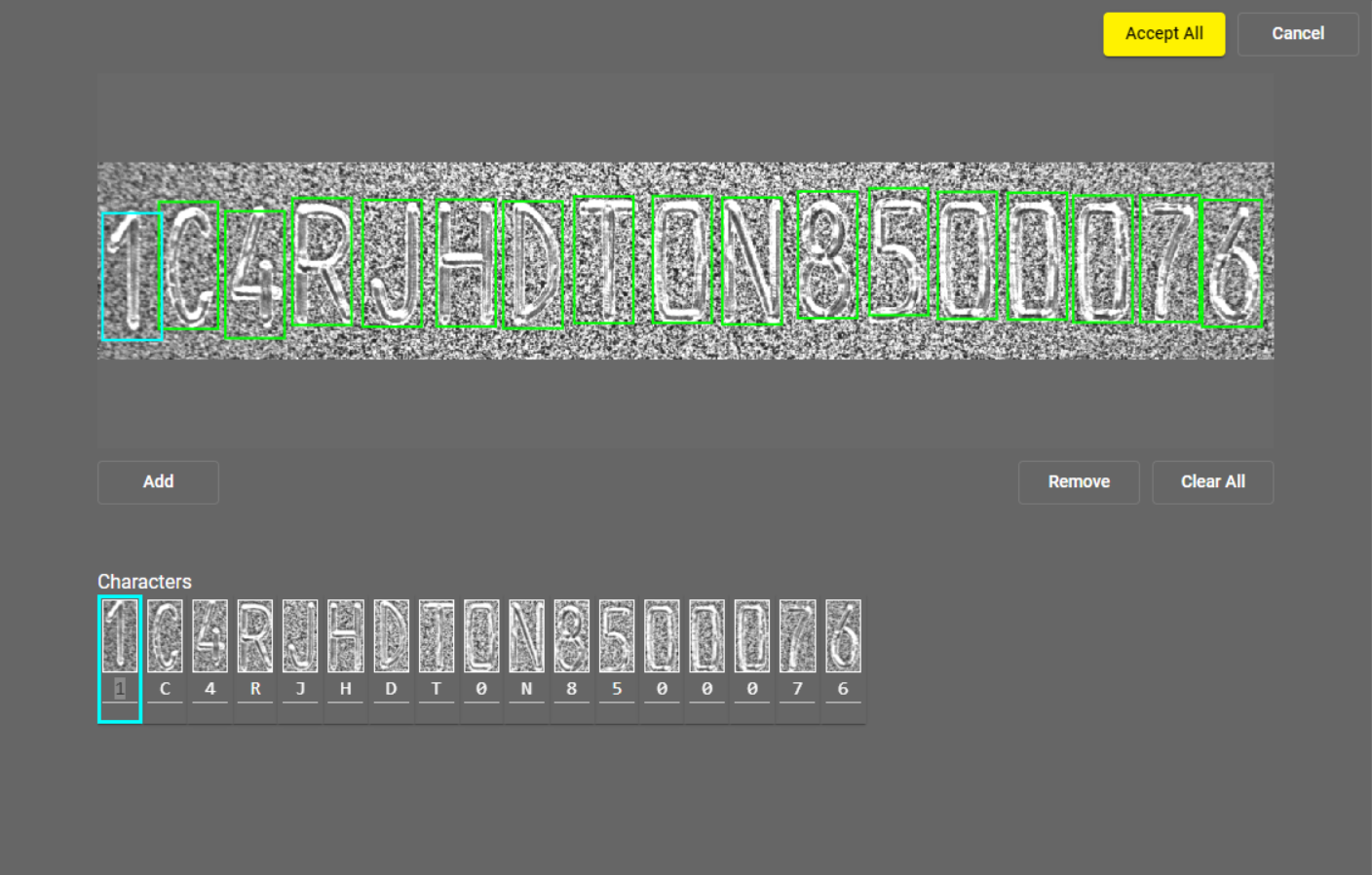
Click on the edit button next to Train. Type in the corresponding characters for the selected letters and numbers on each image. Label and train all expected characters (A-Z, 0-9) for your application. To jump to a new image, click on Next Image. You need to train at least 3 images. The more images and characters you train, the higher the quality of your output is.
-
Select OK. The output of the function appears on the Spreadsheet.
The Property Sheet pops up.
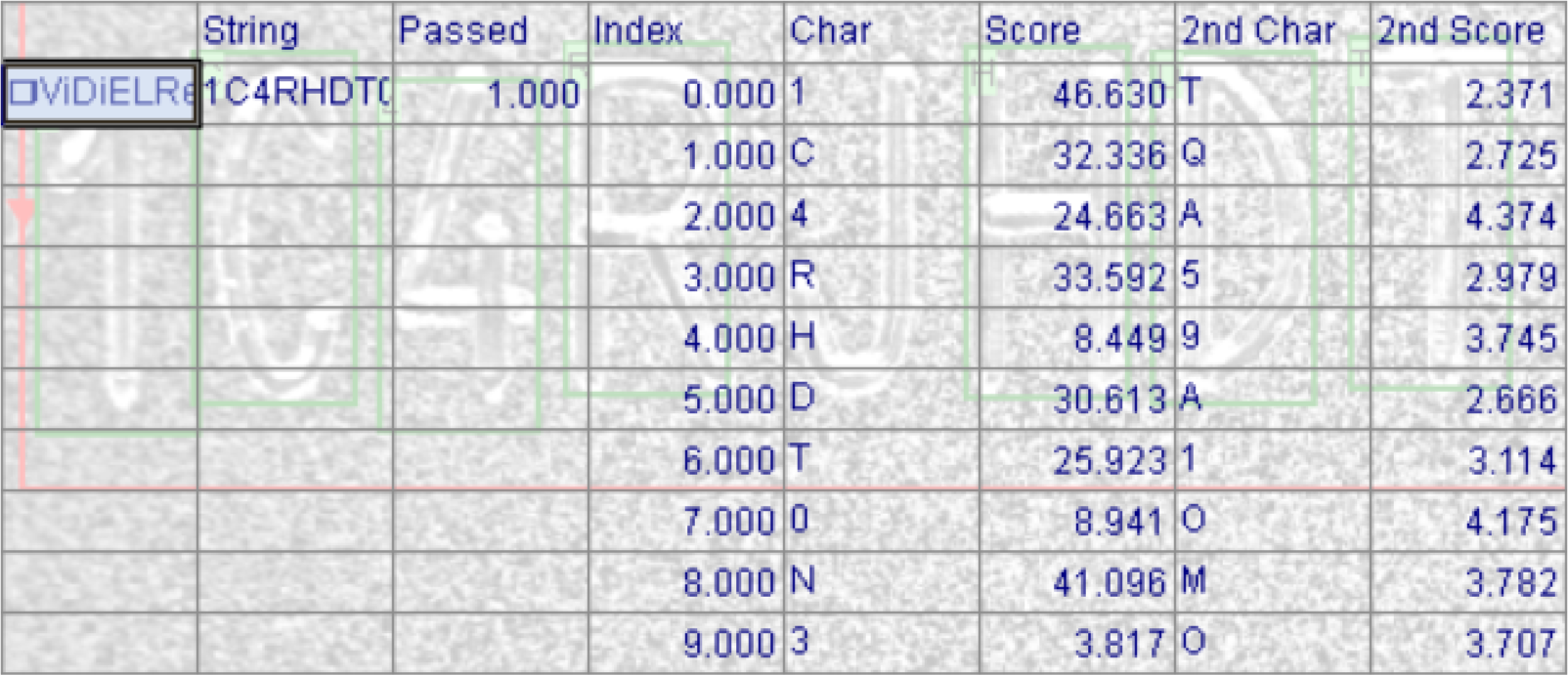
To learn more about ViDiELRead functions and settings, see the expandable sections below.
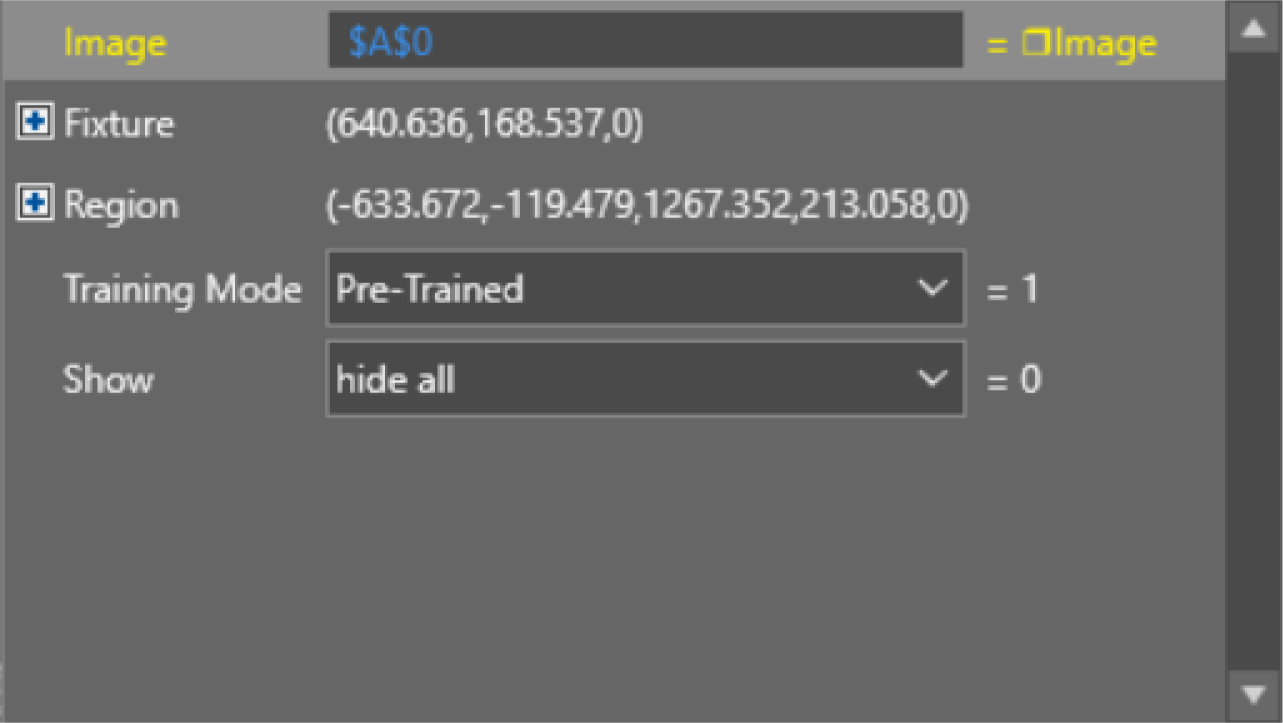
 Basic Settings
|
|
|---|---|
| Setting | Description |
| Image | Reference to a cell containing an image structure. Default value: $A$0. |
| Fixture | Fixture origin (X, Y, Theta). Offsets from the image origin. |
| Region | Region of interest (X, Y, Width, Height, Angle). |
| Training Mode |
User-Trained: You type in the characters manually when training the tool. Results in more accurate reads. Pre-Trained: The tool automatically predicts the characters when training. Can result in less accurate reads. Note: The Train and Unique Characters in Samples options are only available in User-Trained mode.
|
| Show | Select the type of graphic to overlay on the image. |
Character Size
Adjust the Character Size search box. The search box cannot be rotated. Place the bounding box tightly around the character.

Fielding Match
You can set the tool to accept only certain characters or patterns under Fielding Match. There are two main settings, Variable number of characters and Fixed number of characters.
-
Variable number of characters
The tool reads all the characters on the image.
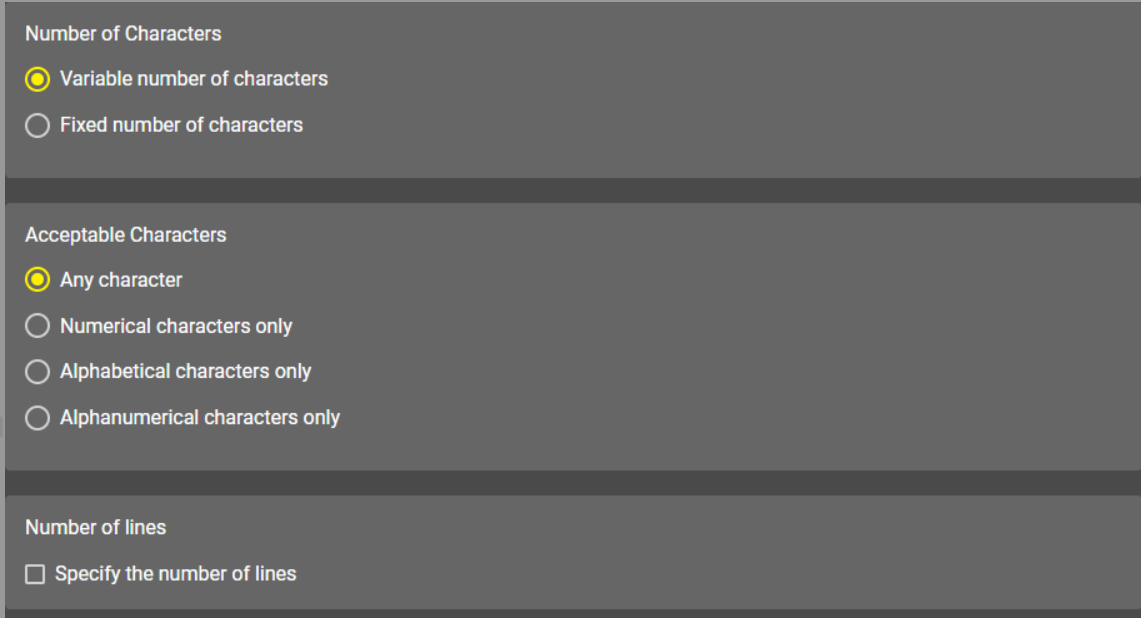
Acceptable Characters: Specify what type of characters the ViDiELRead tool recognizes.
-
Any character: The tool searches for letters, numbers, and symbols (for example <, $, ?).
-
Numerical character only: The tool searches for numbers only.
-
Alphabetical characters only: The tool searches for letters only.
-
Alphanumerical characters only: The tool searches for numbers and letters.
Number of lines: Tick the box next to Specify number of lines if the characters on your image are arranged in multiple rows. Enter the number of rows in the Number of lines input field.
-
-
Fixed number of characters
The tool reads a character pattern or character patterns on the image. The tool recognizes characters that do not fit the provided pattern, but returns an error.
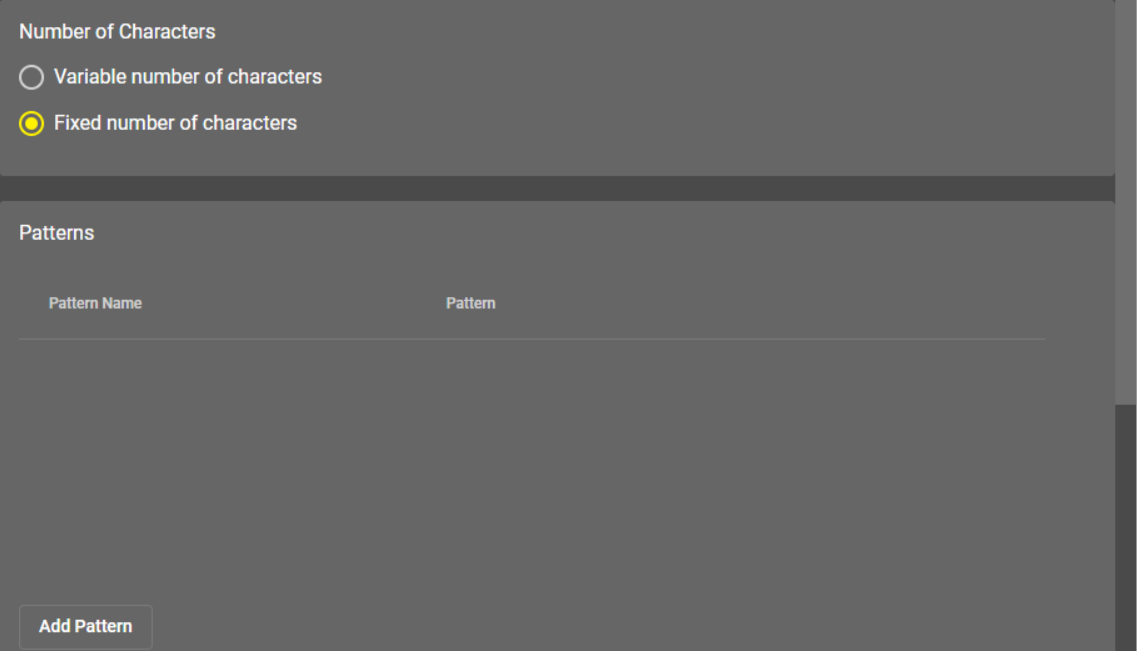
The pattern uses a simple regular expression style composed of constant characters (alphanumerical and special characters) and metacharacters.
You can use the following metacharacters:
-
"\d": matches any numerical character [0-9].
-
"\l": matches any alphabetical character [a-z, A-Z].
-
"\w": matches any alphanumerical character [a-z, A-Z, 0-9].
-
"\." matches any character.
Examples of valid patterns:
-
"\d\d\d\d": matches a number composed of four digits.
-
"\l\l\l": matches a word composed of three letters.
-
"\d\d:\d\d:\d\d": matches a time in the HH:MM:SS format.
-
"N\d\d\d\l\l\l": can be used to read a serial number starting with 'N', followed by 3 digits and 3 letters.
You can apply multiple patterns to one Read tool configuration by clicking the Add Pattern button. If you provide multiple patterns, the tool returns the name of the matching pattern during reading.
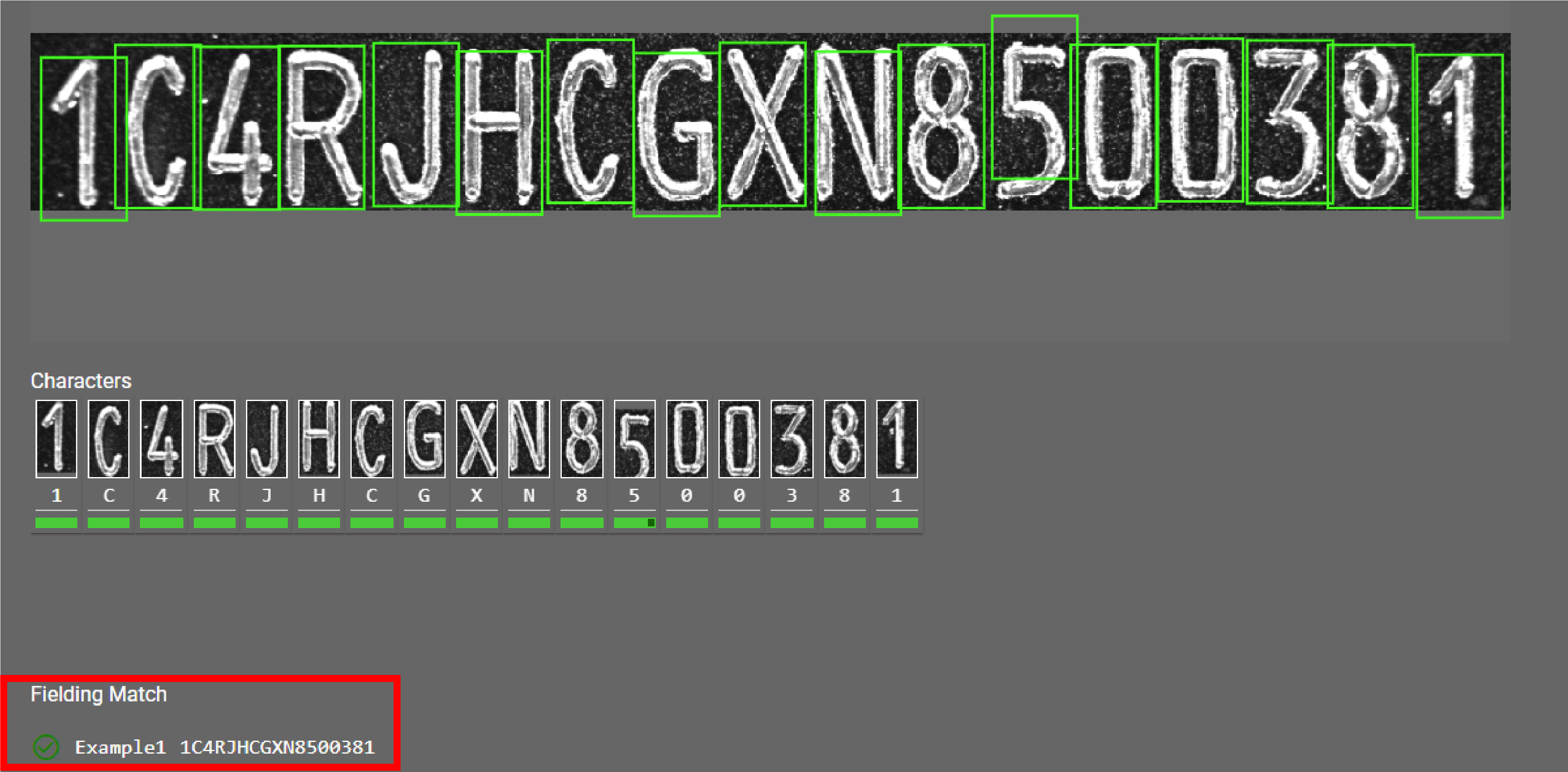
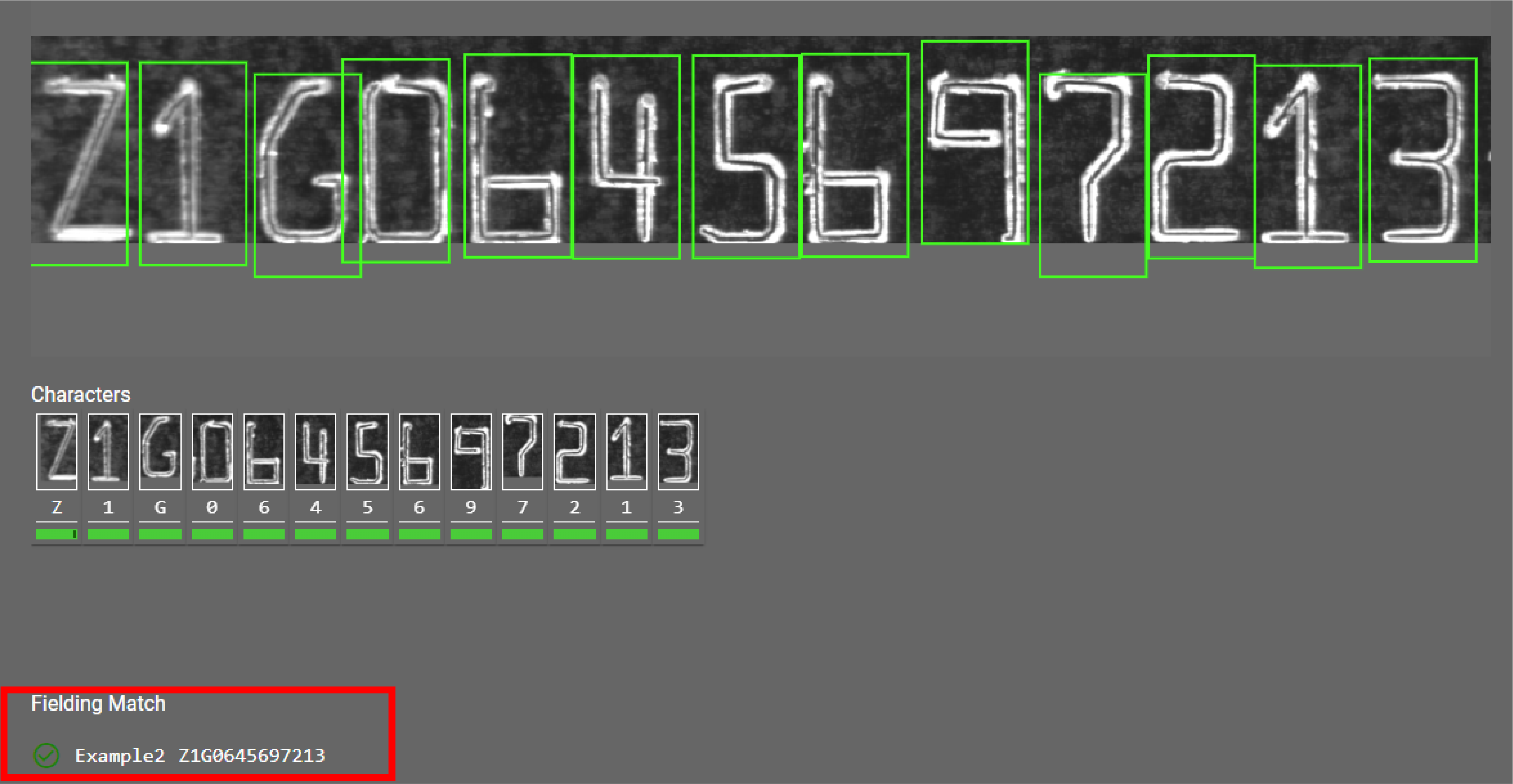
Formula used: 1C4RJH\w\w\w\w\d\d\d\d\d\d\d Formula used: Z1\w06456\d\d\d\d\d -
Train
Train letters, numbers, and symbols to the tool.
By default, the tool identifies possible characters on the image by placing a green bounding box around them. You can move the bounding boxes freely, but the size can only be modified under the Character Size setting. To add more bounding boxes, click on Label or one of the boxes, select the Add button, and click on the image. To stop adding bounding boxes, click on Done. To remove a box, select it and click on Remove. To remove all your boxes, select the Clear All option. To accept the training, click on Accept All.
Unique Characters in Samples
Shows the number of trained characters and source images, and the confidence level of the tool in a given character. The lower the percentage is, the less likely that a result is correct.
You can see the percentage by hovering over the colored line under the character. The color also shows the confidence level:
-
Green: high certainty.
-
Yellow: medium certainty.
-
Red: low certainty.
You can sort the trained data either by character or image:
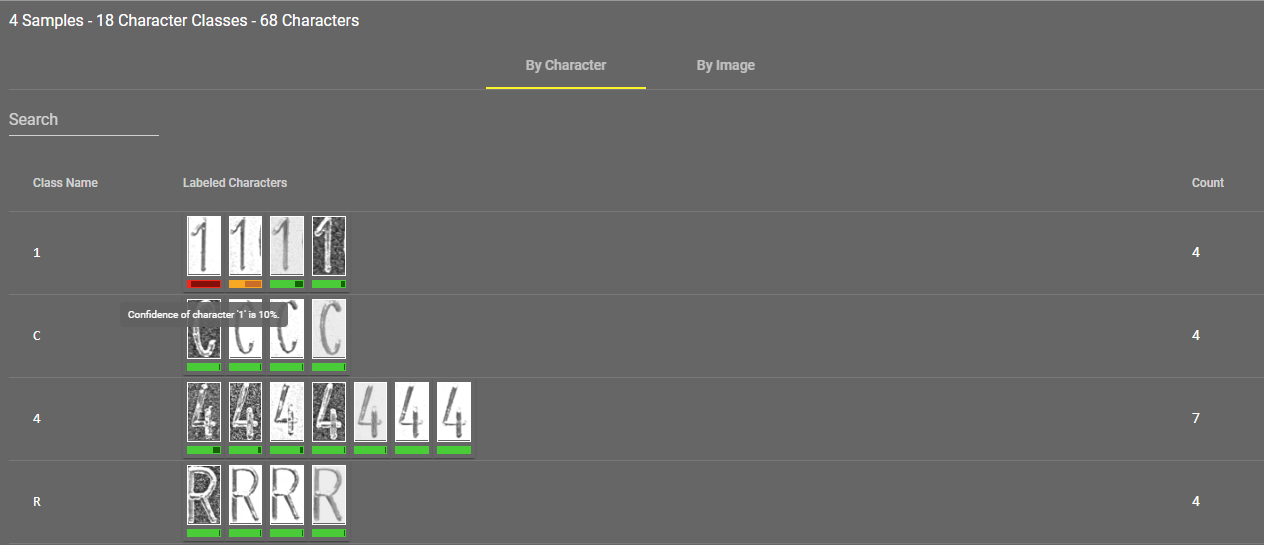
You can jump to retraining a certain character by left-clicking its image under By Character view, or you can retrain all characters on one image by clicking on the edit icon next to the appropriate row in By Image view.
You can search for a specific character by typing it in the search bar under both views. The tool differentiates between upper-case and lower-case letters.
You can also delete samples by checking the box next to the appropriate row and clicking on Delete Samples.
ViDiELRead Outputs
|
|
|
|---|---|
| Output | Description |
| String | All the characters the tool recognizes on the picture, shown as one string value. |
| Passed |
Shows if a read passes or fails a Fielding Match. Pass: 1.000 Fail: 0.000 |
| Index | The read index by character location on the image (left to right). |
| Char | Character. The best character match. |
| Score | The confidence level of the tool in the character. The lower the percentage is, the less likely that a result is correct. |
| 2nd Char | Second Character. The second best character match. |
| 2nd Score | The confidence level of the tool in the second best character match. The lower the percentage is, the less likely that a result is correct. |