Filmstrip
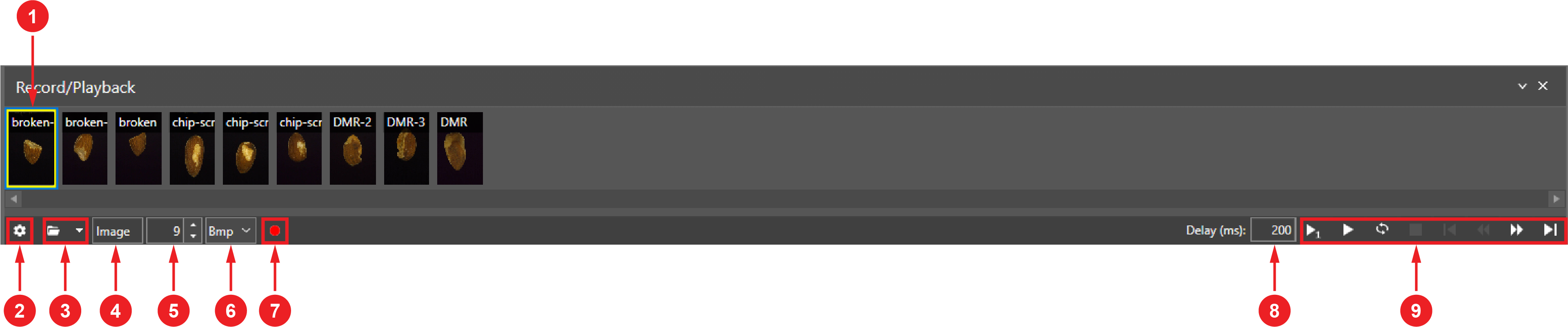
The Filmstrip allows you to record, load, and play back sets of images within the In-Sight Spreadsheet adapter on your PC. These image sets are called frames. You can use the recorded frames to simulate image acquisition Acquisition is the process or result of the vision system acquiring a new image..
The captured frames can show good or bad parts, or can show errors such as false accepts or rejects. This makes the Filmstrip a useful tool for testing, debugging, and validating your application.
The Filmstrip user interface consists of the following parts:
|
|
||
|---|---|---|
| Item | Name | Description |
| 1 | Frames |
The recorded frames, consisting of the following:
The default frame name is Image. The sequence number of the frame is defined by the Counter. Double-clicking on the frame plays the frame back. Hovering over the name of the frame shows the location of the frame file and the date and time of recording.
You can see two kinds of outlines around the frames:
|
| 2 | Settings icon | Opens the Edit Recording Settings Dialog. |
| 3 | Folder |
Opens the Browse for Folder dialog where you can choose the location of the folder where the frames get saved or from where to load the frames. If you do not select any folder, the In-Sight Spreadsheet saves the recorded frames to the following directory by default: <C>:\Documents\In-Sight Vision Suite\In-Sight\Filmstrip |
| 4 | Frame name | Specifies the name of the frame. The default value is Image. To set a new frame name, type in a new name into the box. |
| 5 | Counter |
Specifies the sequence number of the frames. The Filmstrip automatically fills this field by counting the recorded or loaded frames. The value increases by one after each recording. You can overwrite this value by typing in a new number, or increasing/decreasing it by using the stepper buttons. The numbering starts from 0 and lasts until 9999. If the counter reaches 9999, counting restarts from 0. Overwriting the value means that the counting starts from the number you defined. For example, if you typed 50 into the box, the next recorded frame gets 50 as the sequence number, while the value of the counter increases to 51. |
| 6 | File format |
Shows the image file format for the recorded frames. For saving the image files, you can choose from the following formats:
The default file format is .bmp. |
| 7 | Record | You can record new images with this function Functions are tools that are available in Spreadsheet for processing and analyzing acquisitions or other results. You can add functions to your Spreadsheet job to create tool chains and produce results for specific applications.. When the record mode is on, the button is blinking, indicating that the record function is ready for image acquisition. Clicking on the button again turns off the recording mode. |
| 8 | Delay (ms) | Shows the time delay in milliseconds, meaning how fast one frame follows the next frame. The default value is 200 milliseconds. The minimum value is 0 ms, meaning there is no delay between the images during playback. The maximum value is 60 seconds (60 000 ms). |
| 9 | Playback control buttons |
The following playback control buttons are available on the Filmstrip:
|