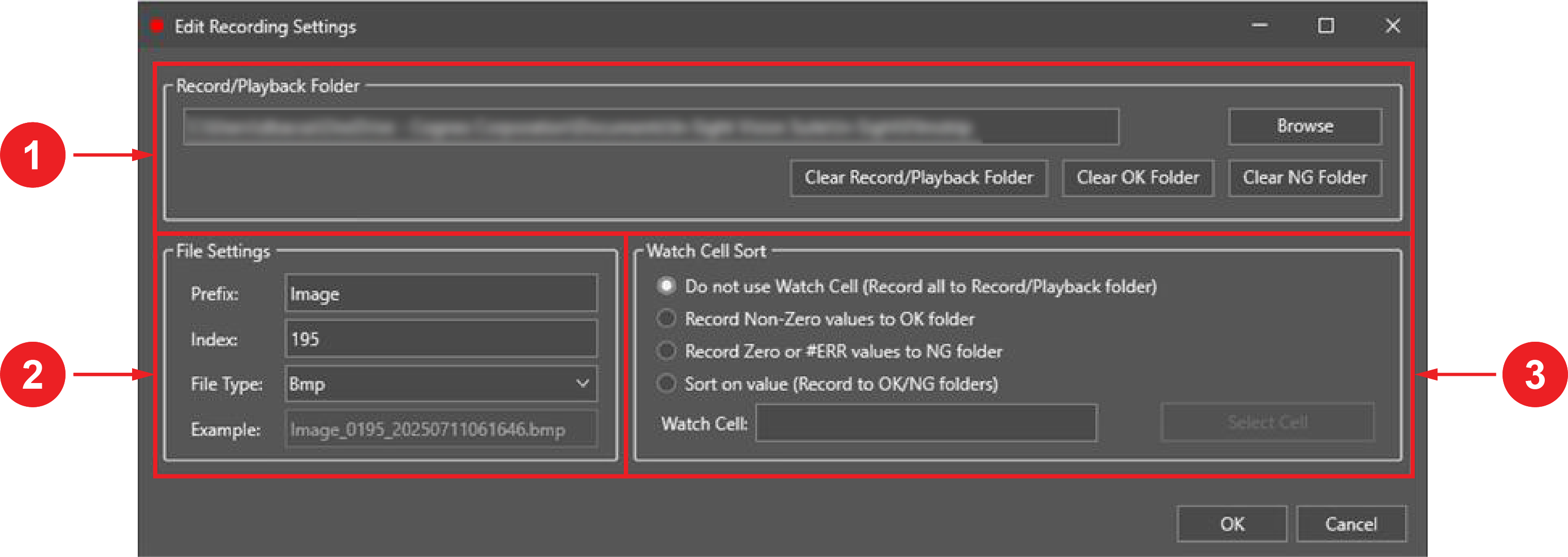
Edit Recording Settings Dialog
The Edit Recording Settings dialog allows you to adjust record settings for individual vision systems and emulators. After configuring the settings, you can record and play back acquired images that are stored in the specified Record/Playback folder on your computer.
This functionality helps you with job A job is a user-configured program in In-Sight Spreadsheet consisting of functions and designed for specific applications. You can create and edit jobs using the In-Sight Spreadsheet interface, and load them on a vision system for deployment in a live environment. development and debugging. It is not intended for production use.
Opening the Dialog
To open the dialog, click the Settings icon on the Filmstrip.
User Interface Elements
The following table describes the features of the Edit Recording Settings dialog section by section:
|
|
||
| Number | Section Name | Description |
| 1 | Record/Playback Folder |
Provides options to specify the directory on the computer for storing recorded images. To select the directory, click Browse. When conditional sorting is enabled, the OK and NG folders are created as subdirectories of the Record/Playback folder. The following additional options are available:
|
| 2 | File Settings |
Provides options to specify the filename format and file type of recorded images. Te following options are available:
|
| 3 | Watch Cell Sort |
Provides options to sort images into folders based on the value of the watch cell. The watch cell is any spreadsheet cell that you specify using the Watch Cell box or the Select Cell button.
The following sorting options are available:
|