Measure Height
The Height tool allows you to measure the height of a selected region relative to an input reference plane. If no other planes are present, the tool uses the origin plane that goes through Z=0. If you have a Find Plane tool configured, the Height tool uses the Find Plane output as a reference plane.
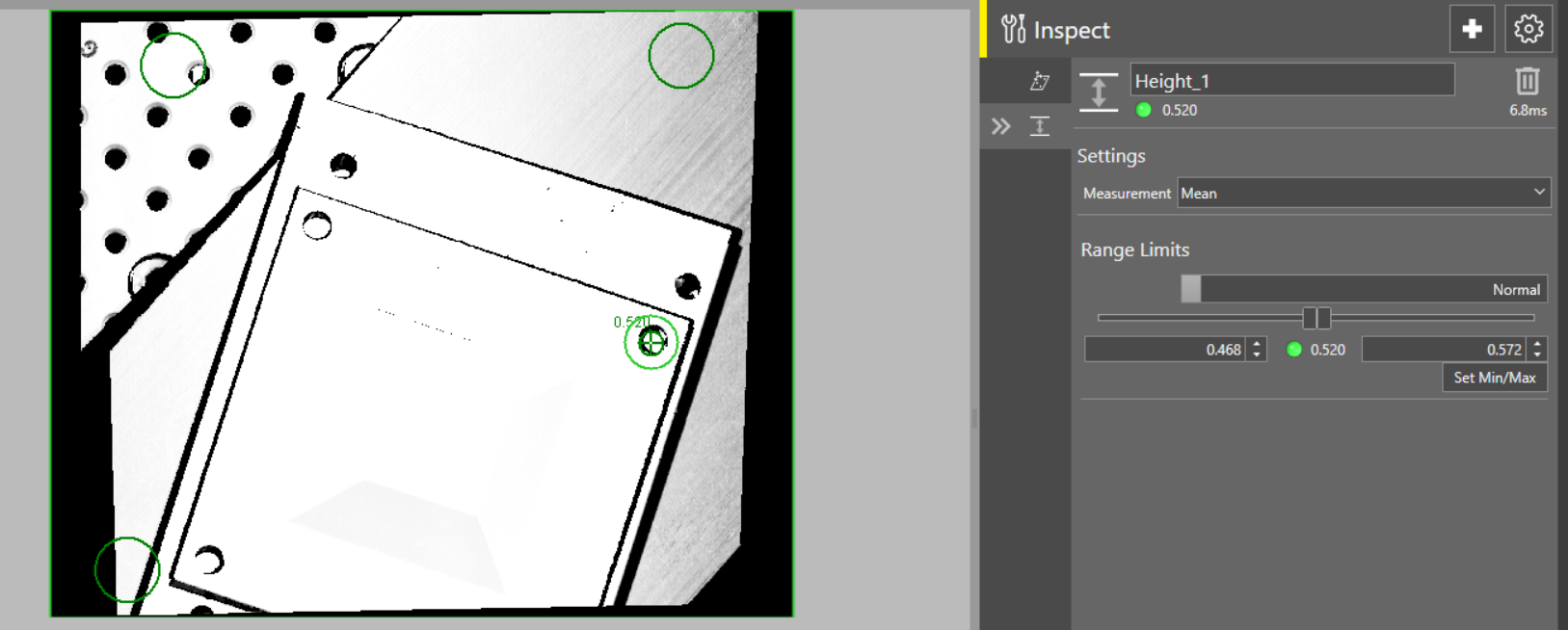
 To use the Height tool
-
Create a reference plane. To do so, click the Inspect button and navigate to the Find Plane tool in the Locate tab.
Note: Create your own reference plane so the measurements start from the actual bottom of the working surface, for example a table, or a conveyor belt. If you did not create a reference plane, the Height tool uses the built-in reference plane. The built-in origin plane goes through Z=0, which may not be the actual bottom of the part and can lead to improper measurements. -
Position the regions over three separate points on the plane.
You can choose the shape of the regions. You can choose from Circle, Rectangle, Annulus. The default setting is Circle.
-
Once you finished configuring the regions, click OK.
-
Click the Inspect button and navigate to Measure Height in the Measurement Tools.
-
Position the ROI over the feature you want to measure.
-
Choose the shape of the ROI.
You can choose from Rectangle, Circle, or Annulus. The default setting is Rectangle.
-
Once you finished configuring the ROI, press OK.
-
Set the Measurement type. You can choose from Mean, Min, Max. The default setting is Mean.
-
Select the Range Limits.
To adjust range limits
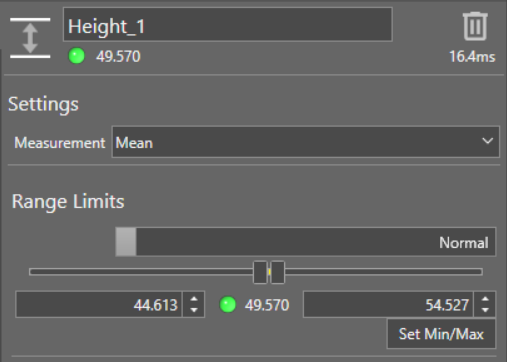
Toggle the Normal/Inverted toggle to change the way the tool result is generated. If set to Normal, the tool produces a passing result if the height value falls between the defined minimum and maximum values. If set to Inverted, the tool produces a passing result if the height value falls outside the defined minimum and maximum values.
Adjust the valid range by changing the Minimum and Maximum height values using the sliders or by providing the numerical values in the boxes below the slider.
Click Set Min/Max to use automatically calculated minimum and maximum height values. The automatically calculated minimum and maximum values are 5% below and above the current height value when you add the tool or click the Set Min/Max button.
You can also enable advanced tool settings if your job requires more complex configuration. For more information on the advanced tool settings that are available, see Advanced Tool Settings.