ApplyAcquisitionSettings
You can add the ApplyAcquisitionSettings function to the spreadsheet by selecting a parameter from the AcquireImage property sheet and dragging that parameter to the spreadsheet. The ApplyAcquisitionSettings function works as a setter for acquisition parameters shown in the AcquireImage function. This function is useful when you want to modify the acquisition settings from the spreadsheet quickly and easily at run time, or when you want to update a setting based on external communications (FFP) or the output of a vision tool, without opening the AcquireImage property sheet.
The ApplyAcquisitionSettings function supports the following parameters:
- Trigger Type, Debounce (ms), Delay (ms), Exposure (ms), Offset, Gain, Orientation, Start Row, Number of Rows
- Illumination: Mode, Intensity, Banks Enabled, Always On
- High Dynamic Range: HDR Mode, HDR+ Kernel Size
-
You cannot drag-and-drop other parameters (such as Trigger Mode) from the AcquireImage property sheet to the spreadsheet.
- Parameters that the connected device does not support are grayed out and cannot be dragged and dropped.
How To Use ApplyAcquisitionSettings
- Open the AcquireImage property sheet in cell A0.
- Drag a parameter from the AcquireImage property sheet to the spreadsheet.
-
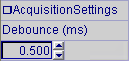
The ApplyAcquisitionSettings function is added to the spreadsheet, and returns an AcquisitionSettings data structure, the label of the parameter, and an edit control. For example, if you drag-and-drop the Debounce (ms) parameter into the spreadsheet, the AcquisitionSettings data structure, the "Debounce (ms)" label, and an edit control are populated in the spreadsheet.
- Click OK to close the AcquireImage property sheet.
-
If you want to add another acquisition parameter to the spreadsheet, open the ApplyAcquisitionSettings property sheet.
Note: It is highly recommended to drag-and-drop a parameter from the ApplyAcquisitionSettings property sheet after the first ApplyAcquisitionSettings function has been created. If you drag multiple parameters from AcquireImage, you are creating multiple ApplyAcquisitionSettings functions, and it is not obvious which parameters are being set for each. -
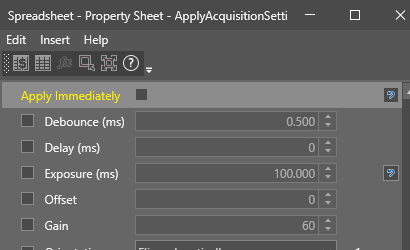
Check the checkbox of the desired parameters. For example, if you want to add the Delay (ms) parameter to the spreadsheet, check the Delay (ms) parameter checkbox.
- Drag-and-drop the parameter to the spreadsheet.
-
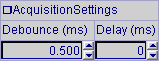
The label of the parameter and an edit control are populated in the spreadsheet. For example, if you drag-and-drop the Delay (ms) parameter into the spreadsheet, the "Delay (ms)" label and an edit control are populated in the spreadsheet.
- Repeat steps 5 through 8 until all the desired parameters have been added.
- Modify the values in the edit controls, as desired.
-
If you check the Apply Immediately box, the function applies the new values at the next image acquisition. If you leave the box unchecked, the modified acquisition settings are applied after the image acquisition.
- If you have more than one ApplyAcquisitionSettings functions in the spreadsheet, only the last updated value is used at the image acquisition.
- The label of the parameter and edit control are populated only when you drag-and-drop the parameter from the AcquireImage or ApplyAcquisitionSettings property sheet to the spreadsheet. If you insert the ApplyAcquisitionSettings function using other methods (such as typing ApplyAcquisitionSettings in a cell), only the AcquisitionSettings data structure is populated.
- If you uncheck a parameter on the ApplyAcquisitionSettings property sheet, the associated edit control on the spreadsheet no longer overwrites the value in the AcquireImage function.
ApplyAcquisitionSettings Outputs
When a supported parameter is dragged and dropped from the AcquireImage property sheet to the spreadsheet, the following are returned:
|
Returns |
|