FindCircleDefects
Converts each pixel within an annular (ring-like) region in an input image to black or white based on a user-set threshold, with white indicating non-circular or non-radial features. Define and position the annulus over the image, and choose whether the function calculates pixel gradient in either a circular or radial direction. Values equal to or exceeding the threshold level are displayed as white pixels in the black-and-white output image.
 Inputs
| Parameter | Description | ||||||||
|
Image |
This parameter must reference
a spreadsheet cell that contains an Image data structure. By
default, this parameter references cell |
||||||||
|
Fixture |
Defines the Region of Interest (ROI) relative to a Fixture input or the output of the image coordinate system for the Vision Tools function. Setting the ROI relative to a Fixture ensures that if the Fixture is rotated or translated, the ROI is rotated or translated in relation to the Fixture. Note: 2D projections use real world units but fixturing with 2D tools requires input in pixel values. When using a 2D projection from a 3D point cloud as a Fixture, convert the real world units to pixel values using the TransWorldToPixel function.
The default setting is (0,0,0), the top leftmost corner of the image.
|
||||||||
|
Annulus |
Also known as the Region of Interest (ROI), it specifies the region of the image
that undergoes analysis. It creates an annular image region that can
be translated and rotated. With this parameter
selected, by pressing the Maximize
Region
|
||||||||
|
Note: The Fixture
and Annulus parameters must be defined
within the bounds of the image. Otherwise, the function returns #ERR.
|
|||||||||
|
Defect Type |
Specifies the type of defect to which the function is sensitive: circular or radial. Pixels that vary in greyscale value from surrounding pixels indicate possible defects.
|
||||||||
|
Deviation |
Specifies the degree of tolerance in the defect detection.
|
||||||||
|
Accept Thresh |
Specifies the defect threshold, in greyscale value. (0–255; default = 30) |
||||||||
|
Show |
Specifies which graphical overlays are displayed on top of the image.
|
||||||||
 button on the toolbar of the property sheet, the region is automatically stretched to cover the entire image.Outputs
|
Returns |
An Image data structure that stores the black-and-white ("binary") image, or #ERR if any of the input parameters are invalid. |
||||||||||||
|
Results |
When FindCircleDefects is initially inserted into a cell, a result table is created in the spreadsheet using the following Image Vision Data Access functions
Additional data elements can be accessed using the following Image Vision Data Access functions:
|
FindCircleDefects Example
In this example, the synthetic circular (left) and radial (right) objects shown below are used to demonstrate the functionality of the FindCircleDefect. Both objects are medium-grey in color and feature thick, dark inner and outer borders.


-
Insert the function into the In-Sight Spreadsheet spreadsheet.
-
Define the annulus by double-clicking on Annulus in the property sheet, which disappears to reveal the red annulus overlaid on the image.
-
Move or resize the annulus using the cursor.
-
Click the OK
 button on the Job
Edit toolbar to confirm the selection and return to the property sheet. (The selection can also be confirmed by pressing the Enter key or by double-clicking within the annulus.) The example shows images of the objects with their annuli.
button on the Job
Edit toolbar to confirm the selection and return to the property sheet. (The selection can also be confirmed by pressing the Enter key or by double-clicking within the annulus.) The example shows images of the objects with their annuli.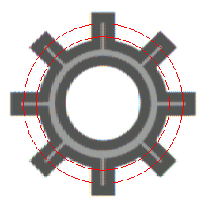
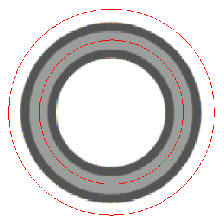
-
Select a defect type (non-circular or non-radial).
-
Choose ON or OFF for the deviation tolerance.
-
Accept the default settings of the other parameters and click OK in the property sheet to complete the configuration for this example and apply the function to the input image.
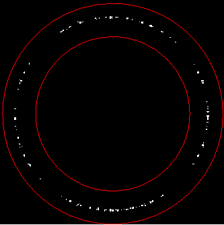
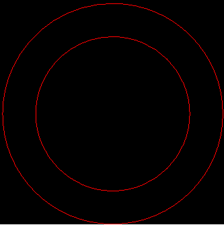
Below are black-and-white output images of the circular object, with the function set to detect non-circular defects, the Accept Thresh parameter at the default value of 30 and the deviation tolerance at OFF (left) and ON (right). Notice how much stricter the OFF setting (left) is, marking pixels in the outer edge of the circular object as possible defects, even though they appear to be part of the smooth circular curve.
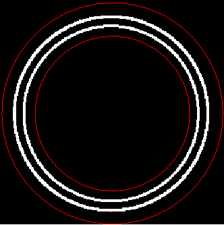
Below is a black-and-white output image of the same circular object with the function now set to detect non-radialdefects. The function marks the inner and outer edges of the outer border as possible radial defects.
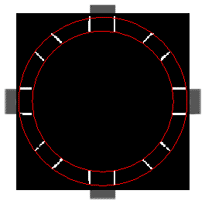
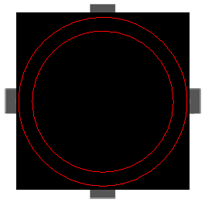
Below are black-and-white output images of the radial object, with the function set to detect non-radialdefects, the Accept Thresh parameter at 70 and the deviation tolerance at OFF (left) and ON (right). Again, notice how much stricter the OFF setting (left) is, marking the outer edges of the radial features as possible defects.
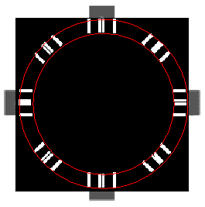
Below is a black-and-white output image of the same radial object with the tool now set to detect non-circular defects. The function marks all radial features within the annulus as possible circular defects.
In a real-world application, you would next reference another tool to the output image, so that a decision could be made regarding the results.