Cell References
A cell reference is a link to a different cell. When data in the source cell changes, the value in the destination cell updates automatically. The link is unidirectional, however, as the source cell does not know that it is being referenced by another cell.
There are three kinds of cell references:
- Relative: A cell reference where the row and column addresses are defined relative to the cell, and change when copied to a new location. The amount of change is equal to the distance in rows and columns between the copied cell and the pasted cell. For example, if the cell A2 contains the relative reference A1, and you copy A2 to cell S43, then the relative reference in cell S43 becomes S42.
- Absolute: A cell reference that does not change when copied to a new location. In formulas, a dollar sign ($) indicates an absolute reference. The dollar sign symbol can be used in conjunction with any row or column (or both) to construct an absolute cell reference.
- Mixed: You can use relative and absolute references in conjunction to create a mixed reference, such as having a relative row reference and an absolute column reference.
The following table lists the four variants of absolute and relative cell references, including what happens after you copy the references to a different cell:
| Description | Reference Type | Example | Result after Pasting to New Cell |
|---|---|---|---|
|
Relative Column and Relative Row |
Relative |
B4 |
Both the row (4) and the column (B) change according to the distance from the original cell. |
|
Fixed Column and Fixed Row |
Absolute |
$A$1 |
Always the same ($A$1). |
|
Fixed Column and Relative Row |
Mixed |
$D9 |
The column (D) is always the same, but the row (9) changes according to the distance in rows from the original cell. |
|
Relative Column and Fixed Row |
Mixed |
G$3 |
The column (G) changes according to the distance in columns from the original cell, but the row always remains the same (3). |
Shortcuts for Creating a Cell Reference
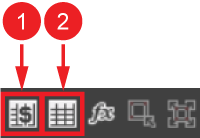
- Relative: Press CTRL+SHIFT+R, or click the relative reference button in the Spreadsheet toolbar. Cell selection mode allows you to choose the cell you want to reference. For more information, see Cell Selection Mode.
- Absolute: Press CTRL+SHIFT+A, or click the absolute reference button in the Spreadsheet toolbar. Cell selection mode allows you to choose the cell you want to reference.
|
|
||
|---|---|---|
| Number | Button | Description |
| 1 | Insert Absolute Reference | Opens cell selection mode for inserting an absolute cell reference. |
| 2 | Insert Relative Reference | Opens cell selection mode for inserting a relative cell reference. |