Cell Selection Mode
The most convenient method for inserting relative and absolute cell references is the cell selection mode. In cell selection mode, cell references are created by clicking cells directly in the spreadsheet, allowing you to visually select the cell instead of having to manually enter the row and column.
Invoke Cell Selection Mode
You can invoke cell selection mode in the following ways:
- Spreadsheet toolbar - when you have an empty cell highlighted, click on the Relative Reference button or the Absolute Reference button in the Spreadsheet toolbar.
- Property Sheet dialog - when you open the Property Sheet for a cell, click the Relative Reference button or the Absolute Reference button in the pop-up dialog header, or double-click on the property that you want to use a cell reference with.
- Cell State dialog - when you open the Cell State dialog for a cell, select Conditionally Enabled, choose Absolute or Relative, and click on Select Cell.
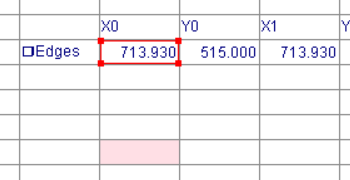
When in cell selection mode, the display temporarily switches to a Spreadsheet view where the image is not visible underneath, and an expandable rectangle with a red outline represents the target cell or cells, while the destination cell is highlighted in light red.
Establish a Cell Reference
- Choose the cell(s) to reference. you can select one or more cells using either the mouse or the keyboard. To select multiple cells with the mouse, click and drag across a group of cells, or hold SHIFT and click on the first and last cells in the group. Using the keyboard, hold SHIFT and press the arrow keys to select a group of cells.
- Accept the reference. You can accept references either by double-clicking the desired cell in the case of a single-cell reference, or by pressing ENTER. Once the reference has been accepted, the display switches back to the property sheet, dialog, or spreadsheet cell from which you initiated the cell selection mode.