TCPClient
The TCPClient function defines a spreadsheet cell as a TCP/IP client, which initiates the communication with another TCP/IP device for sharing data over the network.
- The connection between the TCP Spreadsheet function and another TCP/IP device starts immediately when you add the TCPClient function or load the job to the spreadsheet.
-
TCPClient generates an event after receiving a packet. This event updates the spreadsheet.
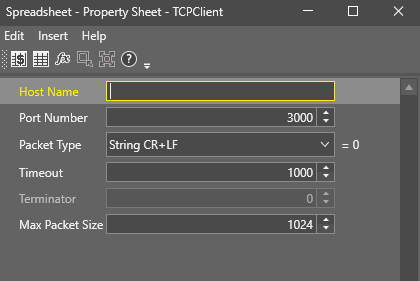
TCPClient Inputs
| Parameter | Description | ||||||||||||
|---|---|---|---|---|---|---|---|---|---|---|---|---|---|
| Host Name |
Specifies the name or the IP address of the TCP device with which you establish a connection. If you do not specify the host name, the TCPClient function returns an #ERR. |
||||||||||||
| Port Number |
Specifies the port number at which there is a connection between TCP/IP devices. The port number is an unsigned 16 bit port number. 0 is not a valid port. The default port number is 3000. Note: You need to assign the port number entered here on the server.
|
||||||||||||
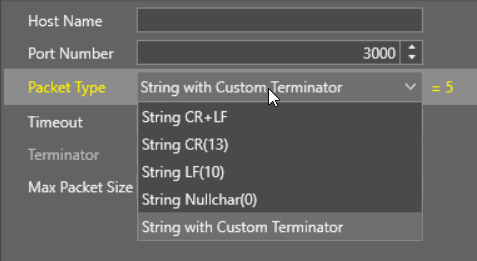
| Packet Type |
Defines the formatting of the data string communicated between TCP/IP devices.
|
||||||||||||
| Timeout |
The number of milliseconds (1000 to 15000; the default value is 1000) to wait for TCPClient to establish TCP/IP connection before aborting the connection attempt. If there is no connection WriteDevice attempts to reconnect. If the attempt is unsuccessful during the timeout period, it shows an #ERR. If there is a connection but the TCPClient could not queue the packet into the network socket during the timeout period, WriteDevice also shows an #ERR. TCPClient does not return an #ERR. |
||||||||||||
| Terminator | Specifies the byte value you use when you specify String with Customer Terminator or Binary with Customer Terminator for the Packet Type. | ||||||||||||
| Max Packet Size | Specifies the maximum packet size that TCPClient can receive. If the remote sender exceeds the maximum packet size, ReadDevice shows an #ERR. |
TCPClient Outputs
| Returns |
A Device data structure. Returns #ERR if any of the input parameters are invalid. |
| Results |
When you insert the TCPClient function into a cell, a WriteDevice function is automatically inserted in the adjacent cell to the right.
|

Example
Configure an In-Sight host vision system named SYSTEM0 with the associated cells containing the following parameter values:
A3=TCPClient("SYSTEM1",3000,0,1000,0,1024)
B3=WriteDevice($A$0,A3,C3)
Assume that you configure a second host system, named SYSTEM1, which includes a TCP/IP server, with the associated cells containing the following parameter values:
A4=TCPServer(3000,0,0,1024)
B4=ReadDevice(A4)
Both systems, SYSTEM0 and SYSYEM1 are Online.
Whenever the default image in cell $A$0 on SYSTEM0 is acquired, the TCP/IP client in cell A3 establishes a connection (if not yet connected) with the TCP/IP server in cell A4 on SYSTEM1 at Port 3000.
The WriteDevice function in cell B3 on SYSTEM0 then exports the data in cell C3 to the ReadDevice function in cell B4 on SYSTEM1.