WebHMI Settings
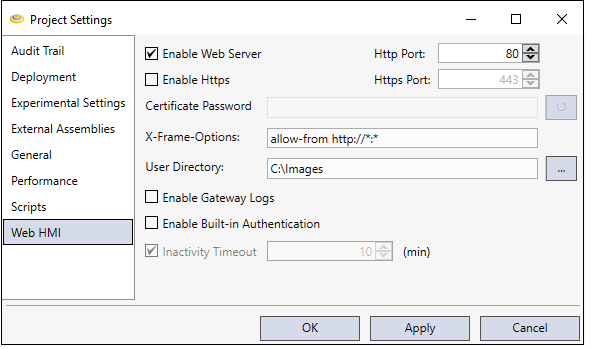
Standard Web Server
The Enable Web Server property enables or disables hosting a web server instance on the specified port.
The Http Port property determines which http port to use to host the WebHMI.
Secure Web Server
The Enable Https property enables the WebHMI to be hosted on a secure web server instance on the specified Https port.
The Https Port property determines which port to use to host the secure WebHMI server instance. See the topic WebHMI: A Functional Overview for details on enabling Https for WebHMI.
To use your own Server Certificate requiring a password, specify the password with the Certificate Password property.
"C:\ProgramData\Cognex\Designer\Certificates\Default"
The provided Server Certificate requires no password so the Certificate Password field should remain empty.
iFrame Configuration
Modify the X-Frame-Options property to modify access to the WebHMI server if it is accessed from within an iFrame.
<html>
<iframe src="https://localhost:443/hmi" title="Designer Web HMI"></iframe>
</html>
Authentication Options
The ability to require a login to access all of the Web Pages can be controlled by setting the Enable Built-in Authentication setting for all of the WebPages contained in a project. When enabled, this setting covers all of the WebPages in a project, and cannot be applied selectively to an individual WebPage.
This will force a user to enter user credentials (user name and password) when accessing a project from a Web browser during deployed mode. The default WebPage will only load if the user is able to successfully log in; otherwise, the login dialog will continue to be displayed.
To add extra security, enable an automatic timeout (in minutes) to prevent authentication with WebHMI after a certain period of inactivity by the user. When the set Inactivity Timeout value expires, the application locks the dialog and requires authentication to proceed.
While the project is in deployed mode, the Inactivity Timeout determines the interval for user interaction with the PC running the WebPage HMI. When this setting is enabled (it is enabled by default), the current user will be logged off and all WebPage Elements that require authorization will become disabled if there has not been any interaction during the specified time period.