Test Your Vision Application
This procedure describes how to verify the performance of your vision application and ensure that it performs properly before you would deploy it in a production environment. Perform the following steps to do so:
- In the Task window, click
 . All Task Blocks should now execute properly in the task, indicated with a green dot in each block.
 - Execute the project either through the Project > Run option, by clicking the
 (Run) button of the toolbar above the Task Editor, or by pressing F5. The SingleCamera and Web Browser tabs then open in Cognex Designer, showing the local and published HMI pages of the project. Click the SingleCamera tab to open the local HMI that you have configured previously.
 -
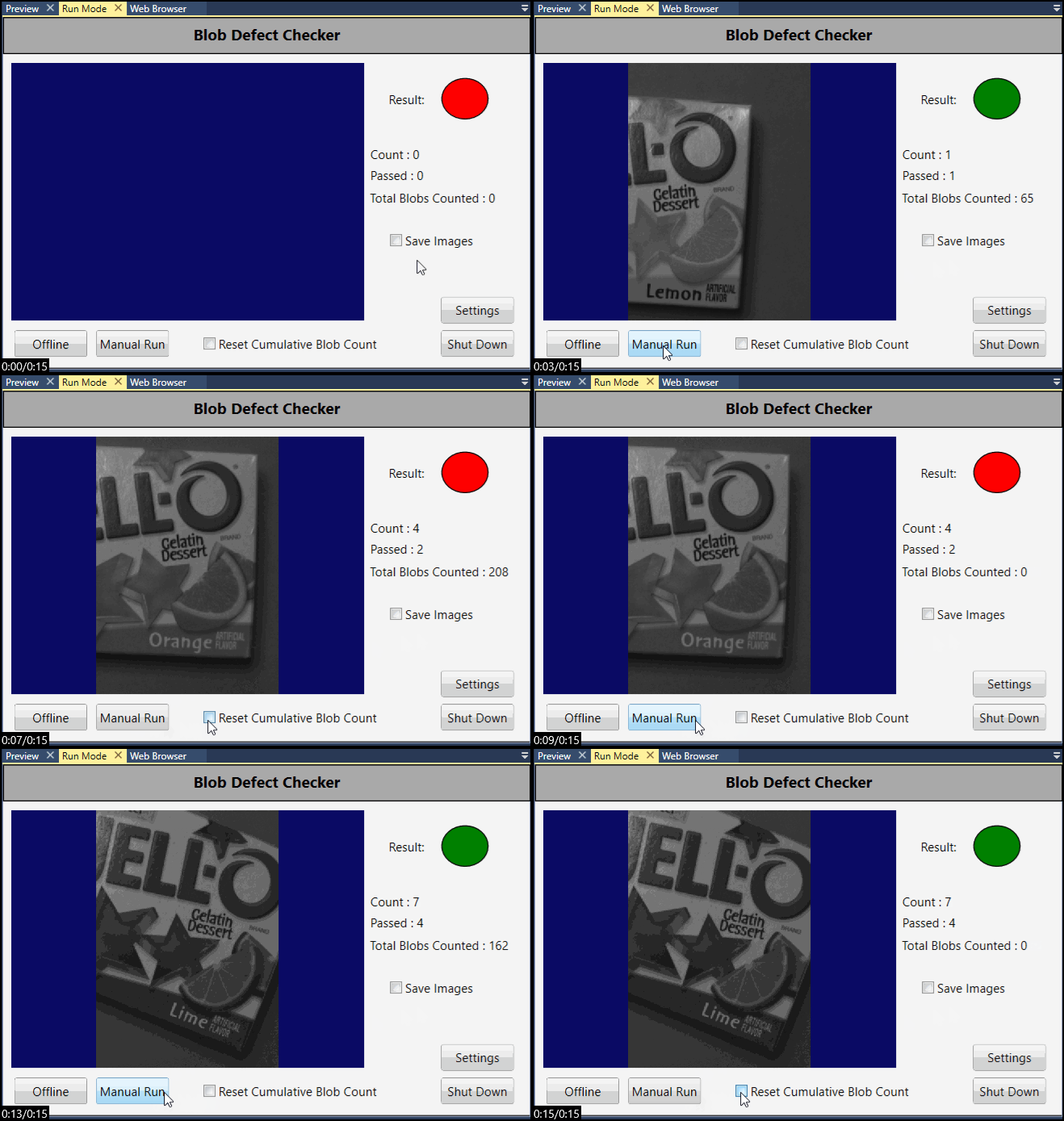
Run the application as often as you like by clicking the Manual Run button on the page. Notice that the application works as intended, counting all the blobs, and resetting the blob count when the Reset Cumulative Blob Count checkbox is unticked and then ticked again, as shown below
-
Click the Shut Down button to terminate your application. Alternatively, click the Project > Stop menu, the
 (Stop) button in the toolbar above the project web page, or press F5.Tip: One of the most common mistakes users make when learning Cognex Designer is forgetting to Shut Down the project. If you finished testing the application, always make sure that you stop Test Mode with one of the methods described above. If you attempt to change the project in any way, but Cognex Designer is not responding, always check if the project is running in Test Mode.
 - Save your project by clicking File > Save All, clicking the
 (Save) button of the toolbar at the top of Cognex Designer, or by pressing Ctrl+S.
Before proceeding to the final step, ensure that the Task in the Task Editor looks similar to the below example:
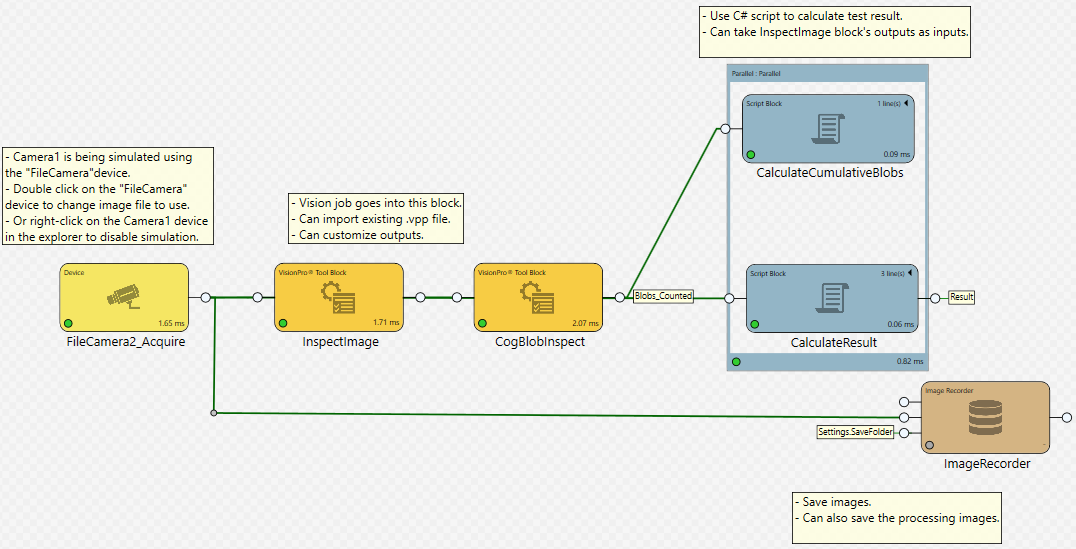
You have now created and tested a complete vision application using Project Types. The only thing left to do is to deploy it in a production environment, as detailed in the Deploy Your Vision Application to the Web section.