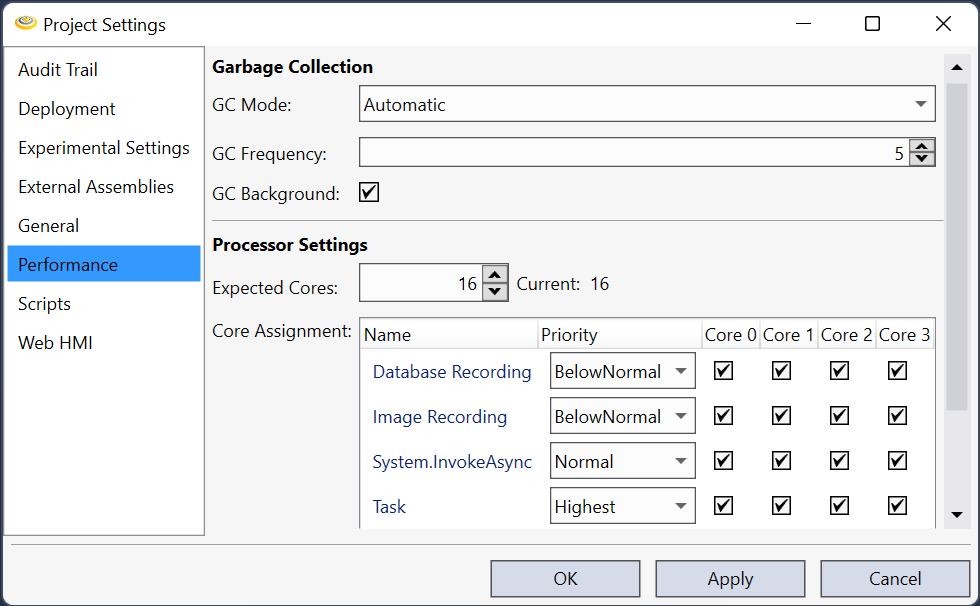
Performance
The Performance tab enables you to adjust parameters that affect system performance such as when Cognex Designer performs garbage collection and how to perform load balancing through assignment of cores.
| Setting | Description |
| GC Mode |
Automatic - When selected, GC is performed automatically based on the frequency specified in the GC Frequency setting.
Manual - Designer will not automatically perform GC. Instead, GC.Collect must be called manually by the user from a script. |
| GC Frequency |
Determines how often automatic garbage collection is performed. One frequency unit is equivalent to one execution of any task.
Example: Suppose GC Frequency is set to 15. If Task1 has run 10 times and Task2 has run 4 times, the GC will run the next time either task executes as there have been 14 executions.
The default GC Frequency is 5. |
| GC Background |
Enables and disables Garbage Collection running in the background when using Automatic GC Mode.
This is enabled by default for new projects. |
| Expected Cores | The number of physical CPU cores on the machine the deployed application will run on. |
| Core Assignment |
Assigns work within Designer to specific cores
All work must be assigned to at least one core.
Thread priority - Instead of assigning cores to specific threads, it can be better to specify the Thread Priority and allow Windows to manage when and what threads run. This can minimize spikes that can occur when assigned to a single core.
See Load Balancing Using Core Assignments for more information. |