Scheduling Garbage Collection
Due to its resource-intensive nature, Garbage Collection (GC) is one of the most common causes of performance degradation in software products.
However, it is possible to limit when Garbage Collection occurs in Cognex Designer, when creating a new project with version 4.1.0.
Before performing any of these tasks, open the Project Settings dialog by clicking System > Settings in the Explorer pane. Select the Performance tab.
Limit Garbage Collection Frequency
In the GC Frequency drop down box, enter a numeric value to designate how often garbage collection should be run. One frequency unit is equivalent to one task execution.
For example, entering the value 15 in GC Frequency designates that garbage collection be run after every fifteen tasks complete.
The default value is 5 for automatic garbage collection.
Garbage Collection Blocking Mode
When Garbage Collection runs, it normally blocks access to Cognex Designer applications, as it needs to serialize data to maintain integrity during clean-up. However, this protective behavior also causes applications to "freeze" and stop responding.
To enable Garbage Collection to run non-disruptively in the background, check the GC Background checkbox. While performance during clean-up will not be as optimal as when Garbage Collection is not running, enabling GC Background will allow sporadic access to applications.
To disable Garbage Collection Blocking Mode and lock out all user application activity, uncheck the GC Background checkbox. While blocking garbage collection will safely lock down resources during clean-up, you will also not have access to your applications.
Projects created prior to installing version 4.1.0 of Cognex Designer have GC Background unchecked by default. To override this setting, and enable garbage collection for a project, select the GC Background checkbox.
To enable GC Background for all new projects, select Automatic for GC Mode.
To disableGC Blocking Mode for all new projects (unless you explicitly check GC Background for a specific project) select Manual for GC Mode.
About .NET Garbage Collection
If GC.Collect is not called regularly enough, the built-in .NET GC will be performed automatically.
Allowing the .NET GC to be performed has two significant drawbacks:
- The .NET GC can occur at any time, and when it does, the entire application is completely locked (i.e. no processing can occur) while the cleanup is performed.
- VisionPro image memory usage is not reported to the .NET memory management system, so the .NET GC may not run in time to prevent memory errors.
GC will take longer when Designer is in development mode, because there are more resources to check (the Designer application itself, and your project). Therefore, you should deploy your project before attempting any performance diagnostics related to GC. For example:
- Designer and a single Task (no GC) = ~27ms
- Designer and a single Task (with GC) = ~85ms
- Deployed project with a single Task (with GC) = ~35ms
Automatic collection may occur if the .NET Framework deems that the scheduled GC is not sufficient, regardless of the collection strategy.
- For more information on .Net GC and GC generations, please refer to this Microsoft topic.
-
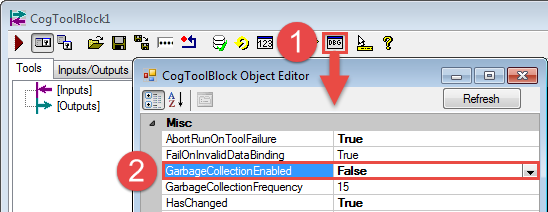
Due to Designer controlling GC, if a CogToolBlock is going to be imported into a Designer project, ensure that the GC is disabled prior to being imported, because it cannot be disabled in Designer.
- VisionPro only reports the time taken for a cleanup in the parent Tool/ ToolBlock, so if the cleanup occurs in the root ToolBlock, the time taken to execute the cleanup will not appear in the ToolBlock's RunStatus.TotalTime property.