VisionPro Display 3D
The VisionPro Display 3D inserts a VisionPro Cog3DDisplayV2 display on the Page. It supports ICogVisionData objects, which are output by a Cognex Displacement Sensor (DS1000 or DS900 Series Sensors).
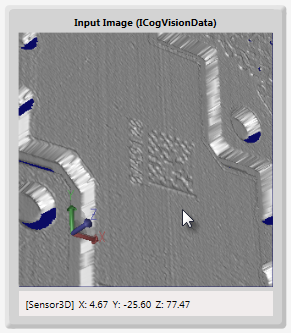
To configure a VisionPro Display 3D, after adding it to the Page, using the Expression Builder, set the Subject property to the desired ICogVisionData in a tag, or directly to desired Device's Image. For example, if configuring the display for a DS1000 Series Sensor Camera Device, the Subject property would be bound to $Devices.<DeviceName>.Image.
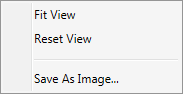
When the VisionPro Display 3D is in runtime or in Test Mode, a right-click menu is enabled, which allows the user to fit the view, reset the view, or save the image (a Save As dialog will be launched when selected).
Also while in Test Mode, press the center wheel button of the mouse to tilt and rotate the 3D image, and zoom in and out of the image.
| Methods | Description |
|---|---|
| HasError() | This property gets set when the image processing fails, for any reason. Changing the subject or calling the Clear or Add methods will clear the error flag. This is a read-only property. |
| AddVisionData() |
Parameters: ICogVisionData visionData This function is used to add Vision Data during runtime, without the need to change the Subject property. This method allows you to add a single Vision Data object to the display; if the Vision Data object can be processed, it will appear on the display. If there is an error, Designer will log a warning-level log item, and set the HasError property to true. Using this function will not clear the 3D display, but it will reset the HasError flag. |
| AddGraphics() |
Parameters: Cog3DGeometryGraphicBase geometryGraphic, Cog3DVisionDataGraphicBase visionDataGraphic string groupName This function is used to add a graphic during runtime, without the need to change the Subject property. This method allows you to add a single graphic object to the display; if the graphic object can be processed, it will appear on the display. If there is an error, Designer will log a warning-level log item, and set the HasError property to true. Using this function will not clear the 3D display, but it will reset the HasError flag. Adds the given geometry graphic to the Display and associates it with the given VisionData graphic. If the geometry graphic is null, only the VisionData graphic is added to the display. If the group name is ignored, or null is passed in, the default group will be used, instead. Note: A NonSupportedException may be thrown if the application cannot create a Cog3DVisionDataGraphicBase representation for the Vision Data.
|
| Clear() |
This function removes every item from the display, and resets the HasError flag. |
- In the figure above, the VisionPro Display 3D has been configured with a VisionPro Display 3D Status Bar to display coordinate information about the image being displayed.
- In addition to the configurable properties, the VisionPro Display 3D also has five script points to use as events, On Mouse Down, On Mouse Move, On Mouse Up, On Mouse Enter and On Mouse Leave.
-
For additional scripting capabilities, the underlying VisionPro Cog3DDisplayV2 can be accessed, using the following:
var myDisplay3D = $System.GetInternalObject("Pages.Page.VisionProDisplay3D") as Cog3DDisplay;
- The VisionPro Display 3D does not support displaying 2D images as height maps; these types of images will not be displayed and a warning will be shown, instead.
- The VisionPro Display 3D does not work when using a Windows Remote Desktop Connection. Third party options, such as VNC® or TeamViewer, may be used.
-
The VisionPro 3D tools do not output graphics that can be directly output by a VisionPro Display 3D; the graphics must be handled via script. For more information about constructing a VisionPro Display 3D to display the graphics of VisionPro 3D tools, see the Displaying 3D Images and 2D Tool Graphics topic.