Deployment Options
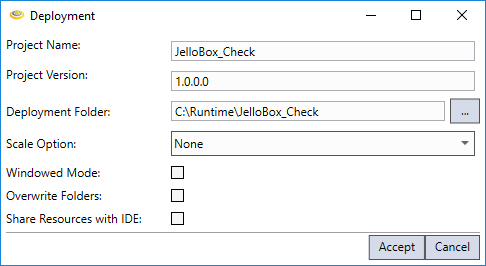
Once the application development has been completed, the project can be deployed and structured so that the application can not be modified. Deploy the project as follows:
- Navigate to Project > Deploy in the menu bar to open the Deployment dialog.
- Configure the deployment options as desired, and then click Accept to deploy the application.
- You can then launch the deployed application by going to the deployment folder and running the Launcher exe file, or by using the shortcut on the desktop.
The available settings are described below.
|
|
|---|---|
| Control | Description |
| Project Name | The name of the run time application. |
| Project Version | Specifies the version number of the Run {ProjectName}.exe file. |
| Deployment Folder | Specifies where the run time application will be stored. |
| Scale Option |
Specifies three display options:
Note: When the Scale Option is set to Stretch or Fit, the Windows taskbar will be hidden. To be able to access the taskbar, enable the Windowed Mode option.
|
| Windowed Mode |
Specifies whether or not the deployed application can be minimized. When enabled, the deployed application window will have a border at startup with Minimize and Close buttons. This setting is disabled by default. The application will always be on top of other windows, and the maximize/restore button is disabled, regardless of the Scale Option setting. In addition, the application window cannot be resized; it can only be minimized or closed. Note:
|
| Overwrite Folders |
If checked, any sub-folders in the project directory will be copied into the deployment path. Overwrites the existing RunTime database with the one currently used in the Cognex Designer Integrated Development Environment, as well. If not checked, it will copy over any folders that currently do not exist in the deployment folder. Note: Prior to release 4.0, in the deployment folder, the overwrite option would replace files but not delete files in the folder that weren't replaced. As of release 4.0, the deployment folder is cleared of all files that weren't replaced.
|
| Share Resources with IDE |
If checked, certain project resources will be shared between the Development and Deployment applications. This allows you to make changes to certain project resources in one application, and then open the other project using those updated shared project resources. This can be very useful, for example, to debug projects in the Development project by using the resources of the Deployed application. This setting is disabled by default.
When enabled, Cognex Designer shares the following resources between the Development and Deployment applications:
Note:
|