Running Your Application on Multiple Machines with Different Configurations
You can run the same project on multiple machines with different configurations.
By using a project configuration override file, you override an application’s existing configurations on start-up, enabling your application to run on multiple machines with different settings.
Override the following project components by adding entries to the project configuration override file:
-
TCP/IP Client (Remote Address, Port, BufferSize)
- Serial Ports (COM Port, BaudRate, Parity, DataBits, StopBits, DTR Enabled)
-
I/O Card FFP Protocols (EtherNet/IP, PROFINET, SLMP, None)
- SQL Databases (Connection String)
- WebHMI Server Settings (Port, Enable, User Directory)
Deploying with the Project Configuration Override File
To deploy your project on more than one system, with different configurations, do the following:
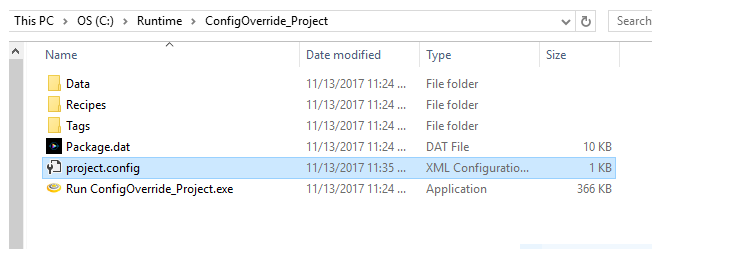
- Create an XML or text file and rename it Project.config, eliminating the .xml or .txt suffix. Move Project.config to the root directory of the project that you want to deploy, as shown in the illustration below:
- Edit Project.config with configuration settings you want to overwrite or change. Add a comment by starting a line with a pound symbol (#). Review the sample file below and use it as a model when creating your Project.config file. Comments describing the various configuration overrides are inline.
                       # Note that for the following override examples: MyTcpClient, myCom, and comCard are the names of the Devices in a project,
			# and therefore should be changed to the correct name of the applicable Device for another Designer project.

			#================ TCP/IP Client ================
			# Overrides the IP Address of the TCP Client “MyTcpClient” to 192.168.1.32
			Devices/MyTcpClient/RemoteAddress=192.168.1.32
			# Overrides the Port number of the TCP Client “MyTcpClient” to 8080
			Devices/MyTcpClient/Port=8080

			#================ Serial (Rs232) ================
			# Overrides the Baudrate of the Serial Device "myCom" to 115200
			Devices/myCom/BaudRate=115200

			#================ Cognex Communication I/O Card ================
			# Overrides the Factory Floor Protocol (FFP) of the I/O card "comCard" to EtherNet/IP
			Devices/comCard/FFP=EthernetIP

			#================ Web HMI Server ================
			# Overrides the Port property of the WebHmi Server Settings to 85
			System.WebServer/ServerSettings/Port=85
			# Overrides the UserRootDirectory property of the WebHmi Server Settings to “C:\SomeOtherDirectory”
        	        System.WebServer/ServerSettings/UserRootDirectory=C:\SomeOtherDirectory
Overriding the FFP Parameter when Configuring a Communication I/O Card
When overriding the FFP (Factory Floor Protocol) parameter for a Cognex Communication I/O Card, the override parameter names differ from those names displayed in the Cognex Designer user interface (IDE).
In the Cognex Designer user interface, the I/O Card Parameter Configurations are displayed, as in the figure below.
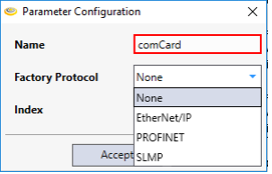
The configurable FFP options in the drop-down list box are: None, EtherNet/IP, PROFINET, and SLMP.
To override the FFP parameter, use one of the following lines as appropriate.
		Devices/comCard/FFP=EthernetIP
		Devices/comCard/FFP=Profinet
		Devices/comCard/FFP=Slmp
		Devices/comCard/FFP=None
Overriding the WebHMI Server Port
When overriding the Web HMI Server Port, register the new Port number enabling the Web HMI functionality to operate.
Register the Web HMI Server Port number with one of the two methods:
- Follow the instructions in the section WebHMI: A Functional Overview
- Run the following shell command while logged in with Administrator privileges: netsh http add urlacl url=http://+:{port}/ user=EVERYONE.