Optimized GPU Memory
The Optimized GPU Memory option optimizes GPU memory use for Standard type tools. If you disable this option, the system pre-allocates GPU memory for Legacy type tools. This option is enabled by default.
Memory pre-allocation affects performance in the following ways:
-
Improves training Training is the process that your tool, which is a neural network, is learning about the features (pixels) based on the labels you made. For example, a tool will learn the defect/normal pixels in each image based on the defect/normal labels you drew. The goal of the tool Training is learning enough to give the correct inspection results of whether an unseen image is defective or not. The key to training is to ensure that you include all possible variations within your training set, and that your images are accurately labeled. Training times vary by the application, tool setup and the GPU in the PC being used to train the network. and processing speed of Legacy type tools. This applies when using Windows Display Driver Model (WDDM) drivers or Tesla Compute Cluster (TCC) drivers.
-
Causes slower training speed for Standard type tools.
Configuring Optimized GPU Memory in Cognex Deep Learning Studio
You have the following options to enable or disable this option:
-
In the launch menu, select Options, then check or uncheck the Optimized GPU Memory checkbox. For more information, see Launch VisionPro Deep Learning.
-
In the toolbar, use the Optimized for Green/Red Standard tool toggle.
-
In the Compute Devices window, use the Optimized GPU Memory Setting toggle. To open this window, go to the Help menu.
When you disable the option, GPU memory pre-allocation becomes available. Set the reserved memory depending on the application. The highest performance improvement is for applications that process small images.
The following table shows examples from the user interface:
| Enable: Optimization for Standard Tools | Disable: Optimization for Legacy Tools | |
| Toolbar |
|
|
| Compute Devices window |
|
|


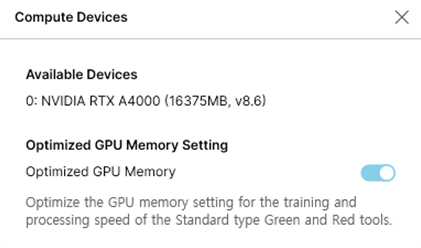
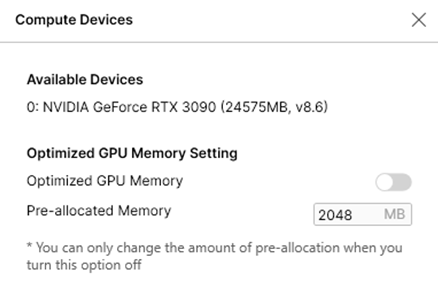
Configuring Optimized GPU Memory through API or Command Line
You can enable or disable this option using the API or command line arguments. For example:
-
NET API: control.OptimizedGPUMemory(2.5*1024*1024*1024ul);
-
C API: vidi_optimized_gpu_memory(2.5*1024*1024*1024);