Launch VisionPro Deep Learning
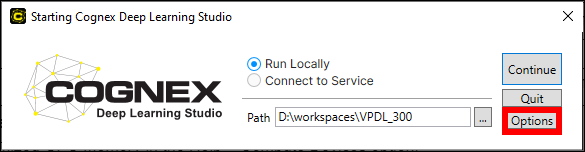
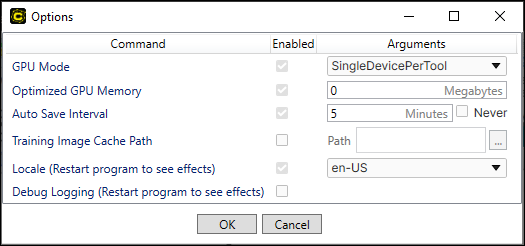
In the launcher, you can choose to run VisionPro Deep Learning locally or by connecting to a server. By selecting Options, you can reach several options that control the GPU Mode, which GPU device to use, the allocation of GPU memory, in addition to project settings.
| Command | Description | ||||||
|---|---|---|---|---|---|---|---|
| GPU Mode | Specifies the GPU mode to be used by the application.
The following options are available:
|
||||||
| Optimized GPU Memory | Specifies the size of the preallocated optimized memory buffer.
Note: You can also reach the Optimized GPU Memory option from the GUI by selecting the Compute Devices option of the Help menu. For more information, see Optimized GPU Memory. |
||||||
| Auto Save Interval | Specifies how often a workspace is saved automatically. The default is every 5 minutes. | ||||||
| Training Image Cache Path |
Specifies a cache location for training images. This is useful if the images in a stream are in non-raster format (for example JPG, PNG, or GIF), since they must be converted to a raster (BMP) format for training. By default, this conversion happens multiple times for each image. By enabling the Training Image Cache Path option, the application only converts the images once then stores the converted images in a local cache directory. Use a local cache directory, preferably on a Solid-State Drive (SSD). This option can also speed up training in cases where the workspace is stored on a slower drive or a remote storage device. |
||||||
| Locale | Specifies the language of the VisionPro Deep Learning GUI. | ||||||
| Debug Logging | Specifies whether or not debug logs are enabled for the project. |