Blue Read
You can use the Blue Read tool for Optical Character Recognition (OCR). Blue Read is pre-trained on a database of images that show text in numerous fonts and backgrounds. Since the tool is pre-trained, you can process it without training it first and the tool can almost instantly recognize and read characters. The tool already knows how to read characters, you just need to define where in the image to look for characters. The characters of the pre-trained tool are numerals (0-9), uppercase letters (A-Z, except "O"), hyphen (-), plus sign (+), ampersand (&), colon (:), and forward slash (/).
Using the Blue Read Tool
Since the tool was trained on a common character size, you first need to adjust Feature Size parameter to match the size of the character in the images to which tool needs to be applied to. The Feature Size indicator graphic is displayed in the bottom left corner of the image (shown below).
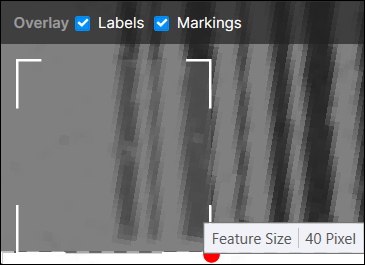
You can move and resize the indicator graphic based on the characters in the image. You can resize the indicator by dragging the resize handle, displayed when hovering over the indicator. Changing the size of the indicator also change the Feature Size parameter.
To process the newly created tool:
-
Set the ROI in your images.
-
Set the size of the characters with the Feature Size parameter.
-
To process a single image, right-click in the image and select Process from the menu.
-
To process the entire training set, click the Book icon.
To train the tool:
-
Provide a Training Image Set.
-
Set the ROI in your images.
-
Adjust the Feature Size parameter and label the characters. In most instances, the tool will automatically identify and correctly read the characters, and produce markings of the characters, which you can accept as labels for further training.
-
Once at least one instance of the characters are labeled, train the tool.
-
Review the tool using new images.
Blue Read Markings
The tool indicates the characters it found by drawing a yellow box around the character, with the decoded character value (label) in the corner. The tool refers to this as a “feature”.
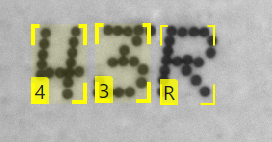
You can select one or more features in an image by clicking on them, shift-clicking to add additional features to the selection, or holding the shift key down and dragging a region to select a group of features. Selected features are shown with a heavier border around the graphic.
You cannot move features, because a feature is where the tool found a character, not where you think the character should be.
You can delete a feature (right-click the feature and select Delete Feature from the menu), but this does not affect the tool. The next time you process the image, that feature reappears.
For more information about the markings that the Blue Read tool uses, see Markings in Blue Read.