Auto Mode Workflow
To find the best combination of tool parameters for your specific VisionPro Deep Learning tool, you starts with launching Parameter Search Utility and load the workspace, stream, and tool.
Launch Parameter Search
Launch Parameter Search independently from VisionPro Deep Learning.
-
Windows Startup Menu
-
C:\Program Files\Cognex\VisionPro Deep Learning\3.2.1\Parameter Search\
Before launching Parameter Search, you need to make sure that your VisionPro Deep Learning workspace is ready for the search. All the images in your workspace must be labeled, the workspace must have a training set with enough images, and the mode and the architecture of the tools in the workspace must be chosen, before you import this workspace into Parameter Search.
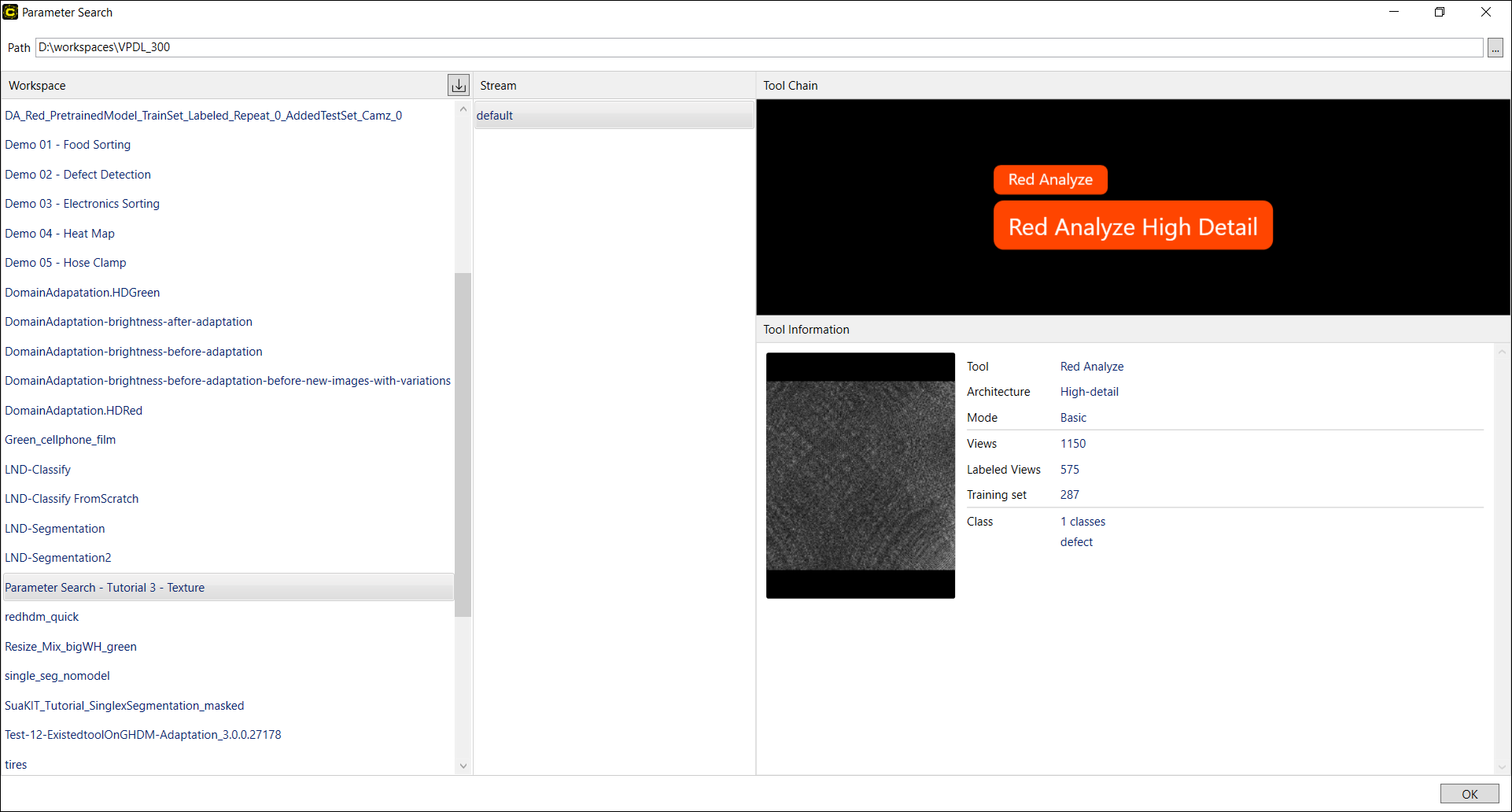
Once you launched the Parameter Search utility, you enter the Home screen shown below. On this screen, you can import the workspace, stream, and the tool to be tested against many parameter sets.
Load Workspace, Stream, Tool
Please follow the steps below to load the workspace, the stream, and the tool whose tool parameter values are to be searched over.
-
On the right side of Path bar, click
 button and set the path to the directory that contains your workspaces, you will use for searching.
 -
Once the path to the workspaces is set, all the workspaces exist under that path will be loaded on Workspace pane. Choose the specific workspace you will use on the pane. A loaded workspace contains all of the configured streams and tools in it.
-
If you want to add a workspace from another path to the current path, you can directly import a workspace from another directory with
 button. The imported workspace must be of VisionPro Deep Learning Workspace Archive file (.vwsa) format, which is created when you export a workspace from VisionPro Deep Learning. On Upload Workspace dialog, you can select this VisionPro Deep Learning Workspace Archive file to import this workspace into the current path. The imported workspace will be on Workspace pane and also copied and placed under the physical directory of the current path.
-
-
Choose the stream you will use on the Stream pane.
-
Choose the tool you will use on the Tool Chain pane. Once you select the tool its details will be shown on the Tool Information pane. As Adaptation mode is not supported in Parameter Search, you cannot select a tool with Adaptation mode.
-
After confirming the tool information, click OK to move on to setting up which parameters would be tested for this tool.
 to go back to Home screen, click Save to save the current parameter configurations. Going back to Home screen will reset all the configurations.
Select Auto Mode
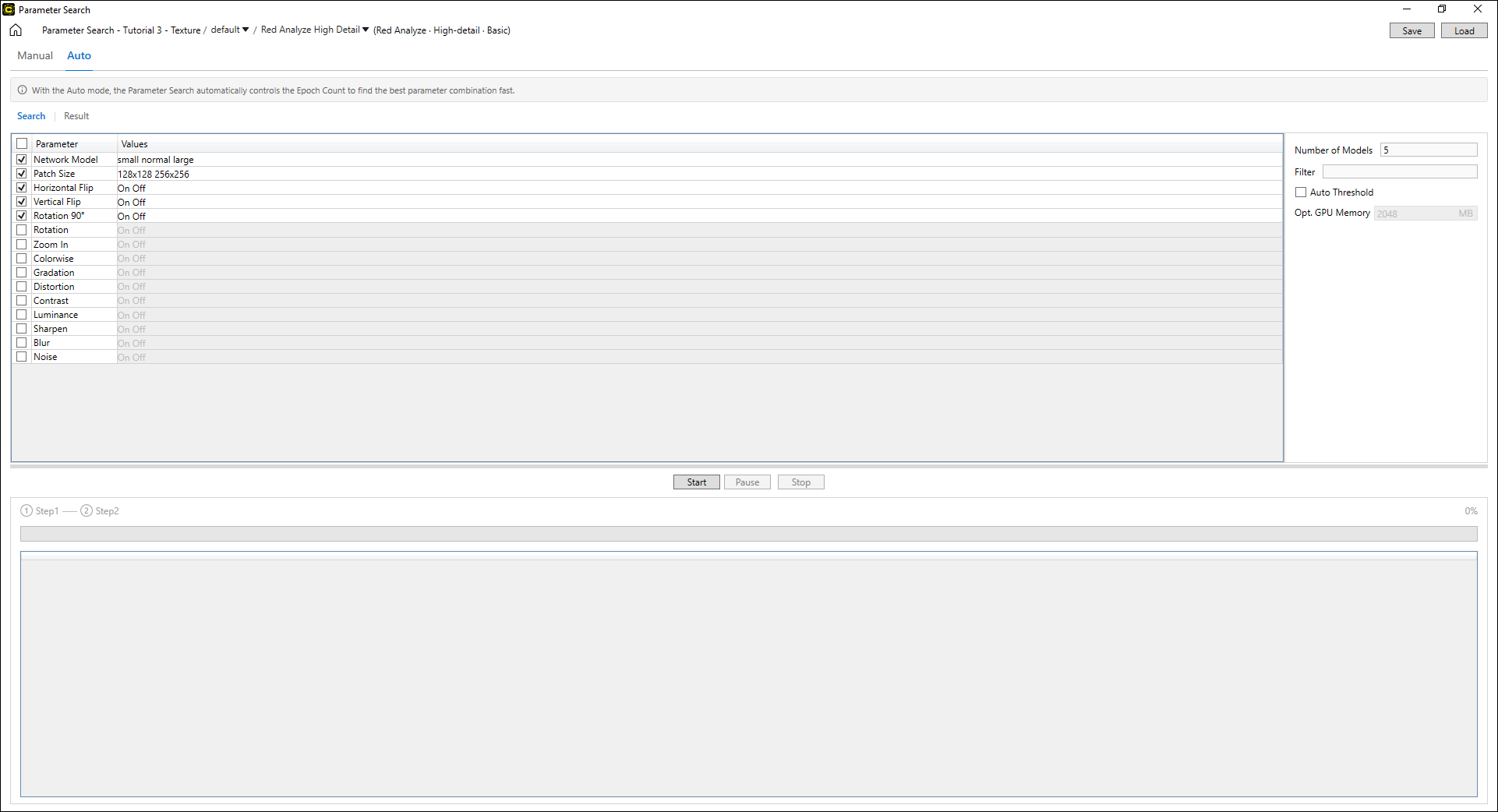
After the desired workspace, stream, and tool is loaded, you need to select search mode. Go to the navigation tab and click Auto. The auto mode automatically optimizes the search schedule for the selected parameter values and returns only the results of a few best combinations, taking as little time as possible. The auto mode is supported only for High Detail tools. For High Detail tools, it can save more time compared to the manual mode.
Setup Parameters
Once the search mode is selected, you need to select a set of parameters and their value ranges to be tested. See Parameter List for more details of supported Tool Parameters in Parameter Search.
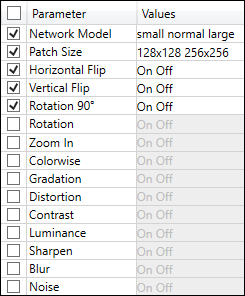
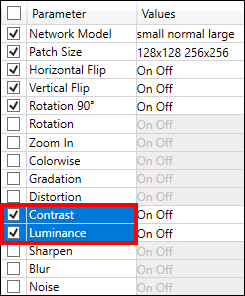
If you activated the auto mode, the Network Model, Patch Size (Red Analyze High Detail), Horizontal Flip, Vertical Flip, Rotation 90 parameters are selected as default. You can modify the values of these parameters, or remove them or add other parameters to be searched.
The auto mode does not support the following parameters because configuring these parameters affect the search schedule which is automatically organized by the auto mode. During a search, the values of these parameters that were set in the loaded VisionPro Deep Learning workspace are ignored.
-
Epoch Count
-
Minimum Epochs
-
Patience Epoch
The auto mode neither support Processing parameters because the auto mode picks the best parameter combinations based on the validation loss of a High Detail tool, not the precision, recall, and F-score. The auto mode picks a few most performing results based on the validation loss, and then it calculates the performance metrics like precision, recall, and F-score on those results and presents them on the Results page. Thus, unlike the manual mode, the auto mode offers precision, recall, and F-score only after all searches are successfully completed.
The auto mode neither support Class Weight, Validation Set Ratio, and Resize (Green Classify High Detail) parameters. About Resize parameters, there are some cases that a Green Classify High Detail tool is not trainable because the size of the views are larger than the maximum buffer size, which is calculated from the Network Model parameters and the available GPU memory. In these cases, the auto mode automatically resizes the views if the size of the views are larger than the maximum buffer size, calculated from the largest network size among all sizes you selected and the available GPU memory. If views are resized, the new size of views are displayed in the Resize column on Results page.
Choose Parameters
On the Search page, select the parameters over which you want to run the search by enabling checkboxes  . You can add 1 or more parameters that are to be tested.
If you have a previously saved Parameter Search Data XML file which contains a set of parameters and their values to be searched, click Load to load it on the Search page.
Assign Value Range
In the Values column, type in the range of values for the selected parameters. Click each cell in Values column to modify the values for a parameter. Mainly there are 3 ways of providing values (or value ranges) of each parameter.
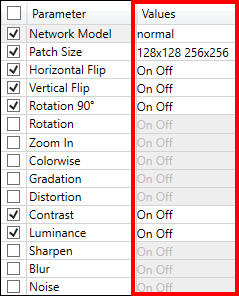
- Type the specific values in the cell (Int, Double)
- To add multiple values for a specific parameter, use a blank(Space key) as the separator between each value.
- Enable checkboxes in the cell (Enum, Boolean)
- For the values of some parameters (eg: Network Model), enable checkboxes to select the values to be tested in the search.
- For the values of some parameters (eg: Network Model), enable checkboxes
- Fill in the cell by the input form (Size, Interval, String, Dictionary)
Click the check button  if you finished editing a cell and want to fix the value range(s) for a parameter. If you want to modify inserted values for a parameter, click the cell again you want to modify. After entering a value if the cell is outlined in red, there is an error in the value input syntax.
Set Options
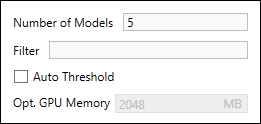
Set the search options if necessary. It is required for you to set Number of Models in Auto Mode to determine the number of returned search results.
| Option | Description |
| Number of Models | Set the number of most performing parameter combination to be presented. For example, if you set this value 10, there will be 10 results collected and presented in the Result page. |
| Filter | Filter results (the result tables, Database Overview, the graphs) displayed on Results and Graphs page using the filter syntax. Type in a filtering phrase and press Enter. The filter syntax will be applied on result table and the graph. See Filter Grammar for the details of the filter syntax. Once a filter syntax is applied, the search results of the views which were screened out by applying the filter will not be shown as those views are not processed. You cannot change the filter syntax once the training is finished. |
| Auto-Threshold (Red Analyze) |
Enable Auto-Threshold to automatically set the Threshold values (T1 and T2 values) to optimize the results in the Result page. See Configure Processing Parameters for more details. |
| Optimized GPU Memory | As the auto mode only supports the search for High Detail tools, Optimized GPU Memory is always disabled in the auto mode for faster training speed. |
Save as Parameter Search Data XML File
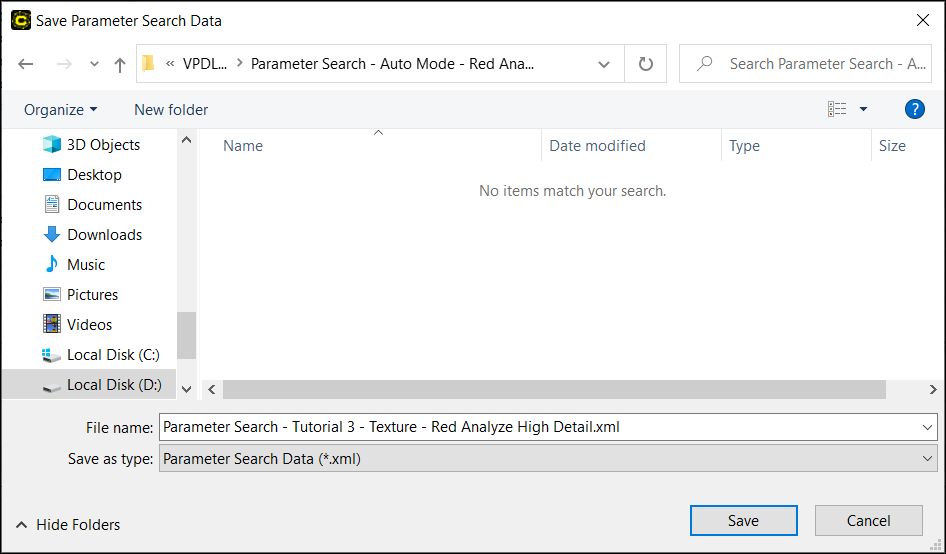
Click Save to save a Parameter Search Data XML file. If you did not save a file and you press the Start, you will automatically be prompted to save a Parameter Search Data XML file. You will choose the path where a XML file will be saved. Once it is saved, the Parameter Search Data XML file will contain the parameter configurations you entered, and it will also contain the search results shown in Result page once the search is done.
Check Path to Tool Files
The automatically saved tool files are in "saved_tools" folder under the Parameter Search Data XML File directory. After a search is completed, you can load these tool files into a VisionPro Deep Learning workspace to review the search results in VisionPro Deep Learning.
-
Red Analyze Tool File: .vrta
-
Green Classify Tool File: .vgta
-
Blue Locate/Read Tool File: .vbta
Start Search
Click Start to begin the search. The progress of the search will be displayed at the bottom of the page. Once the search begins, the utility will indicate the search progress for each parameter combination at the lower pane of the screen.
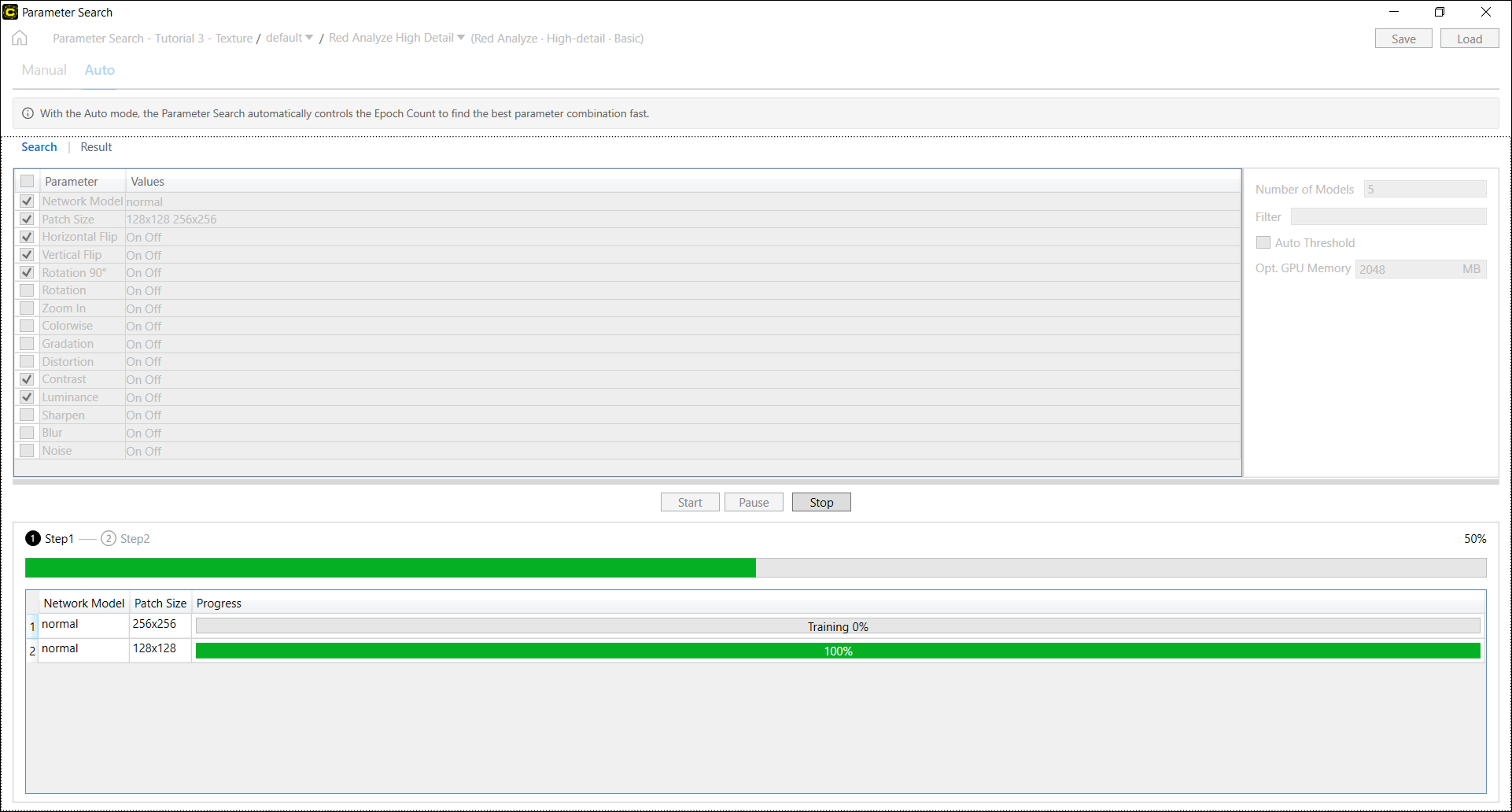
Step 1 - Search for Network Model parameters and Patch Size (Red Analyze High Detail)
Unlike the manual mode, the search in Auto mode consists of 2 steps. The first step examines only Network Model and Patch Size (Red Analyze High Detail) parameters to determine their best values. If you entered single values for Network Model and Patch Size or no values for them, those single values or the default values will be used as their best values and the first step will be skipped. Note that you can't pause a search while it is on its first step. Also, if you stop a search on its first step, you can't get the results of searches completed so far.
The First Step Goes Through Every Combination of Network Model parameters and Patch Sizes (Red Analyze High Detail)
Step 2 - Search for Perturbation parameters
Standing on the best values of Network Model and Patch Size found, the second step goes over the other parameters. Unlike the manual mode, the progress pane displays only the most performing parameter combinations and their numbers are the values you entered in Number of Models.
The Second Step Goes Through Perturbation parameters, Pruning Searches of Unpromising Parameter Combinations for Faster Search
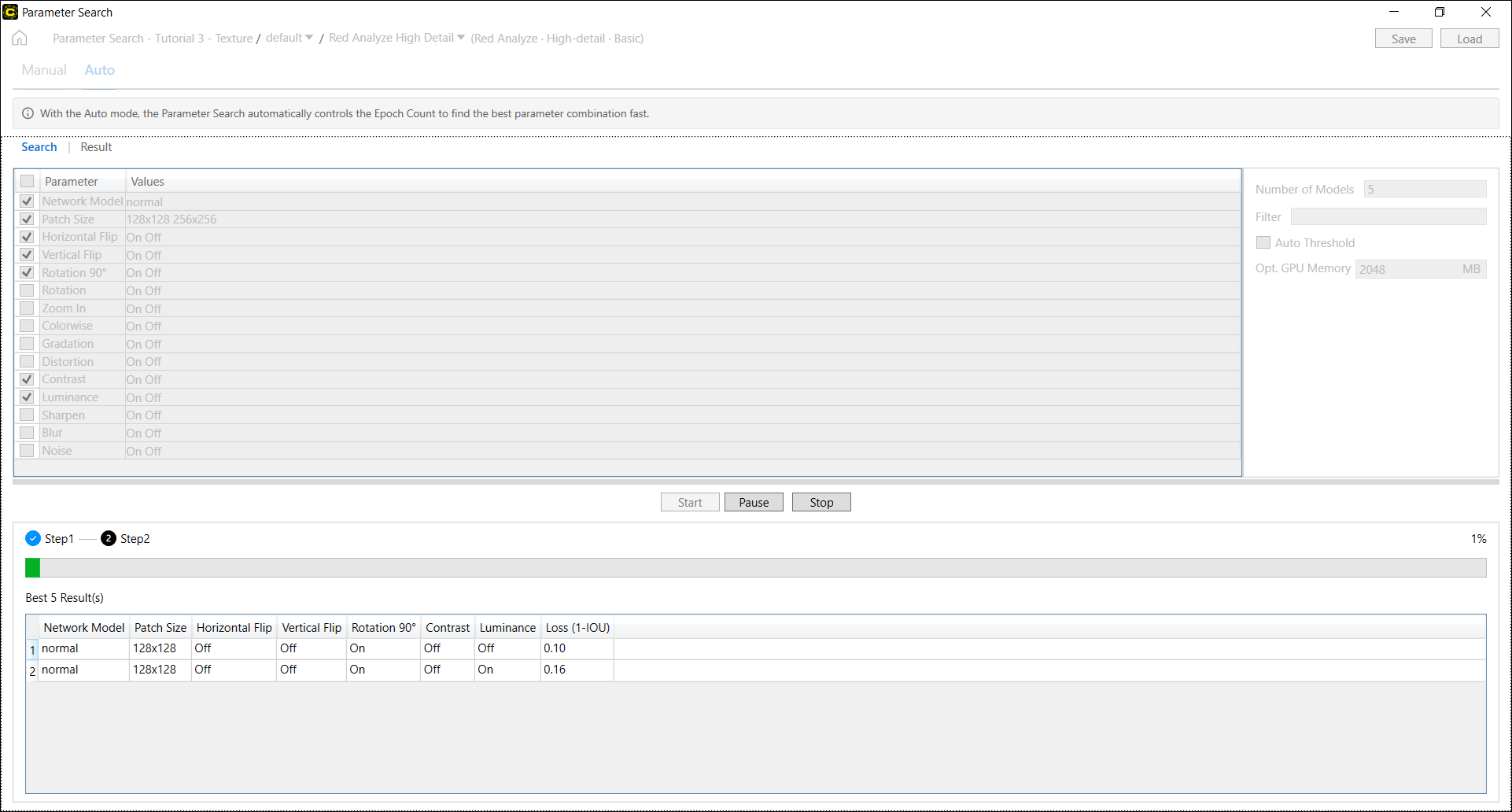
While a search is in progress, you can temporarily halt the search by clicking Pause. If you click Start again, the search will be resumed from the paused point. Once the search is completed, you can review the results to determine the best combination of parameters on the Results tab. If you click Pause or Stop when a search in progress is on its second step, you can check the results generated so far on the Results tab.
Review Search Results
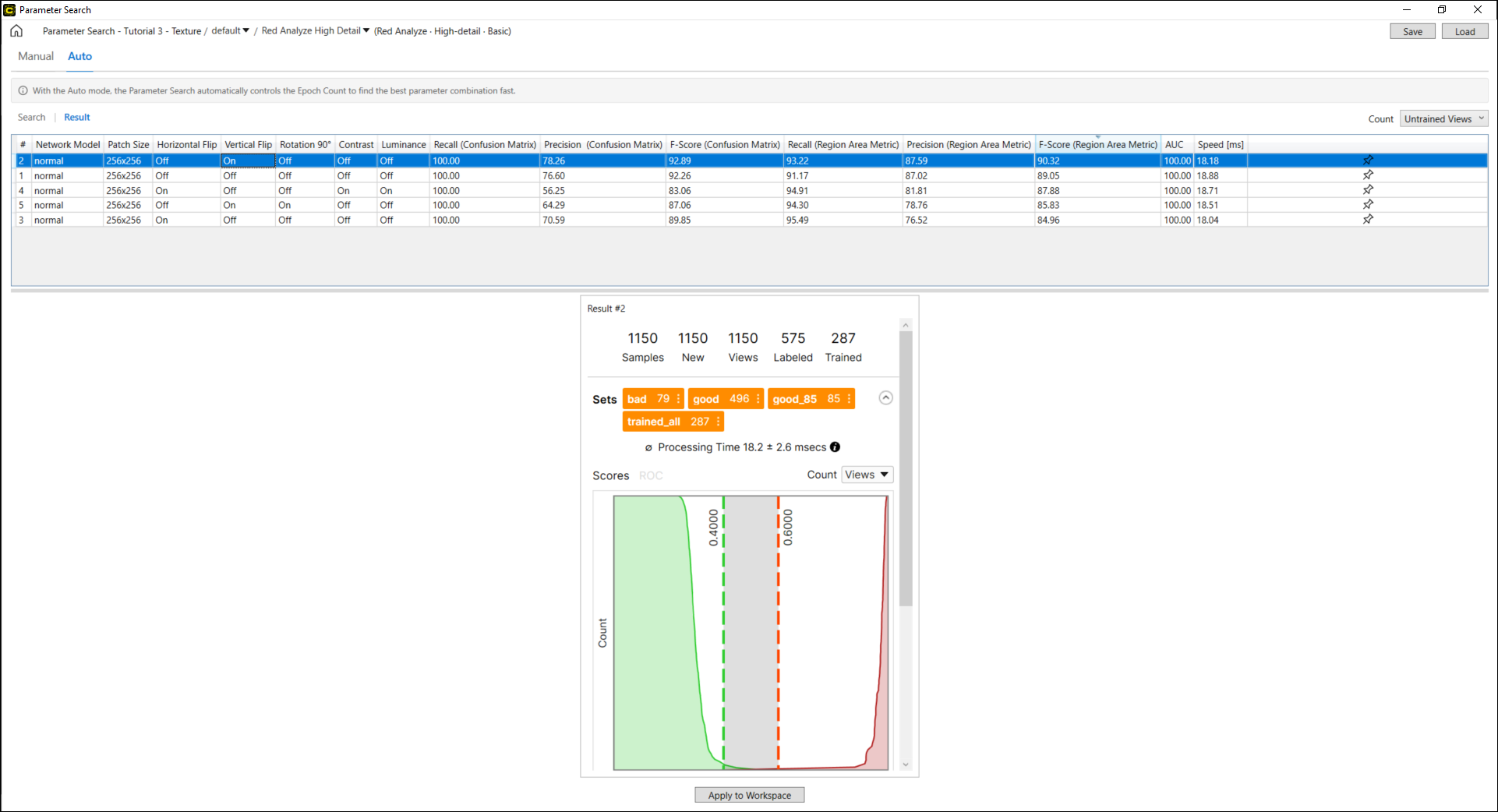
You can investigate the results of parameter search on the Results page once the search is done. The search results are displayed in the Result Table. The auto mode displays a few best results whereas the manual mode displays all the results from every parameter combination. Each row of this table describes the values of each parameter combination that were tested, and the test results (F-score, AUC, and others), which are different by tool type. For each row of this table, you can project a Database Overview that formulates the search results with a confusion matrix.
to go back to Home screen, click Save to save the current parameter search results. Going back to Home screen will reset all the results.
Statistics on Result Table
The result table describes the result statistics per each tool type:
| Red Analyze High Detail | Green Classify High Detail |
|---|---|
|
Precision (Confusion Matrix) |
F-Score |
|
Recall (Confusion Matrix) |
F-Score (avg) |
|
F-Score (Confusion Matrix) |
AUC |
|
Precision (Region Area Metrics) |
Speed [ms] |
|
Recall (Region Area Metrics) |
Resize1 |
|
F-Score (Region Area Metrics) |
|
| AUC | |
|
Speed [ms] |
|
Red Analyze High Detail Results
The search results of a Red Analyze tool includes Region Area Metrics (Precision, Recall, F-score calculated in pixel level) and the metrics of Confusion Matrix (Precision, Recall, F-score calculated from confusion matrix items). See Region Area Metrics and Confusion Matrix for the interpretation of the search results.
Green Classify High Detail Results
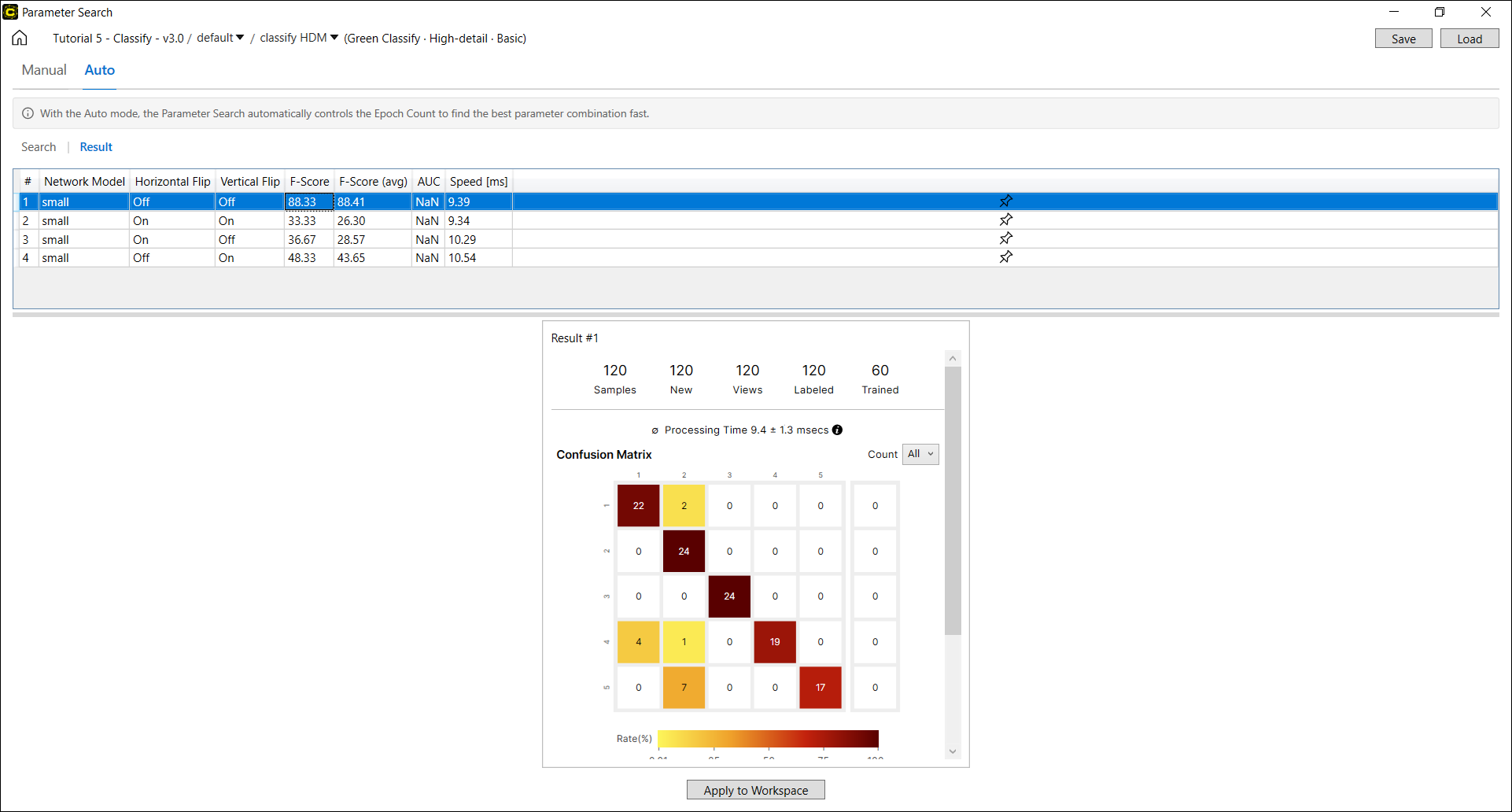
The search results of a Green Classify tool includes the classification performance metrics including F-score (avg) and F-score. See Interpret Results for the details. F-score (avg) is the average over the F-scores calculated for each class.
Review Workflow
-
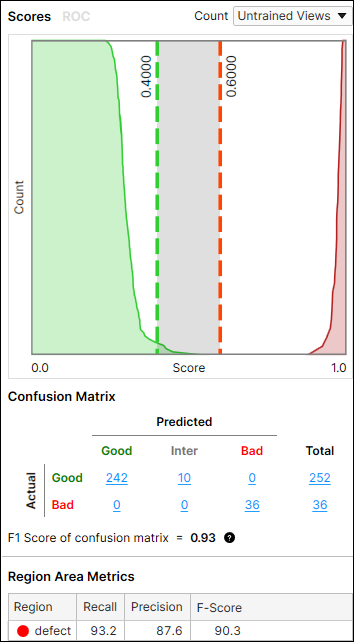
When you click a row in the result table, a row is selected and the Database Overview with a Confusion Matrix corresponds to the search results of this row will show up in the leftmost side at the bottom of the screen. The Database Overview is much the same as the one in Cognex Deep Learning Studio. For Red Analyze tools, Count drop-down options (Views, Untrained Views, Regions, Untrained Regions) can be applied to project the Database Overview by each aspect. See Confusion Matrix for the details of each option.
The F-Score of Confusion Matrix When Count is Views

The F-Score of Confusion Matrix When Count is Untrained Views
 Note: See Confusion Matrix for the details of each option.
 -
Click the Pin
png.png) to pin down the Database Overview for a row. 2 Database Overviews can be fixed at maximum simultaneously. Click
to pin down the Database Overview for a row. 2 Database Overviews can be fixed at maximum simultaneously. Click png.png) icon to release the Database Overview from the panel below.
icon to release the Database Overview from the panel below.-
The Database Overview of every selected row will be pegged down at the leftmost side of the panel below, and 1 or more pinned down Database Overviews will be pegged on its right.
-
If you click
icon on each pegged Database Overview, it will be released from the panel.
-
-
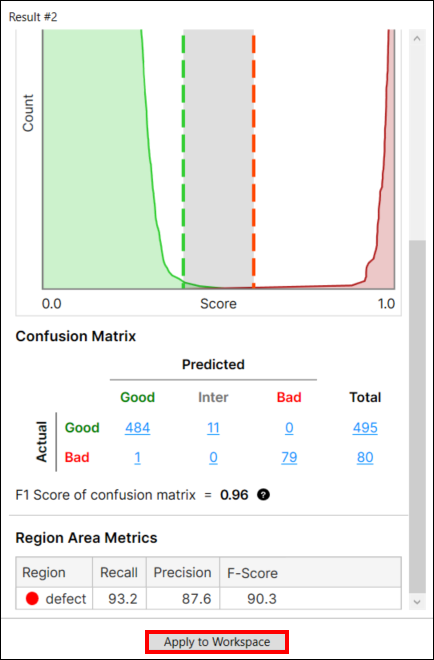
When a row in the result table is selected, click Apply To Workspace to apply the selected parameter set and the trained tool (neural network model) in the loaded workspace. The tool parameter values and the tool itself in the currently loaded workspace will be replaced with those in the selected row in the result table.
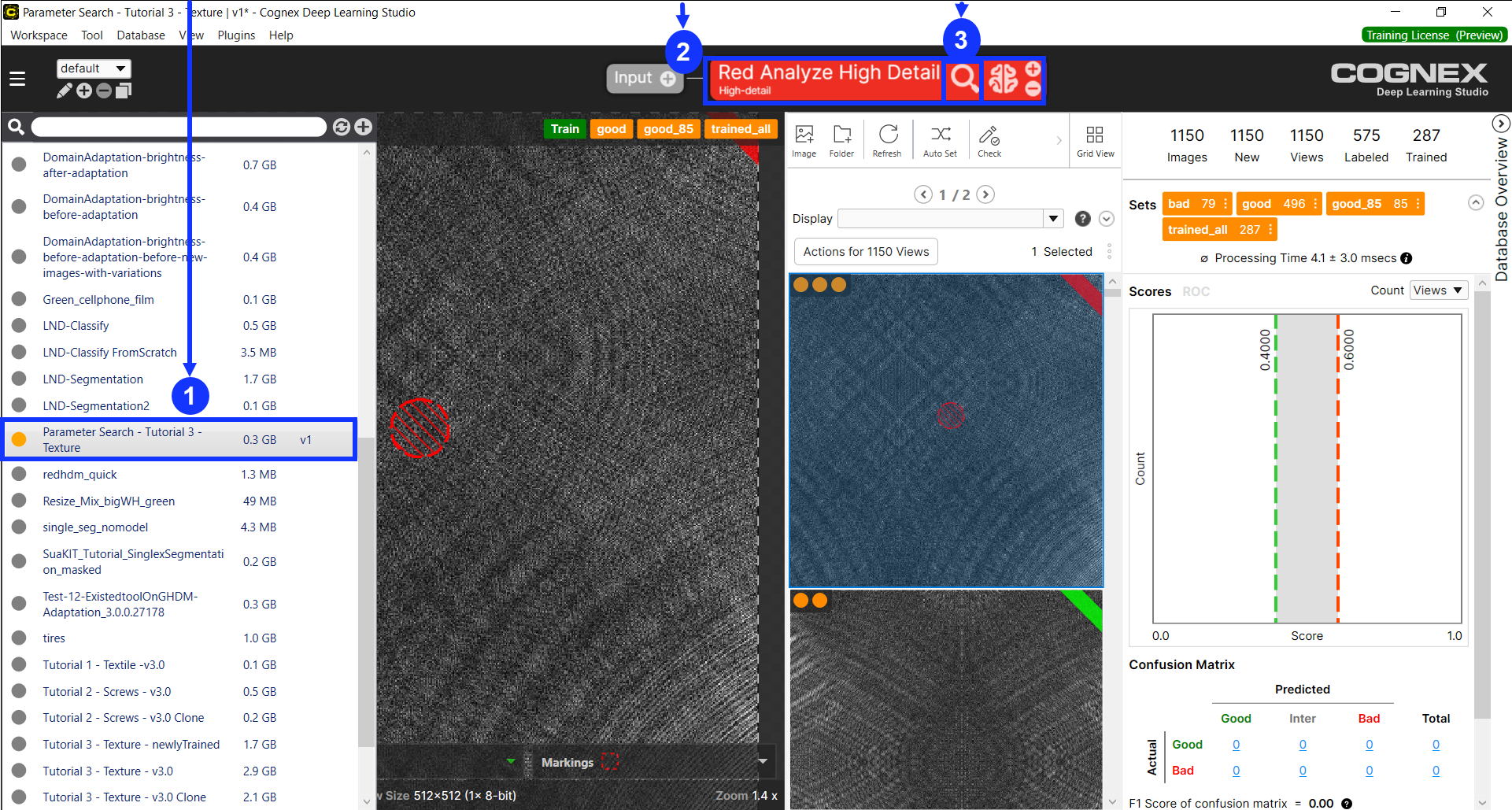
After it is applied in the loaded workspace, you now can access the tool and its training results in VisionPro Deep Learning. In Cognex Deep Learning Studio, open the workspace and process the tool and you will get the same results that were produced in Parameter Search.
Note: As the previously saved Parameter Search Data XML file does not contain the trained networks (the trained tools), you cannot use Apply To Workspace with the loaded Parameter Search Data XML file. To apply the previously saved search results to your workspace, you must save the trained networks by enabling Save Tools checkbox in Search page to save tool files that contain the trained networks before beginning a search.Note: For Green Classify High Detail, if the auto mode resized views, ran a search, and applied the search results to a VisionPro Deep Learning workspace, Resize Mode parameter will be set to "Manual" and Resize To parameter will be set to the new width and height.Example: Sorting a Red Analyze High Detail Result by F-Score (Region Area Metric) and apply the best result to the current tool, along with the parameter combination (Off for Horizontal Flip, On for Vertical Flip, Off for Rotation 90, Off for Constrast, and Off for Luminance) and the trained neural network that produced this result.

Click Apply to Workspace to apply this result to the tool in VisionPro Deep Learning
Example: Launch VisionPro Deep Learning, load the workspace and the tool, and process the tool to review the applied result and the parameter combination.
-
Click Save to export the search configuration and search results as Parameter Search Data XML file. Click Load to import a previously configured and saved Parameter Search Data XML file to the Results page. It can be used as the basis for a new search.
-
Note that the search result table is saved with the Parameter Search Data XML file while the trained networks are not saved with it.
-
-
In Auto mode, the tools containing the search results are automatically saved after the search. Each saved tool holds the trained neural network model corresponding to each set of parameter values tested. See Save as Parameter Search Data XML File for details.
-
For example, if you have 10 sets of parameters (10 rows in result table), 10 tools will be saved as 10 files to the directory containing the Parameter Search Data XML file.
-