Resize
If the size of the view is acceptable in Green Classify High Detail, you can skip the resize and proceed to training. However, if it is not, you need to resize your view before training either automatically or manually.
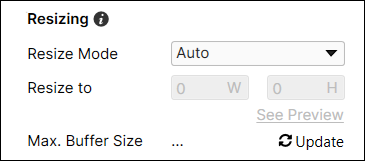
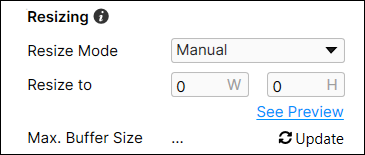
Maximum Buffer Size (Max. Buffer Size)
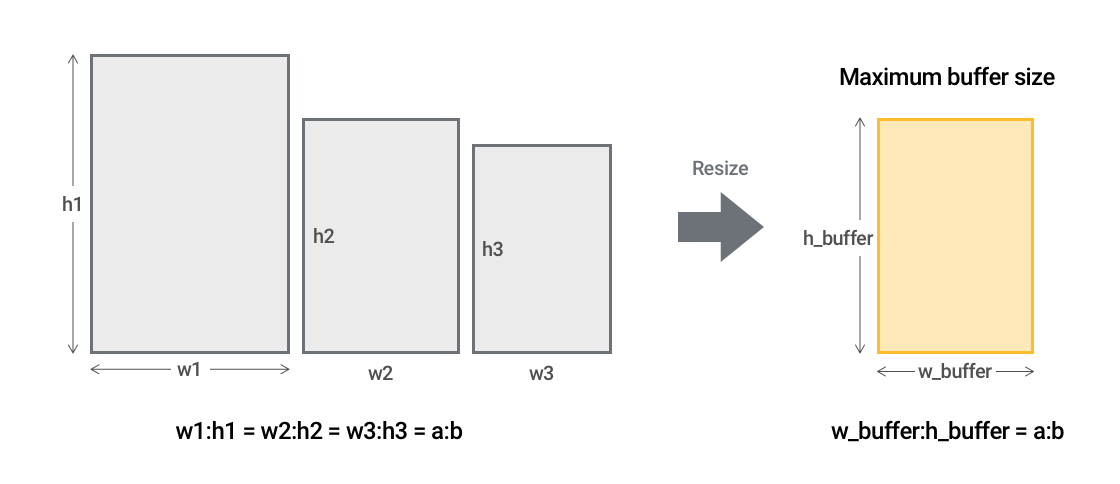
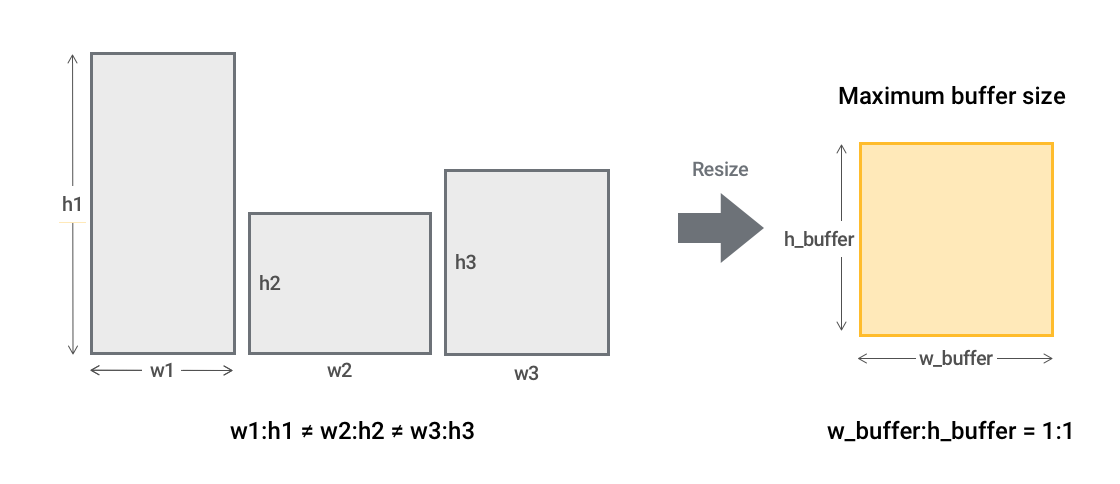
For Green Classify High Detail, the maximum buffer size is the maximum size (the maximum width and the maximum height available) a view can have given the current GPU memory available and the current network size (the value of Network Model parameter). High Detail mode cannot train oversized views, so the maximum size of a view is limited by available GPU memory and the network size option. If there are views larger than the maximum buffer size, the tool resizes the view before training. The maximum buffer size is automatically calculated based on available GPU memory and the network model option.
- If all views in the tool have an identical aspect-ratio, the maximum buffer size will be calculated with the aspect-ratio of the views.
- If not, the maximum buffer size will be calculated with 1:1 aspect-ratio.
Configure Resizing Parameter
Resizing parameter is for resizing views in High Detail mode. This parameter option is only available in expert mode. You can resize the view in two ways: auto mode and manual mode. For both the auto mode and the manual mode, resizing is applied to all views while they are trained and processed, but the images of the original sizes are preserved in View Browser and Image Display Area.
- Resizing causes loss of image information for training. To avoid information loss, please adjust ROI area to reduce the size of views for training. (High Detail mode image restriction depends on ROI size)
- If you use High Detail mode with oversized view in non-expert mode, the tool will automatically execute a resizing in auto mode.
If you train the model with big images than the current GPU capacity, you can have relatively lower performance with GPUs with smaller GRAM.
- You can check the maximum size in expert mode resize tool.
- If you are using other software that consumes lots of GRAM, the maximum size to train could be shrunk lower than guided amount.
This affects to the performance of the model since the size of input image is getting smaller when the GRAM size is smaller. The critical clues could be gone if you resize the image to extremely small size.
Resizing – Auto Mode
In auto mode, the views are automatically resized based on the available GPU memory and network model option. Users do not need to do any additional setup. If all views in High Detail mode satisfy the size limitation, all views will not be resized. If there is any oversized view in High Detail mode, all views in the tool will be resized to the maximum buffer size.
The auto mode resizing logic is like below.
-
The views which have larger width and/or height than maximum buffer size will be resized to fit to the maximum buffer size as keeping its own aspect-ratio. The resized views will be placed at the center of the maximum buffer size and the rest of the area will be filled with zero-padding.
-
If the views which have smaller width and height than maximum buffer size, the original views will not be enlarged. But they will be placed at the center of the maximum buffer size and the rest of the area will be filled with zero-padding.
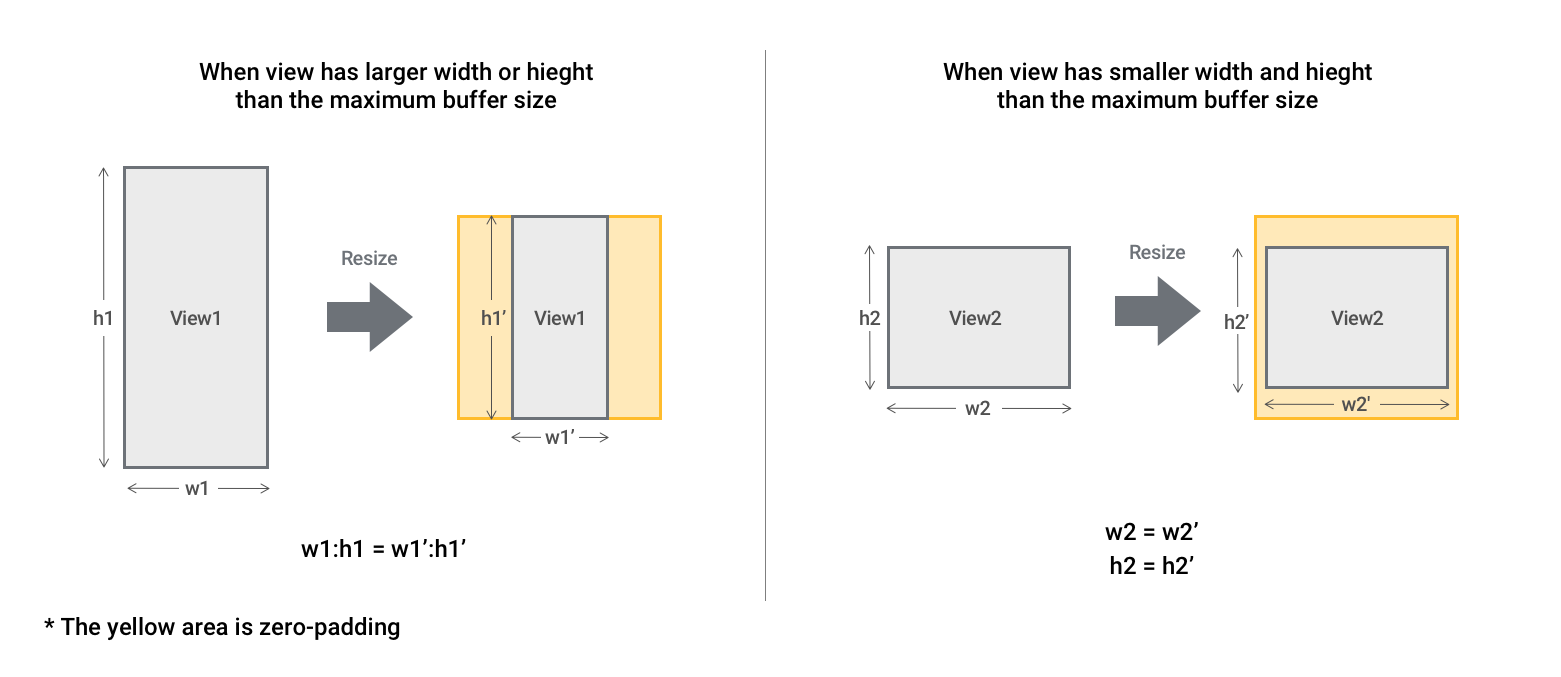
| Parameters | Description |
| Resize To | The target width and target height for views to be resized, which is the latest update of Max. Buffer Size. This is the actual size to which views are resized for training. In the auto mode, you cannot change these values as they are automatically set. |
| Max. Buffer Size | The current maximum buffer size for views. This value is automatically updated when you click Update or when you start training of the current Green Classify High Detail tool. |
| See Preview | The dialog for displaying the preview of a resized view. |
In auto mode, you can resize views regardless of clicking Update to update Max. Buffer Size or not. Updating Max. Buffer Size is just displaying prior estimation before training about what size the views will be resized to. The actual size for resizing will be determined from the available GPU memory when you start training of the current Green Classify High Detail tool, and this actual size will be displayed at Resize To.
Once you start training of the current Green Classify High Detail tool, you will be prompted to automatically modify Resize To to smaller values if it is too large for the available GPU memory on the spot of training.
How to use resize tool in auto mode
- Go through the necessary steps to start training except configuring Resize Parameters on Tool Parameters. For example, you need to prepare set ROIs on the images, label views, and add views to the training set.
- On Tool Parameters, set Resize Mode to Auto. It is recommended to get Max. Buffer Size first via clicking Update.
- You can check the resized views in the Resize preview dialog by clicking the See Preview dialog.
- Start training.
- The resizing will be applied to views in the tool.
Resizing – Manual Mode
In manual mode, users should enter the width and height value to be resized. After you enter the size value in Resize To, you can check the resized view in resizing preview dialog. You can open the dialog by clicking hyperlink text. If you click Update, Max. Buffer Size will be updated from the current GPU memory available and propagated to Resize To.
The manual mode resizing logic is like below.
- If an original view has smaller width and height than the entered size, the view will be placed at the center of the size to resize and the rest of the area will be filled with zero-padding.
- If not, the view will be resized to fit to the entered size as keeping its own aspect-ratio. The resized view will be placed at the center of the entered size, and the rest of the area will be filled with zero-padding.
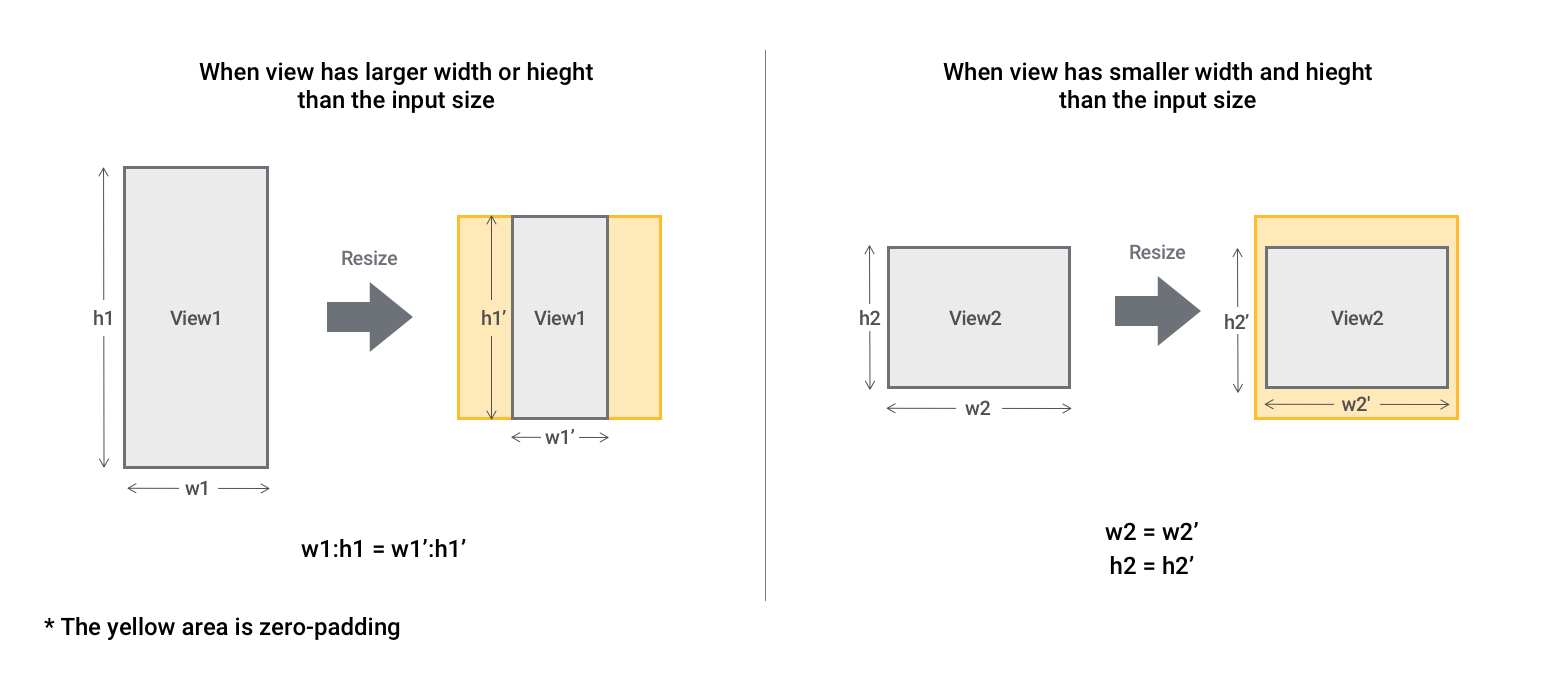
| Parameters | Description |
| Resize To | The target width and target height for views to be resized. This is the actual size to which views are resized for training. In the manual mode, you must provide these values, either by hands or by clicking Update to calculate Max. Buffer Size and use it as Resize To, and then you can start training. |
| Max. Buffer Size | The current maximum buffer size for views. This value is automatically updated when you click Update or when you start training of the current Green Classify High Detail tool. |
| See Preview | The dialog for displaying the preview of a resized view. |
In manual mode, it is recommended to click Update to update Max. Buffer Size before providing a pair of width and height you want to use, because the calculated Max. Buffer Size is propagated to Resize To and it is the estimated largest view size that you can use for training at this point in time. The larger the size of input images, the less loss of information fed to the neural network and the more promising better performance. You can provide a pair of width and height you want for Resize To without clicking Update and start training.
Like the auto mode, the actual size for resizing will be determined from the available GPU memory once you start training of the current Green Classify High Detail tool, and you will be prompted to modify Resize To to smaller values if it is too large for the available GPU memory on the spot of training.
How to use resize tool in manual mode
- Go through the necessary steps to start training except configuring Resize Parameters on Tool Parameters. For example, you need to prepare set ROIs on the images, label views, and add views to the training set.
- On Tool Parameters, set Resize Mode to Manual.
- Enter the width and height values in Resize To. It is recommended to get Max. Buffer Size first via clicking Update. The manually provided width and height values should be same or smaller than the width and height of the maximum buffer size.
- You can check the resized views in the Resize preview dialog by clicking the See Preview dialog.
- Start training.
- The resizing will be applied to views in the tool.
Resizing – Preview Dialog
Resizing Preview Dialog is for checking how the views are resized before training.
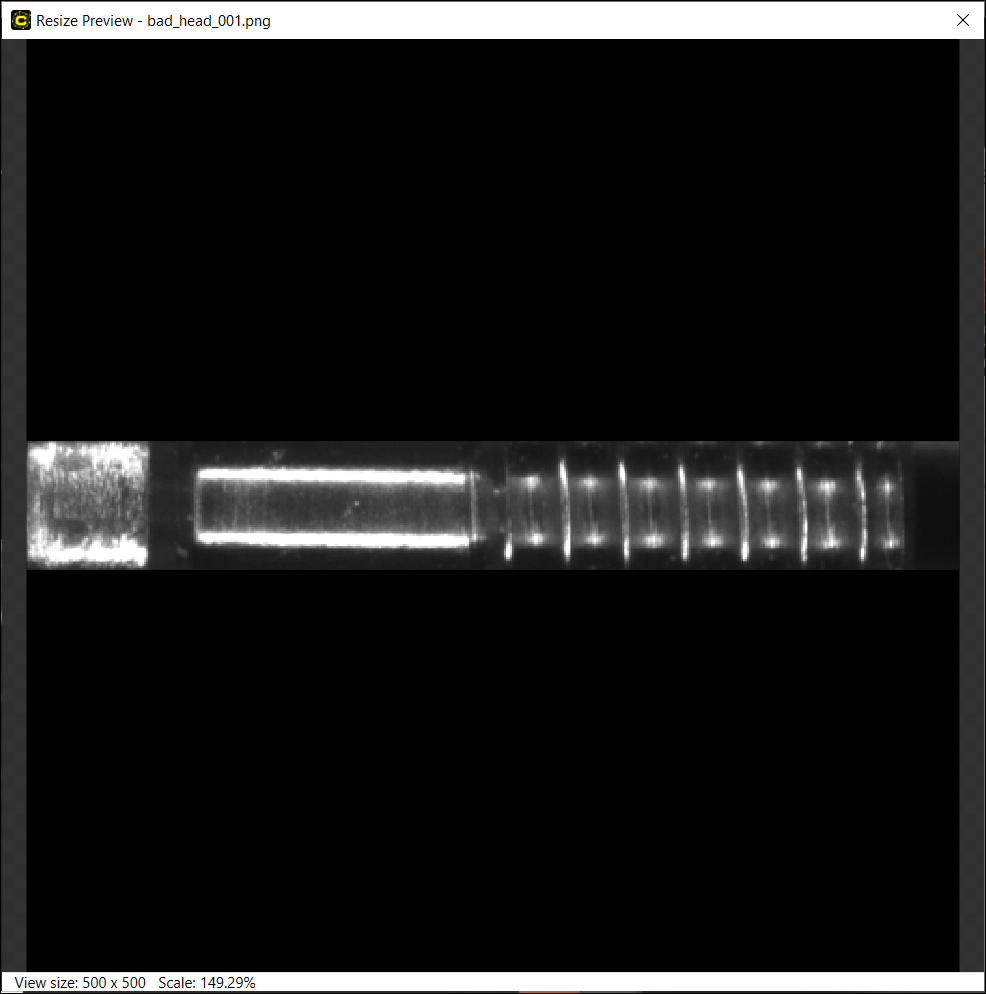
The representation in viewer is like below.
- The dialog shows the view that you were looking in image display area. It is shown in the resized size and resolution.
- The zero-padded area is displayed with black color.
- You can zoom in and out the view with scrolling to check the details. The scale of view is shown at the bottom.