Removing Devices from CNS
-
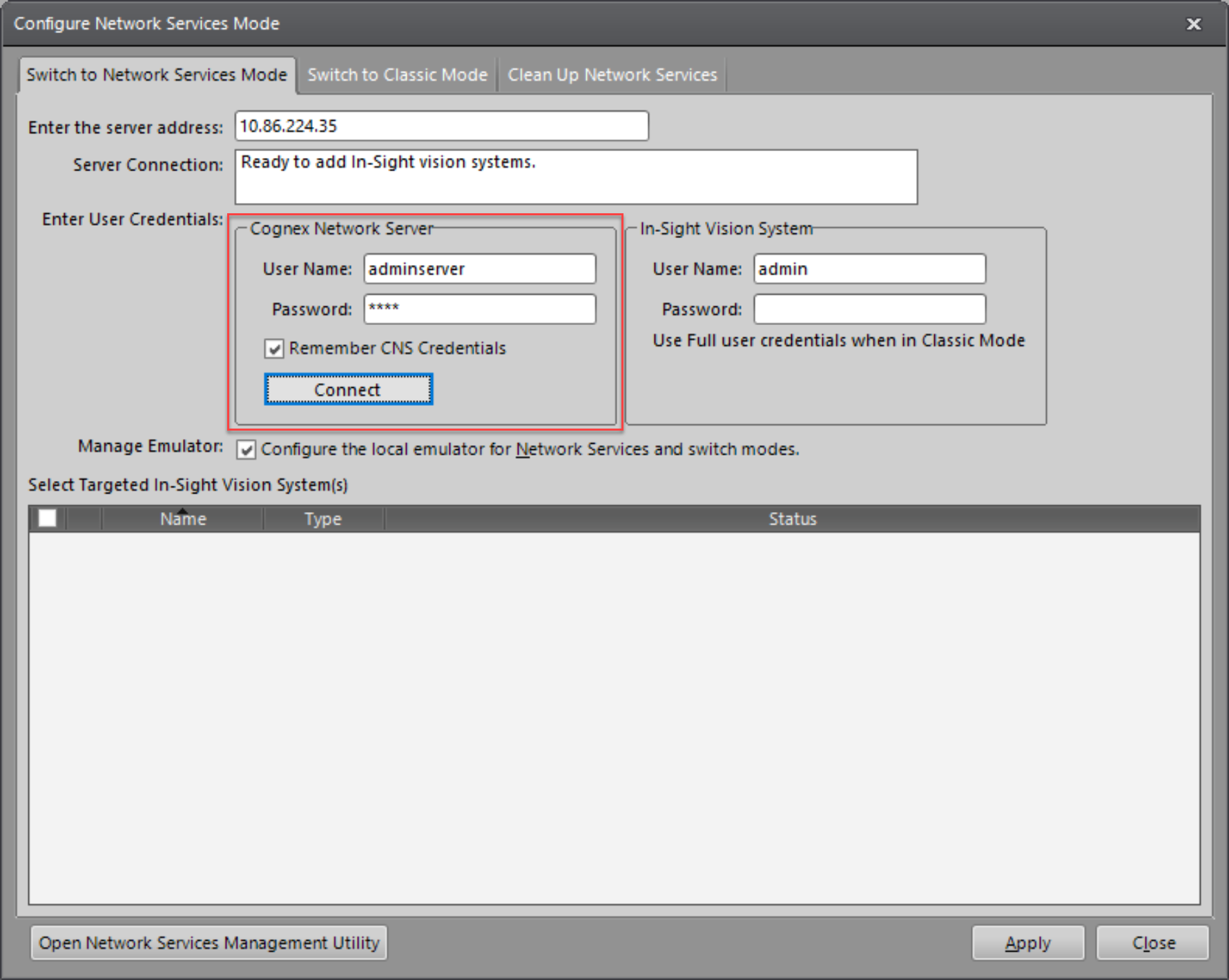
Enter Cognex Network Server user credentials for the devices you want to switch to Classic Mode in the Vision System box.
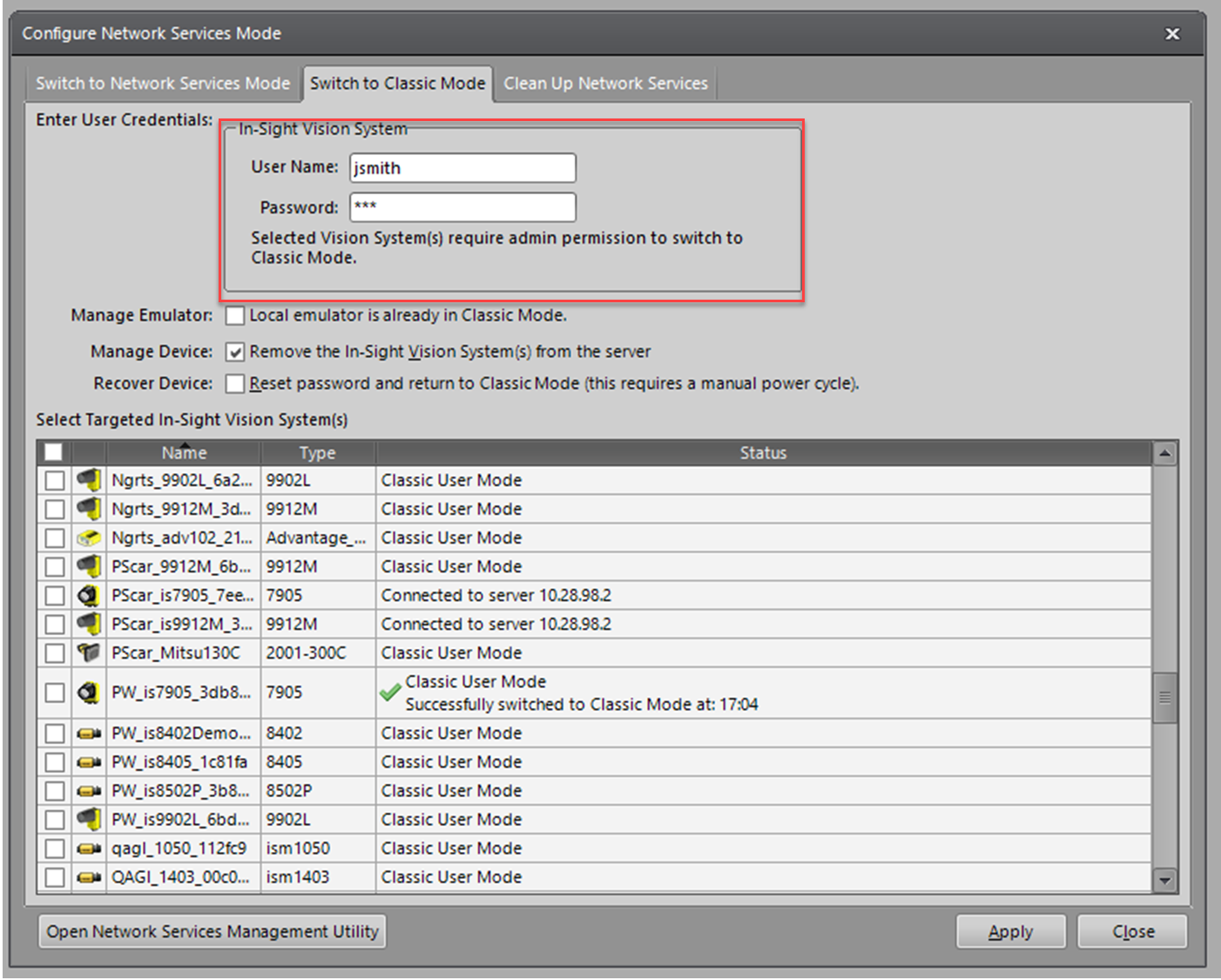 Note: Devices check for user credentials with admin clearance to complete the switch back to Classic Mode - see Assign User Permissions to Devices.
 -
Check Manage Emulator to enable switching the local emulator back to Classic Mode.
- Check Manage Device to remove the device information from the Cognex Network Server during the switching process.
-
Check Recover Device to enable device recovery if you are experiencing a Connection Failure between the Cognex Network Server and your devices.
Note: A manual power cycle for each targeted device is required when recovering a device. The restart process puts the device into Classic Mode. -
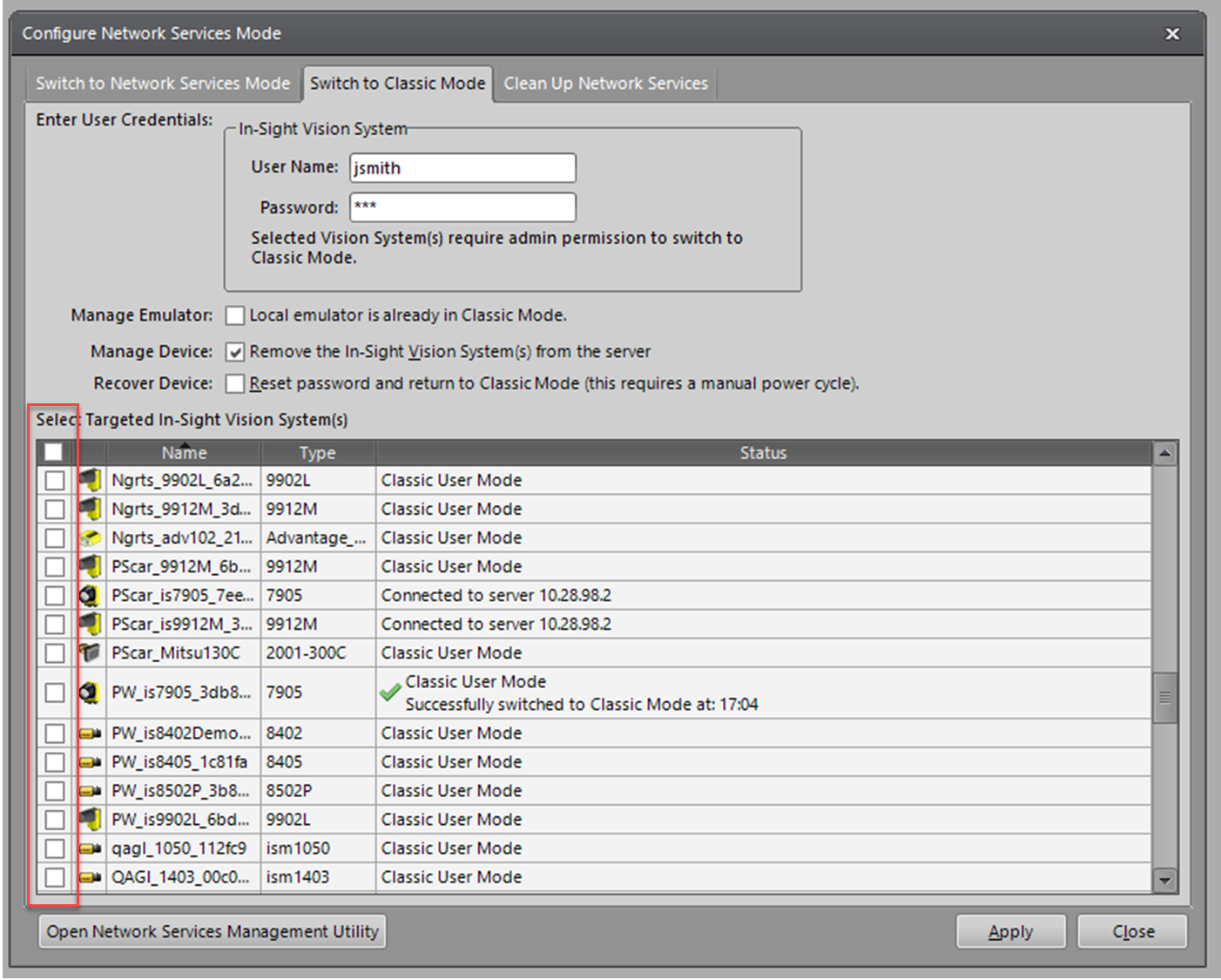
Check the targeted emulator or device(s): check the checkbox next to the device(s) you want to remove in the Select Targeted Vision System(s) list.
- Click Apply to begin switching the targeted devices into Classic Mode.
-
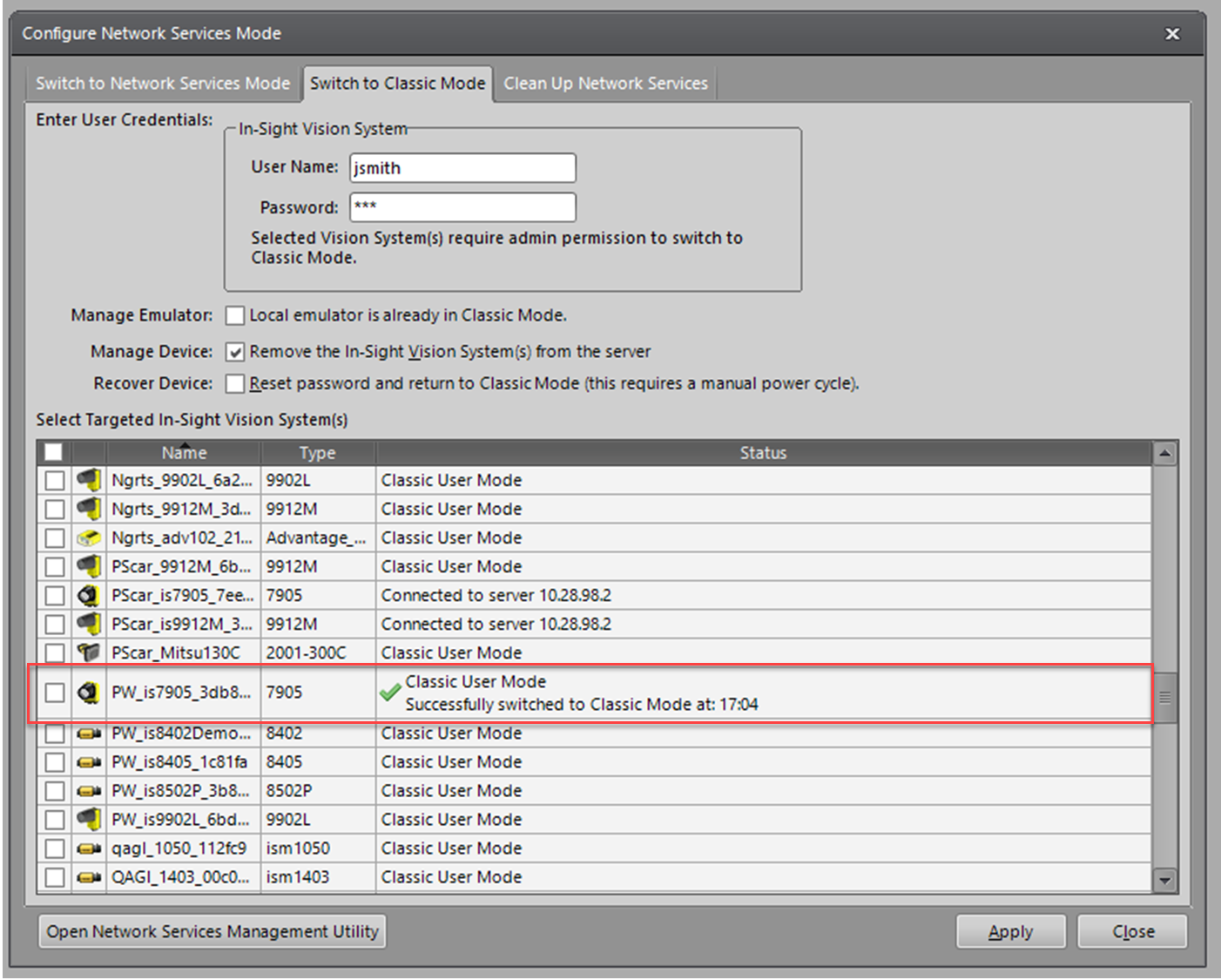
The status of each targeted device will update after a successful switch or an error message will appear with status information.