Assign User Permissions to Devices
To assign permissions to Devices, open the drop down menu to list the available devices.
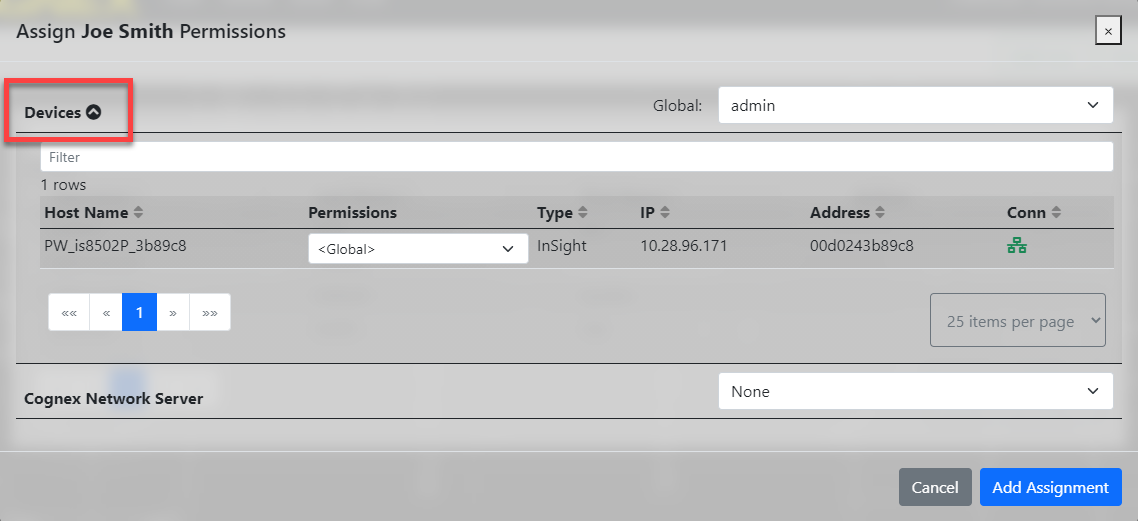
You can set:
-
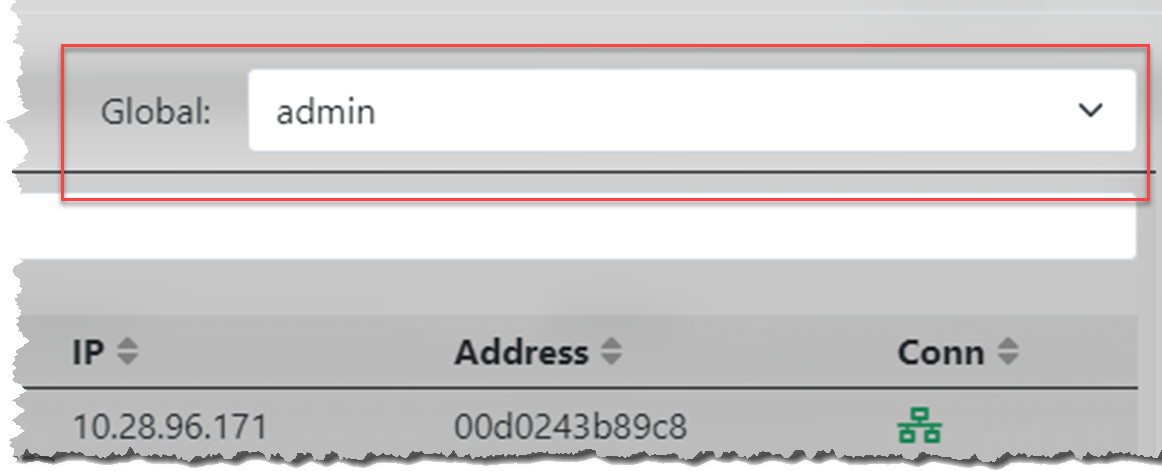
Global user permissions for all of the available devices (by default: None);
-
User permissions for each of the devices, set individually (by default: <Global>).
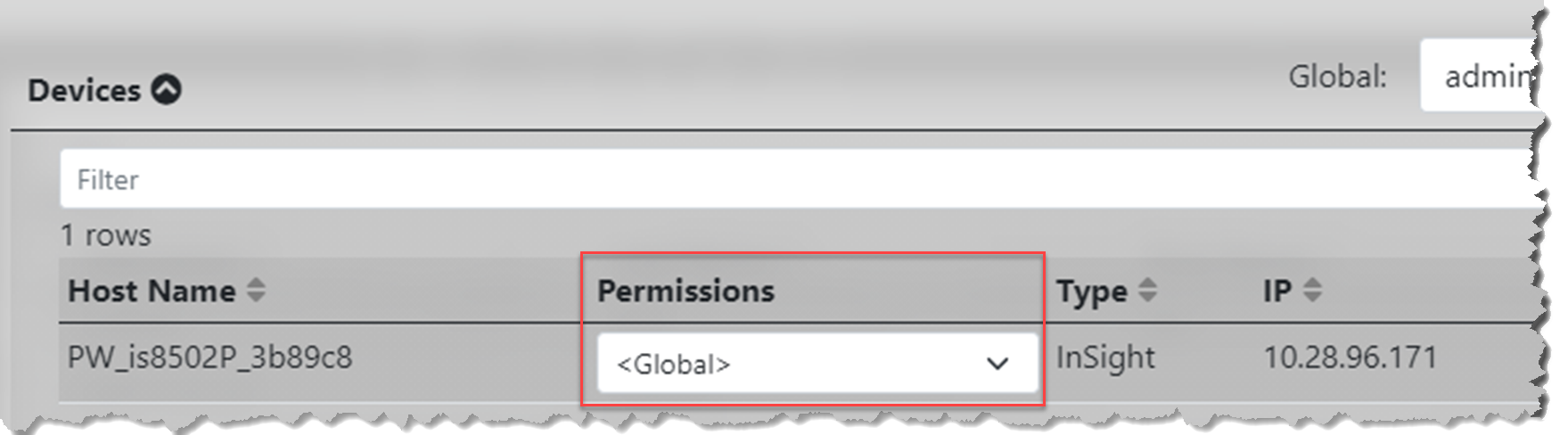
Devices use the permission set in Global setting only if you set them to <Global>. Otherwise, device permissions override the Global permissions. For example:
Global: None + Device: <Global> = The user has no permissions for the device.
Global: None + Device: Admin = The user has admin permissions for the device.
Global: Admin + Device: <Global> = The user has admin permissions for the device.
Global: Admin + Device: Operator =The user has operator permissions for the device.
| Permission types | Scope of permission |
|---|---|
| None (in case of Global permission) |
Prevents you from logging into any devices which have their device permissions set to <Global>. |
| <Global> (in case of Device permission) |
If you set the device to <Global>, the device uses the permission type which you have set in Global. |
| Admin |
|
| Operator |
|
| Monitor |
|
Click Add Assignment to apply the changes.