FAQ
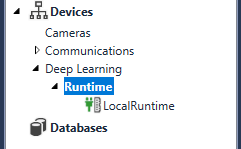
In the Designer, I cannot find Device > Deep Learning > Runtime > LocalRuntime after creating a new Designer project.
This occurs when you create a new Designer project and then connect this project to the VisionPro Deep Learning plugin. Please follow the steps below to fix this.
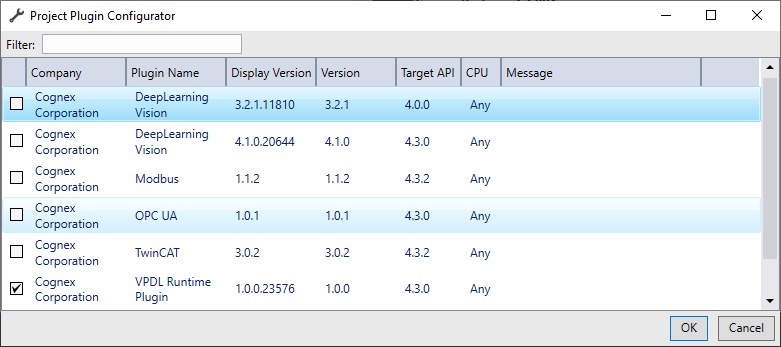
1. Enable VisionPro Deep Learning Runtime plugin using Project Plugin Configurator.
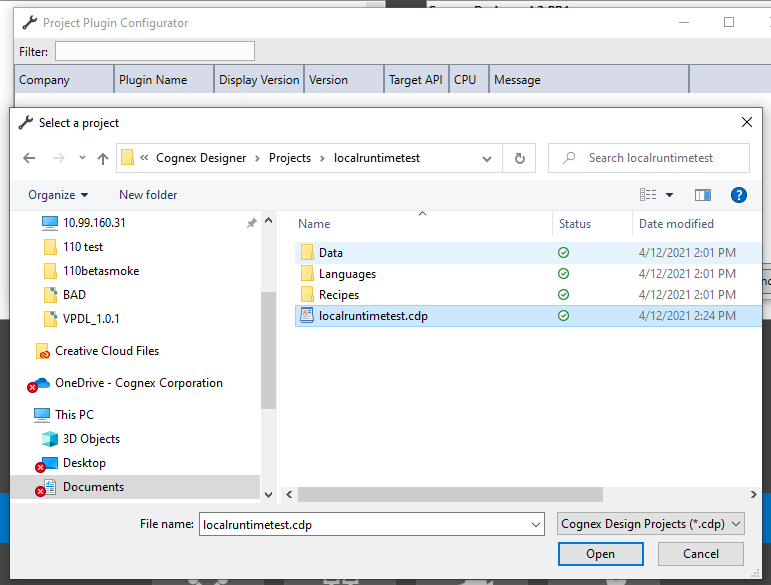
2. Open the Designer project.
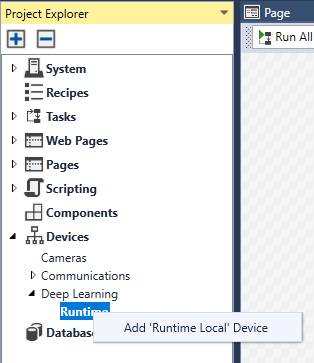
3. Right-click the Runtime from the Project Explorer.
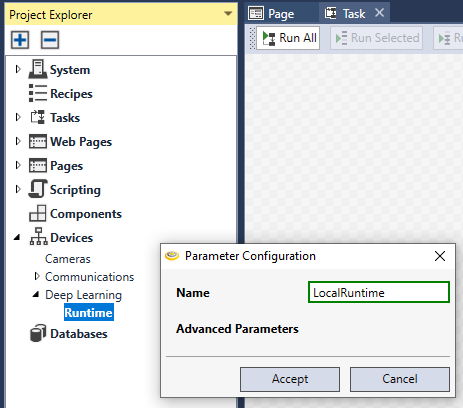
4. Write LocalRuntime and click Accept.
|
|
5. In a few seconds, you can find LocalRuntime is added.
PC memory consumption soars up when you train High Detail tools with API.
Replace DLLs for High Detail tools to prevent memory over-consumption. To do this, you need to initialize (vidi_initialize2() for C++, new ViDi2.Training.Local.Control() for C#) with different arguments.
C++ Initialization for High Detail training
// When you initialize, you have to pass VIDI_CUDA_LOAD_DLCORE to cuda_load_mode
vidi_initialize2(VIDI_GPU_SINGLE_DEVICE_PER_TOOL, "", VIDI_CUDA_LOAD_DLCORE)
C# Initialization for High Detail training
// When you initialize the Control, you have to pass CudaLoadMode.DlCore to cudaLoadMode
IControl control = new ViDi2.Training.Local.Control(libraryAccess, GpuMode.SingleDevicePerTool, new List<int>(), false, CudaLoadMode.DlCore);
For more details, see the following example codes.
-
C:\ProgramData\Cognex\VisionPro Deep Learning\3.0\Examples\c++\Example.Training.HDGreen
-
C:\ProgramData\Cognex\VisionPro Deep Learning\3.0\Examples\c++\Example.Training.HDRed
-
C:\ProgramData\Cognex\VisionPro Deep Learning\3.0\Examples\c#\Example.Training.HDGreen.Console
-
C:\ProgramData\Cognex\VisionPro Deep Learning\3.0\Examples\c#\Example.Training.HDRed.Console
Unable to start Parameter Search after setting 1-depth directory path at Path in its Home page.
-
Go to C:\Users\USER_NAME\AppData\Local\Cognex_Corporation\Cognex_Deep_Learning_Para_StrongName_0okkejojw4fgq4xckfu44hh3ysoghdrn\VERSION_NAME
The VERSION_NAME is the version number of VisionPro Deep Learning and its build number. For example, 7.0.0.27382 corresponds to the 27382 build of VisionPro Deep Learning 3.0.
-
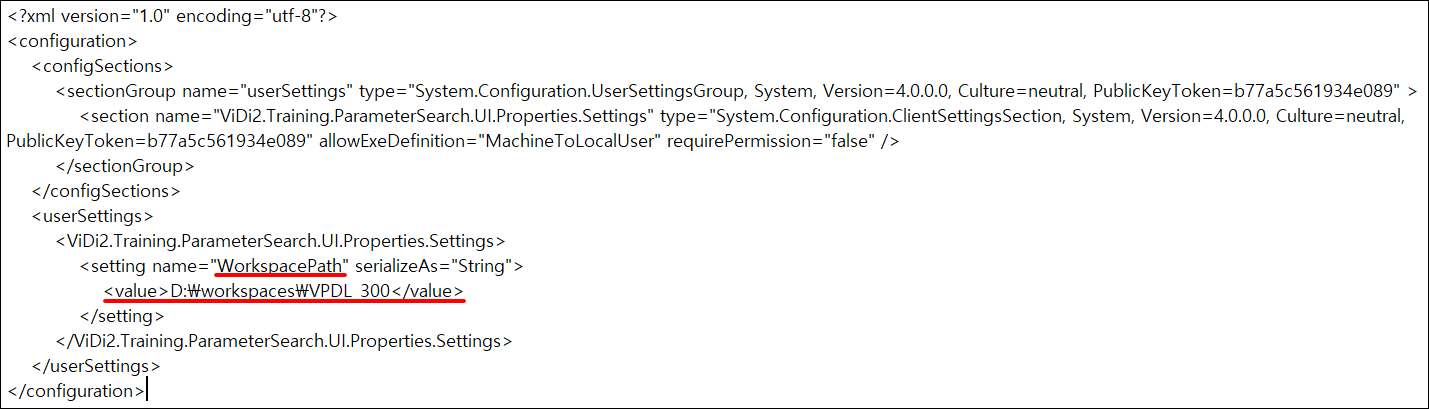
Open user.config file with Notepad.
-
Edit the value of WorkspacePath to a different path.
-
Save the file and try re-opening Parameter Search.
How to import the workspaces from the previous VisionPro Deep Learning releases?
In principle, if not otherwise stated in the release notes, a Workspace from an older version of Deep Learning can be loaded in a newer version. Thereby, the following rules generally apply:
- a Training- or Runtime-Workspace can be loaded in a newer version of Cognex Deep Learning Studio or Deep Learning Runtime Library respectively and the tools will give the same quantitative results; the processing time, however, may change
- the tools in a Training-Workspace loaded in a newer version of Deep Learning can be updated in order to profit from various improvements and optimizations; in that case, however, the tools need to be retrained and are likely not to give the same quantitative results
- a Training-Workspace updated in a newer version will no longer be loadable by an older version of Deep Learning
Note that while certain older versions of workspaces may no longer be supported by a newer version, this is guaranteed not to happen between consecutive or identical minor versions. Thus, such an older workspace can be migrated to the newer version by loading and saving them using intermediate releases. This, however, is not guaranteed between major versions.
"Failed to load library" error occurs when using API.
Edit Path variable in System environment variables.
(OS: Windows 10)
1. In Search, search for and then select: System (Control Panel)
2. Click the Advanced system settings.
3. Click Environment Variables.
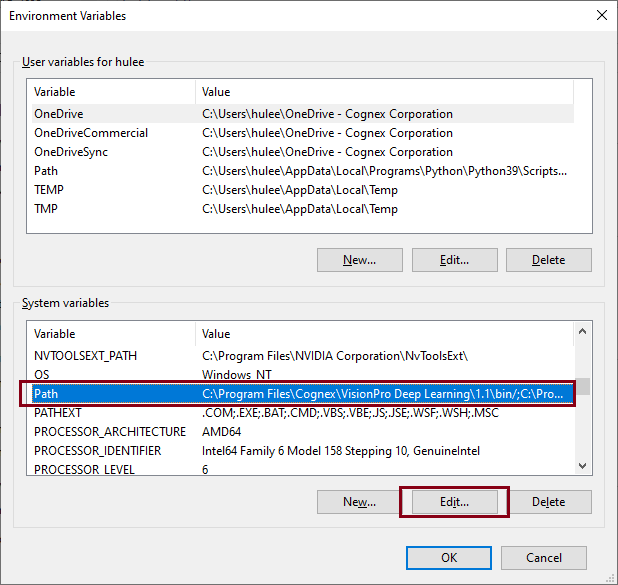
4. In the section System variables click Path environment variable and click Edit.
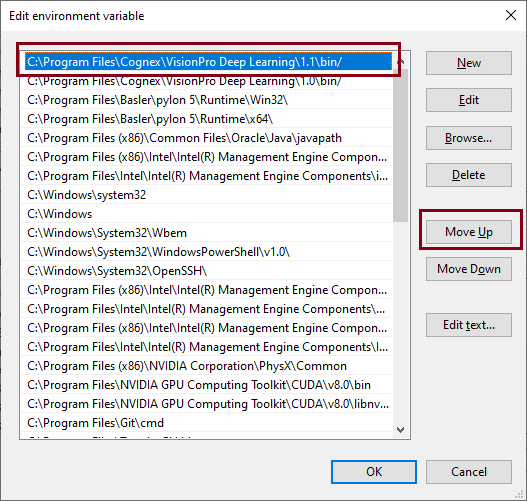
5. Find "C:\Program Files\Cognex\VisionPro Deep Learning\3.1\bin" on the list and click Move Up to move this path to the top of the list.
6. Click OK and restart the VisionPro Deep Learning.
FileNotFoundException (WibuCmNET, Version=7.0.3933.502) error occurs when playing with C# API examples.
Add dll reference.
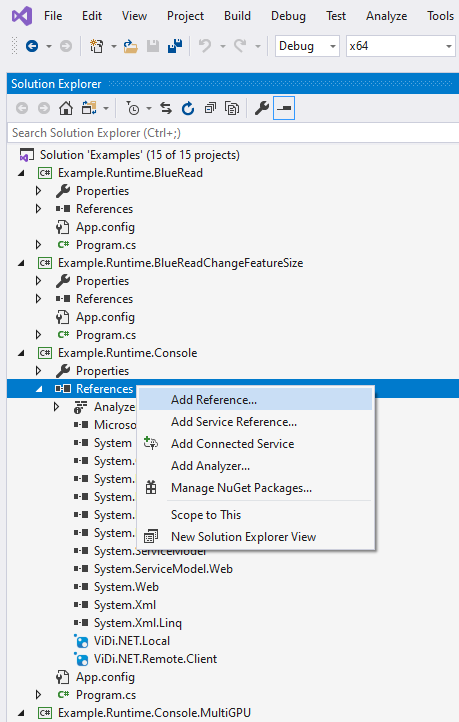
1. On Visual Studio, go to Project > Reference and right-click Add Reference, and click Browse
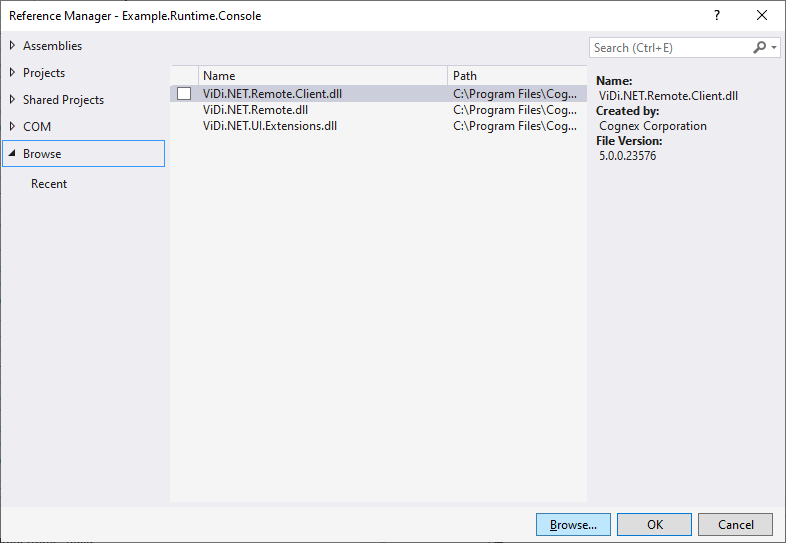
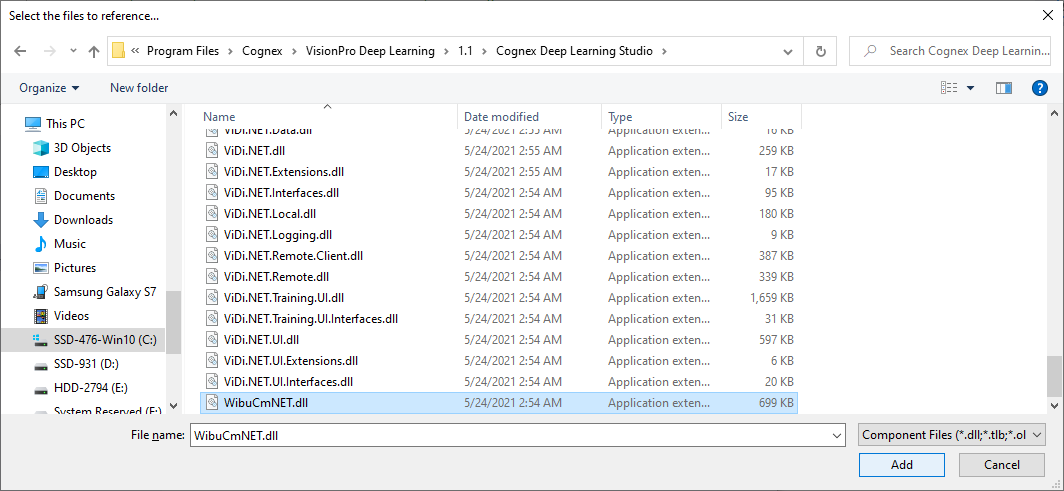
2. Select "C:\Program Files\Cognex\VisionPro Deep Learning\3.1\Cognex Deep Learning Studio\WibuCmNET.dll"
When I start Cognex VisionPro Deep Learning Studio and click continue button, I saw an error including “functions_of_mkl_rt.txt”.
If the error included in functions_of_mkl_rt.txt occurs, you can fix it with the following procedure.
- Open a cmd window and type the following command.
"where mkl_rt.dll" - Check the path list of mkl_rt.dll.
- Set the environment variable priority of VisionPro Deep Learning higher than other mkl system environment variables.
system environment variables: control panel - system - system environment variables.
When I process Green Classify Tool in High Detail mode, the processing fails with "CUDA not properly initialized." message.
This message appears when you try to process with CPU. We officially supports GPU only for training and processing. When you see this message, please process again with GPU PC.
Server and client program are not working with Example.Runtime.Remote.Console (C# / .NET Framework 4.7.2) in Runtime Examples.
Since the example file is configured to use 8080 port, 8080 port was assigned when running the service . That is why you see this message "The process cannot access the file because it is being used by another process." This is not because of this example file, it is a duplicated tcp port. Please use another port which firewall is off when the 8080 port is assigned to another process. Please see VisionPro Deep Learning Service with Firewall (Server)for turning off the firewall.
When using SampleViewer(assembly: ViDi.NET.UI.dll, Namespace: ViDi2.UI), NullReferenceException happened.
If you are using SampleViewer on WPF project, please follow these steps.
-
For example, if you are trying to use SampleViewer with MainWindows, please get into the constructor of MainWindows.xaml.cs.
-
Please input these codes before InitializeComponent();
CopyWPF Projectif(!ViDi2.UI.ViDiSuiteServiceLocator.IsInitialized)
ViDi2.UI.ViDiSuiteServiceLocator.Initialize();
InitializeComponent();
If you are using SampleViewer on Winform project, please follow the step.
-
For example, if you are trying to use SampleViewer with Form1, please go to the constructor of Form1.
-
Please type these codes before InitializeComponent();
CopyWinform Project
if(!ViDi2.UI.ViDiSuiteServiceLocator.IsInitialized)
ViDi2.UI.ViDiSuiteServiceLocator.Initialize();
InitializeComponent();
Can I open and use multiple VisionPro Deep Learning Studios?
You can open multiple studios but you can observe abnormal behaviors while you are using them. Please open and use one studio.
How can I remove Groups in VisionPro Deep Learning when using a workspace migrated from ViDi Suite?
You can delete “Group” from your migrated workspaces with these following steps.
- Open Cognex Cognex Deep Learning Studio.
- Import the workspace that includes "Group" from ViDi Suite to VisionPro Deep Learning and open the workspace.
- After the imported workspace is loaded in VisionPro Deep Learning, select the stream that you are trying to remove “Group” (Stream can be selected with a drop-down list placed at the top-left corner whose default value is "default".)
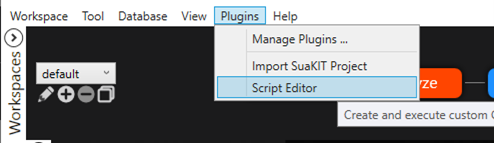
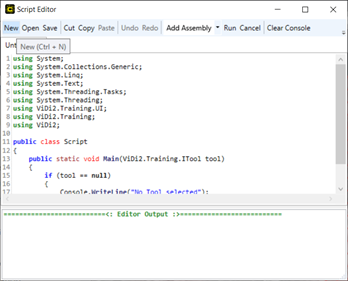
- Go to “Plugins” menu and select Script Editor.
-
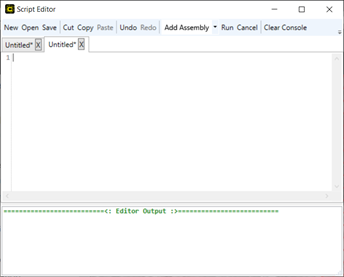
On the Script Editor Window, click "New" and erase the contents of the current editor.
-
Copy and paste the below scripts in the blank editor.
Copyusing System;
using System.Collections.Generic;
using System.Linq;
using System.Text;
using System.Threading.Tasks;
using System.Threading;
using ViDi2.Training.UI;
using ViDi2.Training;
using ViDi2;
public class Script
{
public static void Main(ViDi2.Training.ITool tool)
{
if (tool == null)
{
Console.WriteLine("No Tool selected");
}
var toolList = tool.Stream.Tools;
foreach(var parentTool in toolList)
{
parentTool.Database.SetViewGroup("", "");
CleanGroup(parentTool);
}
}
public static void CleanGroup(ViDi2.Training.ITool tool)
{
if(tool.Children != null && tool.Children.Count > 0)
{
foreach(var childTool in tool.Children)
{
childTool.Database.SetViewGroup("", "");
CleanGroup(childTool);
}
}
}
} -
Click “Run”, and you can find all Groups are deleted.