Setup Server
There are two components to setting up the server:
- Enabling the server in the CodeMeter WebAdmin application.
- Configuring and starting the VisionPro Deep Learning Service.
CodeMeter WebAdmin Configuration (Server)
-
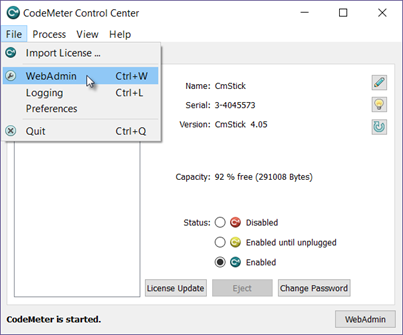
On the server device, from the CodeMeter Control Center, open the WebAdmin in your browser.
-
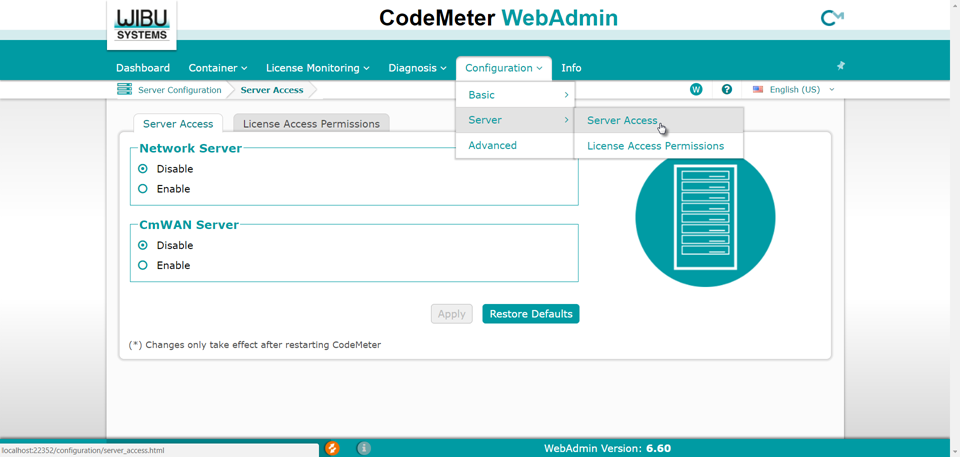
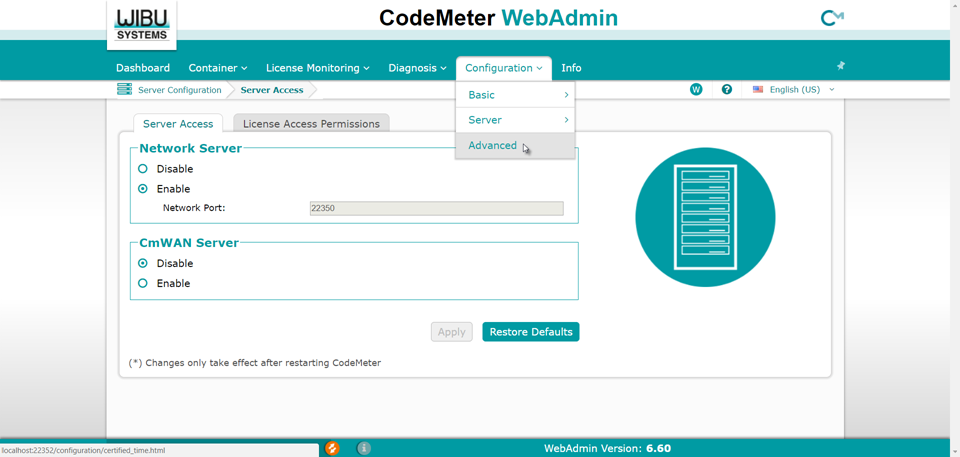
From the Configuration drop-down menu, select Server, then Server Access.
-
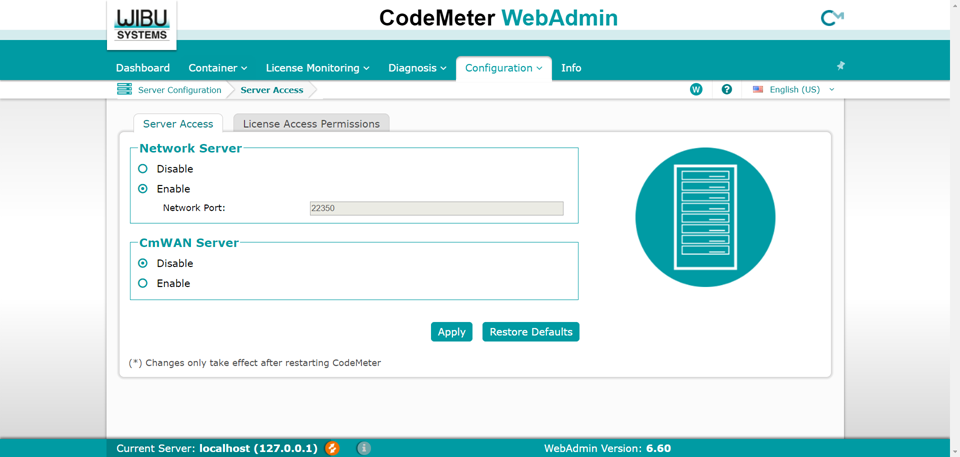
Set the Network Server radio button to Enable.
-
The Network Port setting of the CodeMeter Service is automatically set. The default setting is port 22350.
Note: If you have another application using port 22350 and you need to change the network port setting, see the Change the Server Network Port Setting. - Press the Apply button.
-
After configuring the server, you will need to launch the VisionPro Deep Learning Service application, which will allow the clients to run the inference and training processes.
Note: The inference and training capabilities are dependent on your VisionPro Deep Learning Licenses configurations. Please contact your Cognex sales representative for more information.
VisionPro Deep Learning Service Configuration (Server)
After configuring the server using the CodeMeter WebAdmin, you will need to configure and launch the VisionPro Deep Learning Service application, which will allow the clients to run the inference and training processes.
- Navigate to the VisionPro Deep Learning Service application, located in C:\Program Files\Cognex\VisionPro Deep Learning\3.1\Service.
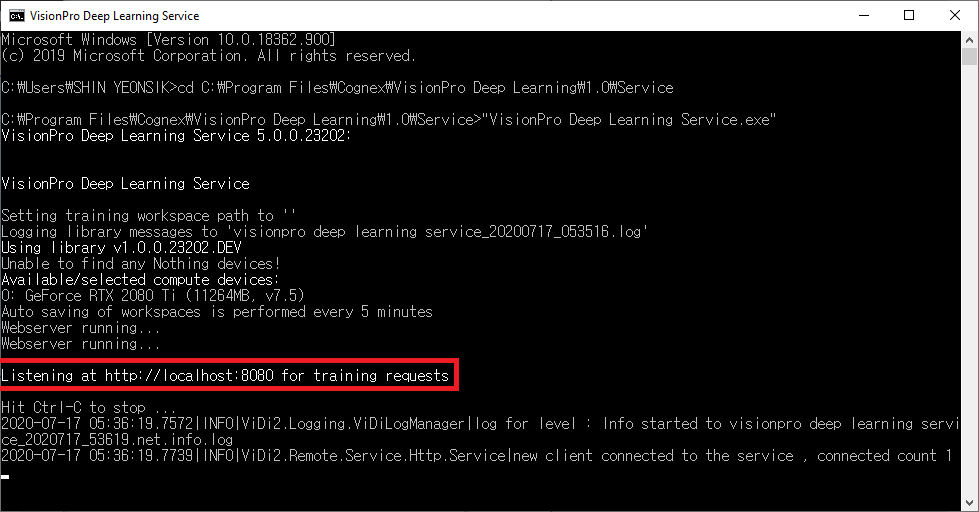
- Launch the VisionPro Deep Learning Service application(VisionPro Deep Learning Service.exe) to determine what port number the service will be using, which will be indicated by the "Listening at http://localhost:PortNumber" line (where "PortNumber" will be the port number assigned to the service, for example 8080) after the service starts.
- Write down the port number and close the service.
- Right-click the VisionPro Deep Learning Service application and create a shortcut to the application.
- Navigate to the shortcut version of the VisionPro Deep Learning Service application, right-click the application and select Properties.
-
Select the Shortcut tab, and in the Target field, append the --http-address=http://*:8080 argument to the target.
The Target field should be the following: "C:\Program Files\Cognex\VisionPro Deep Learning\3.1\Service\VisionPro Deep Learning Service.exe": --http-address=http://*:8080
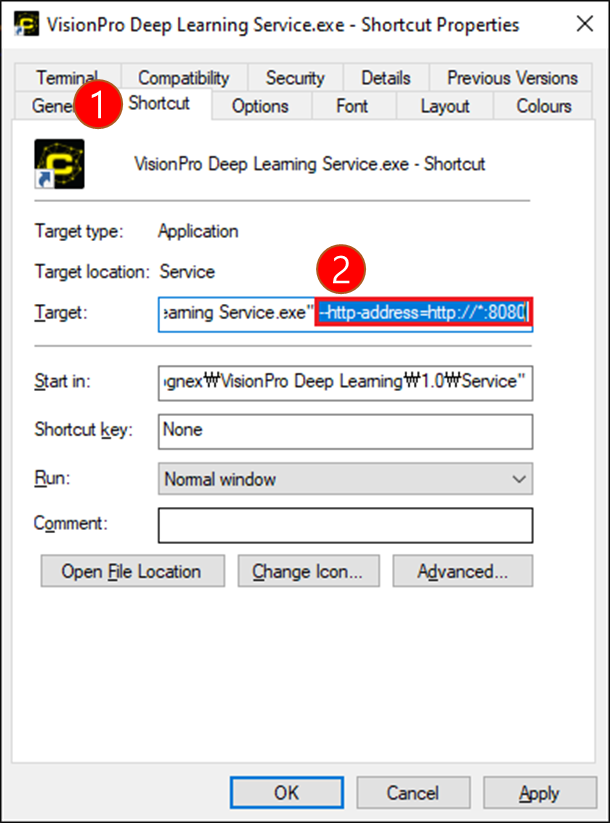 Note: You can also specify the exact IP address of the server, using the following argument: --http-address=http://10.10.10.10:PortNumber
 - Press OK to close the Shortcut Properties dialog.
-
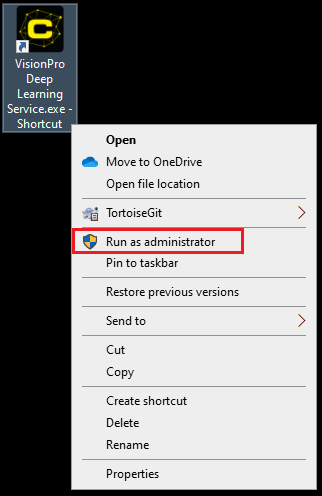
When you are ready to start the service, select the shortcut, right-click and select Run as administrator.
 Note:
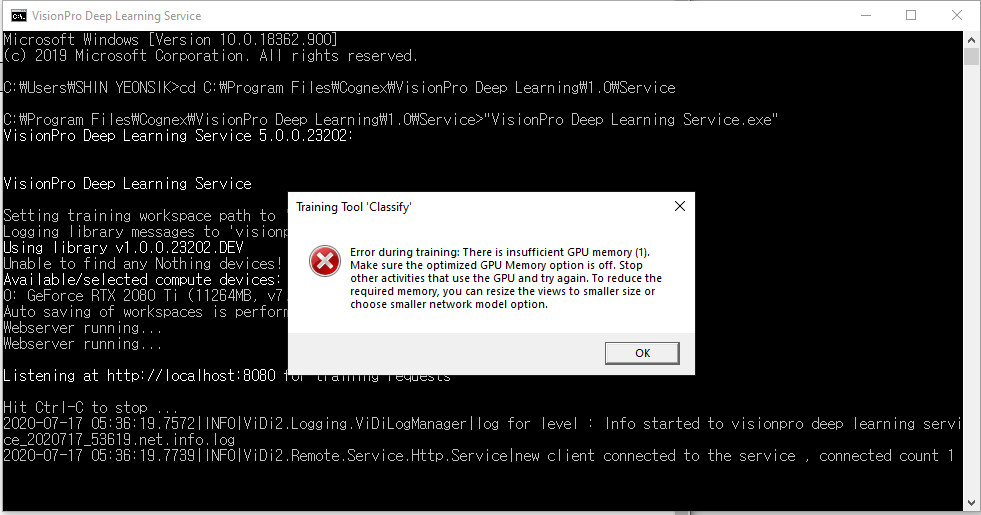
Note:If you do not run the service as an administrator, you will get an error and be unable to connect.
-
After launching the service as an administrator, configured clients will be able to connect to the server. The VisionPro Deep Learning Service will display the port number that it is listening to for training requests. Clients will need the IP address and port number of the server to be able to connect to the server.
VisionPro Deep Learning Service with Firewall (Server)
If you can not access to the server due to the Firewall, please follow this guide.
- Open Widows Defender Firewall with Advanced Security.
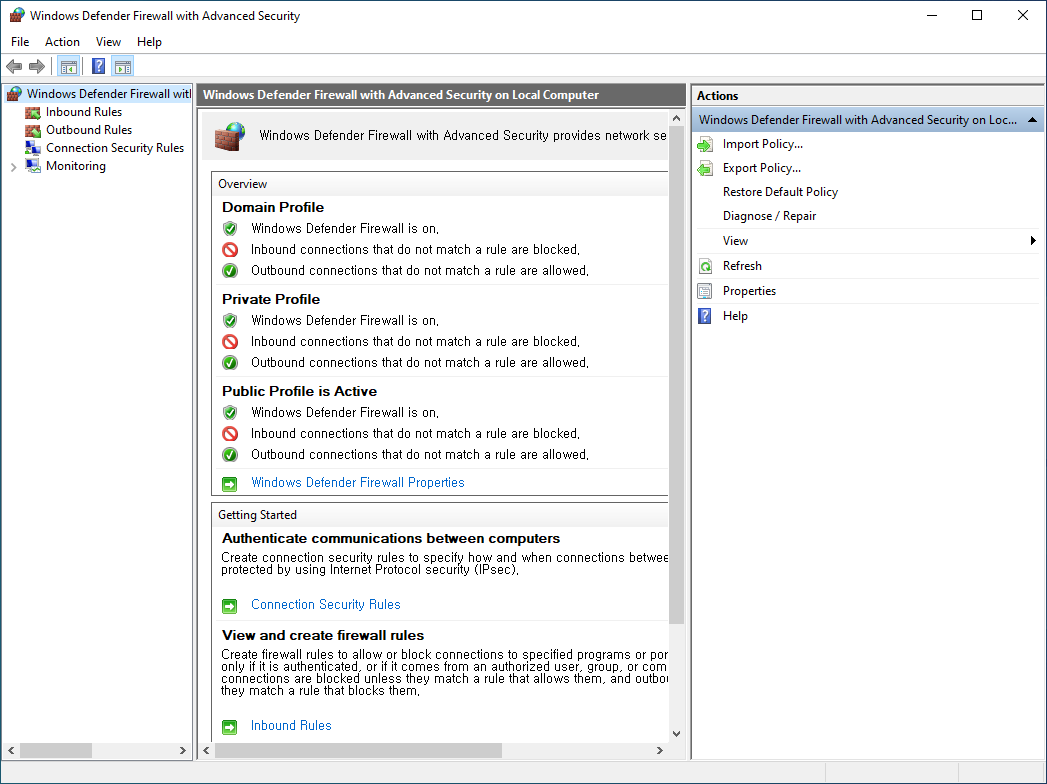
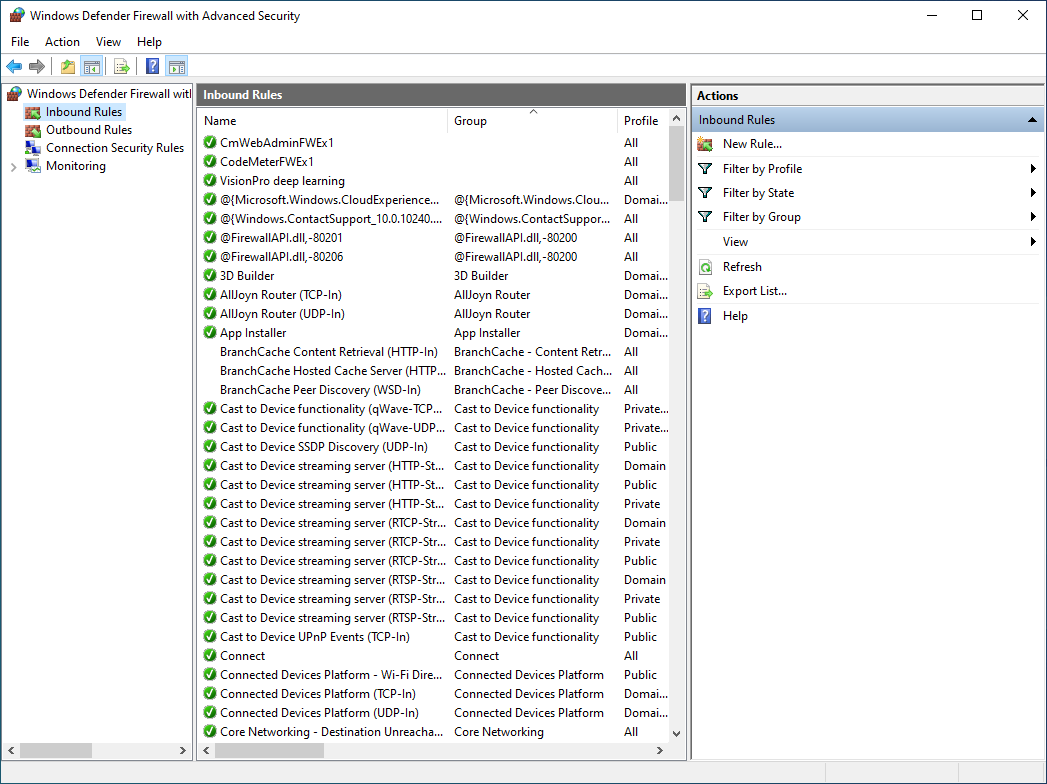
- Select Inbound Rules and select New Rule.
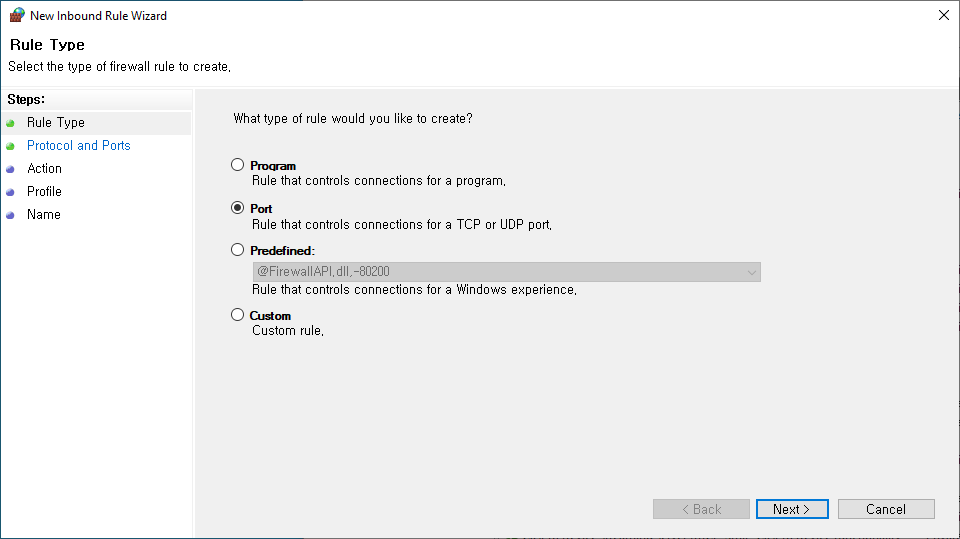
- Choose Port and click next.
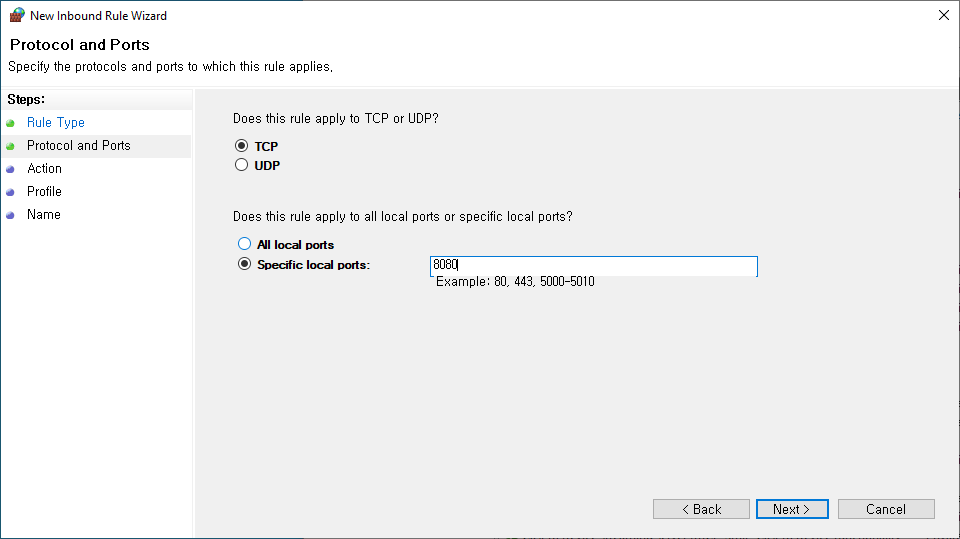
- Input 8080 in the Specific local ports and go next.
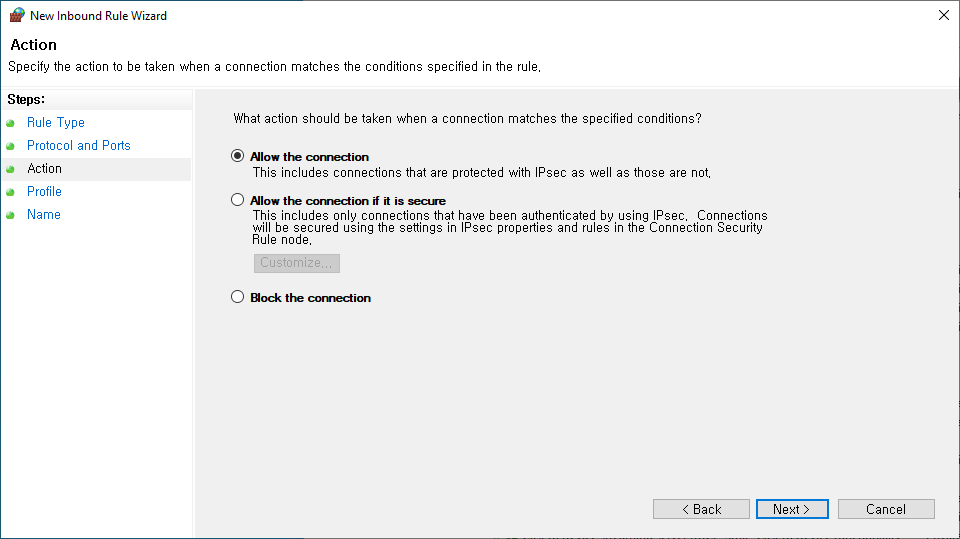
- Select Allow the connection.
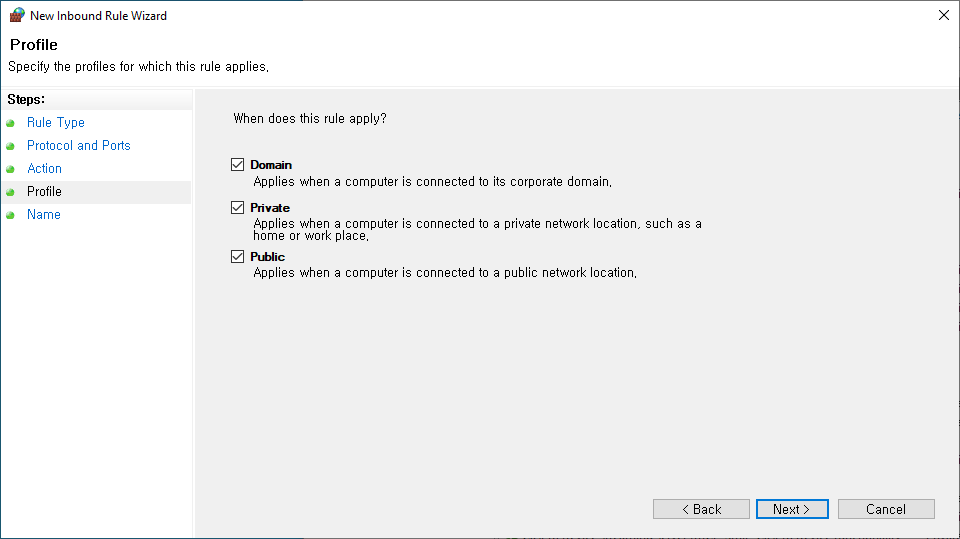
- Select "Domain", "Private" and "Public" and click the next button.
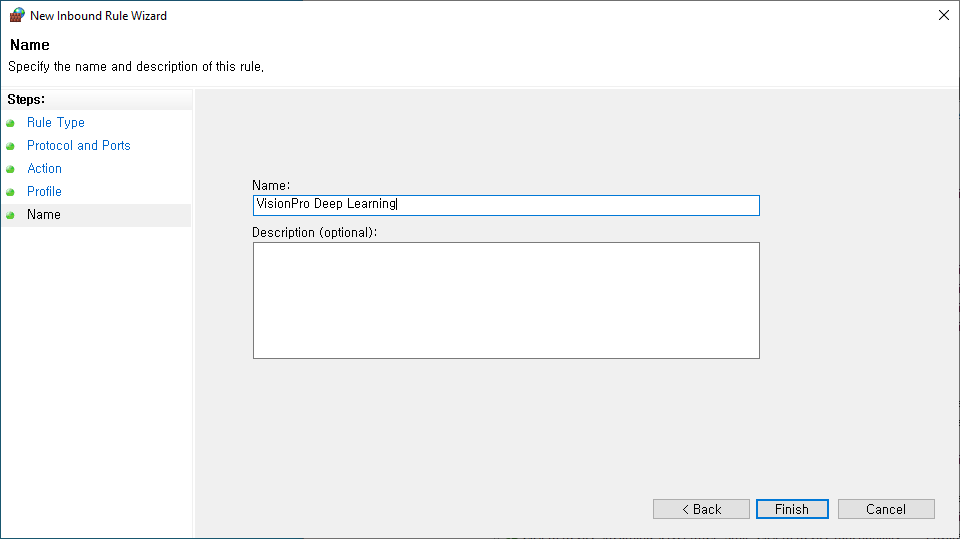
- Fill in the Name box and click the finish button.
Change the Server Network Port Setting
By default, the CodeMeter Service uses 22350 as the network port. If you have another application that is using that port, you will need to change the port setting. To change the network port setting, perform the following steps:
-
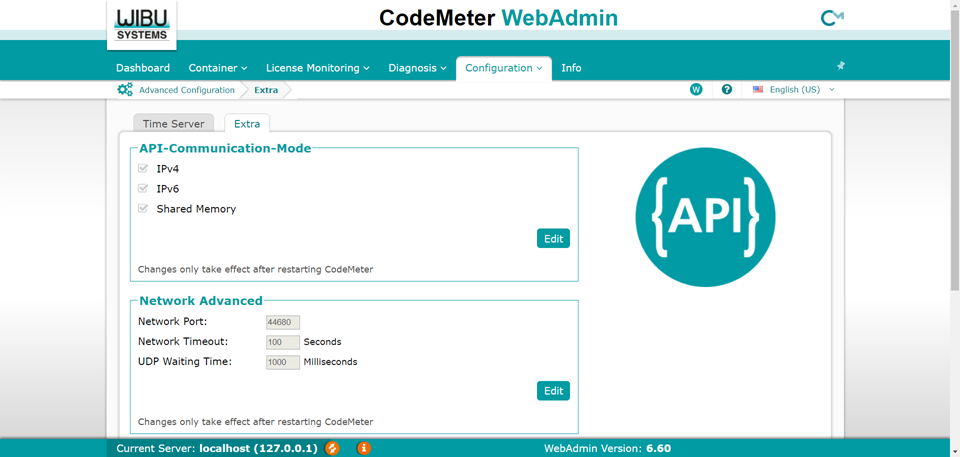
On the server device, from the CodeMeter Control Center, open the WebAdmin in your browser.
-
From the Configuration drop-down menu, select Server, then Advanced.
-
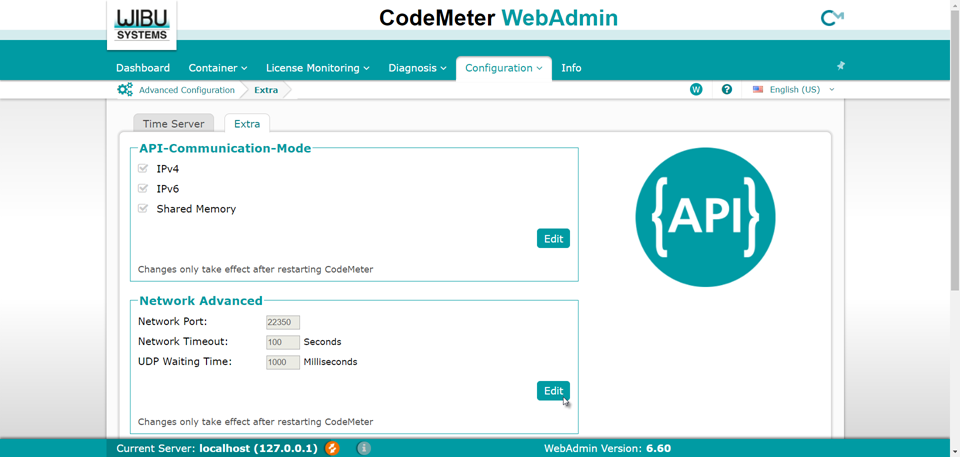
Click the Extra tab, and in the Network Advanced container, press the Edit button.
-
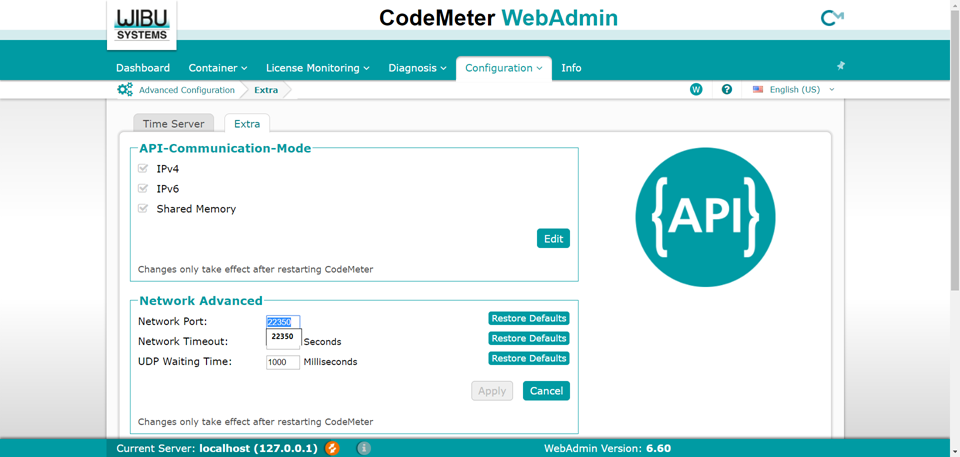
The Network Port field will be enabled, and you can enter the desired Network Port for the Server.
-
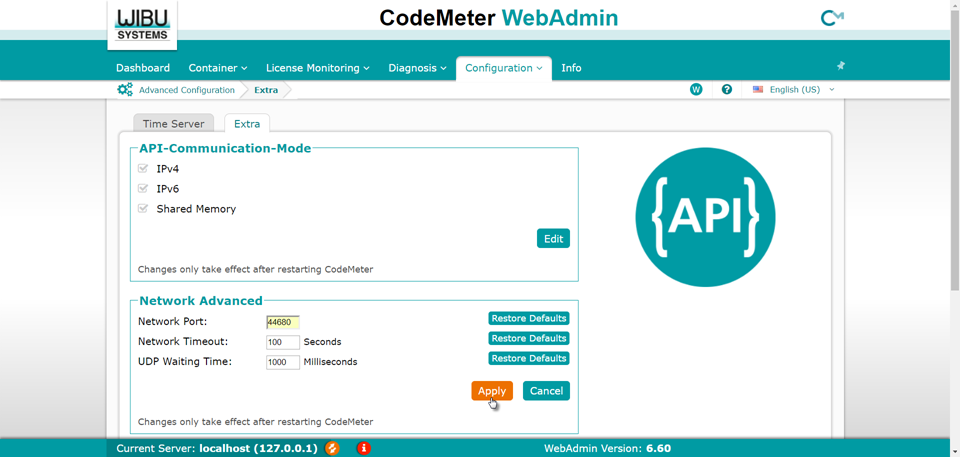
After entering the new Network Port value, press the Apply button.
-
The new Network Port value will appear in the field, and you will need to restart the CodeMeter application.