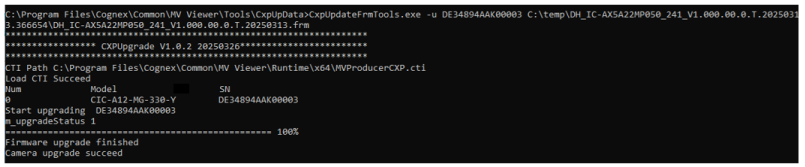
VisionPro supports the utility CxpUpdateFrmTools for detecting Cognex CXP cameras and updating their firmware.
Contact your Cognex sales representative or check the VisionPro Software Support website to ensure you are using the latest firmware for your CXP-12 camera.
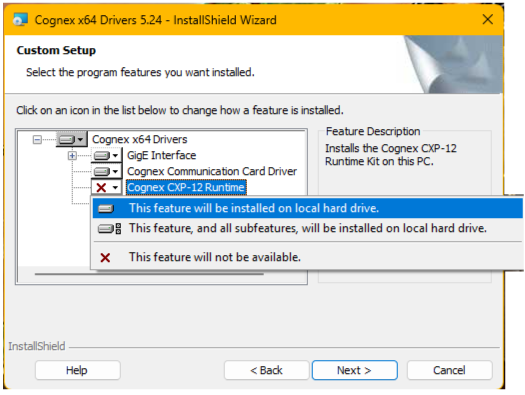
Be aware the VisionPro Drivers installer does not copy the utility to your local hard drive by default. You must enable it when you install the drivers, or later by restarting the VisionPro Drivers installer and choosing the Modify option. In either case, choose the Cognex CXP-12 Runtime option and allow the installer to copy the utility to your local hard drive.
Perform the following steps to update the firmware on a CXP-12 camera:
- Download the latest firmware version for the camera from the VisionPro Software Support website.
- Open a command line window and navigate to the directory C:\Program Files\Cognex\Common\MV Viewer\Tools\CxpUpData.
(Optional) Enter the command CxpUpdateFrmTools -h to view all the command line options the utility supports.
Note: The utility might list its name incorrectly as ConsoleCxpTools in the list of command line options.
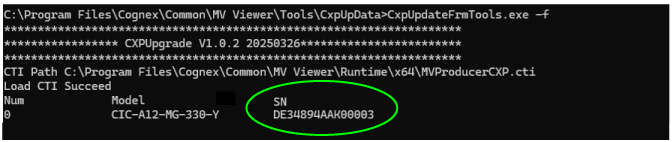
Enter the command CxpUpdateFrmTools -f and note the serial number of the CXP-12 camera:
Enter the command CxpUpdateFrmTools -u and provide the following parameters:
- The serial number of the CXP-12 camera
- The path to the firmware file
The utility displays the progress of the firmware update as shown in the following example: